

Bitwarden is a reliable and versatile password manager. But nobody can build bug-free software. The program may sometimes fail to auto-fill your login information or prompt you to save new logins. Let’s explore why Bitwarden won’t save new passwords and how you can troubleshoot this problem.
What to Do If Bitwarden Is Not Prompting to save Password
Turn off Auto-Fill on Page Load
Many users noticed this glitch disappeared after turning off Auto-fill on Page Load. Go to Settings, and then locate and disable this option. Restart Bitwarden and check if the problem persists.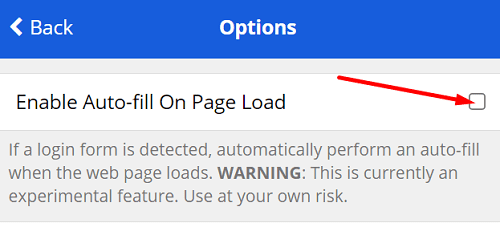
Keep in this that the auto-fill option is still an experimental feature. Depending on your current configuration, you may experience various glitches after enabling it.
Enable Changed Password Notifications
Additionally, check if you disabled the “Update password” notification. If you turn this option off, Bitwarden won’t prompt you to update your password when you change passwords.
Click on the Bitwarden extension icon, go to Settings and select Options. Then scroll down to Disable changed password notification and Disable add login notification and untick the checkboxes.
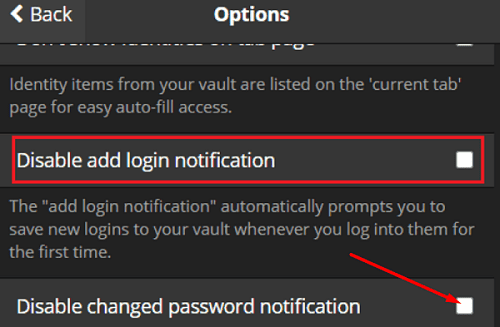
If the issue persists, make sure to enable “Disable add login notification” and then disable this option again.
Enter Your Login Information into Bitwarden
As a workaround, enter your login data into Bitwarden before registering or logging into a web page or changing your password. You can then use Bitwarden to fill in the login information into the respective website. Check if Bitwarder safely stored your username and password.
Update Your Bitwarden Version
Check if there’s a newer Bitwarder version available and install it on your device. Many users noticed visible password-saving improvements in the latest Bitwarder versions. So, if you’re running an older Bitwarden version, check for updates and upgrade your app or extension version.
For more information, you can check out the release notes of the latest Bitwarden versions on GitHub.
Disable Browser Password Autofill
Your browser’s password autofill settings might supersede Bitwarden. Turn off your browser’s password-saving feature and check if this solution solved the problem.
Chrome
- Launch Chrome, and click on Settings.
- Scroll down to Autofill and select Passwords.
- Locate and turn off these two settings: Offer to save passwords and Auto Sign-in.

- Restart Chrome and check the results.

Safari
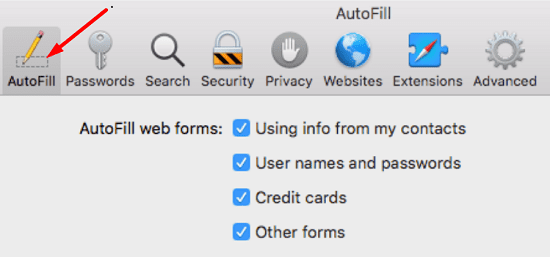
- Go to Preferences and click on the AutoFill icon.
- Disable the AutoFill settings by turning off the following options:
- Using info from my contacts
- User names and passwords
- Credit cards
- Other forms.
Reinstall Bitwarden
If the problem persists, uninstall Bitwarden and restart your device. Then reinstall the tool and check if it’s asking you to save new passwords. If the app still fails to save your passwords, contact Bitwarden support or switch to a different password manager.
Conclusion
If Bitwarden doesn’t prompt you to save new passwords, make sure the app can send you notifications when it detects you changed your password. Additionally, disable your browser’s password autofill settings to avoid software conflicts. Hit the comments below and let us know if these solutions helped you fix the problem.


Ridiculous. Adios! Tired of the nonsense. This annoying issue has gone on long enough and continues to cause me grief time and time again. No more! I am out!