If you’re trying to search for an error code 0x800704f8 fix (usually while trying to access a shared network folder), you might be a victim of one of the most common Windows network security “features.” This error typically appears with the message: “You can’t access this shared folder because your organization’s security policies block unauthenticated guest access.”
This is due to the build 24H2 increasing security measures, sometimes to the detriment of usability. Your options for a successful 0x800704f8 error fix are a series of workarounds.
Contents
- 1 Fix 1 – Enable Insecure Guest Logons in Group Policy to Get the Error Code 0x800704f8 Fix
- 2 Fix 2 – Disable SMB Client Signing Requirements
- 3 Fix 3 – Use PowerShell to Get Error Code 0x800704f8 Fix
- 4 Fix 4 – Uninstall Recent Windows Updates
- 5 Fix 5 – Configure Your NAS or Shared Device (Recommended Long-Term 0x800704f8 Error Fix)
- 6 Common Troubleshooting Tips
Fix 1 – Enable Insecure Guest Logons in Group Policy to Get the Error Code 0x800704f8 Fix
You’ll need to “force” Windows to accept network connections from guest authentication, which is what many NAS devices and shared folders require. However, you’ll need a Windows Pro version to access the Group Policy Editor (unless you use more workarounds that may or may not work).
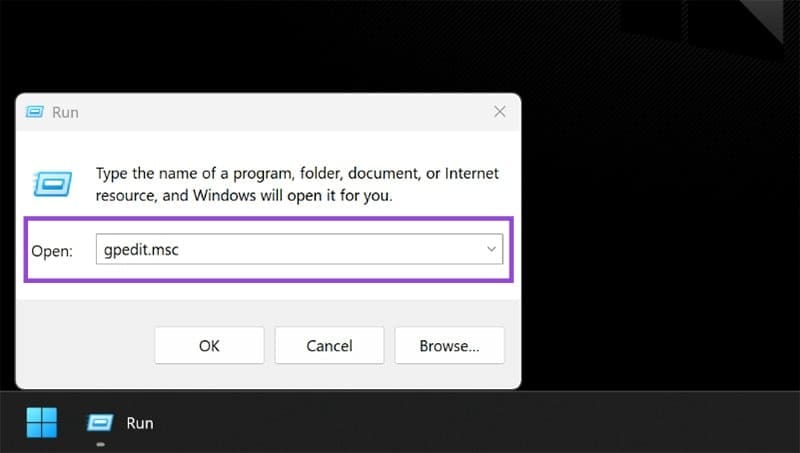
Step 1. Press “Win + R,” insert “gpedit.msc,” and hit “Enter.”
Step 2. Navigate to “Computer Configuration,” then to “Administrative Templates.” Find “Network” and “Lanman Workstation.”
Step 3. Double-click on “Enable insecure guest logons.”
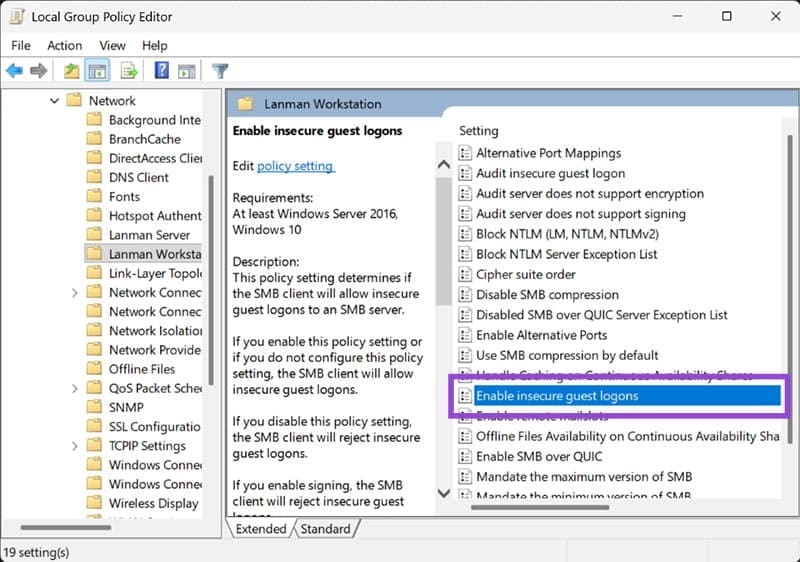
Step 4. Select “Enabled” or “Not Configured,” then hit “Apply” and “OK.”

Step 5. Restart your PC and try accessing the shared folder again.
If you’re using Windows Home edition, skip to Fix 3 for the PowerShell alternative.
Fix 2 – Disable SMB Client Signing Requirements
This basically skips the entire process of finding prerequisite credentials. Again, you’ll need Windows Pro.
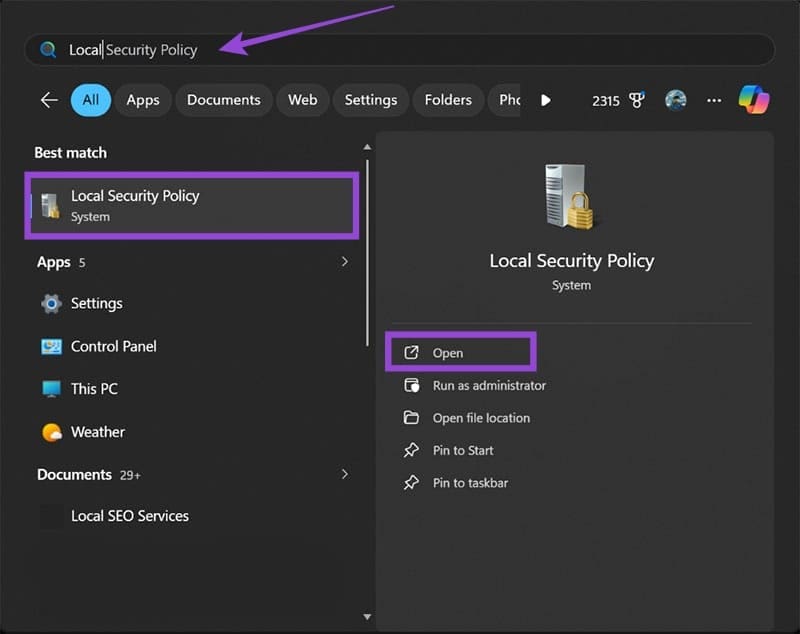
Step 1. Search for “Local Security Policy” in the Start menu and open it.
Step 2. Go to “Local Policies,” then to “Security Options.”
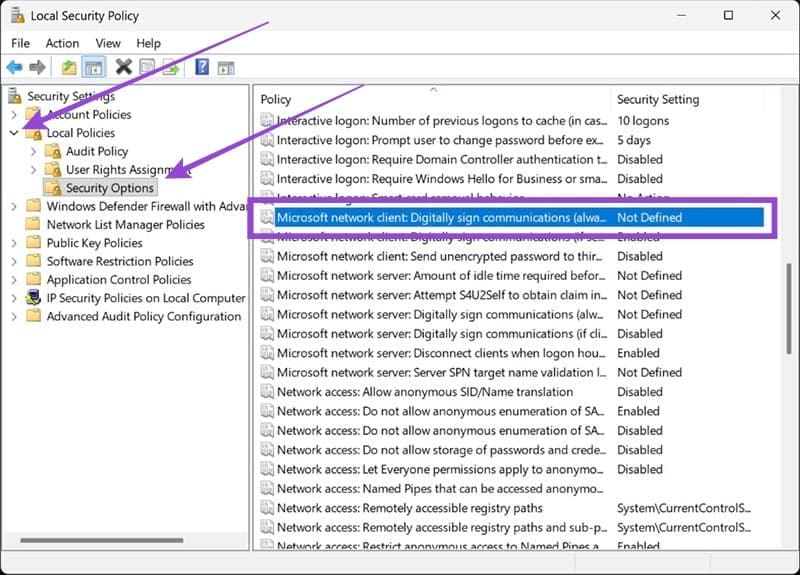
Step 3. Find “Microsoft network client: Digitally sign communications (always)” and double-click on it. Set this to “Disabled” and click “OK.”

Step 4. For “Microsoft network client: Digitally sign communications (if server agrees),” also set the toggle to “Disabled.”


Step 5. Restart the PC.
Fix 3 – Use PowerShell to Get Error Code 0x800704f8 Fix
PowerShell commands can help you bypass Windows Pro requirements.
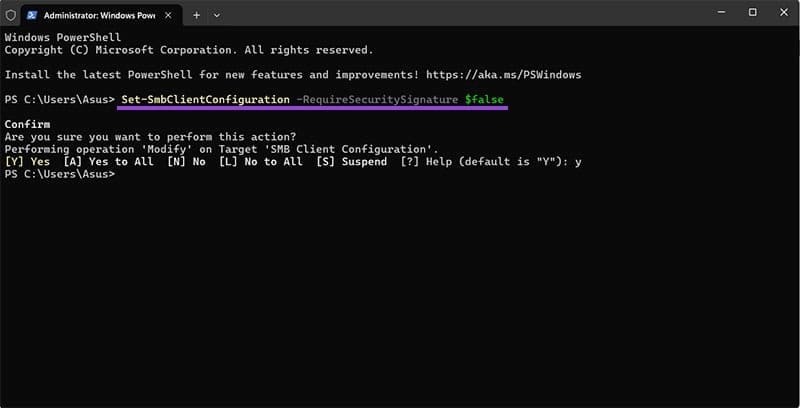
Step 1. Right-click on the Start icon and choose “Terminal (Admin).”
Step 2. Paste in the following commands one by one:
Set-SmbClientConfiguration -RequireSecuritySignature $false
Set-SmbClientConfiguration -EnableInsecureGuestLogons $true
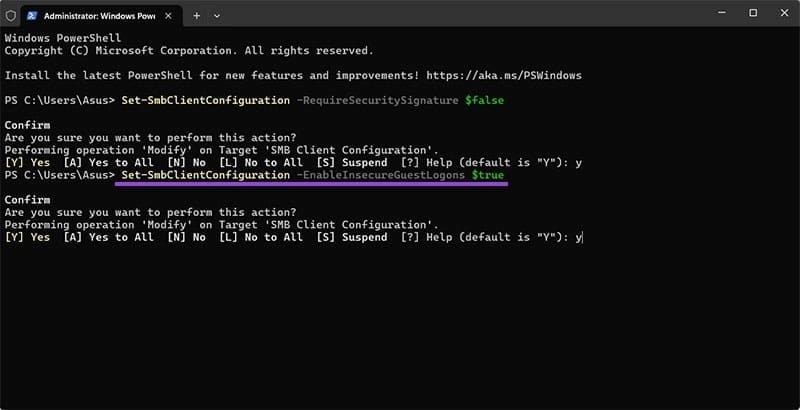
Step 3. When prompted to confirm each command, hit “Y.”
Step 4. Restart your computer.
Fix 4 – Uninstall Recent Windows Updates
More Windows updates, particularly KB5065426, introduced stricter SMB verification that blocks guest access. If the error started appearing immediately after a Windows update, removing that update might restore access. Note that this only works if you’re severely behind the update schedule and is not going to last long, as Microsoft will likely continue to roll out updates that do a similar job.
Step 1. Press “Win + I” to open Settings.
Step 2. Go to “Windows Update,” then click on “Update history.”
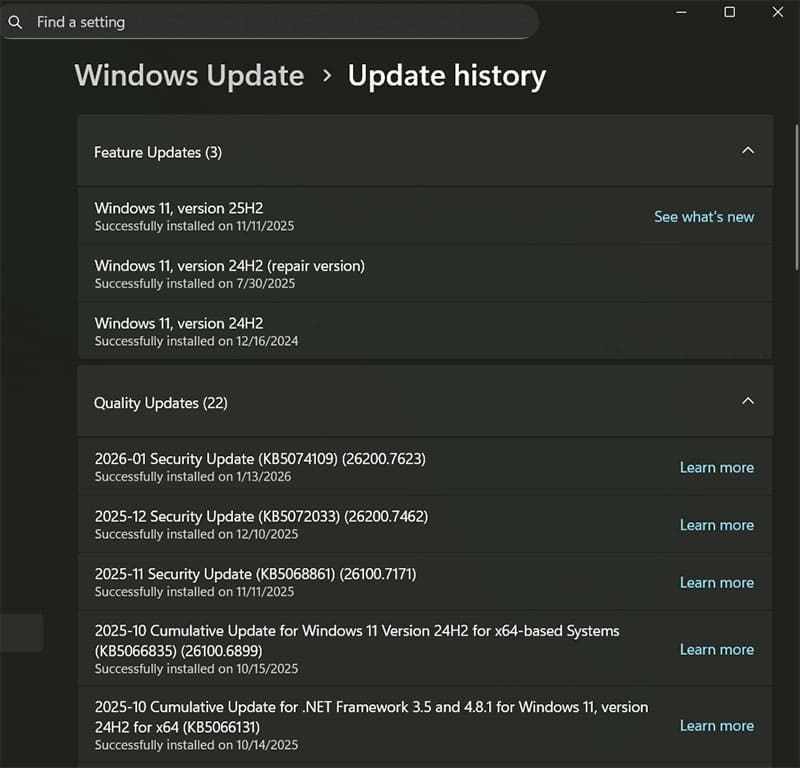
Step 3. Scroll down and select “Uninstall updates.”
Step 4. Look for “Security Update for Microsoft Windows (KB5065426)” or other recent security updates.
Step 5. Click on the update and select “Uninstall.”

Step 6. Confirm and wait for the process to complete.
Step 7. Restart your computer and test the network share access.
To futureproof your effort, you’ll likely need to update your NAS or shared device to use proper authentication. This will depend on the exact device you have, so check the specific manual for more information.
Common Troubleshooting Tips
If the fixes above don’t work, try these temporary solutions:
- Restart all the devices that are trying to access one another.
- Ensure your network profile is set to “Private” in Windows Network Settings.
- Temporarily disable your firewall or antivirus.
- For very old devices, you may need to enable “SMB 1.0/CIFS File Sharing Support” in Windows Features (search for “Turn Windows features on or off”).
- Check that both devices can actually ping each other.