Skip to content
LogoTechnipages
LogoTechnipages
  • Topics
        • Android
        • Browsers
        • Gaming
        • Hardware
        • Internet
        • iPhone
        • Linux
        • macOS
        • Office
        • Reviews
        • Software
        • Windows
        • Definitions
        • All Recent Posts
  • Product Reviews
  • About

What to Do When Chrome Won’t Open in Windows

Judy SanhzDecember 26, 2022 Comments (0)

Knowing how to fix Chrome when it doesn’t open is necessary know-how. No browser is perfect, and it can fail to the point of not even being able to open in Microsoft Windows. Since Google is aware that this can happen, they have provided their users with various tips to try out.

The possible fixes won’t require that you download any additional software. The tools you can use are integrated into the browser and are only a few clicks away. Even if your browser hasn’t failed you yet, it’s good to know what to do before it actually happens.

Chrome Won’t Open: What to Do

Kill Chrome in Task Manager

One reason why Chrome won’t open could be because the process is running in the background. You won’t be aware of this because you won’t be able to see the browser window. What needs to be done here is to force quit Chrome and restart it.

You can do this by opening the Task Manager. A few ways you can open the Task Manager is by using the key combinations Ctrl + Shift + Esc, pressing the Windows and X keys and clicking on the option, or by right-clicking on the taskbar.
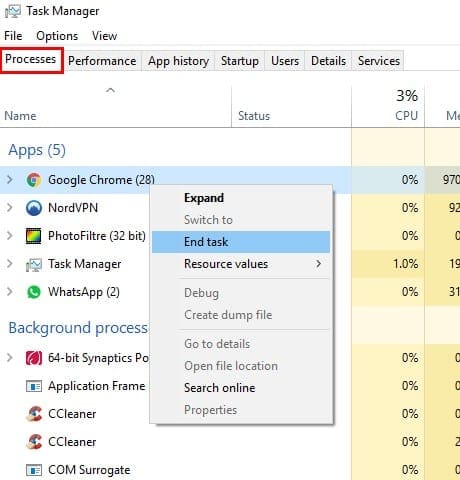
If you don’t see the apps that are running, click on the More Details drop-down menu and find Chrome. Right-click on it and select End Task. Restart Chrome, and hopefully, you can open it.

Remove the User Profile From Chrome

Deleting the user profile from Chrome could be the fix you need. To do this, you’ll need to open Windows Explorer. A few ways you can open Windows Explorer is by pressing the Windows and E keys or the Windows and X keys, the File Manager option will be towards the bottom.
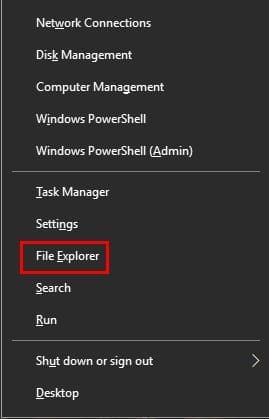
Once it’s open you’ll need to go to AppData > Local > Google > Chrome > User Data. Or, you could open the Run box by pressing the Windows and R keys and pasting this: %USERPROFILE%\AppData\Local\Google\Chrome\User Data

Locate the Default folder and create a backup copy of it to another drive. Once you’ve completed the backup, erase this folder. Restart Chrome and go to Settings > Advanced > Reset > Confirm. Hopefully, you will still remember your Google password since you will have to sign in all over again.

Run Chrome’s Built-in Malware and Virus Detector

If you don’t feel like running the antivirus you already have on your computer, you can always use the one Chrome has built-in. To access and run it go to Settings > Settings > Reset and Clean Up (Scroll all the way down) >  Blue find button.

Conclusion

It’s a very annoying problem to have to deal with, but there will come a time where you’ll have to deal with it. Hopefully, the previous tips helped. Which one worked for you? Share your thoughts with me in the comments.


Categories: Internet

Author Judy Sanhz

I am a tech geek who loves technology. I have been writing about tech for over a decade, covering various devices and programs. I write about Android, Apple, and Windows devices and programs. I stay updated on the latest gadgets, upgrades, features, and news. I aim to make complicated tech information easy for everyone to read. I've been with TechniPages from the beginning to help others fix their tech issues with the easy-to-follow guides.

You Might Also Like

  • Twitter Header

    Where to Find Twitter Drafts

    Mel HawthorneInternet
  • How to Wave Back on Facebook Messenger

    MonaInternet
  • Twitter

    Twitter: How to Change Your Email Preferences

    Judy SanhzInternet
  • Google Drive

    Google Drive: How to Copy and Move Your Files

    Judy SanhzInternet

Leave a Reply

Your email address will not be published. Required fields are marked *

  • battery issues after windows 11 update

    Battery Issues After Windows 11 Update? Here’s the Fix

  • why is ram so expensive

    Why Is RAM Suddenly So Expensive?

  • how to fix error code 0x800f0922 windows 11

    How to Fix Error Code 0x800f0922 in Windows 11

  • service outage message on Xbox

    What to Do With a Service Outage Message on Xbox

  • signs your hdd is failing

    Signs That Your HDD Is Failing

profile pic

The Experts Behind Technipages

My name is Mitch Bartlett. I've been working in technology for over 20 years in a wide range of tech jobs from Tech Support to Software Testing. I started this site as a technical guide for myself and it has grown into what I hope is a useful reference for all.

Learn More

technipages logo white
linkedin icon

Technipages is part of Guiding Tech Media, a leading digital media publisher focused on helping people figure out technology. Learn more about our mission and team here.

© 2026 Guiding Tech Media All Rights Reserved

  • About Us
  • Contact
  • Terms of Use
  • Privacy Policy

© 2026 Guiding Tech Media All Rights Reserved

Information from your device can be used to personalize your ad experience.
Do not sell my personal information.

Last Updated on December 26, 2022 by Mitch Bartlett