In the last couple of decades, not only did our computers change but the way we use them as well. At the same time our apps, programs, and operating system became brighter and more colorful, and our screens got more nits and higher contrasts, not to mention the size. Thankfully, we can change screen brightness in Windows 10 easily. This way we can see the contents of the screen more easily when it is bright outside, and save our eyes when working in dark rooms.
There are several ways how you can change your brightness in Windows 10, few of which are incredibly easy. In some cases, it would be as easy as a click and a drag.
Regretfully, some GPUs and screens will not allow for this type of change, meaning that you will need to use other means to change the brightness.
Contents
Opening Display Settings

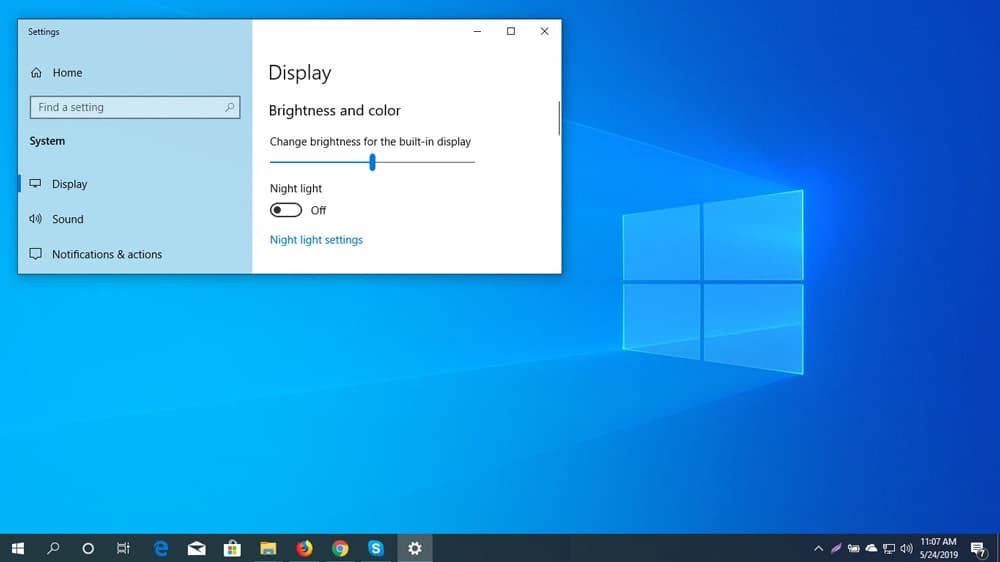
While it is possible to go to the Control Panel to access your display settings, the easiest way to do this is to right-click on any empty surface on the desktop and select this option from the drop-down menu.
If your screen and GPU have an ability to change their brightness, you will see the ”brightness bar” as soon as you click on the display settings option.
Just remember that these features will not be available while you are in ”Dark Mode”, where you will need to use the ”Night Light” to ease the screen to your eyes.
Setting the Brightness
Working on a laptop, tablet, or mobile phone sometimes require the adjustment of the screen brightness depending on the light where you are working. If you are working indoors you may need a much brighter screen as compared to the brightness that you need when you are working outdoors.
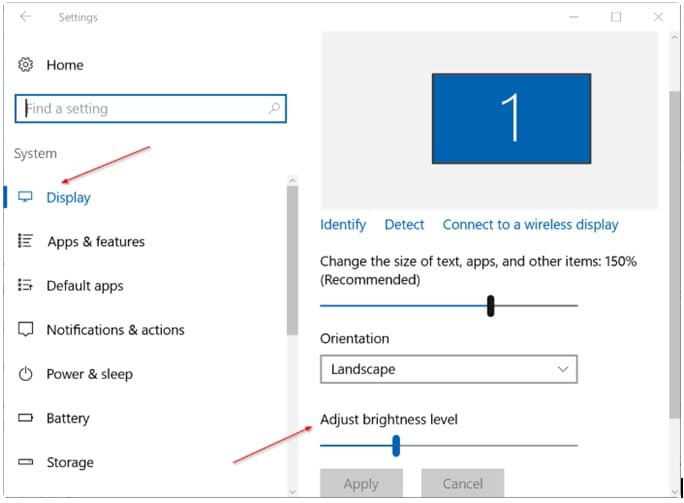
Other Options
The entire Windows family, especially Windows 10 offer numerous ways that the screen brightness can be altered.
The first step is to open up the Action Center. This can simply be done by clicking notification icon which is at the bottom-right corner of the screen of your Windows 10 PC.
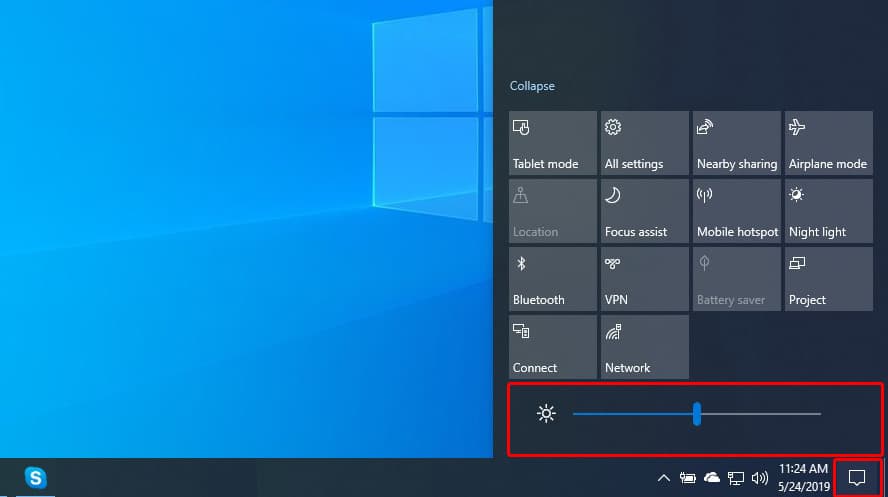
In the Action Center, there will be a box having a sun icon. This icon is used to increase or lower the screen brightness. Select this icon.
You will have to choose one out of the five pre-set levels of screen brightness; 0%, 50%, 75%, and 100%. If you think that any of the available options would meet your requirement, then select that one. If you need something other than these options, there are other ways you can alter the brightness.
Setting Brightness Even Higher
Go to the Action center. There will be the Brightness button. Right click on it with the help of the mouse. A link entitled Go to Settings will pop-up.
Use the left button of the mouse to select it. After selecting it, you will get access to the Windows 10 advanced brightness settings. Here, there will be a horizontal bar which would show the current brightness of the screen. Drag the line to the left to decrease brightness or drag it to the right to increase it.
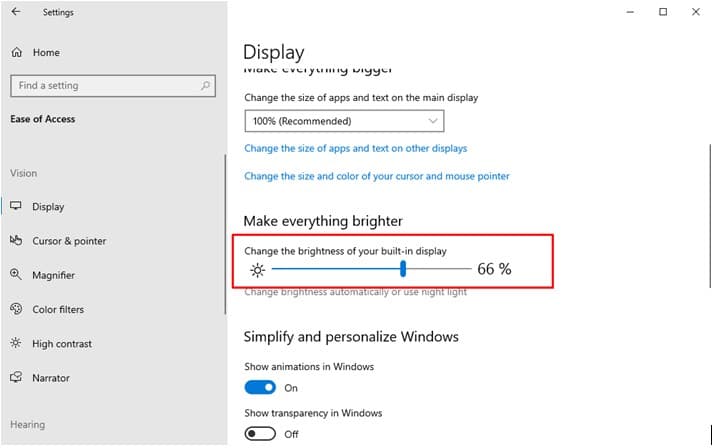
Just under this is the box entitled “Change Brightness Automatically When Lightening Changes”. Selecting this box will enable the Windows 10 Dynamic Lightning Feature. This feature makes use of the webcam to detect light in your surrounding area and adjust your screen brightness accordingly.
Third Party Options
There are certain mobiles, tablets and laptop keypads that have certain keys which make the adjustment of screen brightness extremely easy. Those keys are not only helpful in Windows 10 but in all the versions of Windows. An example of this is on the HP Spectre 13t laptop. On this laptop, F2 and F3 can be used to increase and decrease the brightness of the screen.
The screen brightness of Surface Pro Devices uses other ways to increase and decrease the brightness. Press Fn + Del if you want to increase the brightness while pressing Fn + BACKSPACE if you want to decrease it.
On Lenovo Legion Y520 laptop, which is running Windows 10, F + F11 can be used to decrease the brightness of the screen while Fn + F12 can be used to increase the brightness.
A quick Google will tell where the keys are your computer, tablet or phone.
Pros & Cons of Using Microsoft Windows
MS Windows is still the most common operating system on the Planet. Advantages of using Windows were once measured against using rivaling desktop operating systems, such as MacOS or Linux, but is currently more in danger of being surpassed by Android.
– Versatile
– Productive
– Secure
– Good Native Apps
– Bulky
– Resource Heavy
– Developed for keyboard & mouse
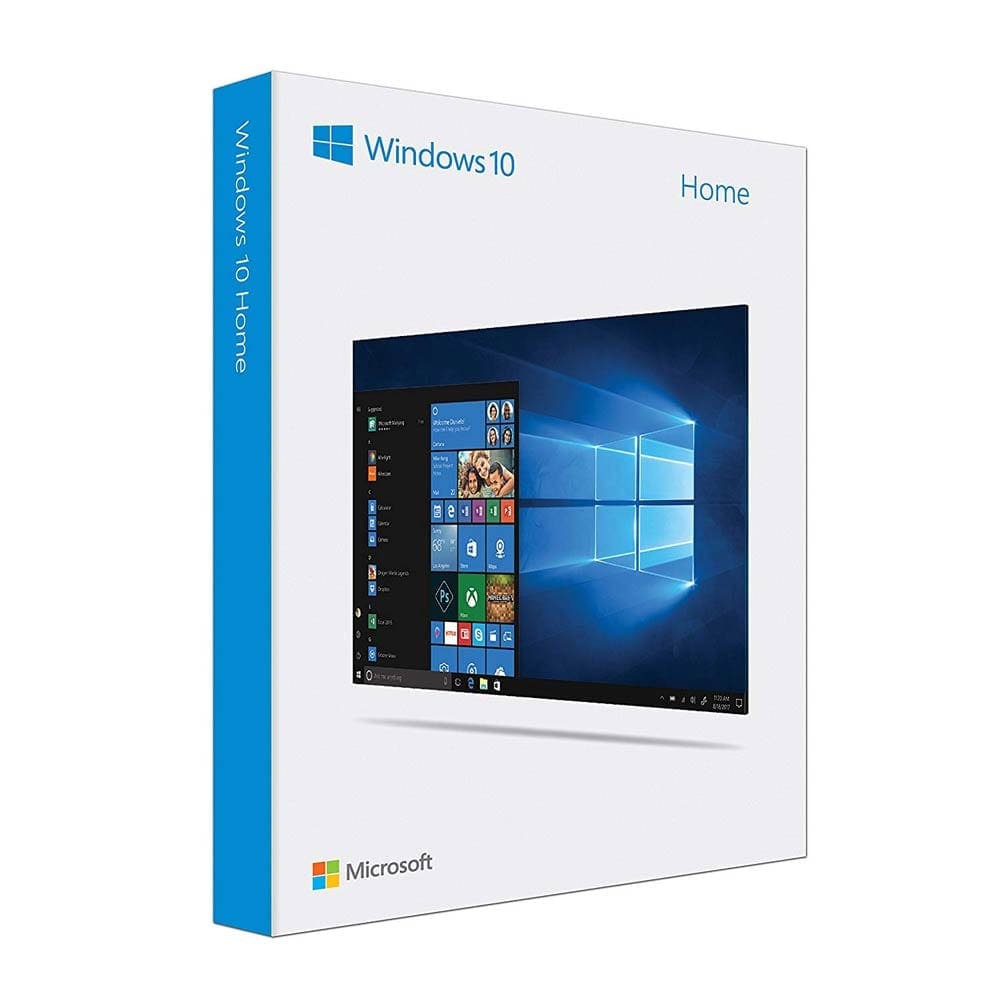
You can buy a USB drive with Microsoft Windows 10 Home Edition and join millions of users worldwide on a platform that is considered the industry standard.