What do I do to increase the RAM of the PC, and am I unable to find RAM from the same brand? — Are you asking this question? Read on, as this article will explain if you can mix RAM brands.
RAM is the memory of any computing device, from smartphones to giant mainframe computers — it’s everywhere. It’s where all the app data is stored when you run an application on a PC or mobile phone. But not for long. When you close the app, data returns to the internal storage or hard disk drive.
So far, everything is fine. However, confusion arises when you need to enhance your computer’s memory capacity. When a specific RAM brand is out of the market, would you discard a perfectly working RAM? Read on to know more!
Contents
Can You Mix Ram Brands?

Theoretically, you can mix RAM brands with multiple RAM slots for desktop PCs. You may also mix and match RAM for a laptop if it has a second slot, but that’s highly rare.
You may just open the PC case and install another RAM of a different brand. However, it doesn’t mean that you really should do this.
Since RAM or memory chips of a PC are highly delicate semiconductor products, they must be in appropriate synchronicity and compatibility before you can start using multiple RAM chips.
Mixing RAM brands may not be a wise decision because of many reasons, but the followings are the most crucial ones:
1. Compatibility
The RAM manufacturers only test their own RAMs. RAM producers don’t test their RAMs with manufacturers’ products. Hence, you don’t know if mixing RAM brands is scientifically okay.
However, as per personal experiences from many gamers, graphic designers, and other high-performance PC users, mixing and matching RAM could create different issues in your PC.
That’s because different RAM manufacturers use different PCBs, breadboard dies, circuitry, electronic components, and more. Hence, one manufacturer’s RAM is never similar to another producer’s except for the memory module generation (DDR4, DDR5, etc.), RAM BUS frequency, Voltage, and CAS Latency.
2. Memory Chip Variation
While producing a batch of RAM, brands use semiconductor chips of unique qualities. The packaging may show that all or most of the specifications of RAMs from the same manufacturer but different batches are the same. For example, you get two RAMs from a brand with varying numbers of batches consisting of the following technical specs:
- RAM generation or DDR Classification
- CAS Latency
- BUS Frequency
- Memory bandwidth
- Overclocking
- Rated voltage
Still, they may perform differently because the PCB, chip type, and other materials may have changed during these batches.
3. Workload on the Motherboard
The motherboard comes with intelligent programming and hardware components just for RAM chips. These components constantly work under the hood, especially on those multiple RAM-based PCs, to synchronize RAM specs, balance RAM performance, and more.
For example, if you put two RAMs of different voltages, for 1.2 volts and 1.35 volts, the motherboard’s firmware will ask the RAM slots to use 1.35 volts as the standard power supply for all the RAMs.
Similarly, if you’re mixing RAM brands of different BUS frequencies, like two RAMs of 1,600 MHz and 3,200 MHz, the motherboard will only allow the lower frequency for all the RAMs.
Hence, the motherboard has to work overtime to step down or step up various RAM specifications to attain harmonious working conditions. This is an unnecessary load on the motherboard.
4. Impact on the RAM Chips
If you mix and match RAM brands, you’re also putting the RAM chips in trouble. For example, take a look at the following scenario:
You’re using two RAMs from two manufacturers. One RAM is rated at 3,200 MHz and 1.3 volts, and the other is rated at 2,200 MHz and 1.35 volts.
Now, the motherboard will use 2,200 MHz BUS frequency and 1.35 volts of power for both RAMs.
Above, you can see that the RAMs are performing in an environment where their capacity is being scaled up for voltage and scaled down for BUS frequency.
In a high-performance computer where you regularly perform memory-intensive tasks, such RAM chips will start lagging or simply stop functioning.
Can You Mix Ram Brands: Technical Considerations
If you still want to check out how your computer performs with different RAMs from different manufacturers, consider the following technical suggestions before mixing RAM brands:
1. Match Macro-Level Configuration
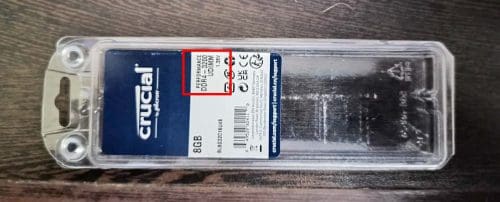
When buying a second RAM chip to increase your PC’s memory, the new product contains similar tech specs to the existing RAM, as much as possible.
Almost all branded and reliable RAM chips come in transparent plastic packaging. The packaging contains a sticker specifying several pieces of information about the product (refer to the above image). For example, you’ll define the following data on the plastic cover:
- Brand name: Crucial or anything else
- Memory capacity: 8 GB
- Generation of SDRAM: DDR4
- BUS frequency: 32,00 MHz
- Memory Access Mode: UDIMM
- Voltage: 1.35V
Maybe you can’t match the manufacturer’s name. But try to match the other technical specifications. It’s highly likely that other brands also make similar configurations for RAM chips.
2. Match Micro-Level Configuration

You’ll find a technical specifications sticker on most RAM chips. It provides granular and more technical information about the RAM. For example, it says DDR4/DDR3, PC4/PC3, CL11/22, 12,800, etc.
You may also want to match these details as much as possible for the new RAM you’re buying.
3. Memory Capacity
For instance, if you already have 16 GB RAM in one slot, choose another 16 GB for the other slot. Try not to buy a memory chip with different capacities, as this will interfere with the motherboard’s performance.
You’ll see random operating system crashes, including the blue screen of death (BSOD) and Critical Process Died on Windows 11.
However, motherboards have the necessary programming to handle memory capacity disparity on different slots. This process is known as the Flex Memory Mode.
For example, you’re pairing 16 GB and 8 GB RAM together on a motherboard. You’ll get 24 GB of overall memory on your PC. However, the memory access will be controlled in a blend of dual-channel and single-channel configurations.
The 8 GB memory of one RAM will pair with a half or 8 GB memory of the 16 GB RAM and function as a DIMM. The remaining 8 GB of the 16 GB memory chip will use single-channel memory access mode. Hence, you’ll notice a slight performance issue.
4. CAS Latency
In most RAM chip stickers, you’ll see a number CL 8, CL 16, CL 22, etc. This is called Column Address Strobe latency, CAS latency, or CL.
If the CL of your RAM is 8, then the CPU has to wait for eight clock cycles before it can read data in the memory pool. Hence, the lower the CAS latency value, the better the RAM is.
Ensure the new RAM comes with a CL number matching the existing RAM module. If one RAM chip’s CL value is eight and the other RAM’s CL value is 16, then the motherboard will only allow CL 16 for both RAMs.
As you can see here, you’re slowing down one RAM by pairing it with a slower RAM.
5. RAM Voltage Rating
As explained earlier, the motherboard will always use the higher voltage when there is a voltage disparity between two or more RAM slots.
If you’re mixing RAM brands of different volts, you’re putting one RAM at risk.
For instance, you’re pairing a RAM rated for 1.2V with a 1.35V RAM. The motherboard will force the 1.2V RAM to work in 1.35V input, which is 0.15V more than the rated power for the RAM.
For memory modules, this upscaling of rated voltage is highly risky. Soon, the RAM of low power rating will start showing anomalies or stop working.
Buying a new RAM? Check out these expert guides on the best RAMs that you can get:
Can You Mix and Match RAM?
You certainly can mix and match RAM. However, you can only mix and match RAMs of the same generation. For example, 16 GB DDR4 RAM can be paired with 8 GB DDR4 RAM.
You can’t mix and match RAMs of different form-factor generations like DDR4 with DDR3. Because a motherboard can’t support both DDR4 and DDR3 RAMs.
Can You Mix RAM Speeds?
You can mix RAM speeds. In the event of a pairing of 3,200 MHZ and 2,200 MHz RAM sticks, all the RAMs will, by default, work in the 2,200 MHz range. Thus, you won’t be able to enjoy the benefits of a 3,200 MHz RAM.
Can You Mix RAM Sticks?
You can mix RAM sticks in a few cases. Mostly, experts suggest that you buy a RAM kit instead of individual RAMs. Here are the situations that allow mix-and-match RAM sticks:
- The RAM sticks come from the same generation, like DDR4, DDR3, DDR2, etc.
- The motherboard supports multiple input channels for RAMs, like single-channel, dual-channel, multi-channel, etc.
- You’re not mixing RAM sticks with the intention of overclocking RAM chips.
- You’re not trying to mix and match desktop RAMs and laptop RAMs.
Can You Mix Ram Brands: Final Words
So far, you’ve learned that you can mix and match RAM to increase the memory capacity of the PC. However, you may not be able to enjoy any advanced benefits of the new RAM if the existing RAM is from an older specification group.
Hence, after considering many technical and practical experiences, I’d say don’t mix and match RAM chips.
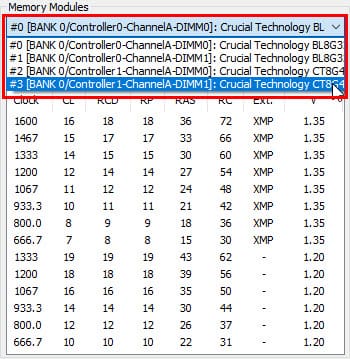
If you must mix and match RAM sticks, try to get the same RAM from the same brand. RAMs come with a batch number or model number that matches across RAM sticks of the same production line. For example, BL8G32C16U4B for Crucial Ballistix 3200 MHz DDR4 RAM.
You can verify this number using HWiNFO 64, among other granular technical details of the RAM, and then get a matching one. Alternatively, get a RAM kit for reliability, compatibility, and the best performance.