When working in VMware, one of the most common issues is the camera not working in VMware. It’s not always so straightforward as plugging in your webcam. There are many different types of cameras compatible with VMware but some need some extra legwork to get working properly.
Luckily, most issues are simple configuration or permission issues. This article will go over several different methods you can use to enable your camera in VMware. So, get your webcam ready and let’s start troubleshooting.
Reasons Your Camera Isn’t Working in VMware (And How to Fix It)
Method 1: VMware Doesn’t Have Permission to Use the Camera
The most common issue causing your camera not to work in VMware is permission issues. VMware needs the right permissions to access your camera, and without it, will not be able to access it.
To make sure VMware can access your camera:
Step 1. Open VMware and navigate to Removable Devices > USB Devices > Connect
Step 2. If using Workstation, navigate to Player/VM > Removable Devices, Connect (Disconnect from Host)
This will give VMware the permissions it needs to access the camera. If this doesn’t fix the issue, you may need to add drivers using the next fix.
Method 2: The Correct Drivers Aren’t Installed
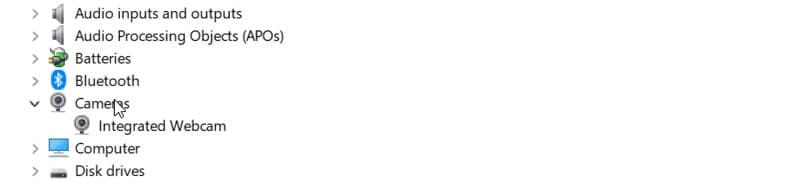
If you do not have the proper drivers installed for your camera, it can cause compatibility issues when using VMware. You can check if your camera has the most recent drivers by clicking the start menu and searching for device manager.
Right click the camera you want to use and click Update Driver to automatically check the web or local installation for the most up-to-date driver.
There are also driver settings inside VMware that you can access by navigating to System Settings and clicking into the Additional Drivers menu. This will make VMware attempt to download the needed drivers automatically.
Method 3: VMware Tools Not Installed or Out of Date
Another common reason for your camera not working in VMware is a missing or outdated VMware Tools installation. VMware Tools is a vital set of files if you want to use external devices inside of VMware like webcams.
VMware Tools is responsible for handling USB passthrough and driver compatibility, so keeping it up to date is important. To resolve this issue, check your version of VMware Tools and update it if it’s not the most current version. You can also install VMware Tools from their official site if it’s missing altogether.
Method 4: Another Application Is Using the Camera
It’s possible that another program is using the camera, which will cause it not to work in VMware. Typically, a camera can only be accessed by one program at a time. Be sure to check any other programs that may be using your camera like Teams, Zoom, or Slack and end the process. This will allow VMware to access the camera once it is freed up.
You may need to reconnect the camera in VMware so it is recognized after ending the other processes.
Final Thoughts
If your camera isn’t working in VMware, it’s likely due to driver or permission issues. Luckily these issues can be easily fixed using the methods in this article. If you are having these problems, give our fixes a try.