

Do you need to copy your favorite music from a CD to your Android device so you can listen to it on the go? Use these steps to transfer songs from any CD to an Android smartphone or tablet.
Option 1 – Windows Media Player (Windows Only)
- Insert the music CD into the CD/DVD or Bluray drive.
- Open the “Windows Media Player” application, which should already be installed on your Windows computer.
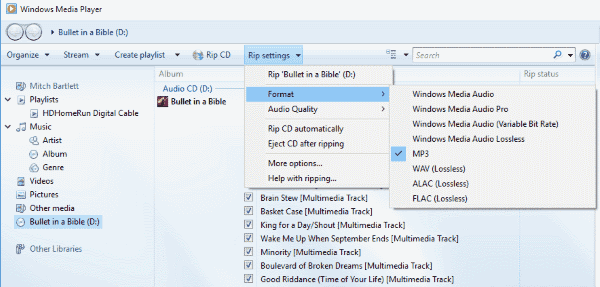
- The music disc should appear in the left pane of WMP. Select it.
- Check the music tracks you would like to copy to your Android. Uncheck the ones you don’t.
- Select “Rip settings” > “Format” > “MP3“.
- Select “Rip settings” > “Audio Quality“, then select the desired quality. Personally “128” is OK for me.

- Select “Rip CD“.
- Windows Media Center will now import your music from CD to the library on your PC. From here, you can do the following:
- Connect your Android to your PC via USB cable, then sync the desired music tracks to the device using WMP. You can then use the Music app on your phone to play your tunes.
- Follow these steps to upload your CD ripped music to Google Play, then play your music via the Google Play app.
- Copy the individual files that are now in digital format from your computer to your Android manually. WMP creates the ripped files under your “Music” folder by default.
Option 2 – iTunes (Windows & macOS)
- Download and install iTunes.
- Launch iTunes.
- Insert the music CD into the CD/DVD or BluRay drive.
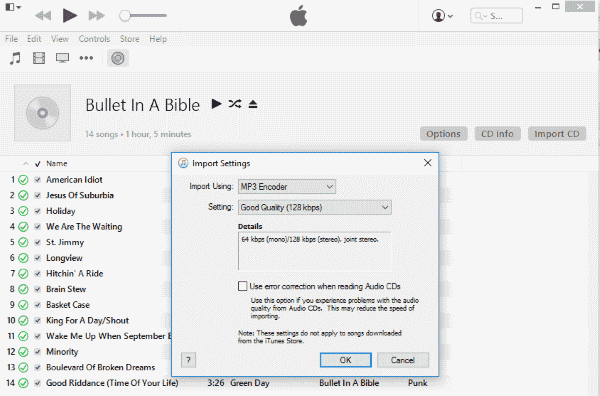
- iTunes should list the contents of the CD. Check the music tracks you would like to copy to your Android. Uncheck the ones you don’t.
- Select the “Import CD” button.
- For “Import Using” select “MP3 Encoder“. Change the “Setting” to the desired quality. I always use “Good Quality (128kbps)“.

- Select “OK” and iTunes will start ripping the music from the disc to the PC.
- Once you have all your music files ripped from the disc, you can copy them over to the Android. Connect your Android to your computer using a USB cable.
- Windows users can find their phone under the Windows File Explorer as an option under “This PC“. You can open the device in there, then find a folder called “Music“. If you don’t have one, create it. Then you can simply drag and drop your music files to this folder.MacOS can access their device from the Android File Transfer application.
FAQ
I don’t have a CD drive on my computer? Is there any other way for me to convert the music?
You must have a drive to read the CD. You can either borrow an drive from a friend, or purchase an external drive to connect to your computer.


I have to agree with Eugene Pilcher, 128k and quality should never be in the same sentence! It would be nice to know how to do this lossless!
u missed out the part where there is the opion to add copy protection or not and I understand music copied from cds. what do we do about that
I agree with the last commenter – many thanks because I’ve spent an hour or 2 trying to figure it out but this finally got me there easily & quickly.
Thanks you!! I’ve been searching for hours to find the way to do this. Your instructions were perfect; easier to follow than any of the others on YouTube or elsewhere.
He’s talking about the QUALITY being 128…not the amount of songs…learn to read before you leave comments! Good instructions…thanks again!
Make this more user friendly and intuitive. Please.
I have a samsung tablet (Tab-E) and I want to create/burn a cd FROM the tablet to a cd.
1.. Is there a burner that can connect to the tablet (it uses Android OS)??
2. Or, can this only be done with a desktop?
My mp3 files sync with my phone and they appear in google play, but then it says: “Music playback error, Couldn’t play the track you requested.”
@phyllis collins Are you sure you have a drive that is capable of burning discs? That might be why it’s not showing.
Not one bit. My Windows Medial Player does not offer the option to “Rip CD”. Now what?
Screw .mp3. I want to know how to copy uuncompressed .wma files from CD to Android and play with VLC player.
“128k is ok for me” Oh please, makes me want to puke. I have 10,000 .mp3 files, I never listen to them, I can’t stand it.
When the files are created from ripping the disc, you’ll have to put a number at the beginning of the filename. 01-track one, 02-track2, etc.
I need more information. I want to transfer audiobook discs that I purchase at a store, say Borders books, onto my computer and then onto my Android cell phone but the problem is when I tried to do that they are out of order.
When I plug my phone into my PC (windows 10) using a USB port the phone does not show up in File Explorer. I’d like to transfer music onto my phone (android).