Skip to content
LogoTechnipages
LogoTechnipages
  • Topics
        • Android
        • Browsers
        • Gaming
        • Hardware
        • Internet
        • iPhone
        • Linux
        • macOS
        • Office
        • Reviews
        • Software
        • Windows
        • Definitions
        • All Recent Posts
  • Product Reviews
  • About

Android 11: How to See What Apps Have Access to the Mic and Camera

Judy SanhzMay 6, 2022 Comments (1)
Google Folder

When you install an app, it’s nothing out of the ordinary for the app to ask for specific permissions. If you download a photo editing app, it’s going to need permission to access your device’s gallery. But, when you’re in a hurry, you might skip reading what consent the app is asking for.

If you want to check what apps have access to your device’s camera and Mic, follow the steps. Who knows, maybe you have apps that have access to them when there is no logical reason why they should.

See What Apps Can Access Your Device’s Camera and Mic

The good news is that checking to see what permissions an app has is easy and quick. So even if you’re in a hurry, it’s something you can do and check off your to-do list.

Open your Android’s Settings app and go to Privacy, followed by the Permission manager option.  There, you’ll see all the different types of permissions. For example, tap on the camera option.
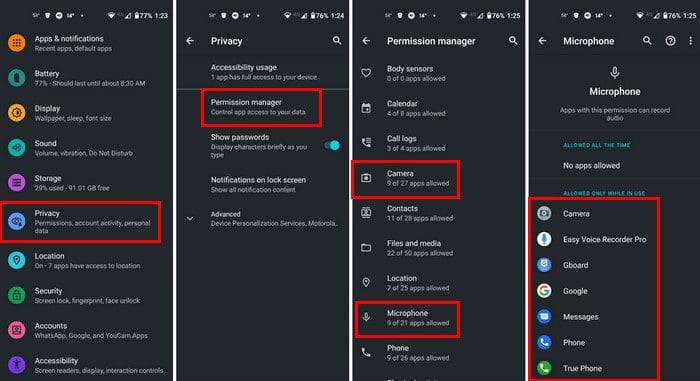
Android Settings Permission

You’ll see a list of all the apps that have permission to access your camera there. If it’s an app you hardly use, the best thing you can do is uninstall it. Besides the app not accessing your camera, you’ll also free up some valuable space on your device.

But, if you’re not ready to part ways with the app, you can change the permission. To do that, tap on the app and choose an option from the list.
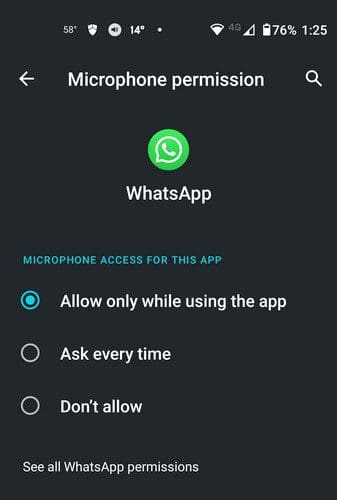
App permision options

To keep the app but not allow it to have access to the camera or mic, simply choose the Don’t allow option. That’s all there is to it. If there is other permission you want to look at, simply follow these same steps.

Conclusion

You might not give it a second thought when accepting permission and just allow it. But, unless you read absolutely everything, you don’t know what you’re agreeing to. If you have any doubts, you know how you can check what apps have access to what. If you don’t feel comfortable with a permission, you can always uninstall the app. What permission worries you the most? Share your thoughts in the comments below, and don’t forget to share the article with others on social media.


Categories: Hardware

Author Judy Sanhz

I am a tech geek who loves technology. I have been writing about tech for over a decade, covering various devices and programs. I write about Android, Apple, and Windows devices and programs. I stay updated on the latest gadgets, upgrades, features, and news. I aim to make complicated tech information easy for everyone to read. I've been with TechniPages from the beginning to help others fix their tech issues with the easy-to-follow guides.

You Might Also Like

  • How to Disable Voice Purchases on Amazon Alexa Devices

    Kat ArmstrongHardware
  • 3D Printing Basics: What Is Material Jetting?

    Mel HawthorneHardware
  • chromebook-unrecognized-error-unknown-failure

    Fix Chromebook: Unrecognized Error, Unknown Failure

    Madalina DinitaHardware
  • Get-HP-Printer-to-Clean-Itself

    How Do I Get My HP Printer to Clean Itself?

    Madalina DinitaHardware

Comments

  1. betty couch says:
    May 8, 2022 at 11:01 am

    What App has access to mics and cameras?
    And easy to send

Leave a Reply

Your email address will not be published. Required fields are marked *

  • browser screen goes black

    Browser Screen Goes Black Intermittently 

  • computer heating up in hyper v

    Computer Heating Up When Using Hyper-V – How to Fix 

  • clipchamp unexpected application error

    Clipchamp Unexpected Application Error: Here’s the Solution 

  • winload.efi file missing error

    Winload.EFI File Missing Error on Boot – How to Fix

  • fix error 0x9cfc7550

    How to Fix Error 0x9cfc7550 (We Couldn’t Create a New Partition) in Windows 

profile pic

The Experts Behind Technipages

My name is Mitch Bartlett. I've been working in technology for over 20 years in a wide range of tech jobs from Tech Support to Software Testing. I started this site as a technical guide for myself and it has grown into what I hope is a useful reference for all.

Learn More

technipages logo white
linkedin icon

Technipages is part of Guiding Tech Media, a leading digital media publisher focused on helping people figure out technology. Learn more about our mission and team here.

© 2025 Guiding Tech Media All Rights Reserved

  • About Us
  • Contact
  • Terms of Use
  • Privacy Policy

© 2025 Guiding Tech Media All Rights Reserved

Information from your device can be used to personalize your ad experience.
Do not sell my personal information.

Last Updated on May 6, 2022 by Judy Sanhz