Compared to the bloated, full operating system of Windows, the Chrome OS is far less demanding and much more streamlined, giving computers new and old a new lease on life. That said, there are always ways to make things run faster, and in this article, we’ll be looking at how to make your Chromebook run faster.
Contents
How to Make Your Chromebook Run Faster
There are many ways to make a Chromebook run faster. Let’s get started:
Restart
We know it’s a simple solution, but a restart of your Chromebook whenever it starts slowing down can fix things like memory leaks and allow for a fresh start. Your Chromebook will run faster again.
Update
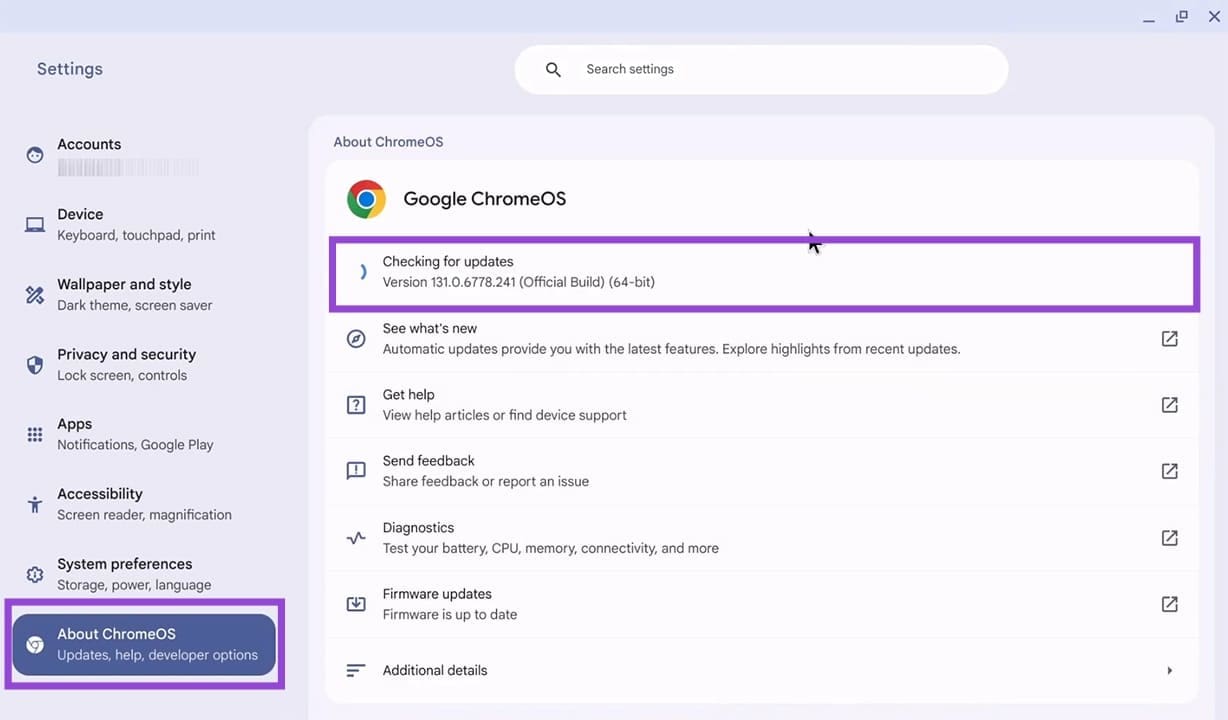
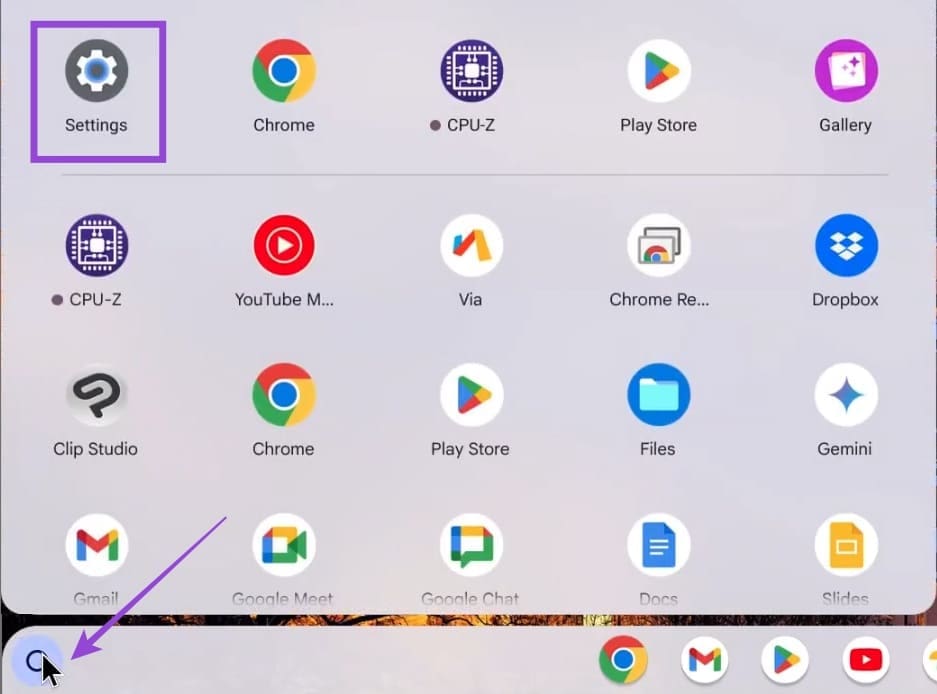
To ensure your system is performing at its best, you need to keep things updated. Head into Settings and “About ChromeOS” to see if your system is running the latest software. If not, click the “Check for updates” button.
Uninstall and Stop Apps
If you have any extra apps that you aren’t using, they could be taking up storage space and slowing performance, especially when running in the background. Head to “Apps” in Settings and uninstall any you don’t currently need. Lite apps are also a great way of keeping your hard drive free. Look for these in the Play Store when choosing your app versions.
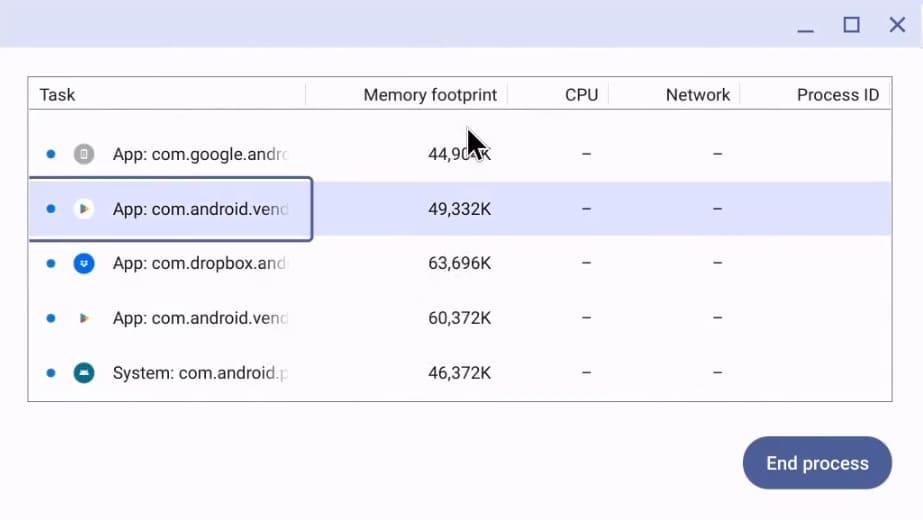
If uninstalling is a bit too drastic, then try disabling some processes that are running by opening the “Task Manager” and using the “Search + Esc” shortcut. There, you can see what’s taking up the most Memory and CPU.
Not So Many Extensions
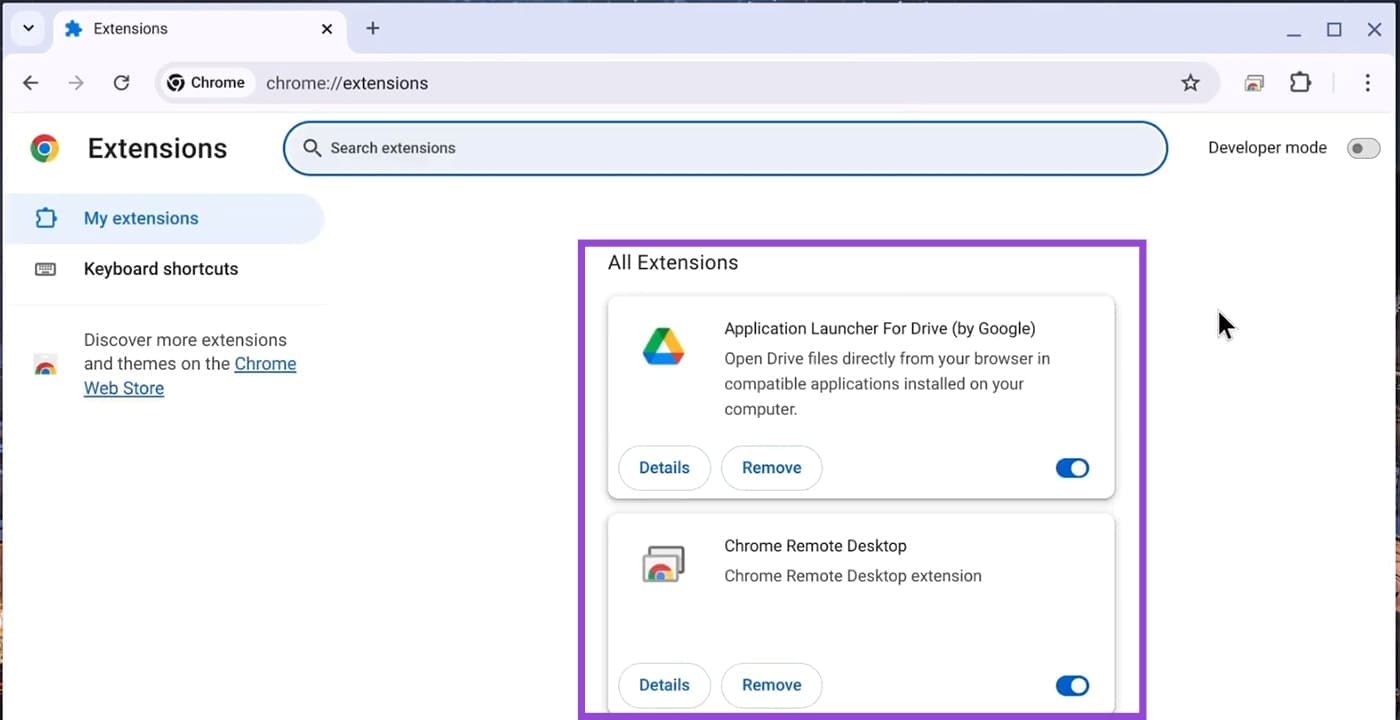
Third-party browser extensions are very helpful to your workflow, but too many of them can quickly become a drain. Seeing as Chrome OS revolves around the browser, cleaning up your browser extensions is important when speed is a factor.
Clear Your Browser Cache
As your system continues to run, over time, more and more data fills up your cache. This, in turn, slows your Chromebook. Sometimes the cache itself may even become corrupted. Here’s how to clear it:
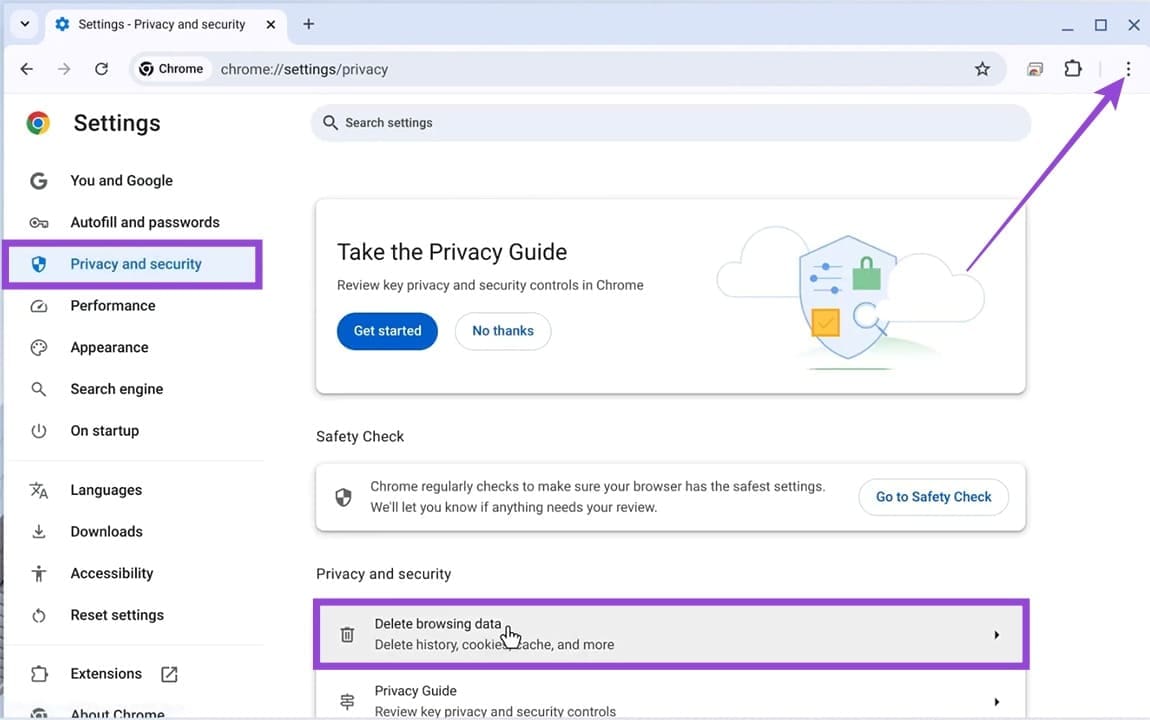
Step 1. In your Chrome browser, click the ellipses menu (three dots) and then “Settings.”
Step 2. Choose “Privacy and security” in the sidebar and then click “Delete browsing data.”
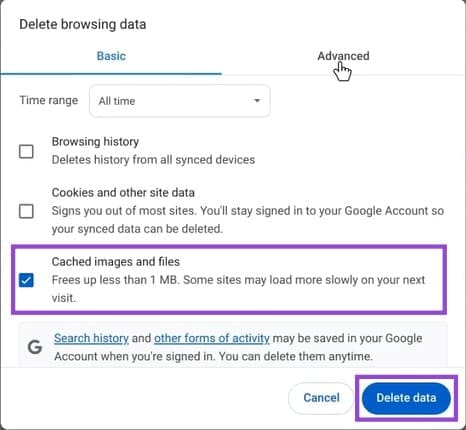
Step 3. Choose which data you’d like to clear. “Cached images and files” are usually a big offender. Check those for deletion, then click the “Delete data” button.
Use Incognito Mode
Incognito Mode has the benefit of not storing any session data whenever it closes. It holds no history, no cookies, and no trackers that can slow down your browser and Chromebook. If possible, use Incognito Mode to keep your Chrome browser free from unnecessary data.
Disable Diagnostic Data
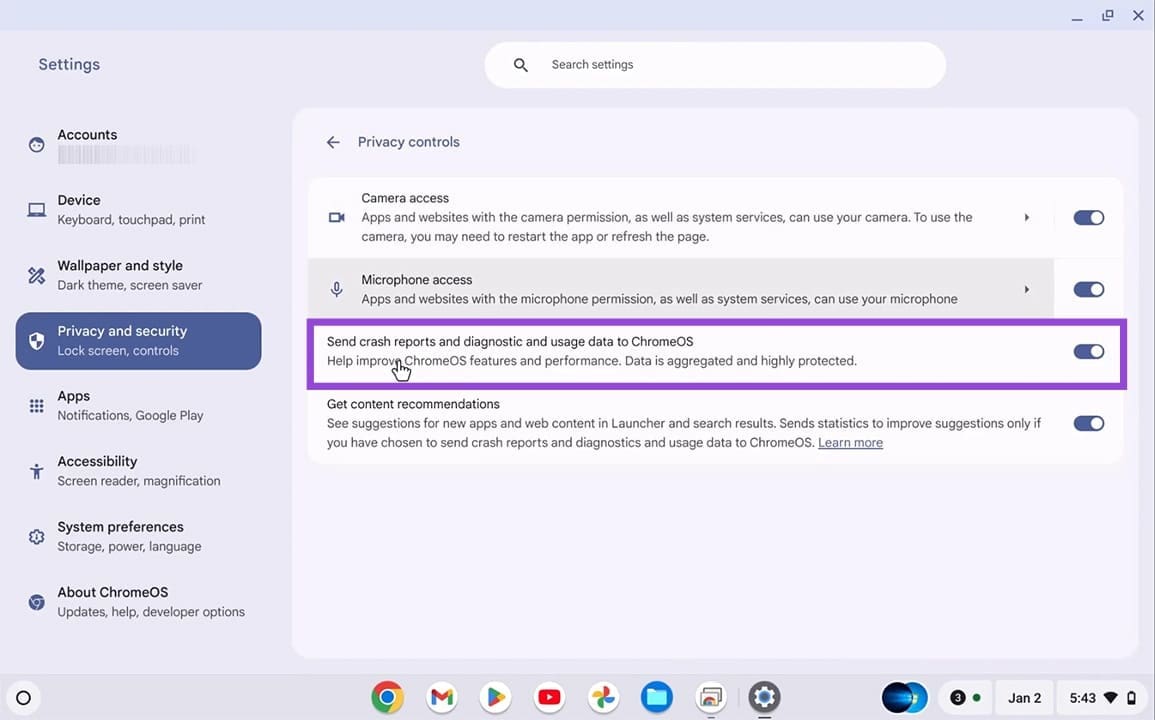
While maybe not as obtrusive as other operating systems, Chrome OS still sends off diagnostic data to Google, which does require resources. Disabling it frees these up. Here’s how:
Step 1. Open the menu and click “Settings.”
Step 2. Click on “Privacy and security” in the sidebar.
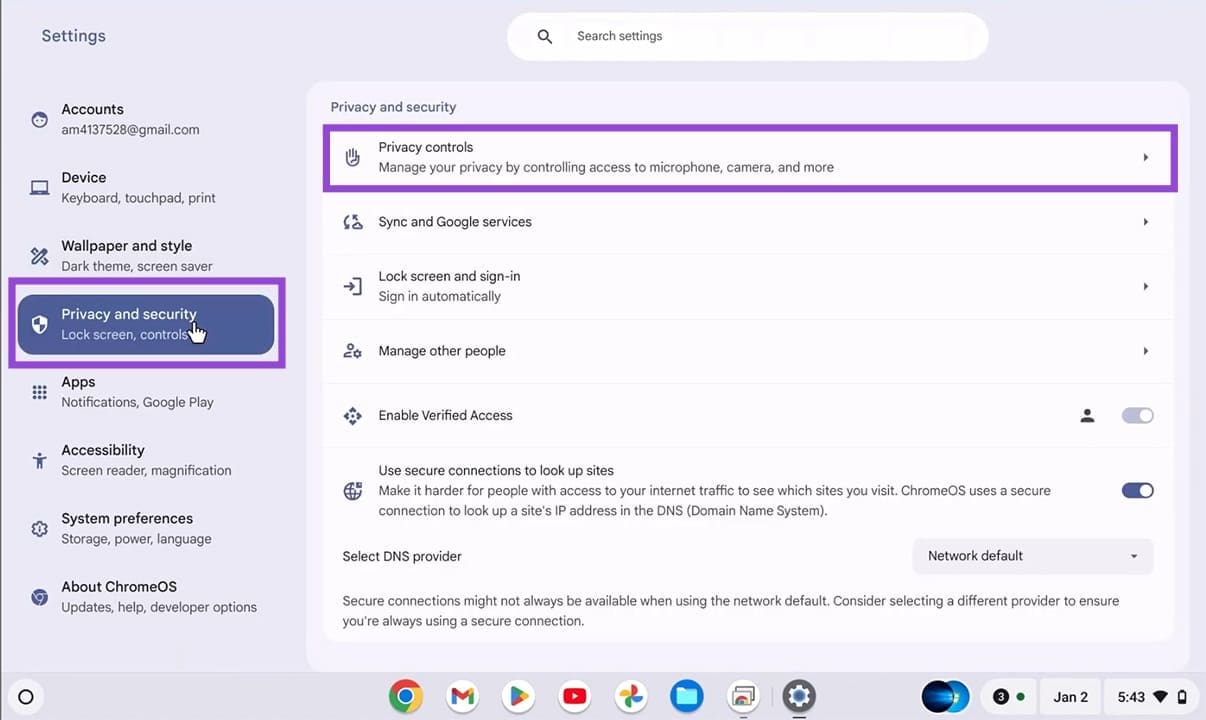
Step 3. Click “Privacy Controls” and toggle the “Send crash reports” option to “Off.”
Use Chrome Flags
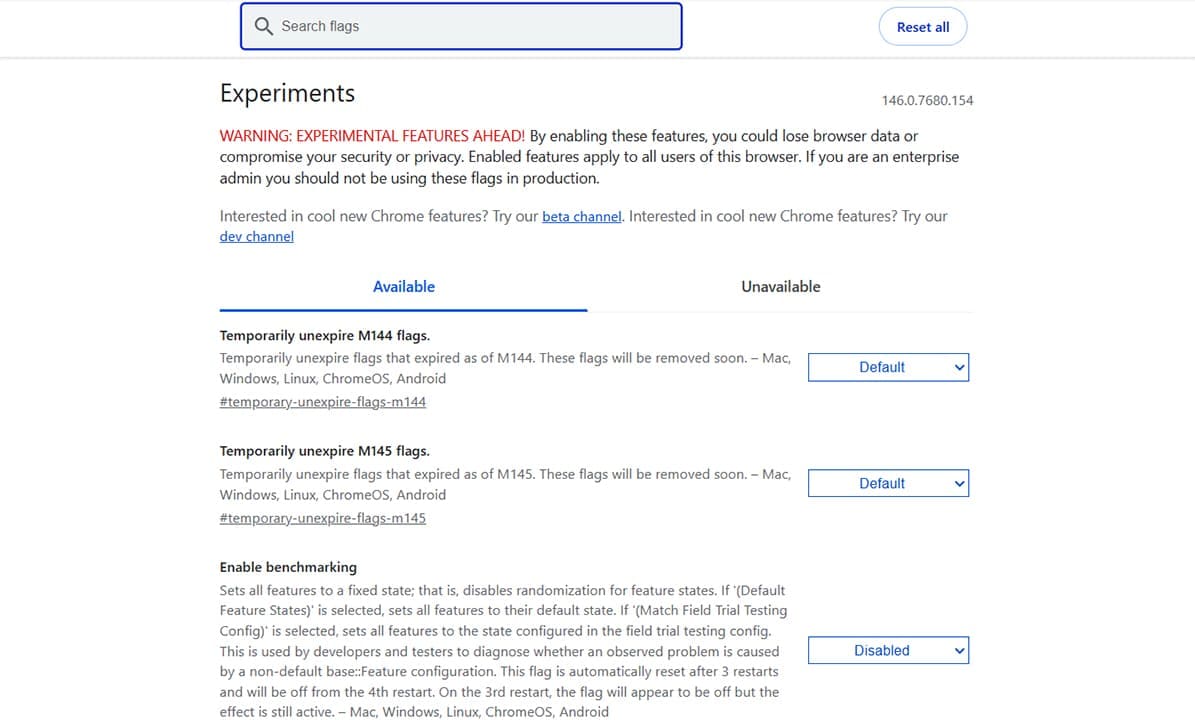
Did you know that Chrome carries with it an array of experimental settings called flags? You do now. These can be activated directly within the browser, but will require a restart after enabling. Three flags can help with speed. Keep in mind, these are experimental. Type “chrome://flags/” into the Address Bar. Try setting “GPU Rasterization” and “Parallel Downloading” to “Enabled.”