Skip to content
LogoTechnipages
LogoTechnipages
  • Topics
        • Android
        • Browsers
        • Gaming
        • Hardware
        • Internet
        • iPhone
        • Linux
        • macOS
        • Office
        • Reviews
        • Software
        • Windows
        • Definitions
        • All Recent Posts
  • Product Reviews
  • About

6 Ways to Find the Serial Number for Your Laptop

Evan MercerMarch 18, 2026 Comments (0)
find the serial number of a laptop

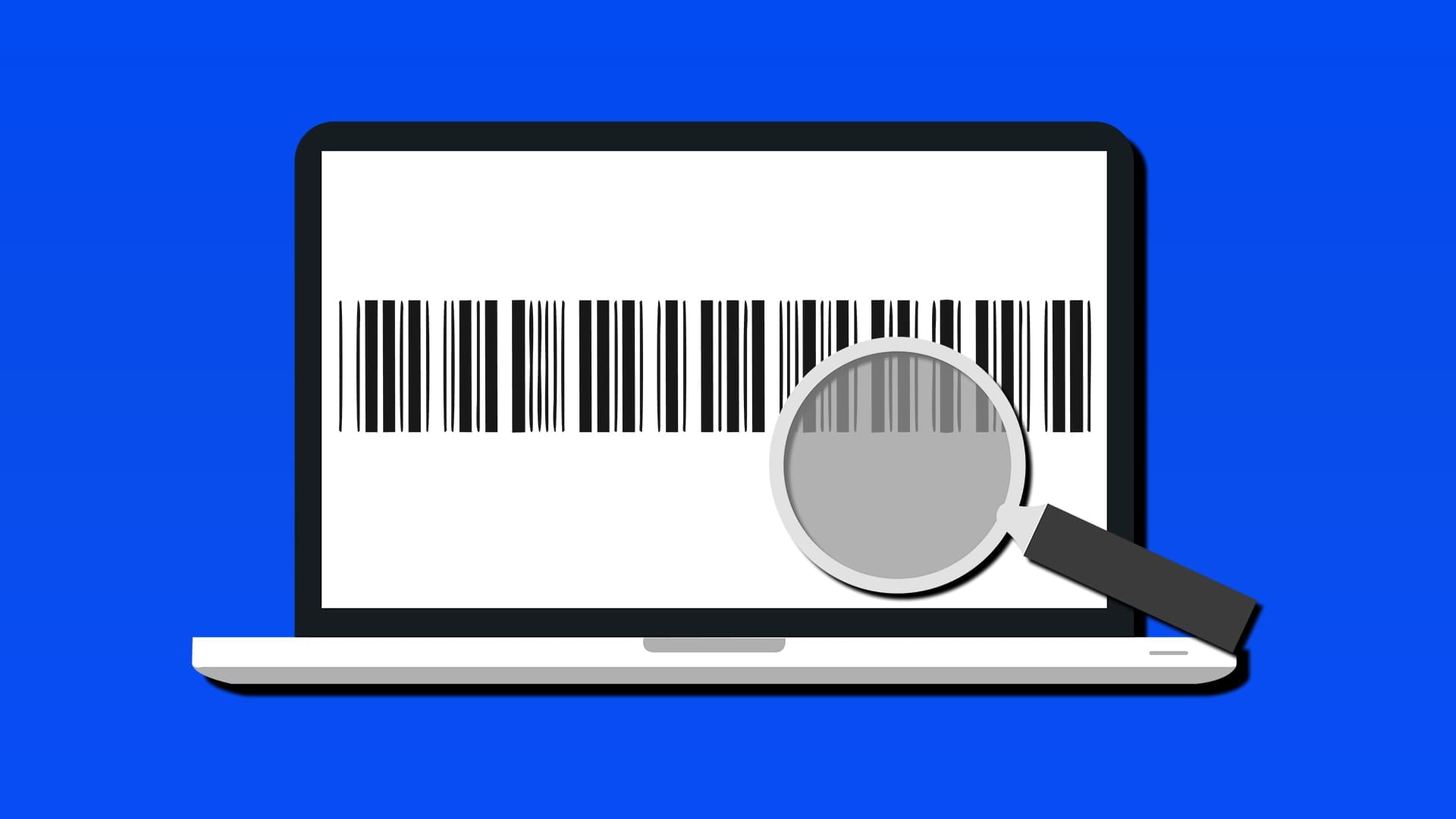
The serial number of a laptop is a vital piece of information. You need it for warranty purposes, proof of ownership, insurance, software licensing, tech support, and so many other reasons. Finding it, though, isn’t always the easiest. Not to worry, we’ve got six ways to find the serial number of a laptop.

Contents

  • 1 Find the Serial Number for Your Laptop With These Methods
    • 1.1 Check Underneath
    • 1.2 Via PowerShell
    • 1.3 Use Command Prompt
    • 1.4 Use Your Manufacturer’s Client
    • 1.5 Check the System About
    • 1.6 Use the BIOS

Find the Serial Number for Your Laptop With These Methods

Laptops have the added benefit of being manufactured products, shipped more or less whole. The individual components may change, but the core remains the same. That means a consistent serial number is a given. With that in mind, let’s take a look at how to find it.

Check Underneath

Perhaps the easiest physical solution would be to check the underside of your laptop. No matter the manufacturer, there should be a label (usually with a barcode) that contains your laptop’s serial number. It’s usually indicated as “Serial Number” or S/N. In some cases, the sticker may no longer be attached, and you’ll have to try another method.

Via PowerShell

A software-based way to get your serial number is through the PowerShell framework. Here’s what to do:

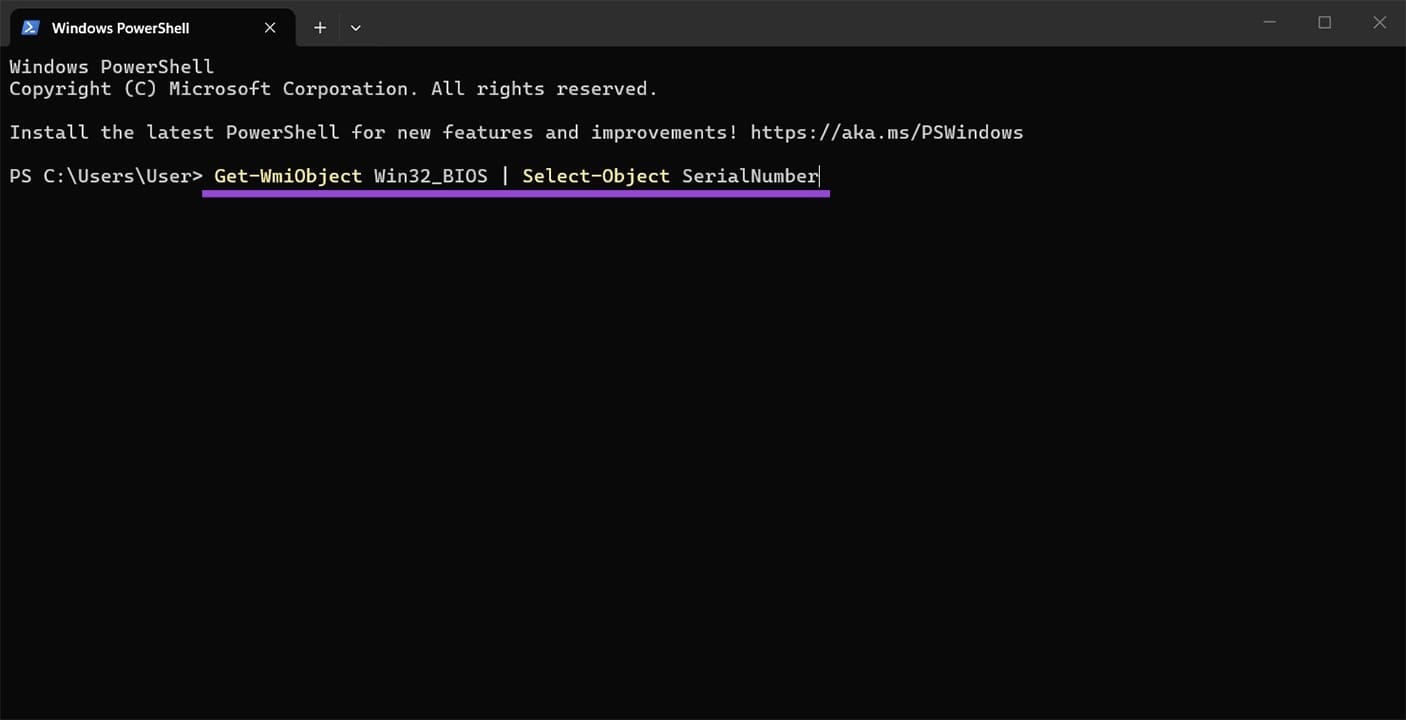
Step 1. Type “PowerShell” into the search bar and choose the option that pops up to run.

Step 2. In PowerShell, type “Get-WmiObject Win32_BIOS | Select-Object SerialNumber” and hit “Enter.”
Ways to Find the Serial Number for Your Laptop 1

Step 3. Your serial number should then be displayed.

Use Command Prompt

Another software method is through the Command Prompt utility. The right command should give you your serial number. Here’s what to do:

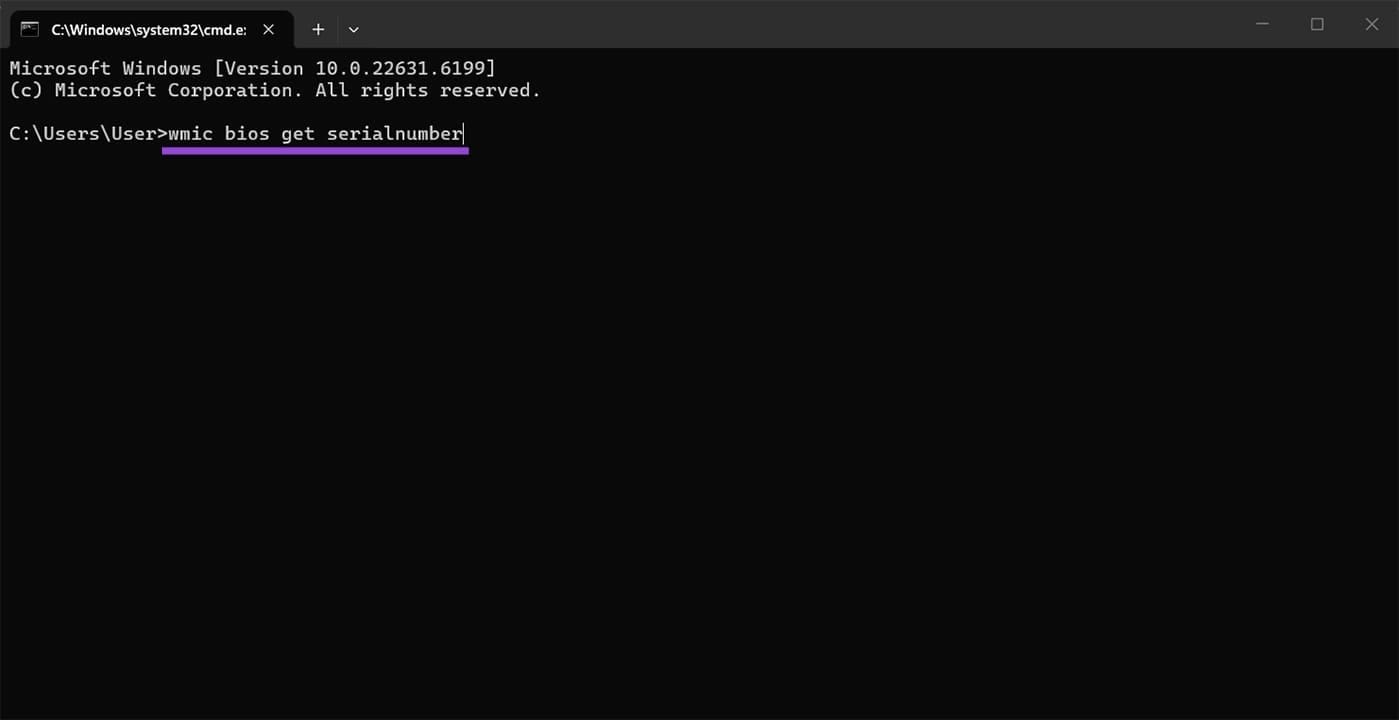
Step 1. Open the Run dialog (Win + R) and type “cmd” before hitting “Enter.” You don’t need to run it as Administrator for this.

Step 2. In Command Prompt, type “wmic bios get serialnumber” and hit “Enter” to input it.
Ways to Find the Serial Number for Your Laptop 2

Step 3. The next line should show you your serial number.

Use Your Manufacturer’s Client
Ways to Find the Serial Number for Your Laptop 3

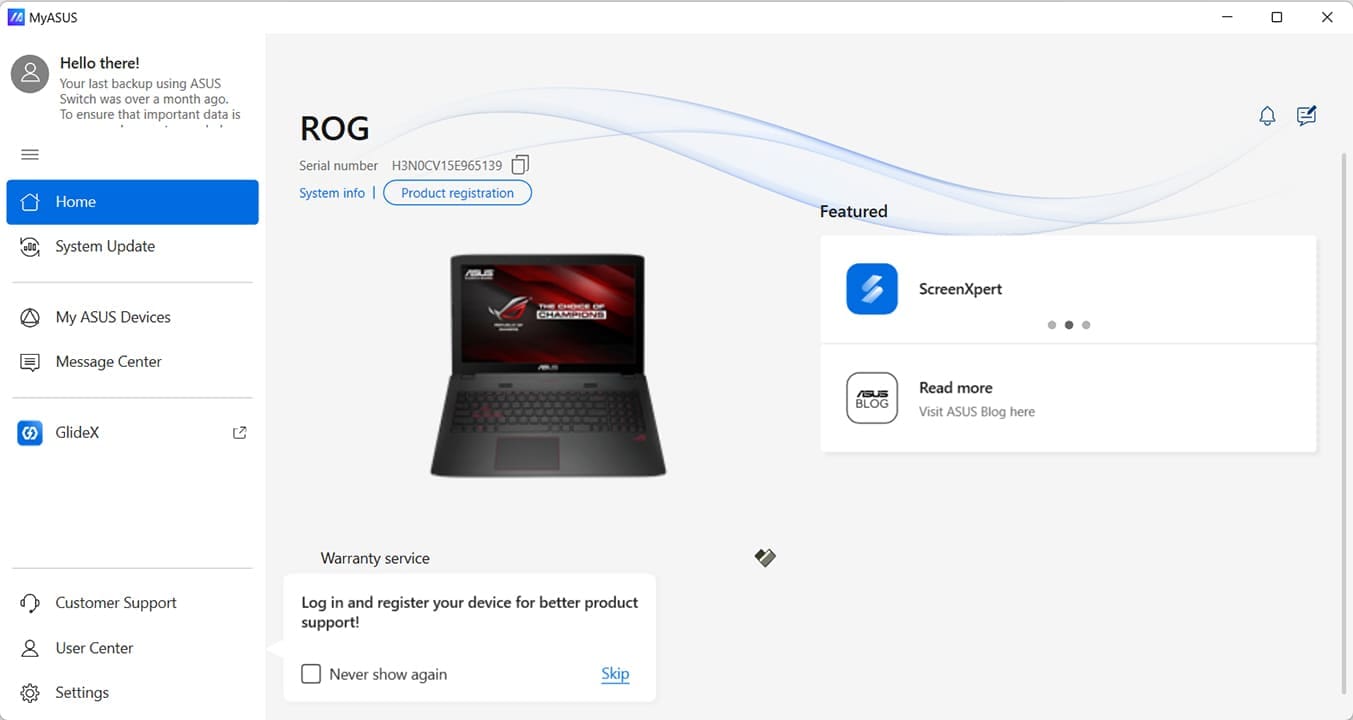
Some laptop manufacturers come with their own client software (MyASUS, Lenovo Service Bridge, etc.), and this will automatically detect your serial number for you. It’s also a good way to ensure your laptop software and drivers stay up to date.

 Head to your manufacturer’s website to download this software and follow the steps to install it.

Check the System About

Windows Settings is also a handy and quick way to check your serial number. What’s important to note is that, depending on your laptop manufacturer, your device’s serial number may not show via this method. That said, here’s how to do it:

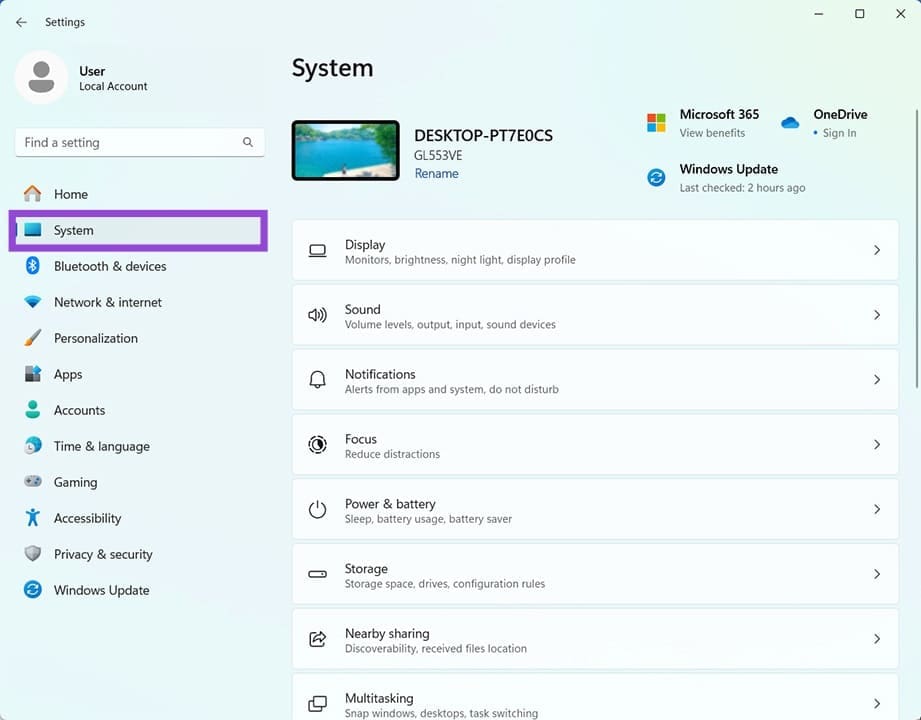
Step 1. Open Settings (Win + I).

Step 2. Click “System” in the sidebar.
Ways to Find the Serial Number for Your Laptop 4

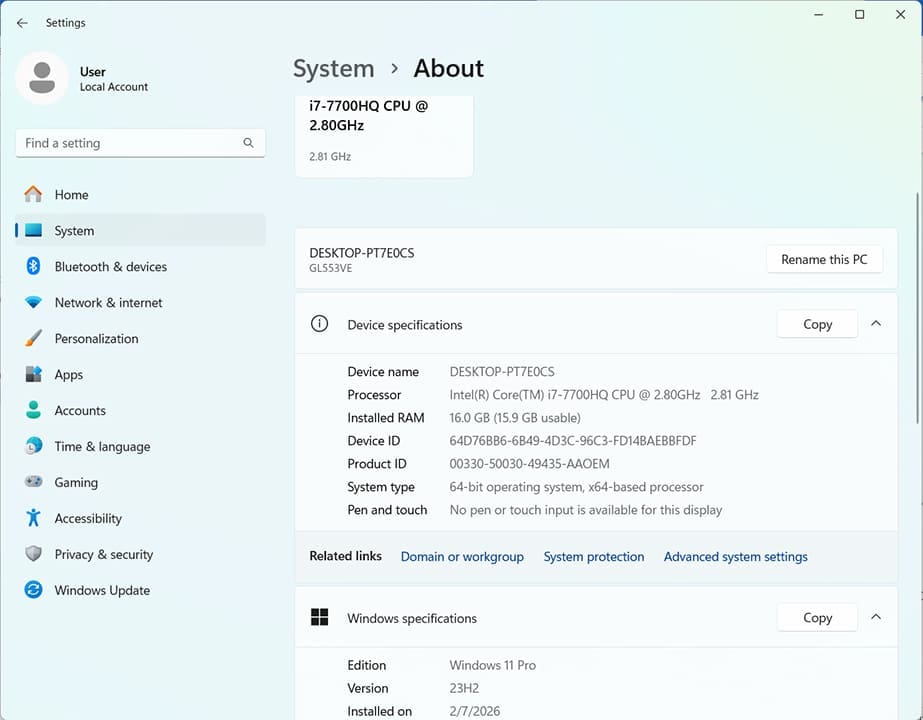
Step 3. In System, scroll down in the right-hand pane until you reach “About.” Give it a click.

Step 4. Look for your serial number.
Ways to Find the Serial Number for Your Laptop 5

Use the BIOS

When booting your PC, as soon as it begins to start, press the dedicated BIOS key (usually a Function or Del key) to enter the BIOS. Depending on the manufacturer, it’ll either be on the front page of the BIOS or in an “About” or “Information” tab.

Categories: Windows

Author Evan Mercer

I’m a computer science grad who loves to tinker with smartphones and tablets in my spare time. When I’m not writing about how to fix techy problems, I like hanging out with my dogs and sipping nice wine after a tough day.

You Might Also Like

  • Win7 User Account Control settings

    Enable or Disable User Account Control (UAC) in Windows

    Mitch BartlettWindows
  • Windows 11 Disable Are you sure you want to move this file to the Recycle Bin Dialog

    Windows 11: Disable “Are you sure you want to move this file to the Recycle Bin?” Dialog

    Mitch BartlettWindows
  • bluetooth-toggle-missing-windows-10

    Fix Bluetooth Toggle Missing on Windows 10 or 11

    Madalina DinitaWindows
  • surface-pen-not-working-after-update

    Fix Surface Pen Not Working After Update

    Madalina DinitaWindows

Leave a Reply

Your email address will not be published. Required fields are marked *

  • windows 11 usb tethering

    Your Guide to USB Tethering on Windows 11

  • battery issues after windows 11 update

    Battery Issues After Windows 11 Update? Here’s the Fix

  • why is ram so expensive

    Why Is RAM Suddenly So Expensive?

  • how to fix error code 0x800f0922 windows 11

    How to Fix Error Code 0x800f0922 in Windows 11

  • service outage message on Xbox

    What to Do With a Service Outage Message on Xbox

profile pic

The Experts Behind Technipages

My name is Mitch Bartlett. I've been working in technology for over 20 years in a wide range of tech jobs from Tech Support to Software Testing. I started this site as a technical guide for myself and it has grown into what I hope is a useful reference for all.

Learn More

technipages logo white
linkedin icon

Technipages is part of Guiding Tech Media, a leading digital media publisher focused on helping people figure out technology. Learn more about our mission and team here.

© 2026 Guiding Tech Media All Rights Reserved

  • About Us
  • Contact
  • Terms of Use
  • Privacy Policy

© 2026 Guiding Tech Media All Rights Reserved

Information from your device can be used to personalize your ad experience.
Do not sell my personal information.

Last Updated on March 18, 2026 by Evan Mercer