

Have you ever woken up in the middle of the night and had a tough time getting back to sleep? As long as you’re up, you try to catch up on some reading, but you don’t feel like turning on the light. If you read without adding a blue light filter, reading may not be so pleasant and could hurt your eyes.
Since there’s an app for just about everything on Android, you can bet there are great blue light filter apps you can try. Some apps will have more options than others, just in case you like a feature-packed app. But if all you’re looking for is an app that applies the filter, there’s an app like that too.
Contents
1. Blue Light Filter – Night Mode Night Shift
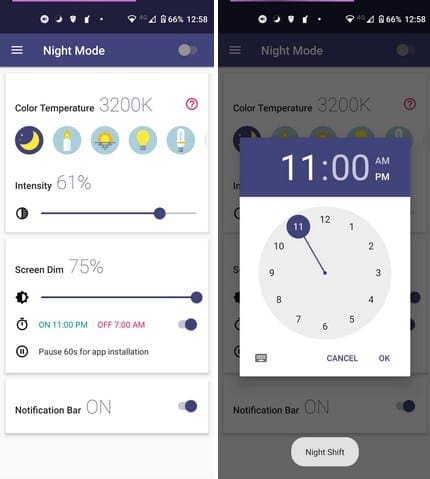
Blue Light Filter – Night Mode Night Shift is an easy-to-use app. When it comes to choosing a blue light filter, you can choose from five different options. The options will be represented by icons such as a Moon, Candle, Sun, and two Light bulbs. As you tap, the app will apply the blue light filter for that option.
Use the slider to apply the filter’s intensity and how much you want the filter to dim your screen. You can apply the filter manually, or you can schedule for the filter to come on and turn off at specific times. There’s also an option to temporarily pause the app for 60 seconds. At the bottom, you’ll also find an option to have or not in the notification bar, an icon that’ll help you turn on the filter manually.
2. Blue Light Filter and Night Mode – Night Shift
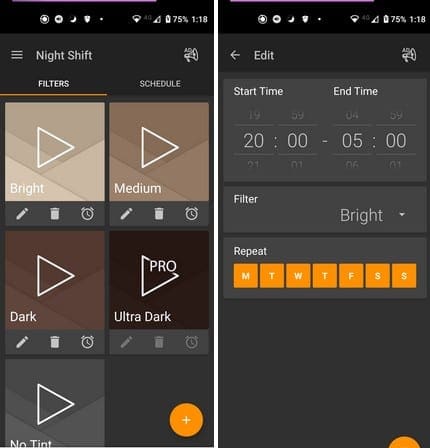
Night Shift Blue Light Filter works a little differently than the first app. For example, it doesn’t have a slider, so you can adjust the filter’s intensity. But, instead, it offers separate options when it comes to the intensity of the filter. You can choose from options such as:
- Bright
- Medium
- Dark
- Ultra Dark (Pro Only)
- No Tint
At the bottom right, you’ll see an orange circle with a plus sign. If you want to create your own filter, this is where you can do it.

Once you’ve named your new filter, you’ll need to add things such as Temperature, Color, and RGB. When you tap on the save button, the new filter will appear with the others on the main page. There’s also the possibility to go Pro for $2.99. You get lifetime free upgrades, Ultra dark filter, No Ads, and Multiple schedules for that price.
3. Bluelight Filter for Eye Care
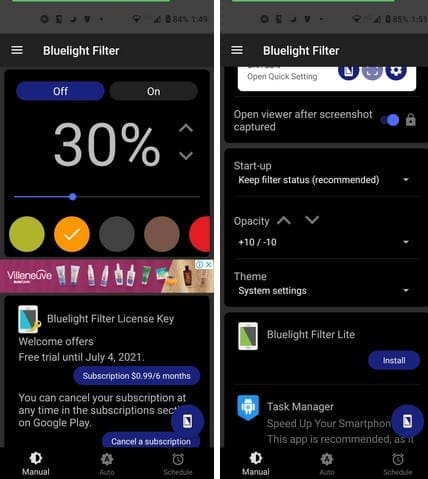
Bluelight Filter for Eye Care lets you add a specific color to your filter. You can choose from colors such as Grey, Brown, Red, Yellow, Green. The app offers other options such as adding a home screen shortcut, Status bar shortcut, Take screenshots without a screen filter, and adjusting the filter opacity.
To use all the features, you’ll need to upgrade to Premium, but if you’re willing to watch one ad, you can use all the features for free for ten days. You can also switch from dark and light mode as well.
4. Twighlight Blue Light Filter for Better Sleep

An app that’ll offer you various options is Twilight Blue Light Filter for Better Sleep. When you first open the app, it takes you through a brief tour of how blue light can be harmful and how to use the app. You can adjust things such as color temperature, intensity, screen dim, and filter times on the app’s main page.
With this last option, you can choose from Always, Sun, Alarm, and Custom. Use the slider that’s right below it to set the timer to the time you want. Other options that you’ll find include:
- Filter notifications and lock screen
- Themes
- App-specific profile
- Backlight control
- Smart bulbs
- Filter translucent navbar
- Filter navbar in landscape
- Don’t tint ambient screens, Fullscreen
- Start on Boot and more.
5. sFilter – Free Blue Light Filter
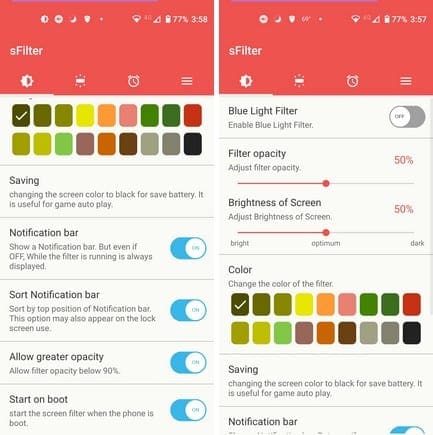
Last but not least, you have sFilter Free Blue Light Filter. When you first open the app, you’ll see options you can adjust, such as Filter capacity, Brightness of the screen, and the button to turn it off and on. There are various filter colors to choose from, such as a battery saving option, Show control option in the notification bar, Place control option at the top of the notification bar, Allow greater opacity, and Start on Boot.
At the top, you’ll see four tabs. You just read what the first tab has, but in the second one, you can play with options such as enabling the app widget, Adjusting widget size, Apply widget effects, Fix widget position, and filter opacity control button.

On the last tab, you’ll find everything you need to set the filter on a schedule. There’s also an option to set the filter opacity. As you can see, it’s an app that’s easy to use and gives you a good amount of options to set everything up just the way you like it.
Conclusion
One of many issues that blue light can cause is having an even harder time going to sleep. The blue light will keep you up when the idea of you doing some reading was the complete opposite. By using one of the apps on the list, you’ll help protect your eyesight from the harmful things blue light can cause. Do you do a lot of nighttime reading? Share your thoughts in the comments below, and don’t forget to share the article with others on social media.


Don’t want anything Google Play