
I recently upgraded to Microsoft Windows 11 and found that iTunes no longer detected my Apple iPad or iPhone. Here’s how I fixed it.
Syncing your iPhone or iPad with a Windows 11 PC is fairly simple. Just install the iTunes app, and connect the device to the PC using a supported cable after opening the iTunes app. The iPad or iPhone asks you to authorize the Windows 11 PC, and you’re in. However, issues start to surface when the iTunes back-end drivers are faulty or iPad/iPhone is unable to communicate with the Windows PC and vice versa.
Irrespective of the reasons that stop the Windows 11 iTunes app from detecting your iPhone, iPad, or iPod, try the troubleshooting methods mentioned here. You should be able to connect the Apple smartphone or tablet to your PC to sync audio and video files or download photos from the device.
What’s The iTunes Not Detecting iPhone/iPad Error?
When you connect your iPhone or iPad to a Windows 11 PC when the iTunes app on the PC is open, the device should show up in the appropriate section of the iTunes app. If the device doesn’t show up, it means you’re facing the “iTunes not detecting iPhone or iPad” error. In most cases, there are no error messages on your Windows 11 PC. In some instances, you could get any or all of the following error messages:
The last USB device you connected to this computer malfunctioned, and Windows does not recognize it
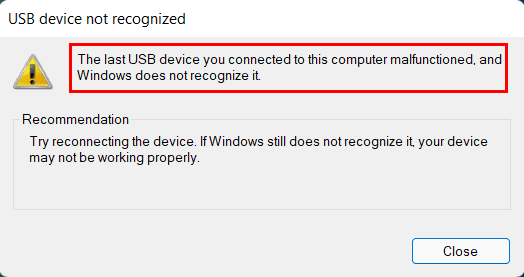
Unknown USB Device (Device Descriptor Request Failed)
Whatever the reason is, the issue is serious. It stops you from syncing your iPad or iPhone with a Windows 11 PC so that you can download data to the PC for long-term storage. iTunes music and video syncing also don’t work. Want to fix this situation real quick? Try the troubleshooting tips mentioned below.
How to Fix iPhone or iPad Not Detected
1. Perform Some Basic Checks of the Accessories
According to Apple, you must use Apple MFi Program-certified USB Lightning to USB A and USB-C to USB A cables to connect your iPhone and iPad with a Windows 11 PC. Hence, check if the cable you’re using is of the right quality and specifications or not. If possible, use a new USB cable or borrow one from a friend. If the issue doesn’t appear again after replacing the USB cable, you must get a new one.
Sometimes, debris and lint on the USB ports of the PC and Apple device could prevent a successful electronic connection between the port and USB cable. Inspect the USB ports closely for any obstacles. If there is any debris, clean that using a dry cotton swab. Also, you could try an alternative USB port at the back of the PC case.
2. Restart Windows 11 PC and iPhone or iPad
If you don’t see any activity on your Windows 11 PC after connecting the iPhone/iPad, try restarting both devices. Here’s how it’s done:
- On the Windows PC, go to the Start menu and click the Power icon.
- Then, choose the Restart option to reboot the PC.
- To restart an iPhone or iPad, go to the Settings app.
- Tap General on the left-side navigation pane.
- Scroll down the right-side menu until you locate the Shut Down button.
- Tap the button and then slide the Slide to power off button on top of the screen to the right to shut down.
- Now, press the top button once to start the iPhone or iPad.

After a reboot, open the iTunes app on your Windows 11 PC. Connect the iPhone/iPad to the PC using a supported USB cable. If everything goes well, you should see the Apple iPhone or Apple iPad detected notification on the bottom right corner of the PC. The iTunes app will also show the device in the appropriate section.
Also read: How to Reset iPhone & iPad Settings
3. Connect the USB Cable Directly Between the Devices
Often, you might use a USB hub to connect all USB-compatible devices conveniently. A hub is easy to access than the USB ports at the back of the PC case near the motherboard’s I/O interface. However, your Apple product may not support these hubs. Hubs may not be able to provide the exact amount of cable voltage an iPhone or iPad needs to establish a successful connection with the Windows 11 PC.
Also, some PC displays come with a few USB A ports, which you might regularly use for other USB devices. If you try to connect the USB-C to USB A or Lighting to USB-A cable to these ports, an iPhone or iPad may not respond when you open the iTunes app. Therefore, connect the USB A port from the Lighting or USB-C cable directly to the back of the PC case for optimum connectivity via cables.
4. Update the Operating Systems on All Devices
You must ensure that you’re running the latest operating systems on the Windows 11 PC and iPhone/iPad. Here’s how you can check for updates on these devices:
Update Windows 11
- Hit the Windows + I keys on your PC.
- Select the Windows Update option from the left-side navigation panel.
- Windows 11 will start checking for the updates automatically.
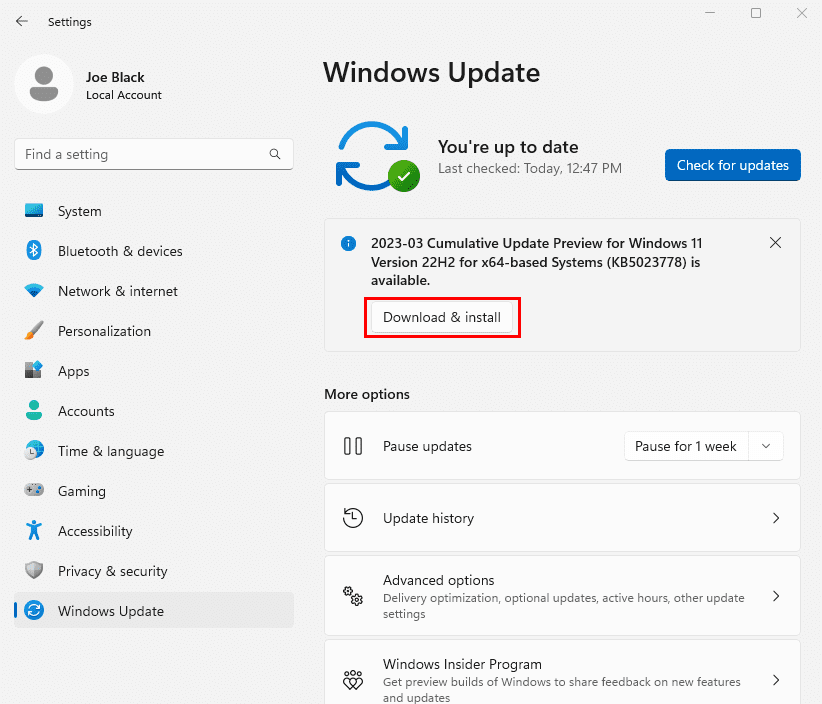
- Even if it tells you You’re up to date, look for Windows 11 feature updates below the Check for Updates button.
Update iPhone/iPad
- Open the Settings app and tap General.
- Tap the Software Update button on the right side of the General settings screen.
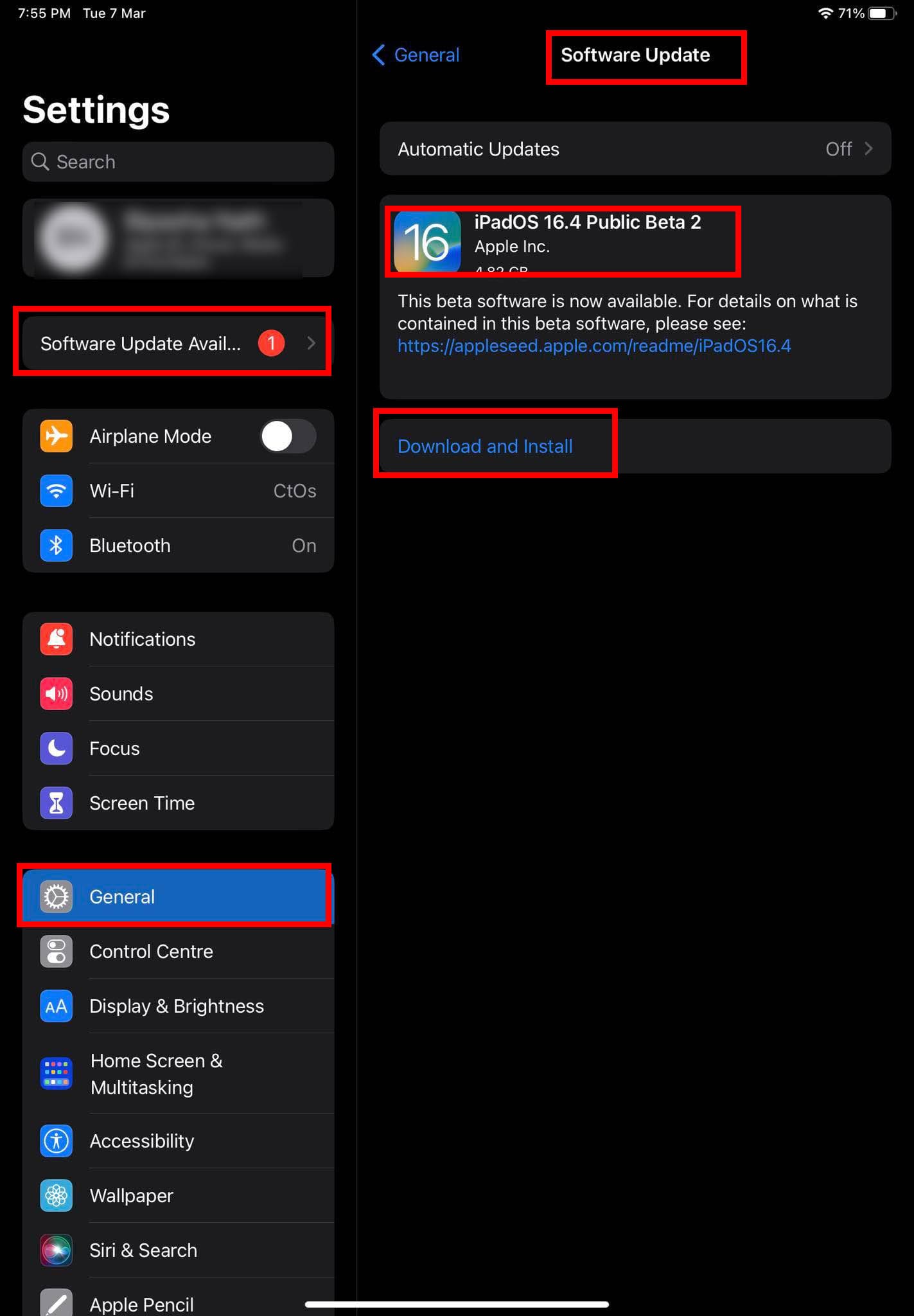
- If there are any pending updates, touch the Download and Install button.
After updating all the devices, attempt connecting iPhone with the PC, and this time you shouldn’t face the “iTunes not detecting iPhone” issue.
5. Don’t Forget to Authorize the PC From iPhone or iPad
When you connect the iPhone or iPad with a Windows 11 PC that has the latest iTunes, the iPhone/iPad will ask you to authenticate the action. The mobile or tablet device screen shows the following pop-up:
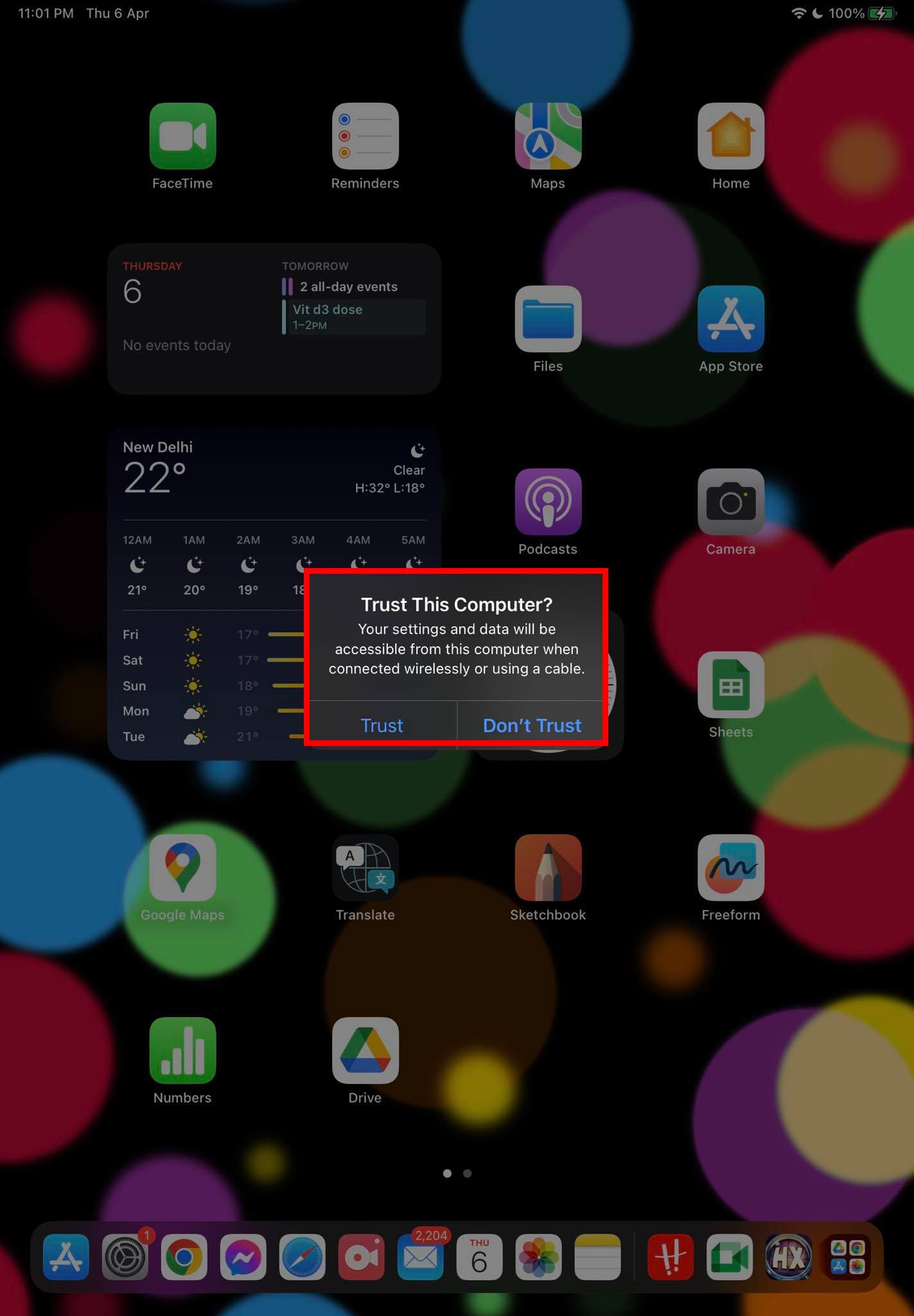
Trust the Computer? Trust or Don't Trust
Once you tap the Trust button, your iPhone/iPad will ask you to enter the device passcode. Enter the password and you should be able to see the device on iTunes. If you ignore these steps, you won’t see the iPhone or iPad on iTunes.
6. Fix iTunes Not Detecting iPhone or iPad Using the Services Tool
When you install the iTunes app on your PC, the installer package itself installs two critical Windows Services required to connect an iPhone/iPad/iPod efficiently with iTunes. These services are as outlined below:
- Apple Mobile Device Service
- Bonjour Service
If someone or something stops these Windows Services on your PC and set these services to start manually or don’t start at all, then you’ll for sure face the “iTunes Not Detecting iPhone” error. Hence, it’s worth checking these services on your PC to ensure that they are working properly. Here’s how you can accomplish this:
- Hit the Windows + R buttons together to open the Run command.
- Type in the following code in the Run command box and hit Enter:
services.msc
- The Services utility will open.
- In the list of all Windows Services, look for the services mentioned earlier.
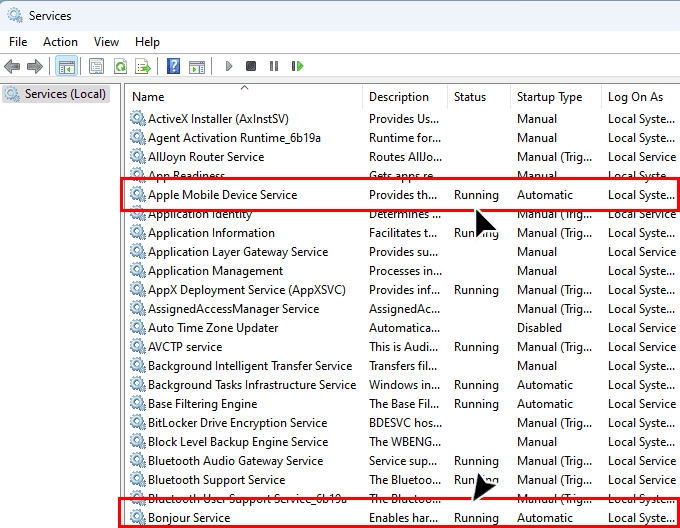
- The Status of these services should show Running.
- If that’s not the case, double-click the Apple Mobile Device Service.
- Select Automatic in the Startup type drop-down list.
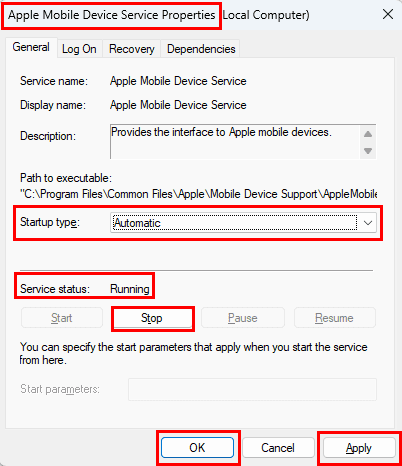
- Also, click Start under the Service status section.
- Do the same thing for the Bonjour Service.
- Restart your PC.
7. Update USB Drivers From the Device Manager
An outdated USB driver may also stop your device from communicating through iTunes. To resolve these, try these steps:
- Click Start on Windows 11 and type Device.
- Select Device Manager to open the tool.
- Expand the Universal Serial Bus devices entry.
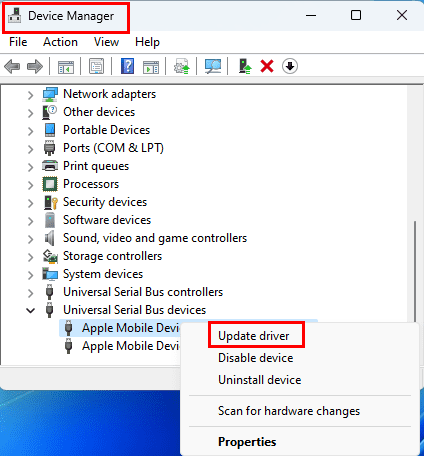
- Click the Apple Mobile Device Composite Device and right-click and select Update driver.
- Do the same for Apple Mobile Device USB Device driver.
8. Manually Install Apple Mobile Device Drivers
- Ensure you have installed the latest version of iTunes.
- Plug your Apple iPhone or iPad into a USB port on your computer using a supported Lightning or USB-C cable.
- Ensure your iPhone/iPad is on the Home Screen. If there’s any prompt to Trust, select the prompt to trust Windows 11 PC.
- Hit the Windows + I keys together and click Bluetooth & devices.
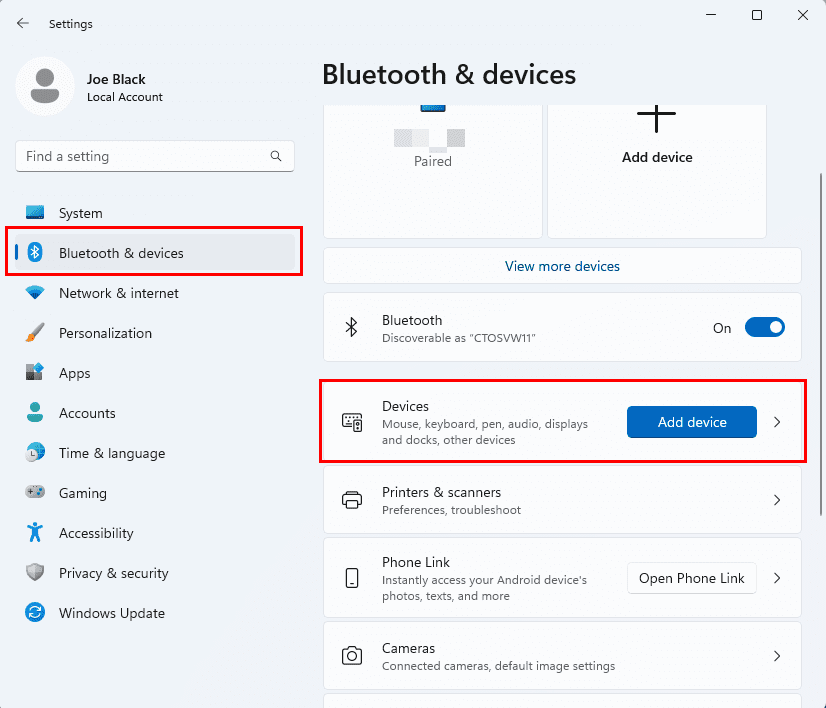
- Now, select the Devices menu on the right-side panel.
- When inside the Devices screen, scroll to the bottom to find the More devices and printer settings menu.
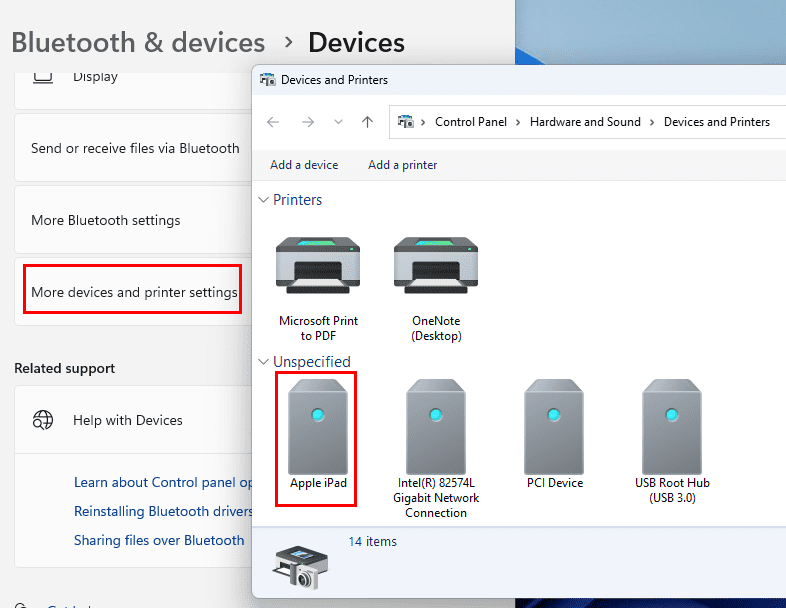
- Click it and scroll down on the new window to find iPad/iPhone under the Unspecified device list.
- Right-click the device and choose Properties on the context menu.
Note: If you don’t see your device listed here, ensure you have selected to trust the PC on the device and you are using a supported cable.
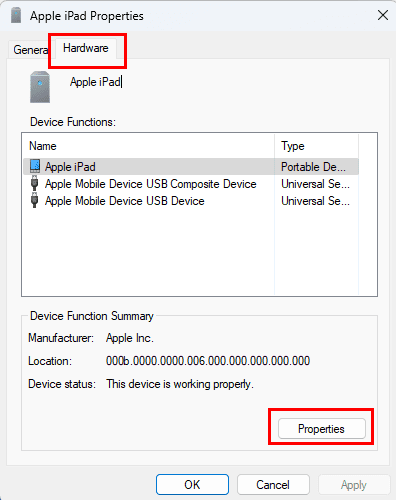
- Select the Hardware tab, then click the Properties button.
- From the General tab, select the Change settings button.
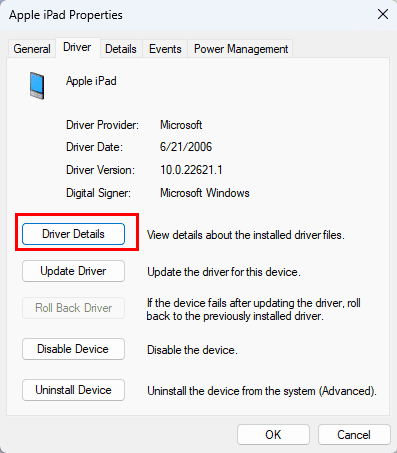
- Select the Driver tab, then select Update Driver.
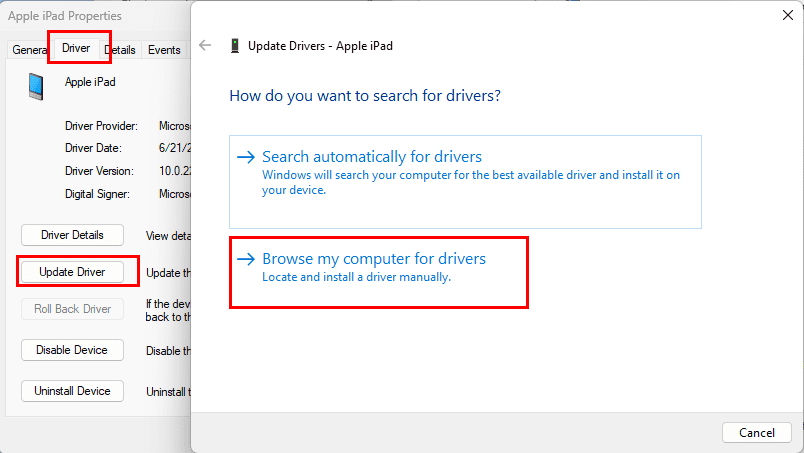
- Choose the Browse my computer for driver software option.
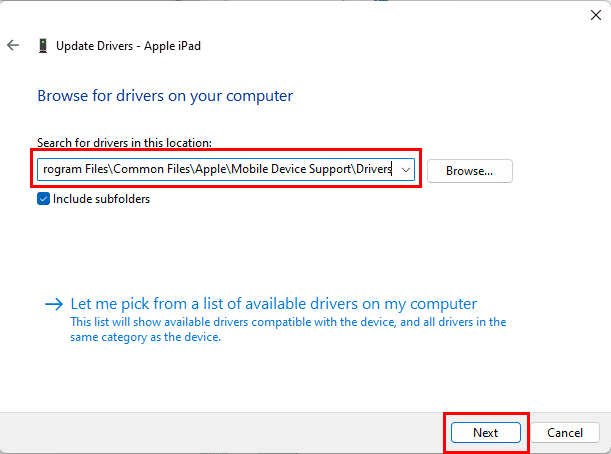
- Select the Browse button and navigate to the following directory:
C:\Program Files\Common Files\Apple\Mobile Device Support\Drivers
- If you don’t have the above folder, check the following directory:
C:\Program Files (x86)\Common Files\Apple\Mobile Device Support\Drivers
- If you still don’t see it, try uninstalling and reinstalling iTunes.
- This time, install iTunes by downloading the Windows installation package from Apple. Don’t re-install the Microsoft Store iTunes app.
Note: Since a few of you have messaged me that you still don’t see this folder, I have zipped up the files and made them available for download here. Unzip the folder somewhere, then point Windows to the files.
- Click Next and then hit the Close button.
- iTunes should now detect and sync with your iPhone or iPad successfully.
FAQ
Why don’t I have the Drivers folder?
It’s possible your installation of iTunes didn’t include it as you downloaded the app from Microsoft Store. Uninstall this app from your Windows 11 PC. Then, go to the iTunes Apple portal and click the Windows hyperlink beside Looking for other versions? narration on the website. App download will begin automatically. Install the app to get the Drivers folder.
Conclusion
I hope you can now fix the iTunes Not Detecting iPhone yourself. Try the above methods and share your comments about the outcomes below. If the issue is persisting, you can contact Apple Support or Microsoft Support.


For people who still don’t have the driver folder after reinstalling, DO NOT install the Microsoft store version of iTunes as those do not include the drivers. Get one of the older version here: https://discussions.apple.com/docs/DOC-6562#iTunesInstallers
The installer from the official Apple page is supposed to have the driver folder, but from my personal experience it does not (version 12.2.2). So grab one of the old versions.
Thank you! Other articles told me to update the drivers “automatically” and that never helped. But this did!
It Worked like a charm. Thanks.
This helped lot, awesome support, thanks
29th May 2022 and the Zip still works.
Already search everywhere, but only here provide much needed Drivers folder and the content.
Thanks.
Woooow thank you ???? you
Still did not work after all this
Sad
tried everything till this worked
Nothing else worked until this – thank you!
Thanking you in 2022.
The Zip Files are still valid.
Thanks for the step by step guide, mine was working fine in the morning then in the afternoon it wouldnt reconise the phone connected. i followed your instructions and it told me the drivers was already upto date however there was a option to install a previous driver which as soon as i did that the phone popped up in the itunes.
I use an old laptop running Windows Vista to house iTunes and my music collection. Would you be able to provide similar instructions to help me get my laptop to recognize my first generation ipod touch? Thank you.
thank you so much for those drivers, it worked!! I had looked everywhere!!!
I was so annoyed by Itunes not detecting my iPhone but these steps fixed it! Love you endlessly :)
Can anyone help me please. Got an iPhone XR, syncing music was never a problem before, but now whenever I click the sync button, It does the syncing-like-thing like before but the music won’t transfer to my iPhone anymore. I have uninstalled my iTunes on Windows 10 then installed it again. I checked my storage. I even click the reset button on my iPhone but still I can’t sync music. Please help.
I have to let you know, the zip file you provided saved my life.
Stupid Apple removed Driver/ from itunes, reinstall doesnt make any changes.
I wonder they know how ridiculous they are with these feature broken.
You can´t imagine how much you helped me! I was looking for the driver file for around 4 hours and I just downloaded your and as magic, ITS WORKED!!!! Thank you!
Thank you so much! I’ve read so many articles to try to fix the problem, finally I found this one.
My PC was missed “Apple mobile device USB driver”. So I download your file “iosdrivers.zip” and import it as your guide. It’s worked.
Thank you so much.
Absolute lifesaver! Had to extract your loaded zip drivers. I must of wasted about a days worth of time on this, but your fix works great and fixes within minutes. The driver is key to itunes adding your iphone , and allowing the ‘trust’ prompt. Honestly this is the ONLY fix, great job!
On a new PC, the original admin user downloaded iTunes from the Microsoft site. A subsequent user downloaded iTunes from the Apple site. iTunes would recognize an iPhone, but not an iPod.
Running the Windows Services app showed that the Apple Mobile Device Service and Bonjour Service were running, but no iPod Service.
The user uninstalled and reinstalled iTunes to no effect. It was only after the iTunes installed from the Microsoft site for the admin user was uninstalled (which may have had some negative impact on the iPod Service) that an uninstall/reinstall from the Apple site fixed the problem and all 3 services were then running.
Recommend going through each possible user installation of iTunes and uninstall. Then reinstall only from the Apple site.
This really helped me. Thank you. I had to download the drives.
Hey Guys ,
thanks a alot for this .. it worked . I downloaded the drivers folder from this page . copy and pasted in the Apple mobile folder as per step 1-12..
it worked!!!!!
Thank you..
Maze from South Africa
Thanks so much for sharing this, so glad I came across this post as I was going nuts trying to figure it out!
Didn’t work, I have Win 10 with latest udpates. Bought a used 6th gen iPod Classic and had to download drivers. But they wouldn’t install, I get “The best drivers for your device are already installed.”
Thank you so much. You’re a hero. Got my girlfriend an Ipod Touch for her birthday and spent the day trying to put music on it for her with no success. After hours of searching I found this and your .zip folder and voila. Thank you very much good sir!
saved me! thanks!
It was so usefull. You saved my life
This fixed my problem. Thanks for including the files, I needed them.
I listen to a lot of music on my iPhone and having just upgraded my work PC to run Windows 10, I couldn’t sync any music. Your step by step fix was super-awesome along with the zipped folder containing updated drivers. Thanks a lot. Best wishes.
I love you Mr.Mitch Bartlett.
I have spent countless hours installing and uninstalling iTunes. Trying multiple cables and ports on my computer. Following apples terrible troubleshooting tips and this worked immediately. Thanks again.
This is the only fix that works for Windows 10.
The zipped ios Driver is the only thing that worked on my Win10 laptop :) .
Thanks very much.
I have tried everything I could find on the web… The zipped file that is part of this article is the ONLY thing that worked for me. Thank you
Thanks! in my case I had to download the driver files from the internet and it worked!
Thank you for attaching the folder of drivers! I’ve been messing with this for a couple of days trying to get it to connect. I downloaded those, and the rest of the process was easy peazy.
Hello my iPhone 7plus shows on iTunes and showed all installed apps but doesn’t accept to synchronize. When I try to synchronized on iTunes, it says : “This iPhone iPhone 7Plus can not be synced. An unknown error occurred (-54(.
Thank you! I tried to solve this for over an hour with various methods including reinstalling driver and uninstalling/reinstalling iTunes (I work as an IT tech BTW) but I think because I was installing from Microsoft store the drivers were not included and the Microsoft MTP drivers that were being installed only asked me to “Allow” to access pictures but not to “Trust” the device. Your zip file saved me with the drivers. I think if I installed from Apple website maybe the drivers would have been included but anyway I got it sorted with your zipped drivers.
I downloaded your drivers and used them to update my Windows 10
Two of the services you mention are NOT listed in my Services window
iPod Service
Bonjour Service
Initially, Apple Mobile Device Service was manual, I changed it to automatic
Still I cannot see the iPad in the Windows File Manager when I view “This PC”
I’ve rebooted my PC, the iPad. When I connect the iPad I hear the PC confirming something has been connected (bing). On the iPad I see window to TRUST PC, I select TRUST and then I’m prompted for the iPad password. I enter it, the window closes, on the PC I cannot see the iPad.
this solves my problem. thank you!
Good day! I have a Windows 10 PC and in the following steps stated:
“Select “Devices and Printers“.
Your iPhone or iPad should be displayed in the “Unspecified” section. Right-click it and select “Properties“.
Note: If you don’t see your device listed here, ensure you have selected to trust the PC on the device and you are using a supported cable.”
I have numerous problems:
1. No Trust Prompt appeared (if ever this could be a problem)
2. Device wasn’t found under the folder
3. BUT the iPad was charging, thereby, I guess I’m using a supported cable (?)
Also, let me note on the following:
1. There was no support driver so I had to download it.
2. The desktop set-up I have is quite confusing as it had three drives: C, D and E. On all said drives, I couldn’t find a single Apple folder under Program Files.
3. But iTunes is up to date somehow, somewhere.
I am sorry if this is confusing. I just recently got a hand me down iPad wherein I have to back up the data. Thank you.
Thanks dude. First one worked. Also I tried another USB port. Many thanks.
Thank you very much for sharing the drivers!! It worked
It helps if the iTunes is downloaded from Apple.ca
But it does not work with iTunes App from Microsoft Store. There is no Apple Mobile Device Services, iPod Services neither the driver for iPhone. If I tried to download the driver (from an old file), I need to erase all Ms iTunes before it runs. But, since last year update, iTunes (from Apple.ca) has failed to work properly. Only solution is to use MS Store iTunes. Every time I plug in my iPhone 10x only Photo App is activated but not iTunes automatically. I need to manually start up iTunes. Any solution ?
It did.
I had to download the zip.
Thanks a lot
Thank you very much. Fix 1 work for me. The drivers file saved me a lot of time.
Thank you! it helped me a lot
Thank you for sharing your knowledge. Saved me a lot of hassle.
Cheers
Thanks a lot, I tried with Windows Update and didn’t work, try to download the drivers manually and try other programs and asked me to subscribe and pay a fee. You are great, keep it up..
Thank You So much for the solution in simplest and easy to understand manner.
Worked a treat. Thanks!
Hi, I have a slightly different problem: when I connect my iPhone to my Windows 7 computer everything works well, AutoPlay window pops up and I can transfer pictures to my PC. For some reasons it is not the case with my iPad mini: no AutoPlay window and I don’t see it under Computer file structure in Windows Explorer. At the same time i do see it in iTunes, so I can transfer videos and music files to the iPad mini. I tried both solutions that you recommended above and nothing helps. I can’t find a way to transfer photos from my iPad to PC. My iPad mini has the latest SW installed, no support for Windows 7 any longer but this problem had existed long before support for Windows 7 was stopped. Any recommendations on how I can have this problem solved? Thank you in advance.
YES !! Fixed it. Many other sites did not.
Thank you!
I don’t have an iPod Service on the computer that does not recognize my iPhone.
I then went to another computer that does recognize my iPhone, and it doesn’t have this service either.
Is it named something else or do they no longer use that service?
Yo this guy is a lifesaver. Been trying to figure this out for hours and he came up with the only solution that worked.
Thank you!! Fix 1 solved my problem.
Your Fix 1 worked – I needed to copy your zipped files and create folder structure to drop drivers into. Thank you! Seems the Microsoft Store version of the iTunes installer isn’t doing the full job. (I tried uninstalling and reinstalling multiple times before I found your post.)
Hey,
I have done exactly what you have said, but my computer tells me that the file does not contain a compatible driver (or that the driver is not made to function on Windows 64) , do you know what is the problem ?
Thanks !
I have tried everything but my iPod Classic is still seen as a generic USB driver (named F:) by my computer. iTunes doesn’t detect it. After trying the first method (no results), I’ve gone through the second one: the Bonjour and the Apple Mobile Device Service are up and automatically running, but the iPod Service is missing. Every time I try to open the F: driver, things freeze. I am pretty desperate. I don’t understand if the problem is the iPod or my computer (which I’ve reinstalled just today).
Excellent!! The zip file with the drivers solved the problem. Thanks a lot
Your Rock !! Spend more than 30 mins with Apple support person but he was not able to fix it. Followed your simple steps and yup my iphone 7plus is now connected to the iTunes. Appreciate.
Thanks! this helps!
You fixed my iPod Touch not being recognized by iTunes in Windows 10!
Your instructions were simple and quickly fixed my missing Driver.
Thank you very much!
it works.
the internet is full of so much shouted crap.
you are the best.
Thank you so much for this write up and for linking the drivers. Was finally able to fix my broken install! Appreciate it!
thanks a lot, you are the best
I went through these steps several times. Always the same error message following insertion of the USB cable with my iphone “The required software is not available for you to be able to connect your i-phone to itunes ” or something along those lines.
I replaced the version of itunes on my computer with the version of itunes that I downloaded directly from the Microsoft website. That fixed the problem..
Gosh you are a genius
thank you so much
Thank you so much! After doing a million other things as suggested by apple and Microsoft, this is the first thing that actually worked! I spent hours trying to remedy this, now finally it worked!
Thank you so much for these drivers.
Thank you so much been a rough 2 days trying to figure this out on my own.
Thank you very much for your help!
Thank you, downloading the zipped file worked perfectly.
This was a huge help! And the only way I was able to get it to work was because you posted the drivers. Thank you for sharing your expertise!
Thanks this worked
Win10, Iphone 8Plus, Problem solved, thank you! I also did not see the folder so I downloaded the drivers you have shared with us. thank you!
Thank you so much.
Best regrads.
Merci beaucoup.. Problème corrigé
it works!! thanks a lot mate!!!
This worked for me – Thank You!
Excellent, worked after downloading drivers
HELPFUL THANKS
AMAZING
worked on May 2019
worked great for me, thanks
In case it helps someone, “Search automatically for updated driver software” worked for me while the “Browse…” option did not.
It worked for me thank you.
Appreciate the assistance.
Hi – followed everything step by step and when I go to load the drivers from your ZIP file I get the following message – The best drivers for your device are already installed. Windows has determined that the best driver for this device is already installed. There may be better drivers on windows Update or the device manufacturere’s website.
I realize this is not Apple’s fault but rather Microsoft’s but I can’t utilize my Ipod or music which stinks.
Thanks
Thank you so much for the very useful information. I was able to download the drivers from your link and install it on my Laptop. iTunes worked perfectly after that.
Cheers!
I never usually post messages but I wanted to than you for sharing this information and the driver folder too. Much appreciated!!
It wouldn’t work for me, when I clicked on properties I couldn’t see the hardware button. What do you think I should do?
Thank you so much for the information provided and especially for the drivers folder! It helped me a lot!
Thanks a lot. This one really helped.
Thanks a Lot, Fix 1 worked fine, once I browse the Program Files and Common files, It recognized right a way. Nice and easy steps, helped I was struggling with all the cables and USB Ports for days. thanks
Yes, Fix 1 worked for my iPhone X. For some reason, with the new version of iTunes, it didn’t recognize the iPhone anymore. It took less than a minute to fix once I found your page. Thanks!
Thanks a lot.. It worked for me.. Appreciated..
Thank you so much for making it easy. Your folder with the drivers saved me from being admitted to the asylum (hyperbole!)
I noticed my iPhone drivers had a Microsoft publisher
Thanks a ton man!! i just deleted some files and had to restore the things back when i tunes started acting up!
Thank you. This was very helpful. My Live saver
You are a life saver. I appreciate it!!!
not able to see: iPod Service or Apple Mobile Device Service in the services menu. Any ideas?
thank you .. its working
Thank you soooo much
just where am i going to put these zip files in the itunes folder???and how
Hi mine didn’t work. My iPhone still can’t be recognized. Please help me
IT WORKED!!
Than you!
Thank you so much …… Your zip file did the trick !
Thank you for all the heavenly advise ?
Mitch! You are awesome, dude. Thank God I found this site, and your zip file. That was what was needed. I did not have the “Mobile Device Support” or “Drivers” file folders . . . even after re-installing iTunes . . . so I created these folders manually, and placed your zip files in the “Drivers” folder . . . and voilà! iTunes worked. I greatly appreciate your help.
awesome guidance – thank you
the most helpful I have found
Huge huge thanks!
iTunes back up and runnnng
Pip
THANK YOU SO MUCH!!!!!!!!!!!!!!!!!!!!!!!!
Thank you. This was very helpful.
Thank you so much for your help. It works now!
Thank you so much – great help!!!!!!!!!! :)
Thank you so much! I didn’t have the folder, Unzipped your files, installed and it worked perfectly. Thanks again, You saved me a ton of time.
THANK YOU FOR THIS!!
This worked liked a magic for my problem, thank you very much
Cannot BELIEVE the performance to get a new 6s plus set-up but at least I got this step to work with your tip! Thanks!
I had to connect it to an USB 2 port, It wasn`t recognized when connected via USB 3. ( Old Iphone to Windows 10)
i tried ur method of unzipping ur given downloadable file but then it shows u are already having the latest drivers and it cant update any further and it still shows the device in the unspecified list and not coming in itunes as well
Definitely! Thank you :)
Thank you so much.
Thank you so much for this fix! For some reason after updating iTunes, the iPod drivers were corrupted and a reinstall didn’t work, but after following these instructions it’s all fine again. Very much appreciated!
Worked great for me. THANK YOU!!
Thank you so much Mitch! While your solution didn’t work exactly as laid out, it pointed me to a solution that did.
I was good up until Select “Browse…” then navigate to “C:\Program Files\Common Files\Apple\Mobile Device Support\Drivers“. If you don’t have this folder, check in “C:\Program Files (x86)\Common Files\Apple\Mobile Device Support\Drivers“
The problem was I didn’t have the Mobile Device Support file so it ended there. However…at the bottom of that box (in blue under Search for drivers in this location) I clicked on Let me pick from a list of available drivers on my computer.
The next box showed Apple Mobile Device USB Device (the only option). I clicked on it, pressed Next.and…voila!
When I reopened iTunes the symbol recognizing my iPhone was showing and a sync was initiated automatically.
Thanks again!
LIfe-saver !!! Thank you so much !!
Uninstalled and reinstalled itunes 4 times and still do not get an Apple folder under either Common Files folder. When Automatic is selected it says it has most current version. Have latest Windows 10 and latest iphone IOS installed. Anyone else have same and found success?
Yes, worked for me. Thank you for the clear directions. I was not able to find the “C” folder, but I typed in what you listed, and I found it worked like a charm. Thanks very much.
It Worked like a charm. Thanks.
The only fix that worked! Thanks!
I was still having trouble till I tried a different cable. Seems not all cables are the same.
Thanks for your help!
Fix 1 worked perfectly and immediately after I implemented it. Thanks man, good looking out.
The “Browse My Computer blah blah blah” didn’t work because after re-installing iTunes 4 times (NOTE: you have to remove ALL Apple software not just iTunes!) I still did not have the “Apple” subfolder, so I selected the ‘”Search Automatically…” and kazaam! Windows says it loaded the driver software and now my iPod Touch 4 works! praise the lord, it is now recognized, clicked on the iPod icon in iTunes, then I clicked on the Music tab on the left pane, then select “Synch Entire Library”… it is now copying 3,000 songs onto my new Touch 4… gawd whatta frustrating ordeal this was (caused by my iPod Nano 7 dying) Thanks for pointing me in the right direction
It seems like you both missed a step. I have rewritten the instructions. Try them out and let me know if you still have issues.
Same as Jill above. No response when I right click Apple iphone. Only option is to left click and remove device.
Right clicking apple iphone did nothing at all.
I have reinstalled itunes so many times…still no iphone driver on my pc.
I should not have uninstalled my older itunes as it all worked well with my phone..
But thank you.