Skip to content
LogoTechnipages
LogoTechnipages
  • Topics
        • Android
        • Browsers
        • Gaming
        • Hardware
        • Internet
        • iPhone
        • Linux
        • macOS
        • Office
        • Reviews
        • Software
        • Windows
        • Definitions
        • All Recent Posts
  • Product Reviews
  • About

How to Disable Camera Shutter Sound on iPhone

Mitch BartlettApril 2, 2015 Comments (14)
iOS slide ringer volume

The sound that the Apple iPhone camera makes when it takes pictures is loud and annoying. You can silence it though with just a few steps.

Contents

  • 1 Method 1
  • 2 Method 2
  • 3 Method 3

Method 1

  • Use the “Volume Down” button to toggle the phone volume down to the vibrate setting.

Method 2

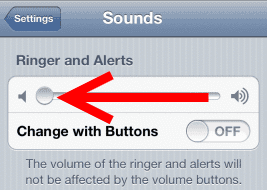
  • Go to “Settings“ > “Sounds” and slide the “Ringer and Alerts” setting all the way to the left.
    iOS slide ringer volume

Method 3

Users who have Jailbreaked their device can turn the sound off forever by renaming the sound file that is played.

  1. Download and install iPhoneBrowser.
  2. Create a ‘dummy’ file on your computer called “photoShutter.caf“. Make it using notepad or anything else, it doesn’t matter.
  3. Using iPhoneBrowser, navigate to /System/Library/Audio/UISounds.
  4. Replace the photoShutter.caf file with the ‘dummy’ file you created.
Categories: iPhone

Author Mitch Bartlett

Through my career that spans over 20 years I have become an expert in Microsoft Systems Administration, Android, and macOS. I started this site as a technical guide for myself and it has grown into what I hope is a useful knowledgebase for everyone.

You Might Also Like

  • how long iphone charger lasts

    How Long Do iPhone Chargers Usually Last?

    Madalina DinitaiPhone
  • dropbox

    Fix: Dropbox Not Finding New Photos on iPhone

    Madalina DinitaiPhone
  • Measure-Distance-Walked-Google-Maps

    How to Access and Erase Your Google Maps History

    Judy SanhzAndroid
  • How to Use Smart Stack Widget on iPhone and iPad The Ultimate Guide

    How to Use Smart Stack Widget on iPhone and iPad: The Ultimate Guide

    Tamal DasiPad

Comments

  1. Jimmy says:
    September 28, 2018 at 8:13 pm

    Tried everything except the jailbreak method and none works. My phone originally would mute the shutter sound and all of a sudden it started and I can’t shut it off

  2. kylie says:
    July 17, 2017 at 7:20 pm

    I know how frustrating this is and as far as I’m aware theres no way to fix it unless you jailbreak your phone but I found a work around. If you use Snapchat (and even if you don’t you should get it the camera is much better even if you don’t use social media) and mute your phone the shutter sound is basically gone and you can take pictures in a library without any awkwardness.

  3. Sarah says:
    January 9, 2017 at 3:37 pm

    My phone was made in China, and I still can’t get any of these methods to work.

  4. Lenny says:
    September 16, 2016 at 7:54 pm

    Is there a way of just wiping your phone so that its a US phone and not a Japan phone?

  5. KA says:
    April 7, 2016 at 7:50 am

    Japan made it illegal to silence the shutter sound, so that’s why #1&2 don’t work in Japan.

  6. un4free says:
    March 6, 2016 at 11:48 pm

    Method 3 works perfectly.
    I used iFile and created the photoShutter.caf file directly with the app (added a “2” to the original so I could use it as a backup just in case)

    iOS 7.1.1 JB (obv.) & 5s 16GB GSM

  7. Andy says:
    February 27, 2016 at 12:17 am

    5s from Japan. 1 & 2 don’t work. Also not sure i want to jailbreak my phone.

  8. help for u says:
    February 16, 2016 at 1:35 am

    Another method has been discovered that works with iOS 7, iOS 8, iOS 9, and newer, and doesn’t depend on the Mute switch. It’s a workaround that involves playing a song… here’s how it works:

    Open the Music app and start playing a song, it doesn’t matter which
    Now use the volume buttons on the side of the iPhone and turn the song volume all the way down to nothing
    Now use the Camera app as normal, which will now take photos completely silently.
    iPhone camera icon That’s right, by taking volume to 0 in Music app, the Camera will shoot pictures silently on iPhone.

  9. ivan says:
    January 26, 2016 at 12:51 am

    my phone is on silent mode but still makes the camera shutter sound. is there anything i can do ?

  10. smokeingcarnivore says:
    January 25, 2016 at 3:15 pm

    just put in ear phone plug

  11. Tom says:
    January 20, 2016 at 11:26 am

    Has anyone tried wiping the Japan and restoring it? If Apple sees my location as US, wouldn’t that disable the camera click?

  12. aaron says:
    January 3, 2016 at 11:40 am

    Method #1 & #2 do not work. And not sure I want to Jailbreak my phone…

  13. sebastian says:
    November 6, 2015 at 11:48 pm

    * Just put in cydia “no shutter sound”

  14. It works!! says:
    April 2, 2015 at 1:49 pm

    It works just fine for me.
    All you’ve got to do is now make sure the content of photoshutter.caf file is now empty so you know it’s successfully replaced by yourself.

Leave a Reply

Your email address will not be published. Required fields are marked *

  • unable to create notebook error in onenote

    We Were Unable to Create Your Notebook Error in OneNote – Common Fixes 

  • error code 0x800704f8 fix

    Error Code 0x800704f8 – How to Fix 

  • back button in browsers doesnt work

    What to Do if the Back Button in Browser Doesn’t Work 

  • could not find this item

    “Could Not Find This Item” When Trying to Remove Files

  • no graphics signal on first boot

    No Graphics Signal on First Boot – How to Fix

profile pic

The Experts Behind Technipages

My name is Mitch Bartlett. I've been working in technology for over 20 years in a wide range of tech jobs from Tech Support to Software Testing. I started this site as a technical guide for myself and it has grown into what I hope is a useful reference for all.

Learn More

technipages logo white
linkedin icon

Technipages is part of Guiding Tech Media, a leading digital media publisher focused on helping people figure out technology. Learn more about our mission and team here.

© 2026 Guiding Tech Media All Rights Reserved

  • About Us
  • Contact
  • Terms of Use
  • Privacy Policy

© 2026 Guiding Tech Media All Rights Reserved

Information from your device can be used to personalize your ad experience.
Do not sell my personal information.