You have an important Zoom meeting you need to connect to. You do everything you usually do when you connect. When you press the enter key after entering the codes, all you see is Zoom in a never-ending effort to connect. The good news is that there are various things you can try to finally get Zoom to connect.
Contents
How to Fix Zoom When It Doesn’t Connect
Before you start imagining the worst, there are some methods you can try to get Zoom to connect. You’ll see that they are beginner-friendly tips you can try, and you won’t have to call your techy friend. It’s always best to try simple tips such as checking your Internet connection. Even though your Internet connection usually never fails, it’s always best to check since it could be failing right when you need to connect to Zoom.
Disable Your VPN
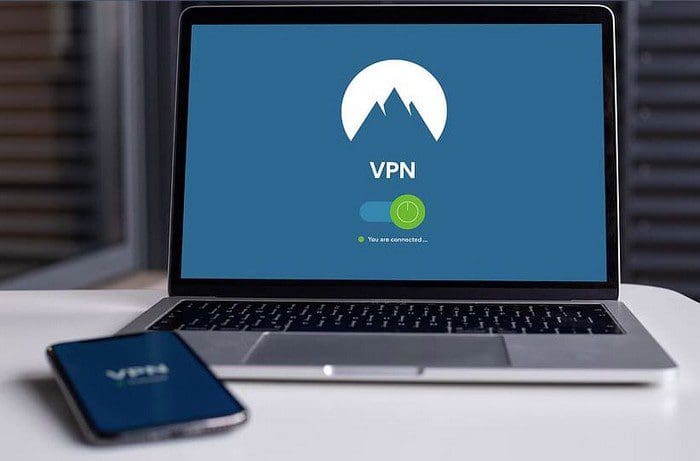
VPNs can be very useful, but they can also cause issues from time to time. To see if it’s responsible for you not being able to connect. Go ahead and disable it. For example, if you’re using NordVPN, you can turn it off by clicking the disconnect button.

If you still can’t connect to Zoom after turning it off, you can try going into your computer’s settings. The easiest way to get there is by pressing the Windows and I keys. Once you’re in, go to Network and Security, followed by VPN Settings. Turn off all VPN settings.
Visit Zoom Service Status
You get used to a service always being available that you may sometimes forget that it can fail from time to time. If you’re sure that it’s not your Internet provider, then it could be that Zoom servers are down. You can check their status by visiting Zoom Service Status. You’ll Zoom’s systems and which ones are working and which ones are down for the moment.
Here you can check for systems such as:
- Zoom Meetings
- Zoom Video Webinars
- Zoom Phone
- Zoom Chat
- Zoom Website
- Conference Room Connector
- Clour Recording
- Meeting Telephony Services
- Integrations
Try the Windows TroubleShooter
Instead of using another program to try and fix the issue, why not use the integrated troubleshooter? You can access it by going to:
- Settings
- Troubleshoot
- Additional troubleshooters
- Internet Connection
- Run the troubleshooter
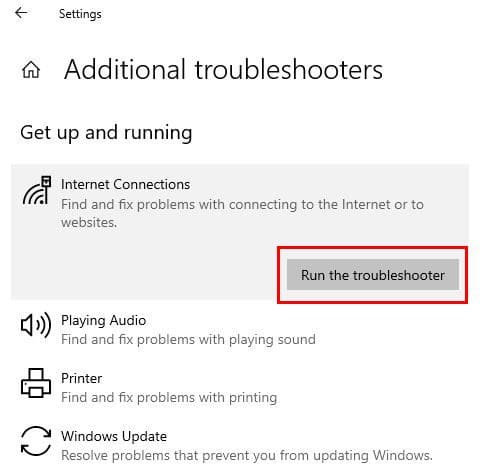
At the end you’ll get a message that your Internet is good to go. Hopefully, so is your Zoom meeting.
Close Certain Programs
When you’re busy with something, it’s easy to forget you have various programs open. Why not close the ones that you’re not using at the moment to rescue background activities. You can do this by opening the Windows Task Manager by pressing on the Ctrl + Shift + Esc buttons.
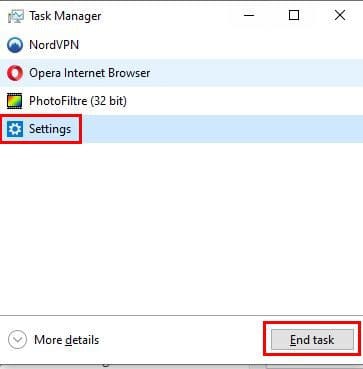
When it opens, you’ll all the background activities. Click on the one you want to close and click on the End Task button. Repeate the process for all the ones you want to close.
Clean up the Temporary Files
Maybe it’s time to clean out those temporary files. You can do that by putting this on the Windows search bar: ‘%temp%’. Select all the temporary files and erase them.
Uninstall Zoom
If the Zoom client is till not working you can always try uninstalling and then reinstalling the app. Look for the app by clicking on the Windows start menu and right-click on the app. The Unstall option will be the second option down.
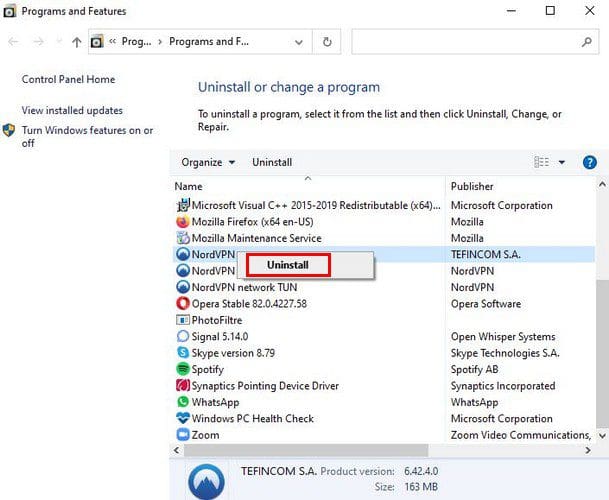
This is going to open the Programs and features window. Right-click on Zoom and uninstall. When the app is gone, go to Zoom’s official site and download the desktop client again.
Conclusion
No app is perfect and that includes Zoom. There will come a time when it’s going to fail. It’s just bad timing when it stop working right when you need to connect for a meeting. The good news is that there various methods you can try to fix the connection problem. Which method are you going to try first? Let me know in the comments below and don’t forget to share the article with others on other social media platforms.