Your Microsoft account allows you to do a lot of things both on and offline, on your PC and away from it. But if you’ve updated your machine and suddenly been greeted with the error message “You can’t sign in with this account,” then you won’t be doing much at all.
In this article, we’ll be looking at possible fixes for this annoying error.
Contents
Blame It on Windows 11 24H2
Microsoft’s major update for Windows 11 brought some welcome security updates, features, and bug fixes. For some users, though, there were more than a few rough spots. Some users reported their copy of Windows suddenly deactivated, while others were unable to sign in with a certain account. These access issues are annoying, but let’s look at solutions.
“You Can’t Sign In With This Account” Fix
There are a few ways you can try to overcome this error, depending on what you think the problem might be:
Restart Your Device
It’s amazing how many PC problems can be resolved by simply restarting your machine. To check that this error isn’t merely the result of a computer that’s been running too long, just restart your machine.
For good measure, you can also hard restart. To do this:
Step 1. Press and hold the power button and keep holding it for 30 seconds. Even when the machine turns off, keep your finger on the button.
Step 2. Wait a few minutes, then switch your machine back on once again.
Try a Different Account
If you have a machine with multiple accounts, one way to ensure the problem isn’t with a specific account but rather the computer itself is to try logging in with a different profile.
Reset Your PIN
If you think the issue lies with the PIN entered on your end, you can always reset it. To do this:
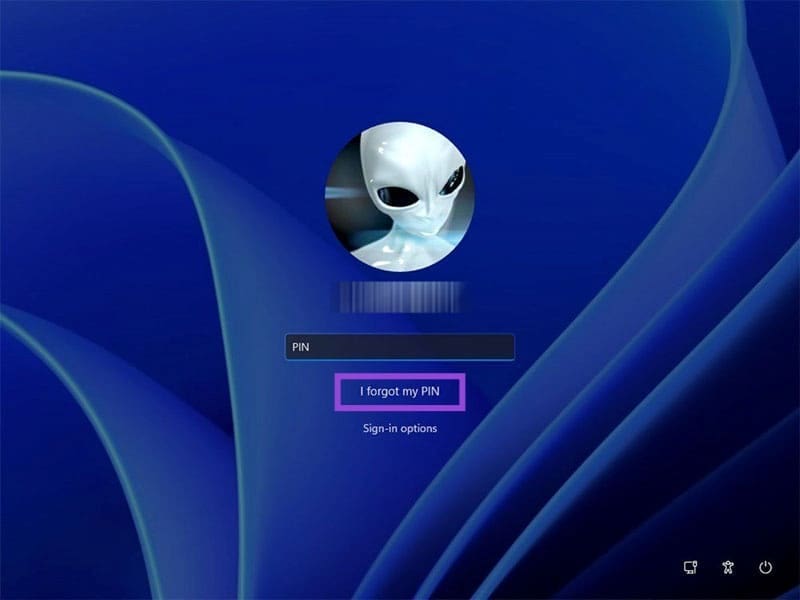
Step 1. Click the “I forgot my PIN” option just below your login details.
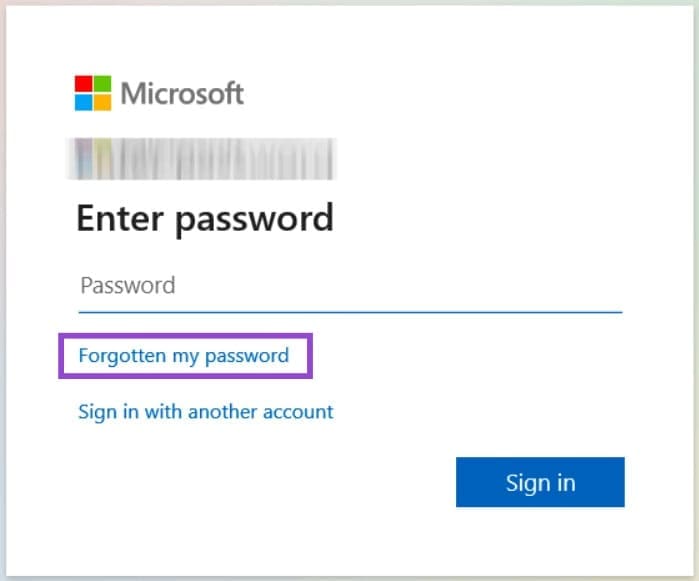
Step 2. A window will open with the sign-in for your Microsoft account. Click “Forgot my password.”
Step 3. Microsoft will send a verification code to your email or phone. Enter it and reset your password.
Step 4. Try to log in once again.
Create a New Account in Command Prompt
If you’re locked out, the Command Prompt can help you create an Admin account to at least allow you to start troubleshooting. To create an Admin account:
Step 1. Click the Power icon at the bottom right of the login screen and select “Restart.”
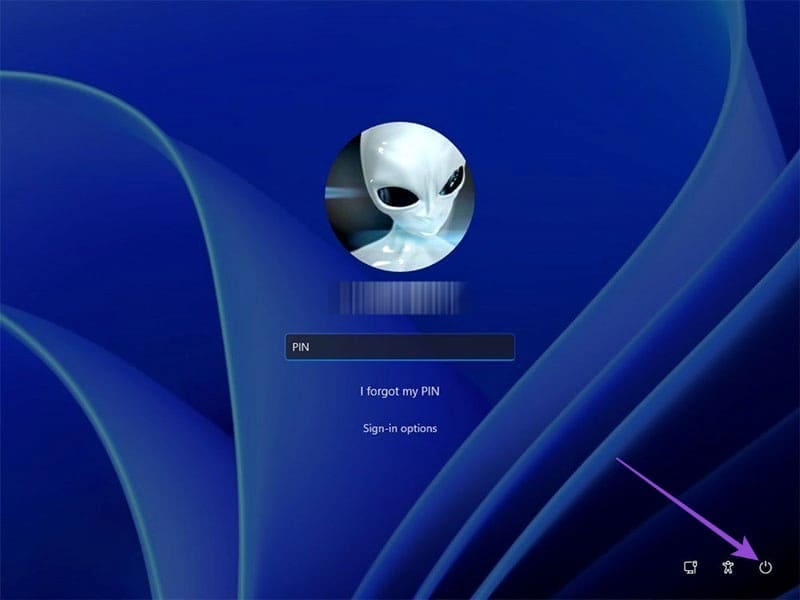
Step 2. Press the Power button as the machine restarts to interrupt startup. Do this twice more.
Step 3. Start your PC up again, and it’ll boot in Advanced Startup mode.
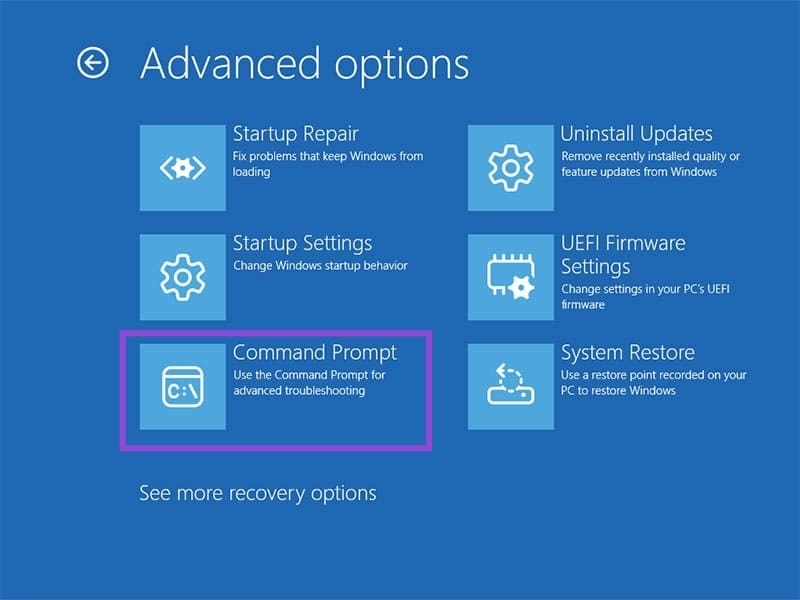
Step 4. Select “Command Prompt” from the options presented.
Step 5. In Command Prompt, type “net user [your user name] /add” and press “Enter.”
Step 6. Type and enter “net localgroup administrators [your user name] /add.”
Step 7. A new admin account should now appear when you restart Windows 11.
Roll Back Updates
If you suspect that 24H2 (or any major update) is to blame for your lack of access, then you can try rolling back the changes to see if it solves the problem. To do this:
Step 1. Boot into Recovery Mode and enter “Advanced Options.”
Step 2. Select “Uninstall Updates” and select “Uninstall latest quality update.”
Step 3. Follow the steps and allow the rollback.
Step 4. Restart your machine and see if you have access.