Skip to content
LogoTechnipages
LogoTechnipages
  • Topics
        • Android
        • Browsers
        • Gaming
        • Hardware
        • Internet
        • iPhone
        • Linux
        • macOS
        • Office
        • Reviews
        • Software
        • Windows
        • Definitions
        • All Recent Posts
  • Product Reviews
  • About

Word 365: Insert Date that Updates Itself Automatically

Mitch BartlettFebruary 27, 2023 Comments (8)
MS Word Header

If you have a template or other type of document that regularly requires the date to be updated, you can make Microsoft Word 365 display a date that automatically updates. This is much easier than remembering to update it manually yourself.

  1. Place the mouse cursor in the area where you would like the date to appear.
  2. Select the “Insert” tab.
  3. Under the “Text” group, select “Quick Parts” > “Field“.
  4. Under the “Categories” box, select “Date and Time“.
    • “CreateDate” – Displays date the document was created.
    • “PrintDate” – Displays date the document was printed.
    • “SaveDate” – Displays date the document was last saved.
  5. Select the date and time format that you want in the “Date formats” box.
  6. Select “OK” when ready, and you’re done.
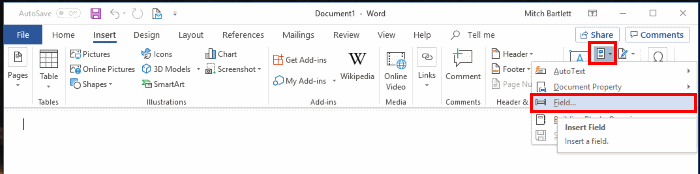
Note: You can manually update the date by right-clicking the field and selecting “Update Field“.

Now the date in your document will be inserted into the document and will update automatically based on the selection you made whenever you open the MS Word document.

Categories: Office

Author Mitch Bartlett

Through my career that spans over 20 years I have become an expert in Microsoft Systems Administration, Android, and macOS. I started this site as a technical guide for myself and it has grown into what I hope is a useful knowledgebase for everyone.

You Might Also Like

  • Outlook 2010 Import option

    Outlook 2016: Backup/Export & Import Data

    Mitch BartlettOffice
  • Outlook Logo Header

    Fix Outlook 365 Won’t Start and Crashes

    Mitch BartlettOffice
  • Outlook Logo Header

    How to View Full Message Headers in Outlook 2019/2016

    Mitch BartlettOffice
  • disable-top-results-outlook-search-results

    How to Disable Top Results from Outlook Search

    Madalina DinitaOffice

Comments

  1. Cal says:
    February 14, 2022 at 12:33 pm

    How do I add future dates and have them update automatically?
    Thanks

  2. Anne E. Winn says:
    September 27, 2019 at 1:24 pm

    Many of our computers were recently updated and our longstanding templates were lost; therefore I am now trying to re-create our most used (and ‘beloved’) timesheet form. In the past we would open our timesheet form and the current date would automatically be in the document. Upon saving the document, the current date was somehow preserved so when our time entry staff opened the timesheet form a week later it had the date the timesheet was for (rather than automatically updating). I have not been able to re-create this function – do you have any suggestions.

  3. Amanda says:
    April 16, 2019 at 9:36 am

    I’m trying to make this an automatic update anytime I open a Word doc I am editting to make any date typed as mm/dd/yy to month, date, year I can use these steps for individual updates, but if I open a new word doc it doesn’t save my option.

  4. Meghan says:
    April 10, 2019 at 2:59 pm

    Richard,
    If you do not want to update the date, all you need to do it go to the insert tab, then under the text section, click on “Date & Time”. This will allow you to add today’s date without the field box.
    Thanks,
    M

  5. Richard Green says:
    March 27, 2019 at 10:23 am

    I think I found out how to change the format so that the date will not update. From the word Help: Unlink a field
    Click the field, and then press CTRL+SHIFT+F9.
    Note Once a field is unlinked, the current field result is regular text. If you later want to update the information, you must insert the field again.
    PS My version is from MS office 2000 pro. Still works!

  6. Richard Green says:
    March 27, 2019 at 10:14 am

    Thank you. But how do I change the format so that the date will not update?

  7. Jen says:
    March 14, 2019 at 11:06 am

    Worked great – thank you!

  8. Mohan Menon says:
    February 25, 2019 at 7:42 pm

    Exactly what I wanted. Thank you so much!

Leave a Reply

Your email address will not be published. Required fields are marked *

  • clipchamp unexpected application error

    Clipchamp Unexpected Application Error: Here’s the Solution 

  • winload.efi file missing error

    Winload.EFI File Missing Error on Boot – How to Fix

  • fix error 0x9cfc7550

    How to Fix Error 0x9cfc7550 (We Couldn’t Create a New Partition) in Windows 

  • fix error code 0x3000008 1

    How to Fix Error Code 0x3000008 for Remote Desktop Connection

  • fix error code 0x80190001 1

    How to Quickly Fix Error 0x80190001 for Microsoft or Outlook Account Login 

profile pic

The Experts Behind Technipages

My name is Mitch Bartlett. I've been working in technology for over 20 years in a wide range of tech jobs from Tech Support to Software Testing. I started this site as a technical guide for myself and it has grown into what I hope is a useful reference for all.

Learn More

technipages logo white
linkedin icon

Technipages is part of Guiding Tech Media, a leading digital media publisher focused on helping people figure out technology. Learn more about our mission and team here.

© 2025 Guiding Tech Media All Rights Reserved

  • About Us
  • Contact
  • Terms of Use
  • Privacy Policy

© 2025 Guiding Tech Media All Rights Reserved

Information from your device can be used to personalize your ad experience.
Do not sell my personal information.

Last Updated on February 27, 2023 by Mitch Bartlett