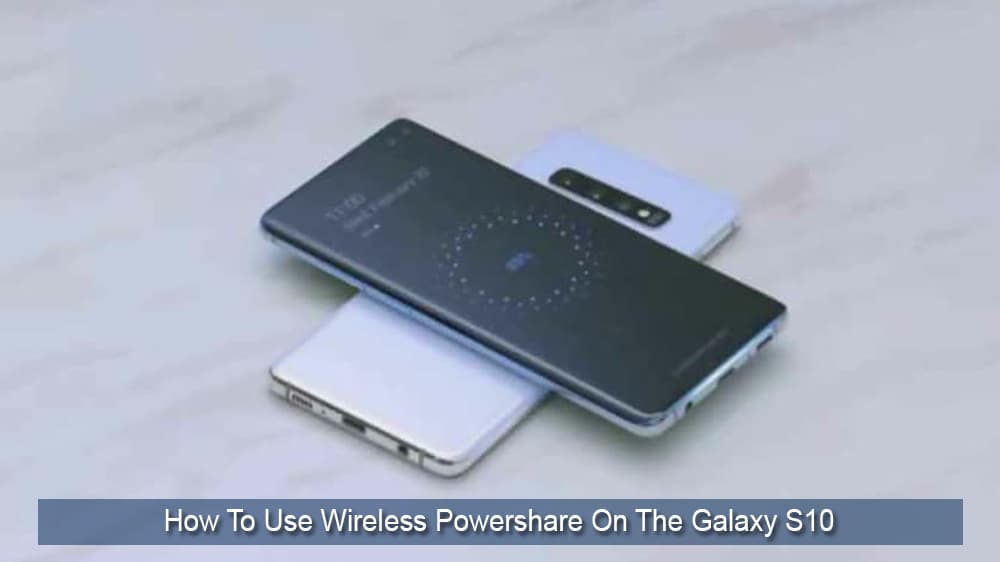
It is not news that the Galaxy S10 is Samsung’s new flagship phone. The S10 comes with many great features, one of which is “Wireless Powershare”. Samsung boasts a strong battery life, to the extent they added the Wireless Powershare feature to support charging other phones and accessories.
While it is improbable that this feature will become the primary method of powering your phone, it is useful if you want to charge your Bluetooth headphones or your friend’s phone.
Contents
This is a new feature that comes with the recently launched S10. It allows the Samsung phone to charge other devices including the Galaxy Watch and Buds. To use this feature, you need to make sure that the S10 is fully charged.
It will not be able to use PowerShare if its battery level drops below 30%. You can also charge a second device while charging your S10. It can serve as a wireless charging mat.
- Swipe down on the screen from the top to view the “Notification Panel”
- Swipe down again, so you can see the full quick toggles
- Click on Wireless Powershare to enable it
- The instructions will outline how to proceed to charge your device with the S10
Here is a quick rundown of the steps to take after you turn on Wireless Powershare
- After Wireless Powershare has been turned on, lay your phone on its face and then put the other device you want to charge on top of it with their backs touching each other.

- If you want to charge a Galaxy Watch or Bud’s case, place them back-to-back on the S10.
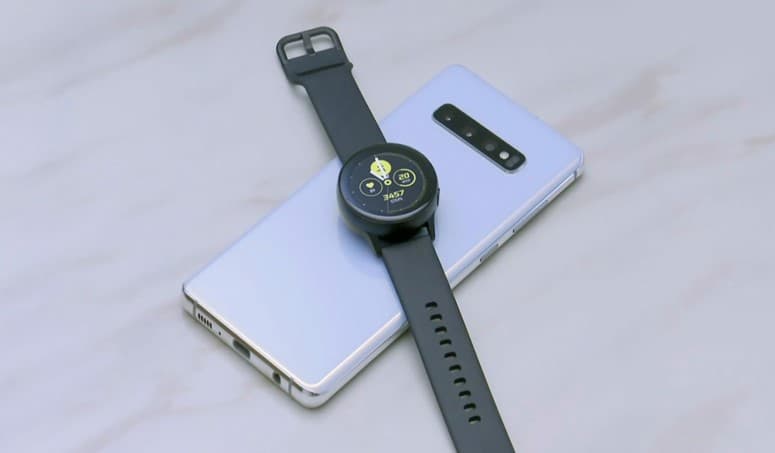
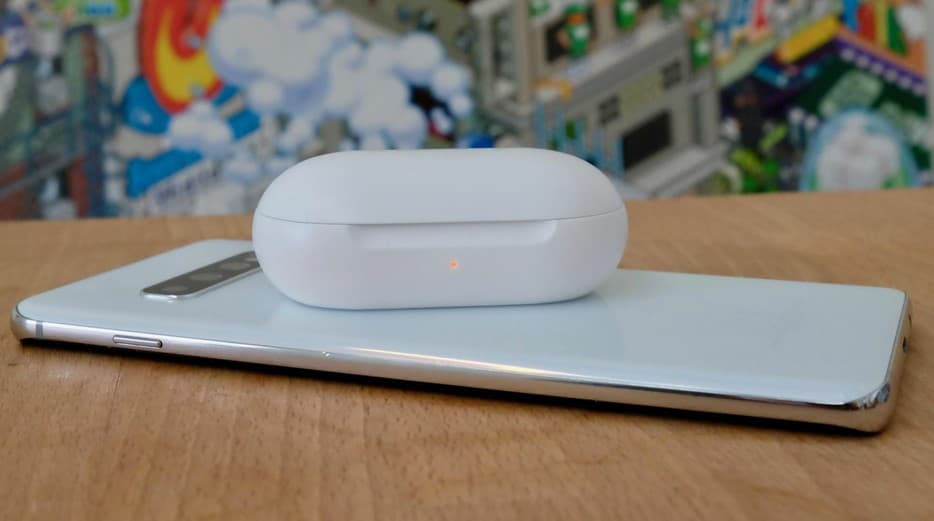
- While charging phones, make sure they are placed the same way to avoid them slipping off.
- Your devices will automatically start charging.
Once it is fully charged, or you are satisfied with the battery percentage, you can turn it off.
- Separate the phones from each other
- Pull down to the “Notification Panel”
- There will be a persistent prompt for Wireless Powershare.
- Click on it, when it expands, tap on “Turn Off”
Pros & Cons of Using Android Devices
While Android is the most widespread mobile operating system in the world, with predictions of becoming the dominant OS in general, that doesn’t mean that it is superior to its counterparts in every way, especially when we consider the iOS.
Depending on your phone, your proficiency, and your needs, you may want to opt for a different operating system or learn how to make the most out of the Android version on your smartphone.
– Versatile
– Modular
– Adaptable
– Easy to program
– Allows 3rd party apps
– Not as streamlined
– Slightly hardware intensive
– Questionable app oversight
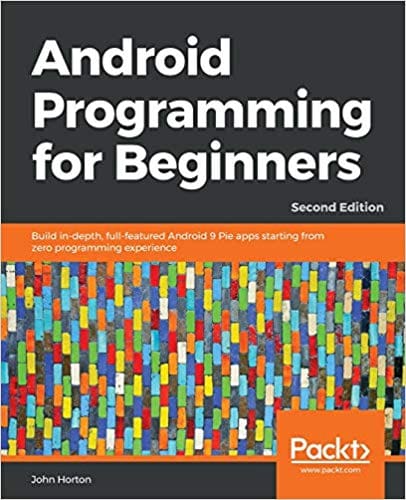
If you want to learn how to make your own apps, or to find out how most current Android apps work, you might want to take out Android Programming for Beginners that provides a nice, gentle learning curve for all that want to learn.
Final Thoughts
Wireless Powershare is a welcomed feature, but it is important to understand that it can drain your battery. You may want to have a fully charged battery before using PowerShare.
Your battery will lose power by approximately 25% per hour when using this feature. This means you have up to two and a half hours to charge another device if you start with a full battery.
You can still operate your S10 while charging another device, just be aware your battery will lose power faster than under normal use.