

Enabling a blue light filter on your computer has been shown to reduce eye strain. Newer versions of Microsoft Windows 10 has a feature built in that allows you to turn off blue light. You can use a third-party application for Windows 8, and 7.
Eye strain is no joke. If you spend a lot of time on your computer or laptop like me, you know exactly what I am talking about. Your eyes will water and start to feel gritty. You can actually feel the strain and “pulling” sensation. Heck, those eyes of yours may even feel just plain tired. I tend to get a lot of headaches if I don’t have my screen adjusted properly, as well.
Even if you turn down the screen brightness, you will still have blue light emitting itself from your screen. Those emissions are high enough on their own to make your eyes start to do all of those lovely fun things I just mentioned above. Not fun, eh?
Besides your cones and rods found in your retinas, there is also something called Melanopsin. Simply put, Melanopsin is a pigment that is sensitive to blue light, which will lead to your having greater light sensitivity.
How can we reduce the eye strain and sensitivity? Thankfully, Microsoft has now included a simple Blue Light Sensitivity adjustment panel in your Settings. Let’s take a look at how you can turn this on and adjust it to fit your needs.
How to Turn on Blue Light Filter in Windows 10
First, press the ”Windows key” and the letter ”A” buttons at the same time to open up your ”Action Center”.

Click where it says ”Expand”, and then click on the ”Night Light” square to turn it on.
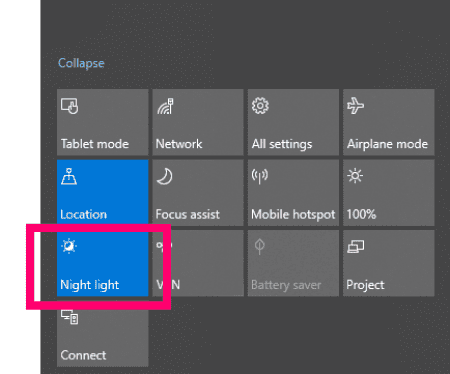
Click on your desktop to close the Action Center, and then press the ”Windows Key” and the letter ”I” at the same time to open your Settings.
Click the very first option, which is ”System” and then click ”Display” on the left.

Click to toggle the ”Night Light” button to the on position, and then click underneath where it says ”Night Light Settings”.

In this Night Light Settings screen, you will see several options for you to choose from. I cannot tell you what to pick: it is a matter of personal preference. I will, however, briefly explain these settings to you.
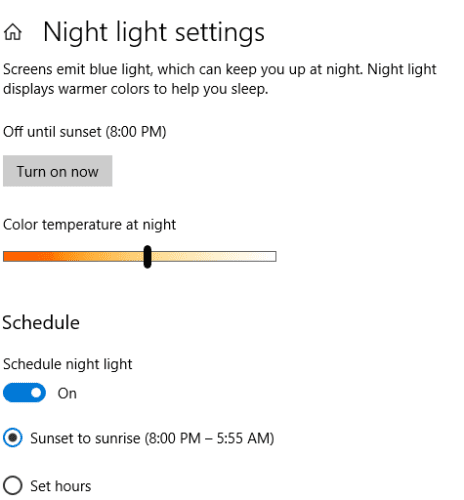
- We already turned the Blue Light filter on. You’ll notice at the top it states that it is set to turn back off at sunrise – and even gives the exact time of your sunrise the next day.
- Just underneath, you’ll see the button you can click to turn Blue Light filter back off right now if you choose to.
- Next is the sliding scale, as I call it. Here is where your personal preference comes in: play with the slide. I suggest doing this at night so you can get the screen adjusted to your needs. Go warmer or lighter, depending on what your eyesight needs and comfort level are.
- Lastly, you can choose to schedule the night light. If you wish to toggle this setting to the on position, you have the option of allowing the computer to simply turn it off and on and sunrise and sunset each day, or you can manually set the hours of your choice. It’s up to you!
You have now turned on the Blue Light Filter in Windows 10 and adjusted it to help reduce your eye strain. Let me know after you have used it a bit how much it has helped you. I know it has saved my bacon!
Any Version of Windows
If you want more options than Windows 10 provides, or use Windows 7, or 8, use this third-party option.
- Download and install the f.lux utility.
- Restart your computer.
- f.lux will run in the taskbar. Select it to make changes. Use the slider to select a desired display temperature.
Happy night surfing!




Because of the working relationship, I need to spend a long time using the computer every day. My eyes are very tired. Thanks to reading your article, I know the software with blue light filtering. I found several blue light filtering softwares by myself later, such as SunsetScreen and f.lux ,I think a software called CareUEyes is the most suitable for me, although it needs to be charged.My eyes are much more comfortable after filtering blue light.
It helped a lot.Thank you!!