Skip to content
LogoTechnipages
LogoTechnipages
  • Topics
        • Android
        • Browsers
        • Gaming
        • Hardware
        • Internet
        • iPhone
        • Linux
        • macOS
        • Office
        • Reviews
        • Software
        • Windows
        • Definitions
        • All Recent Posts
  • Product Reviews
  • About

Windows 11: Use Fonts and Make Your Text Fantastic

Judy SanhzJune 23, 2022 Comments (0)
Fix-Windows-11-Remember-My-Apps-Greyed-Out

Fonts are a great way to give your documents your own personal touch. For example, you can add Google fonts to a WordPress site. Also, if you have Windows 10, you can install TrueType fonts. But, there are also various things you can do on your Windows 11 computer regarding fonts.

Contents

  • 1 How to Access the Fonts On Your Windows 11 Computer
    • 1.1 Get More Fonts from the Microsoft Store
    • 1.2 Conclusion

How to Access the Fonts On Your Windows 11 Computer

In Settings, you can find the Fonts section. Here you can change the font you’re currently using and install more if you’re not happy with the ones you have. You’ll need to go to Settings > Personalization > Fonts.
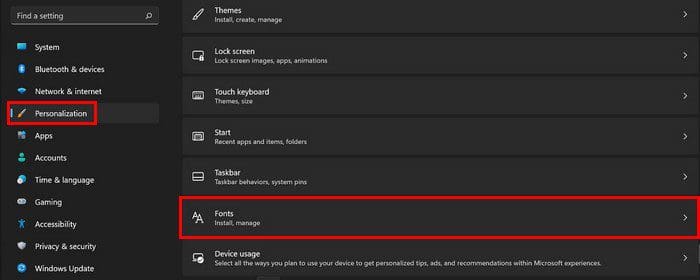
Windows 11 Fonts Settings

Scroll down a little, and you’ll see a large variety of fonts to choose from. If you click on one, you’ll come across the options to change the size with the slider, and if you’re ready to part ways with the font, you’ll see an uninstall button a little further down. You’ll also get a preview of what the font has to offer when it comes to style.

Font Selection Windows 11

Another option you can access as long as you’re here is downloading fonts for all languages. To access this option, scroll to the bottom of the page.
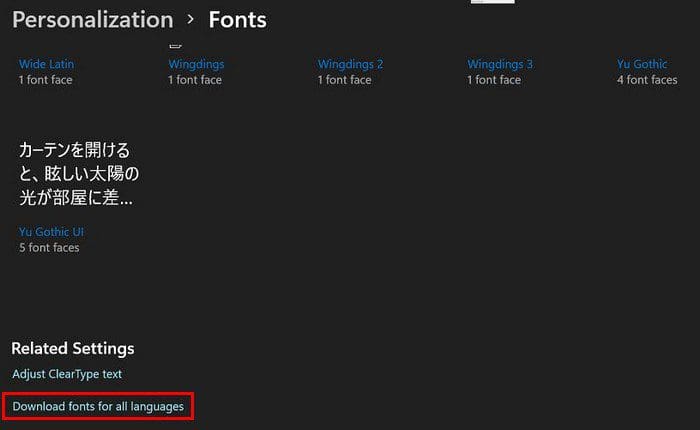
Download Fonts Windows 11

Get More Fonts from the Microsoft Store

You can always go to the Microsoft store to get more if you don’t see any fonts you want or need. Near the top, click on the Get more fonts from the Microsoft Store link.
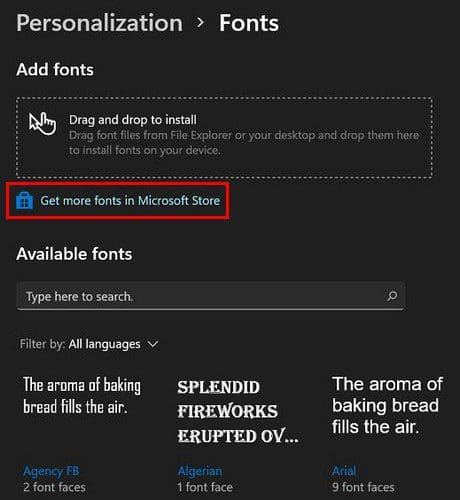
Microsoft Store More Fonts

You’ll end up in the Microsoft Store when you click on the link. You’ll see all the font apps you can install. Not all of them will be free. They will be marked free or have a price tag so you can tell them apart. When you find one you like, click on it. You’ll see additional information, such as the styles that are included and the ratings.
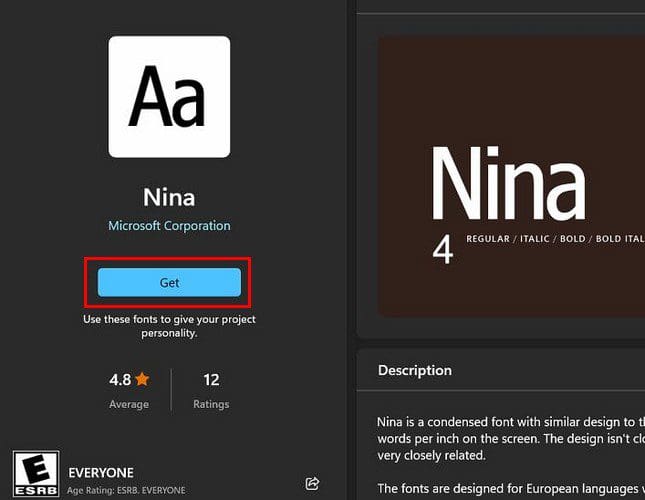
Microsoft Store Add Fonts

At the top, you’ll also see an area where you can drag and drop any fonts you may have in the File Explorer or desktop.

Conclusion

When it comes to font style, you have many options to choose from. You can always go to the Microsoft Store and install more if you don’t see any you like on your Windows 11 computer. If you already have a font pack in the File Explorer, you can drag and drop it to install. Which font style is your favorite? Share your thoughts in the comments below, and don’t forget to share the article with others on social media.

Categories: Windows

Author Judy Sanhz

I am a tech geek who loves technology. I have been writing about tech for over a decade, covering various devices and programs. I write about Android, Apple, and Windows devices and programs. I stay updated on the latest gadgets, upgrades, features, and news. I aim to make complicated tech information easy for everyone to read. I've been with TechniPages from the beginning to help others fix their tech issues with the easy-to-follow guides.

You Might Also Like

  • Inclusion list for high risk file types policy

    Windows: Disable “Publisher Could Not Be Verified” Messages

    Mitch BartlettWindows
  • Windows Header

    Windows: Open Command Prompt to Specific Folder Location

    Mitch BartlettWindows
  • How-to-Use-Windows-File-Recovery

    How to Use Windows File Recovery to Recover Data

    Madalina DinitaWindows
  • windows-11-error-0x800f0950

    How Do I Fix Error Code 0x800f0950 on Windows 11?

    Madalina DinitaWindows

Leave a Reply

Your email address will not be published. Required fields are marked *

  • back button in browsers doesnt work

    What to Do if the Back Button in Browser Doesn’t Work 

  • could not find this item

    “Could Not Find This Item” When Trying to Remove Files

  • no graphics signal on first boot

    No Graphics Signal on First Boot – How to Fix

  • system32 folder opens on startup

    System32 Folder Opens on Startup – How to Fix

  • browser keeps opening hp support

    Browser Keeps Opening HP Support Assistant Tabs 

profile pic

The Experts Behind Technipages

My name is Mitch Bartlett. I've been working in technology for over 20 years in a wide range of tech jobs from Tech Support to Software Testing. I started this site as a technical guide for myself and it has grown into what I hope is a useful reference for all.

Learn More

technipages logo white
linkedin icon

Technipages is part of Guiding Tech Media, a leading digital media publisher focused on helping people figure out technology. Learn more about our mission and team here.

© 2026 Guiding Tech Media All Rights Reserved

  • About Us
  • Contact
  • Terms of Use
  • Privacy Policy

© 2026 Guiding Tech Media All Rights Reserved

Information from your device can be used to personalize your ad experience.
Do not sell my personal information.

Last Updated on June 23, 2022 by Judy Sanhz