Skip to content
LogoTechnipages
LogoTechnipages
  • Topics
        • Android
        • Browsers
        • Gaming
        • Hardware
        • Internet
        • iPhone
        • Linux
        • macOS
        • Office
        • Reviews
        • Software
        • Windows
        • Definitions
        • All Recent Posts
  • Product Reviews
  • About

Windows 11: How to Turn on Dark Mode

Judy SanhzMay 17, 2022 Comments (0)
Windows-11-Not-Displaying-Weather-Widget

Dark Mode is a trendy feature many users want an app to have. As soon as an app has it or you can access it, you turn it on immediately. Using an app or OS with the dark mode is easier on your eyes and makes using that device a lot easier. Gmail has it, and Google Maps has it; why wouldn’t Windows 11 have it?

The good news is that turning on dark mode on your Windows 11 computer is quick and easy; if you ever want to go back to light mode, you can. Changing the setting to dark mode is nothing permanent. Keep reading to see how you can start using Dark Mode on Windows 11 right now.

How to Turn on Dark Mode on Windows 11

To turn on dark mode on your Windows 11 computer, you’ll need to go to Settings. Right-click on the Windows start button and choose Settings from the options.
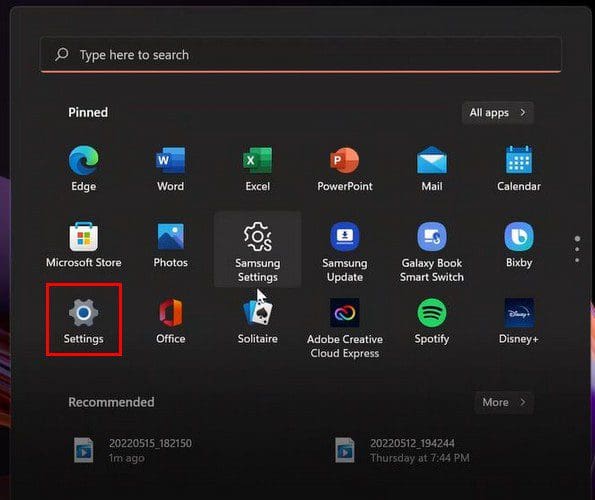
Windows 11 Settings

Once you’re in Settings, click on Personalization from the option on your left. To the right, you should see and click on the Colors option.

Windows 11 Colors option

The option called Choose your default Windows mode will have a dropdown menu. From the three options listed, click on Dark Mode.
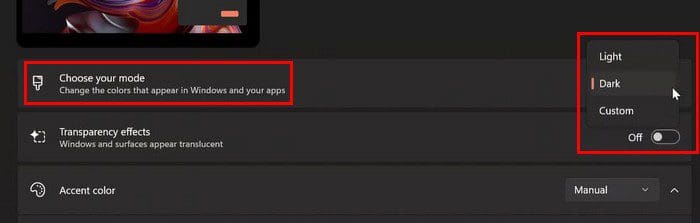
Windows 11 Choose Your Mode

There’s no need to restart your computer since you’ll see the changes immediately. That’s all there is to it to turn on Dark Mode on Windows 11. But as long as you’re there, there are other things you can do to customize your computer. You can choose from different Dark mode customization colors. To make this change go to:

  • Settings
  • Personalization
  • Colors
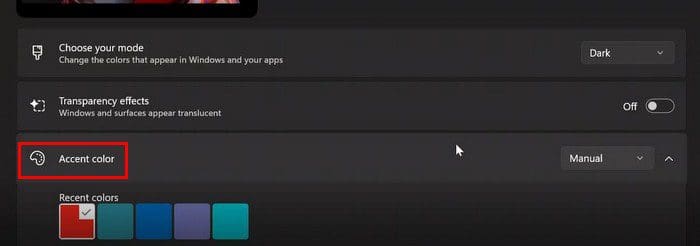
  • Accent Color

Windows 11 Accent Color

Scroll down a little and turn on the following options: Show accent color on Start and taskbar and Show accent color on title bars and windows borders.
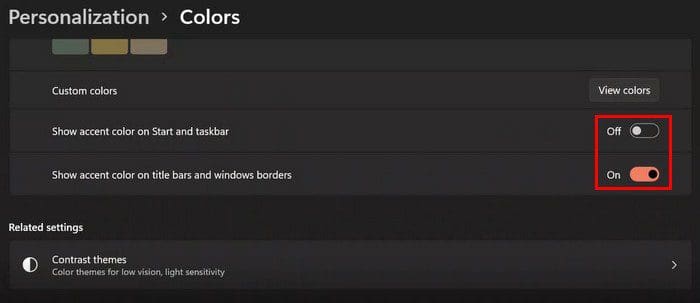
Windows 11 show accent colors

Below, you’ll also see the option for Contrast Themes for light sensitivity. Click on the dropdown menu and choose one of the options. Don’t forget to click on the Apply button to save your changes.

Conclusion

Dark Mode makes using an app or OS a lot easier on your eyes. As you can see, you can turn it on in a few steps and change it to light mode as many times as you want. Do you switch between light and dark mode? Share your thoughts in the comments below, and don’t forget to share the article with others on social media.

Categories: Windows

Author Judy Sanhz

I am a tech geek who loves technology. I have been writing about tech for over a decade, covering various devices and programs. I write about Android, Apple, and Windows devices and programs. I stay updated on the latest gadgets, upgrades, features, and news. I aim to make complicated tech information easy for everyone to read. I've been with TechniPages from the beginning to help others fix their tech issues with the easy-to-follow guides.

You Might Also Like

  • Fix: Windows Print Spooler Service Won’t Stay Started

    Mitch BartlettWindows
  • Fix-Windows-10-File-History-Error-200-and-201

    How to Cancel Your Microsoft Premium Subscription

    Judy SanhzWindows
  • windows-10-undoing-changes-made-to-your-computer

    Windows 10: Undoing Changes Made to Your Computer

    Madalina DinitaWindows
  • windows-11-clock-alarm-app-not-loading

    Fix Windows Camera Error Code 0xa00f4244

    Madalina DinitaWindows

Leave a Reply

Your email address will not be published. Required fields are marked *

  • npu power management bug

    What Is the NPU Power Management Bug and How Do You Fix It?

  • pc can't enroll for windows 10 extended security updates

    PC Can’t Enroll for Windows 10 Extended Security Updates – How to Fix

  • hdd better than an ssd

    When Is an HDD Better Than an SSD?

  • top graphics cards for 2026

    Top 5 Graphics Cards for 2026

  • roblox error 280

    Having Trouble With Roblox Error 280? Here’s What to Do

profile pic

The Experts Behind Technipages

My name is Mitch Bartlett. I've been working in technology for over 20 years in a wide range of tech jobs from Tech Support to Software Testing. I started this site as a technical guide for myself and it has grown into what I hope is a useful reference for all.

Learn More

technipages logo white
linkedin icon

Technipages is part of Guiding Tech Media, a leading digital media publisher focused on helping people figure out technology. Learn more about our mission and team here.

© 2026 Guiding Tech Media All Rights Reserved

  • About Us
  • Contact
  • Terms of Use
  • Privacy Policy

© 2026 Guiding Tech Media All Rights Reserved

Information from your device can be used to personalize your ad experience.
Do not sell my personal information.

Last Updated on May 17, 2022 by Judy Sanhz