When you turn on your computer, you immediately want access to your files. But your Windows computer takes so long that you may have enough time to get two cups of coffee and still have to wait. The good news is that there are different methods you can try to help speed things up when booting your computer. So the next time you turn on your computer, you can get things done as soon as possible and get rid of what is making your computer slow.
Contents
How to Turn on Fast Startup on Windows 11
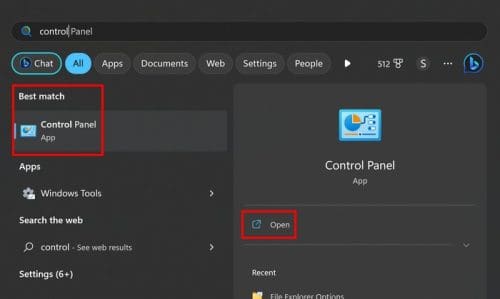
Fast Startup may come pre-enabled on some computers, but if you’re unsure if it is on yours, here are the steps to check. Or enable it if it’s not turned on. Open the Control Panel by searching for it in the search bar.
When it opens, go to:
- System and security
- Power options
- Change what the power options do
- Change settings that are currently unavailable
Under the shutdown settings, you should see the Turn on fast startup option. Check the box for that option and click Save Changes. You might be tempted to take a shorter route, such as Control Panel > System and Security> Change what the power buttons do. But you might find that the Turn on Fast startup options might be greyed out. By taking the previous route, you’ll ensure that you can enable it.
How to Disable Startup Programs in Windows 11
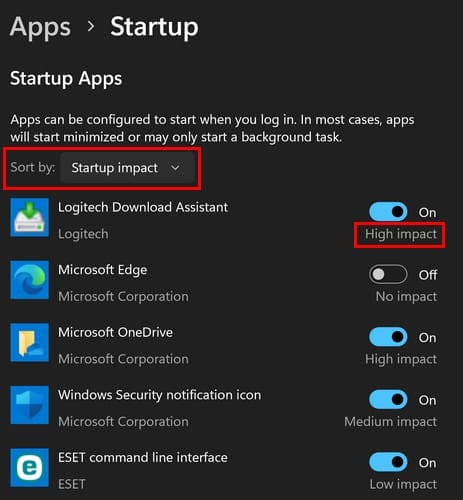
Do you see apps you wish would disappear in the startup? There are apps you’ll need, but others just slow things down. You can make some of these apps go away by going to settings. Access settings by pressing the Windows + I keys. Or, you can click on the Windows Start menu and choose settings. Once you’re in, click on Apps on your left, followed by Startup.
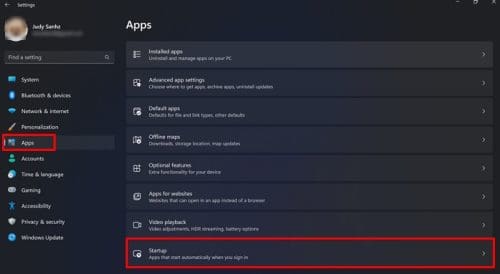
Sort the apps by Startup impact and turn off the ones with the highest impact. If you ever need to turn them on, follow the same steps and toggle them on.
Turn off the Startup Apps Using the Task Manager
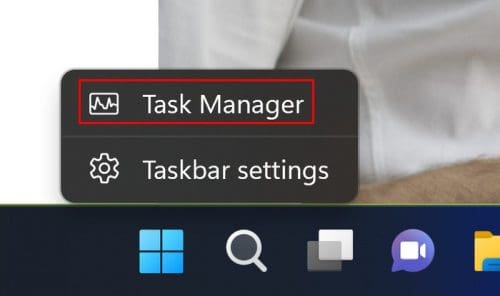
If you feel more comfortable using the Task Manager, you can also turn off the startup apps from there. Right-click on the taskbar and choose Task Manager.
Once the Task Manager is open, click on the Startup Impact to see which apps have the highest impact.
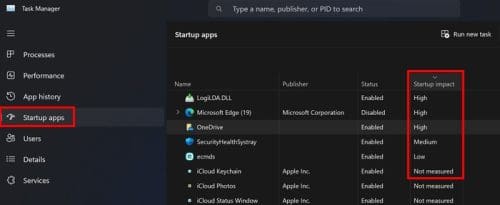
You can disable the app you want by clicking on it and choosing the disable button at the top right. Alternatively, right-click on the app and select the disable option at the top right. Just because you turn them off in startup doesn’t mean you can open them manually if you need them later.
Update Windows to Speed It Up
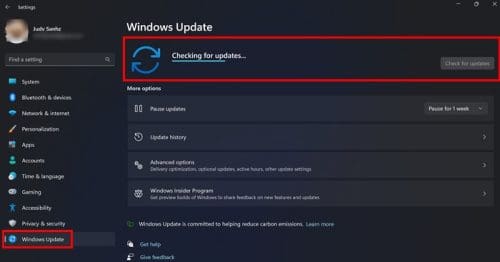
Keeping your Windows computer up to date is always a good idea. You get the latest fixes, and maybe the pending update has something that’ll help with the performance. You can check for any pending updates by going to settings. Open settings by pressing the Windows + I keys or clicking on the Windows Start menu, followed by settings.
Once you’re in, click on Windows Update, followed by the Check for Updates button at the top right. Windows will start checking for any pending updates, and if there are any, click on the Download and Install button.
Other Helpful Tips
If your computer is not one recent model, maybe it’s time to update the hardware. That could explain why nothing seems to work no matter what you do to try and speed things up. SSDs are much faster since they can do things such as read and write faster than HDDs. They can also access much more quickly. SSDs get to the data electronically by using cells that can be rewritten repeatedly, unlike HDDs that use rotational platters and an actuator arm to find the files by finding them on a platter and then moving them so the data can be read.
Both have the same job, such as storing apps, boot systems, and personal files. SSDs use a non-volatile storage technology named NAND. SSDs are faster, are shock resistant, but are more expensive. With SSDs, it doesn’t matter if the data is all over the place since it doesn’t count on hardware to access it like on an HDD. If it’s also possible for you to add more RAM to your computer, you’ll also see an improvement in overall performance.
Sleep Mode is also an option when you take a break from your computer. The downside is that your data will be lost if the power source is removed. But, if that’s not an issue, you won’t have to wait long to return to work. If you want to give this option a try, right-click on the Windows Start menu and place the cursor on the shutdown or sign out option and choose Sleep.
Conclusion
When you turn on your computer, you don’t have the time it takes to boot. The good news is that there are different tips you can try to speed up the boot time on your computer. It can be as easy as disabling some startup apps or as pricey as replacing some hardware. You can’t use the same computer forever, so there will come a time when you’ll need to upgrade. Which tips do you find helpful? Share your thoughts in the comments below, and don’t forget to share the article with others on social media.