Skip to content
LogoTechnipages
LogoTechnipages
  • Topics
        • Android
        • Browsers
        • Gaming
        • Hardware
        • Internet
        • iPhone
        • Linux
        • macOS
        • Office
        • Reviews
        • Software
        • Windows
        • Definitions
        • All Recent Posts
  • Product Reviews
  • About

Windows 11: How to Change the Primary Mouse Button

Judy SanhzJune 24, 2022 Comments (1)
Windows-11-evaluation-copy-watermark

When you start using any mouse, you may assume the left button is the primary one. That’s how they set it up, but not everyone is comfortable with this setup. You could be left-handed or simply prefer using the right button. Whatever your reasons are, it’s possible to change what button is considered the primary one.

Contents

  • 1 How to Make the Right Button the Primary One
    • 1.1 Control Panel
    • 1.2 Conclusion

How to Make the Right Button the Primary One

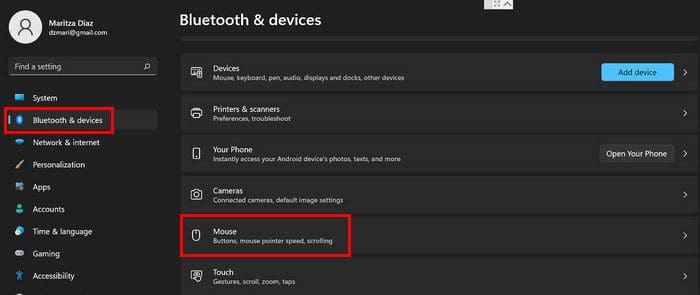
To make the right or left button the primary one, you’ll need to go into Settings. Once you’re in, go to Bluetooth and devices, followed by the Mouse option.
Bluetooth Devices Windows 11

When the mouse section opens, the first option will be Primary mouse button. To the right, you’ll see a dropdown menu where you can choose right or left. As long as you’re there, you can also change things such as mouse pointer speed and adjust how much space you cover when scrolling with the Roll the mouse wheel to scroll option.

You can also change the mouse pointer style by going to Settings > Accessibility > Mouse pointer and touch. Choose your option; if you want to, you can also use the slider to adjust the size.

Control Panel

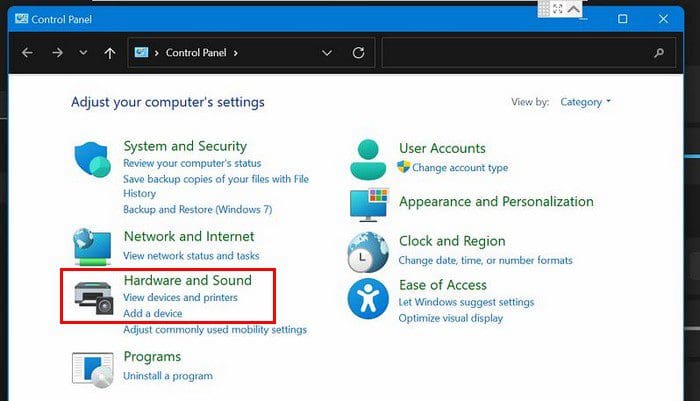
Another way you can change the primary button of your mouse is through the Control Panel. Go to the search tool and type Control Panel and open it. Once it’s open, go to Hardware and Sound.
Hardware and Sound Windows 11

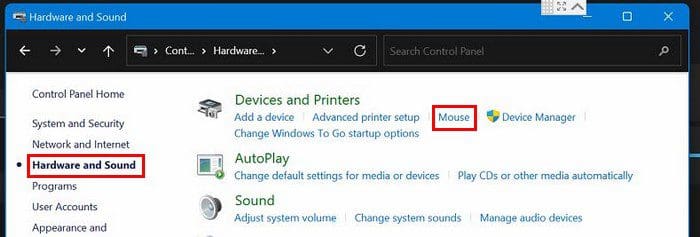
Under the Devices and Printers section, click on the Mouse option.
Mouse Option Windows 11

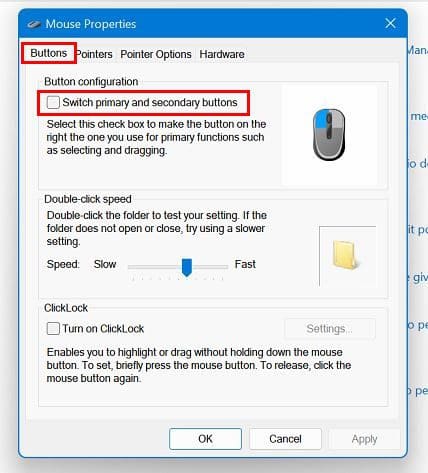
When the mouse properties windows appear, make sure you’re on the Buttons tab. Under Button Configuration, check the box for the Switch primary and secondary buttons options. You can also change the double-click speed by using the slider as long as you’re there.
Change primary mouse button Windows 11

At the bottom, you can also enable the ClickLock option. With this option, you can highlight or drag without having to hold down the mouse button. Click once to start using it and click once again to stop.

By clicking on the Pointers tab, you can customize the pointer and choose from various options. At the bottom left, there’s an option to add a shadow effect to the pointer.
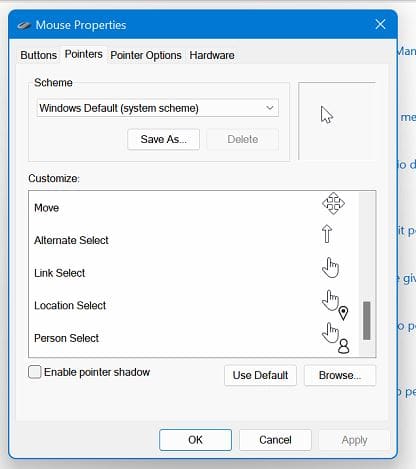
Mouse properties Windows 11

In the next tab, Pointer Options, you can adjust the pointer speed by using the slider. You can also enhance pointer precision, automatically move the pointer to the default button in a dialog box, display pointer trails, hide the pointer while typing, and show the location of the pointer when you press the CTRL-key.
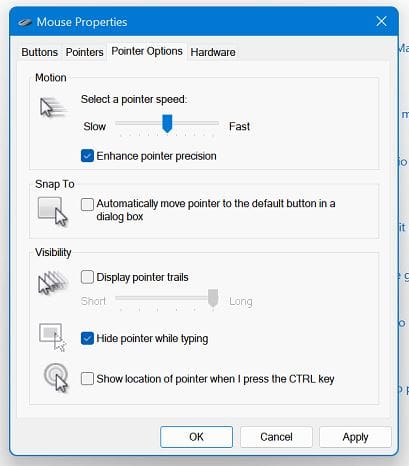
Pointer options Windows 11

When you’ve made the necessary changes, don’t forget to click Apply, followed by the OK button.

Conclusion

The mouse pointer is something you look at a lot during the day. It’s one of the ways you choose an option and do others things as well. As you can see, you can make all sorts of changes to it. What will you be changing about it? Share your thoughts in the comments below, and don’t forget to share the article with others on social media.

Categories: Windows

Author Judy Sanhz

I am a tech geek who loves technology. I have been writing about tech for over a decade, covering various devices and programs. I write about Android, Apple, and Windows devices and programs. I stay updated on the latest gadgets, upgrades, features, and news. I aim to make complicated tech information easy for everyone to read. I've been with TechniPages from the beginning to help others fix their tech issues with the easy-to-follow guides.

You Might Also Like

  • Fix: Windows Print Spooler Service Won’t Stay Started

    Mitch BartlettWindows
  • Fix-Windows-10-File-History-Error-200-and-201

    How to Cancel Your Microsoft Premium Subscription

    Judy SanhzWindows
  • windows-10-undoing-changes-made-to-your-computer

    Windows 10: Undoing Changes Made to Your Computer

    Madalina DinitaWindows
  • windows-11-clock-alarm-app-not-loading

    Fix Windows Camera Error Code 0xa00f4244

    Madalina DinitaWindows

Comments

  1. Rikki says:
    July 1, 2022 at 10:59 am

    Hard to believe you have this giant article for this simple thing — that no longer works as well as it used to!

    I have a Lenovo Thinkpad on which I can longer have its internal pointers and an external mouse/trackpad use different primary buttons. I had been able to do this for decades. What changed?!?!?!

Leave a Reply

Your email address will not be published. Required fields are marked *

  • system32 folder opens on startup

    System32 Folder Opens on Startup – How to Fix

  • browser keeps opening hp support

    Browser Keeps Opening HP Support Assistant Tabs 

  • camera not working in vmware

    Camera Not Working in VMware – How to Fix

  • browser screen goes black

    Browser Screen Goes Black Intermittently 

  • computer heating up in hyper v

    Computer Heating Up When Using Hyper-V – How to Fix 

profile pic

The Experts Behind Technipages

My name is Mitch Bartlett. I've been working in technology for over 20 years in a wide range of tech jobs from Tech Support to Software Testing. I started this site as a technical guide for myself and it has grown into what I hope is a useful reference for all.

Learn More

technipages logo white
linkedin icon

Technipages is part of Guiding Tech Media, a leading digital media publisher focused on helping people figure out technology. Learn more about our mission and team here.

© 2026 Guiding Tech Media All Rights Reserved

  • About Us
  • Contact
  • Terms of Use
  • Privacy Policy

© 2026 Guiding Tech Media All Rights Reserved

Information from your device can be used to personalize your ad experience.
Do not sell my personal information.

Last Updated on June 24, 2022 by Judy Sanhz