Skip to content
LogoTechnipages
LogoTechnipages
  • Topics
        • Android
        • Browsers
        • Gaming
        • Hardware
        • Internet
        • iPhone
        • Linux
        • macOS
        • Office
        • Reviews
        • Software
        • Windows
        • Definitions
        • All Recent Posts
  • Product Reviews
  • About

Windows 11: How to Change Image Thumbnail Size

Judy SanhzApril 19, 2023 Comments (0)
Windows 11 Thumb Size Header

When you change the image thumbnail size, you can see where the image you need to open is. The bigger the thumbnail, the easier the searching process is on your eyes and the faster you find the image. If you can’t see a decent size preview, you may be forced to open an image you think is the one you need. You’ll need to do this until you open the image you want. But there is a better way to find that image than to open the image file you think is the right one.

Contents

  • 1 How to Change the Image Thumbnail Size in File Explorer
    • 1.1 How to Change Thumbnail Size in Windows Photo App
    • 1.2 Conclusion

How to Change the Image Thumbnail Size in File Explorer

To adjust the image thumbnail size when using File Explorer, you must open it by pressing the Windows + E keys. This is the fastest way to open it, but you can also search for it in the search bar and open it from there. Once it’s open, click on the dropdown menu for the View option at the top. You should see the different sizes you can choose from.
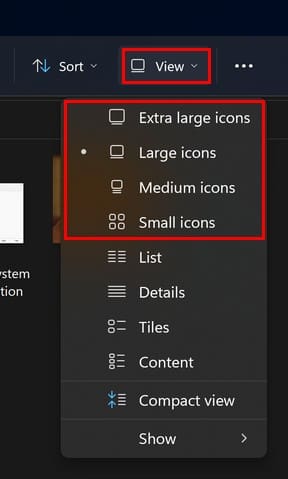
Size options for image thumbnail in File Explorer
Size options for image thumbnails in File Explorer

You can choose from sizes such as:

  • Extra large
  • Large
  • Medium
  • Small

By placing the cursor over the option, you won’t get a preview of how big or small the thumbnail preview will get. You’ll need to choose the option and see if it’s the right size.

How to Change Thumbnail Size in Windows Photo App

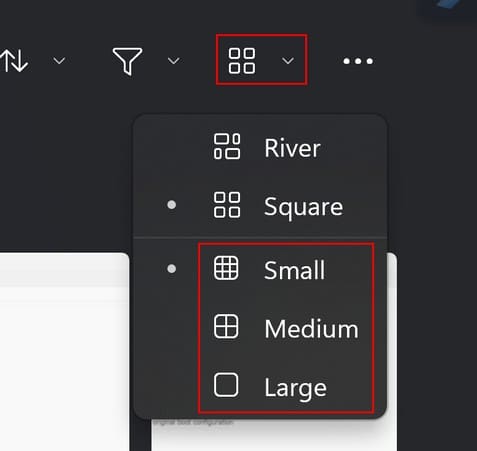
You can also have the same issue trying to find the right picture in the Windows Photo app. But just like File Explorer, you can make some changes so that the image thumb image is as big or as small as you want. Once the Photo app is open, click the Gallery types and sizes icon.
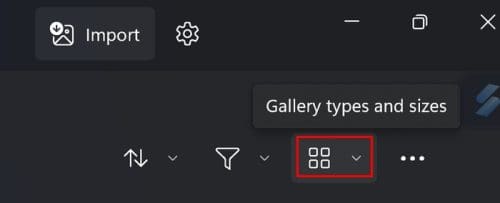
Gallery types and sizes option Windows Photo App
Gallery types and sizes option in Windows Photo App

When you click on the dropdown menu, you can choose from options such as:

  • Small
  • Medium
  • Large

Windows Photo App thumbnail sizes
Thumbnail sizes for Windows Photo App

The current size will be marked with a dot. Using the filter option, you can also make the images easier to find. You can have the app only show you images or only videos. Regardless of your choice, you can click on the Gallery types and sizes option to adjust the thumbnail size.

Conclusion

There was a time when Windows 11 users were unhappy since there was no thumbnail preview for their folders. Many would have to open the folder’s contents individually until they opened the one they were looking for. Thank your lucky stars that the issue was resolved, and you can now adjust the size of the files in your folders. You can choose from extra large, large, medium, and small sizes. You can do this not only in File Explorer but in the Windows Photo app as well. What size did you set the setting for? Share your thoughts in the comments below, and don’t forget to share the article with others on social media.


Categories: Windows

Author Judy Sanhz

I am a tech geek who loves technology. I have been writing about tech for over a decade, covering various devices and programs. I write about Android, Apple, and Windows devices and programs. I stay updated on the latest gadgets, upgrades, features, and news. I aim to make complicated tech information easy for everyone to read. I've been with TechniPages from the beginning to help others fix their tech issues with the easy-to-follow guides.

You Might Also Like

  • Active Directory logo

    How to Find Computer Locking Active Directory Account

    Mitch BartlettWindows
  • How-to-Use-Windows-File-Recovery

    How to Use Windows File Recovery to Recover Data

    Madalina DinitaWindows
  • windows-11-error-0x800f0950

    How Do I Fix Error Code 0x800f0950 on Windows 11?

    Madalina DinitaWindows
  • never-combine-taskbar-buttons-windows-11

    Windows 11: Enable Never Combine Taskbar Buttons

    Madalina DinitaWindows

Leave a Reply

Your email address will not be published. Required fields are marked *

  • system32 folder opens on startup

    System32 Folder Opens on Startup – How to Fix

  • browser keeps opening hp support

    Browser Keeps Opening HP Support Assistant Tabs 

  • camera not working in vmware

    Camera Not Working in VMware – How to Fix

  • browser screen goes black

    Browser Screen Goes Black Intermittently 

  • computer heating up in hyper v

    Computer Heating Up When Using Hyper-V – How to Fix 

profile pic

The Experts Behind Technipages

My name is Mitch Bartlett. I've been working in technology for over 20 years in a wide range of tech jobs from Tech Support to Software Testing. I started this site as a technical guide for myself and it has grown into what I hope is a useful reference for all.

Learn More

technipages logo white
linkedin icon

Technipages is part of Guiding Tech Media, a leading digital media publisher focused on helping people figure out technology. Learn more about our mission and team here.

© 2026 Guiding Tech Media All Rights Reserved

  • About Us
  • Contact
  • Terms of Use
  • Privacy Policy

© 2026 Guiding Tech Media All Rights Reserved

Information from your device can be used to personalize your ad experience.
Do not sell my personal information.

Last Updated on April 19, 2023 by Mitch Bartlett