When you first set up a Windows 11 PC, you’ll notice it comes with a bunch of apps already installed. Some of these are useful, like the Calculator or Photos app, but others are just sitting there taking up space. These apps are called bloatware, and while some people might find them helpful, most don’t need them.
Cleaning up unneeded apps can speed up your system, reduce background processes, and make things easier to find. It’s easy to make space by removing unnecessary Windows 11 apps, and it will help your system run better overall.
Contents
Windows 11 Apps You Don’t Need
Copilot
Copilot is Microsoft’s version of a virtual assistant, like Siri. But in Windows 11, it’s mostly unused and no longer built into the taskbar like it was in older versions. Microsoft isn’t focusing much on it anymore, and most people don’t use it at all.
OneNote
OneNote isn’t bad, but many users don’t need it, especially if they use another note-taking app. It syncs with Microsoft accounts and offers notebook-style organization, but for quick notes, it’s generally considered overkill.
Tips
The Tips app is meant to help new users learn about Windows features. It pops up suggestions now and then, especially after updates. However, once you’re used to the system, this app becomes unnecessary. It doesn’t hurt performance much, but it does take up space.
3D Viewer
3D Viewer is used for viewing 3D models. Unless you work with 3D design or animations, you’ll never open this app. It’s been in Windows for years, but very few people actually use it.
Movies & TV
This app lets you watch video files and buy movies from the Microsoft Store. However, most people use other apps now, like Netflix or YouTube. If you’re not using this app, it’s safe to remove.
Microsoft Teams (Personal)
This version of Teams is for chatting with friends and family. If you’re not using it for personal calls or chats, it just runs in the background and clutters your system tray. However, this isn’t the same as the business version of Teams used at work.
Microsoft Start
Microsoft Start (formerly News) shows headlines and news stories in the widgets panel or the Edge browser but it often pulls in clickbait or irrelevant content. If you get your news elsewhere, this can be ignored or turned off.
How to Uninstall an App in Windows 11
Here is how to uninstall an app completely so that it stops taking up system storage.
Step 1: Search for Settings in the taskbar and open it
Step 2: Go to Apps, then Installed apps.
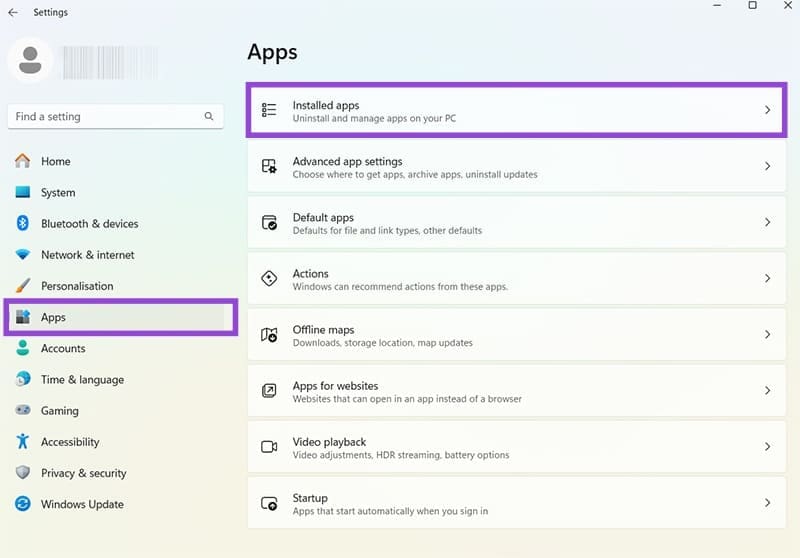
Step 3: Scroll or search for the app you want to remove.
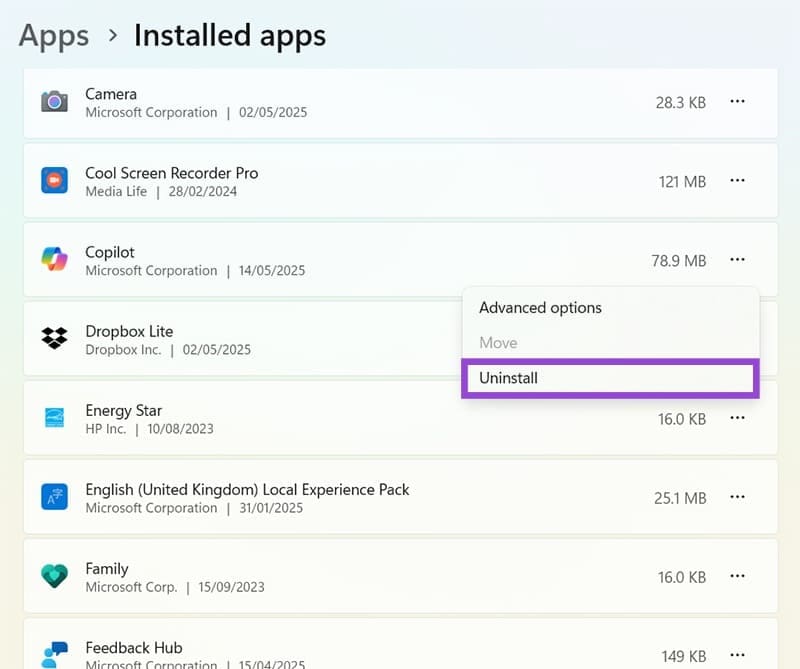
Step 4: Click the three dots next to it.
Step 5: Select Uninstall, then confirm.
How to Disable an App Without Removing It
Disabling an app reduces its drain on the system, but doesn’t fully remove it. Here is how to stop an app from running in the background.
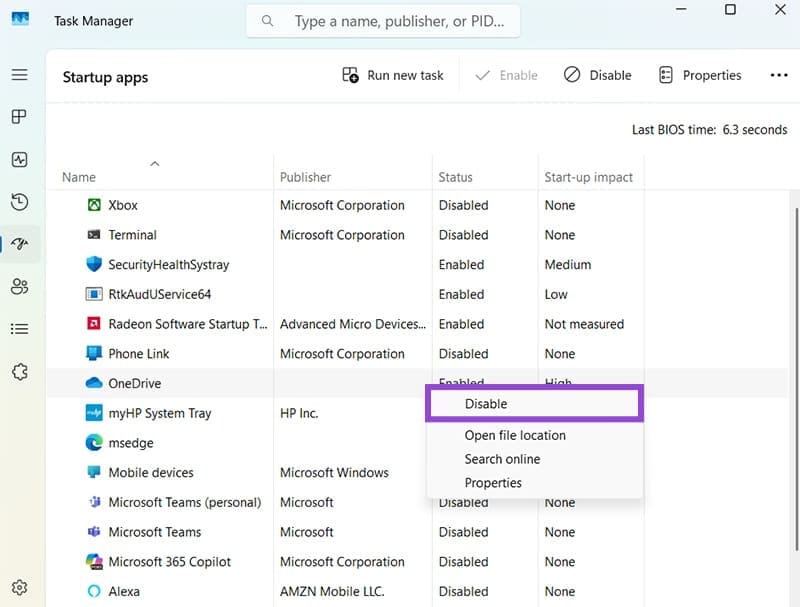
Step 1: Right click on the Taskbar and open Task Manager.
Step 2: Click the Startup apps tab.
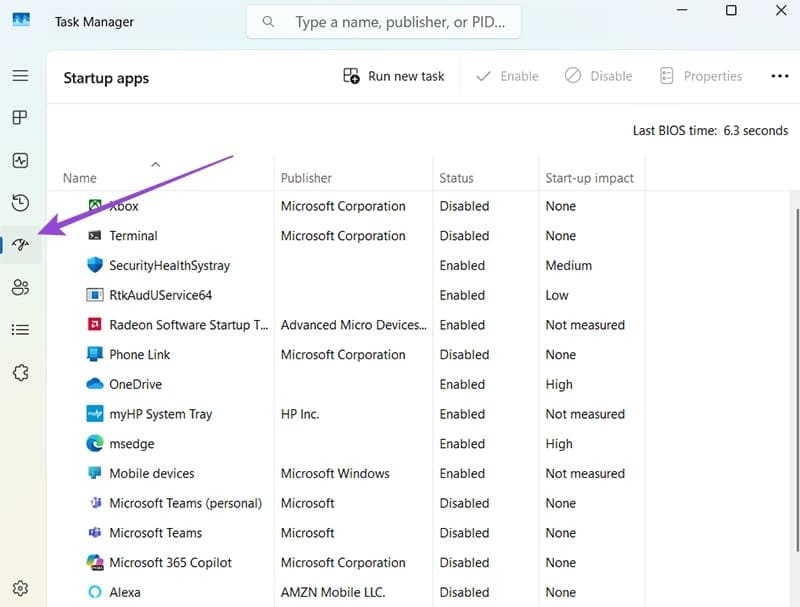
Step 3: Find the app in the list.
Step 4: Right-click it and then click Disable.
How to Turn Off Widgets in Windows 11
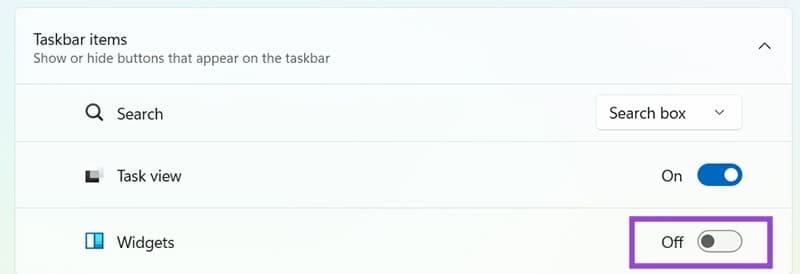
Here is how to remove the weather and news widget panel from your taskbar without uninstalling anything.
Step 1: Right-click on the Taskbar and open Taskbar settings.
Step 2: Find the Widgets option in the list.
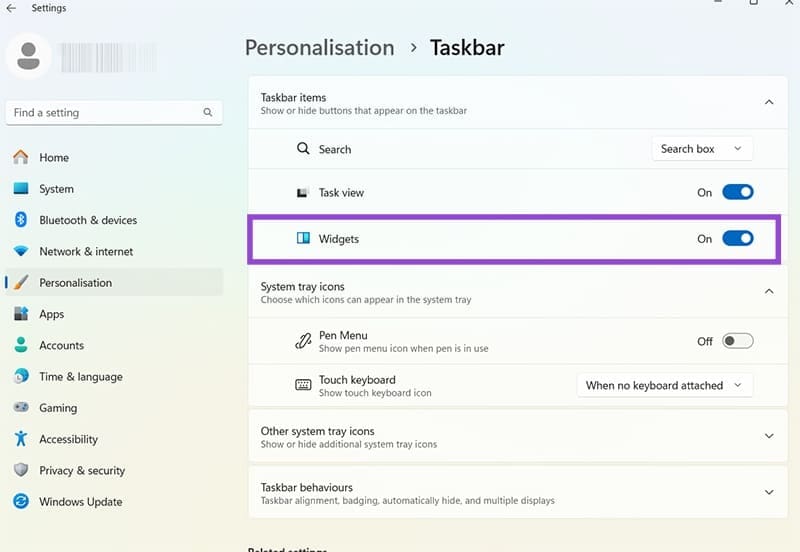
Step 3: Toggle it off.