Have you ever booted up your Xbox, excited to blast out a few rounds of Fortnite or explore the Wasteland in Fallout, only to find the online services aren’t working? You’re not alone. Microsoft services and Xbox Live (or Network) services determine whether you can get online and enjoy your favorite games.
If you receive a service outage message on Xbox, it probably means these services are down. Learn how to check and what to do next using the simple steps below.
Check the Xbox Live Service Pages
Step 1. The most likely cause of a service outage message on Xbox is that the online services, often referred to as Xbox Live or Xbox Network, are temporarily down. Head to this web page to check: https://support.xbox.com/xbox-live-status.
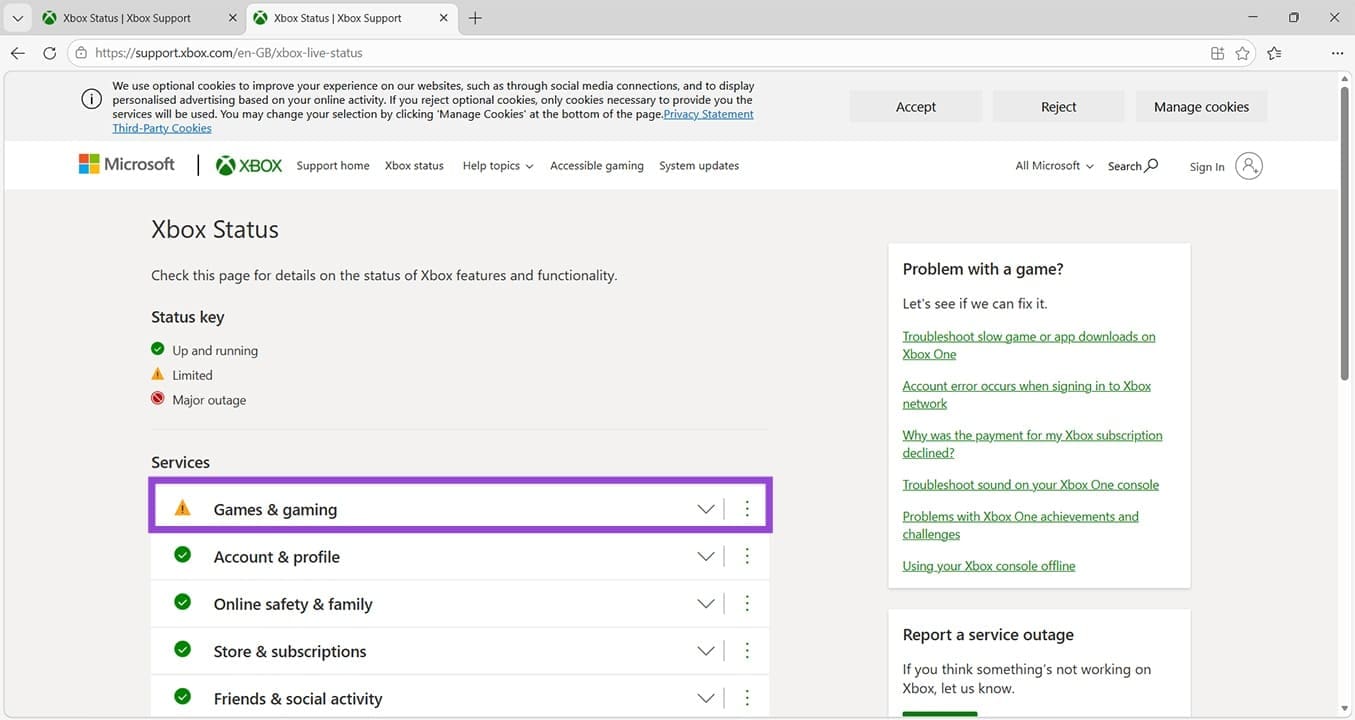
Step 2. If any of the listed services have an amber triangle or red circle next to them, click on them to learn more.
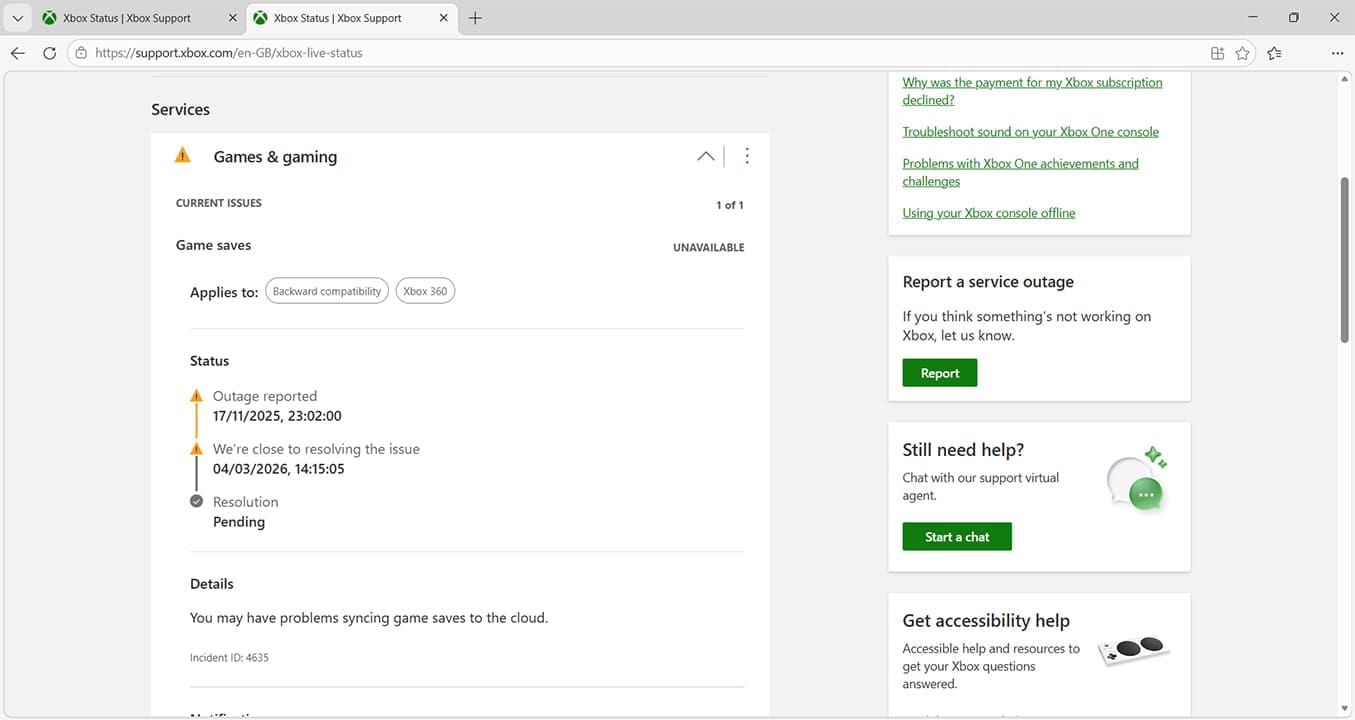
If there’s a major outage or the service is under maintenance, this page is your first stop to find out why. Here you can see that there’s an ongoing problem with syncing saved game data to the cloud, but this shouldn’t stop your online games from working.
Step 3. Sometimes, if an outage has just started, Microsoft may not have reported it on their status page. To double check if there’s a problem, you can also use an independent checker, such as DownDetector.com.
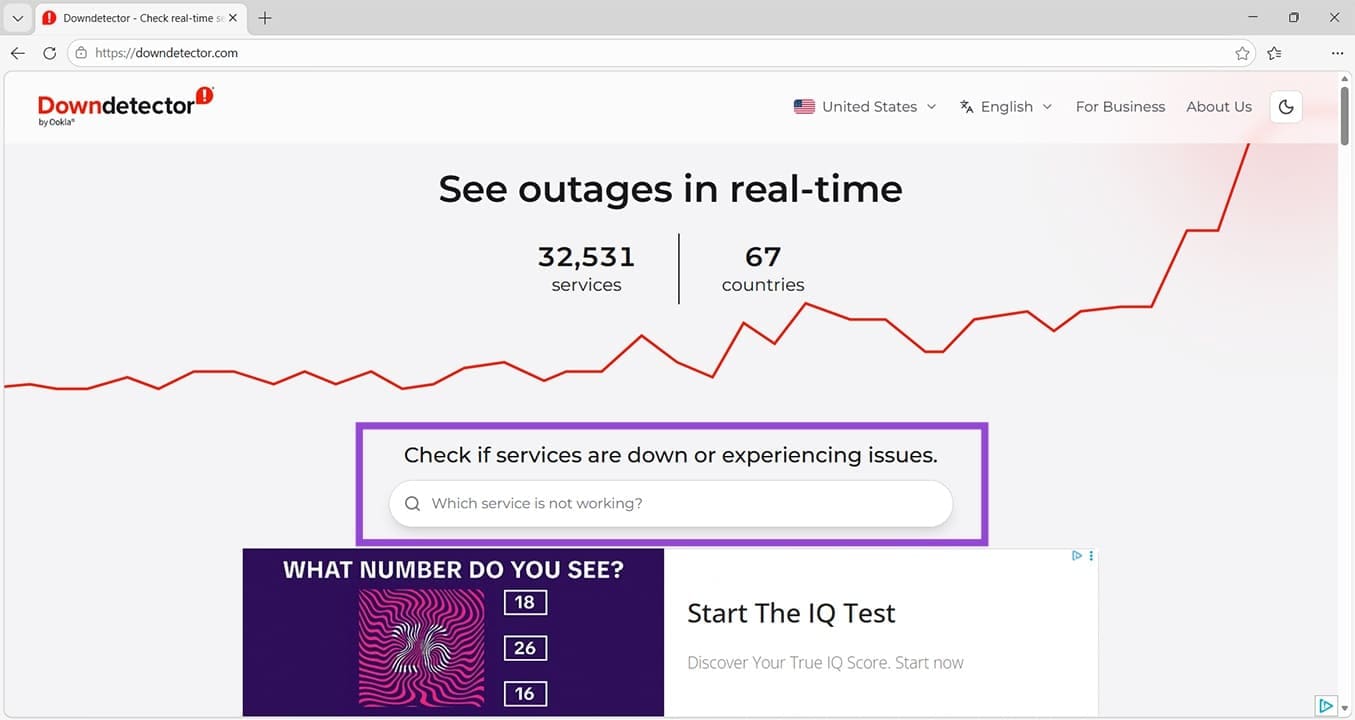
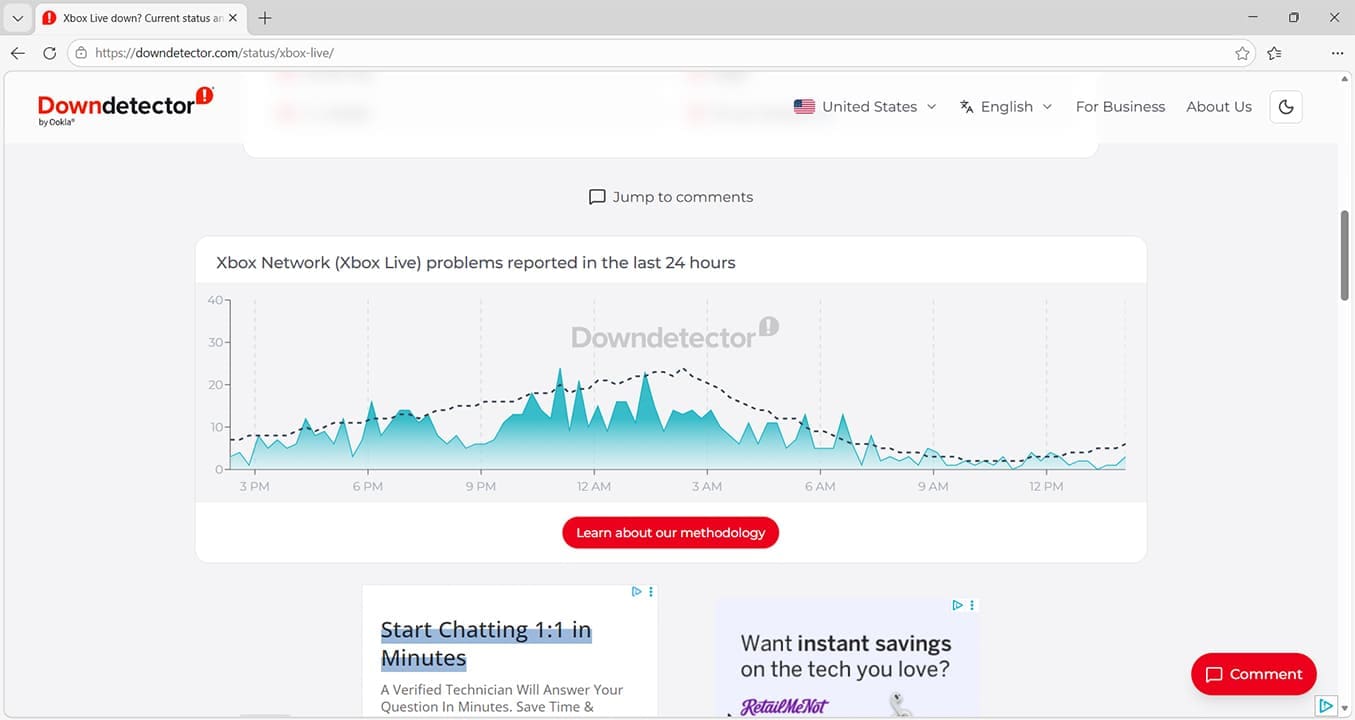
Step 4. Use the search bar to search for Xbox Live or Xbox Network. The site will immediately tell you if there are any known outages but also if other users are reporting similar problems. You can see when these problems were reported and even create a report yourself.
Service Outage Message on Xbox: Next Steps
If there’s a reported outage confirmed by using the steps above, all you can do is wait for the service to return. Try some offline action – now could be the best time to expand your farm in Stardew Valley or build something amazing in offline Minecraft.
If there’s no outage, the service outage message on your Xbox could indicate that you’ve got local internet problems. Try these checks:
- Reboot your Wi-Fi router.
- Try switching your Xbox console off, waiting five minutes, then switching it on again and trying to connect.
- On your Xbox, head to Settings > General > Network Settings > Test Network Connection.
- If you see the message, “Your network is good, but there are some Xbox service issues,” or similar, then you know that there is a likely unreported service outage and to wait a while and try again.
- If the network test fails, test another internet-connected device to see if it’s a problem with your local internet connection.
- When the other device also won’t connect, contact your internet service provider (ISP).
- If the other device connects with no problems, contact Microsoft support for more help and advice.