

You take a screenshot on your Windows computer like you always do. When you need it, you follow the same steps to access it, but it’s not there. While you sit there in confusion, you try to process where the screenshots could be. The good news is that the screenshots are there, and this is how you can access them.
How to Find Saved Screenshots on Windows 10
The reason why you’re not finding your screenshots is that you changed the way you took the screenshot. Maybe you were in a hurry and didn’t realize you had changed your method. The way you take a screenshot will determine where your Windows 10 computer saves it.
Is it possible that you only pressed the PrtScn button? Your intention was to press the Windows key as well but didn’t. If you think that this is possible, then the reason why your screenshot is not appearing anywhere it’s because it’s sitting on your computer’s clipboard. Unless you paste it on a compatible program, it’s not going to come up.
If you have a program like Snipping Tool that shows you where your screenshots go, simply take another one of anything and see where they are saved.
Windows + PrtScn
If you’re that you pressed these two buttons, then this is where you’re going to find your screenshot. Go to your File Explorer and click on This PC.
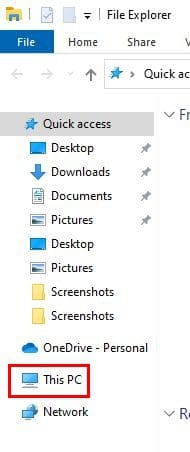
After clicking on This PC, click on the Pictures folder. In the Pictures folder, find the Screenshots folder. That’s where you should be able to see your screenshots. If you want your screenshots to be easier to find, you can change where they are saved.
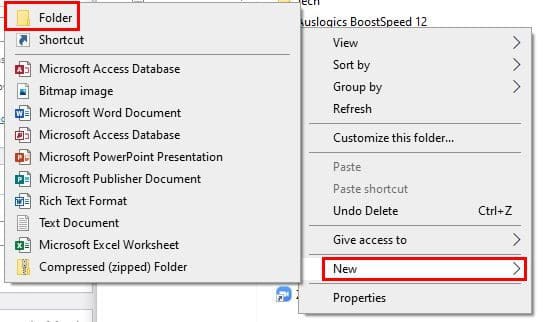
You can do this by opening the File Explorer and going where you want the screenshots to be saved. You can always create one if you don’t see a folder for your screenshots. Right-click where you want the folder to go and place the cursor on the New option. When the side menu appears, click on the folder option. Give your folder a name and press the Enter button, and you’re good to go.
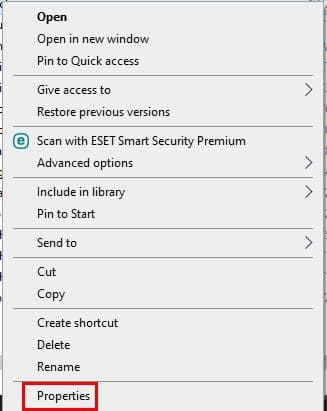
Repeat the same steps as before to get to the Pictures folders. Click on This PC and click on the Pictures folders. Right-click on the Pictures folder and choose the Properties option.
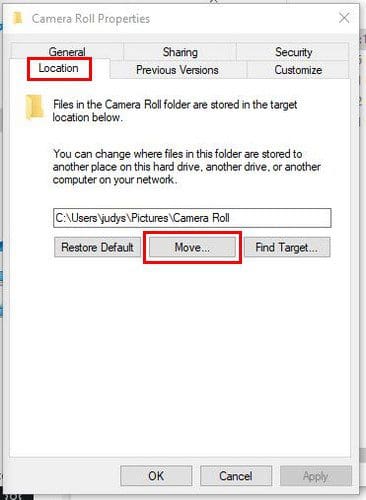
When the new window appears, click on the Location tab. This is where you should see the current location for your saved screenshots. To change this, click on the Move button.
When the new window appears, go to the folder you created earlier and select it. When you’ve found it, click on the Select folder option at the bottom right. From now on, this is where you’re going to find your saved screenshots.
Conclusion
Finding saved screenshots is important. Maybe you took a screenshot of something important and need to find it as soon as possible. By keeping your screenshots in an easier-to-find area, you won’t have to panic when there not where you thought they were. Did you ever find that screenshot you were looking for? Let me know in the comments below, and don’t forget to share the article with others on social media.




Open the snipping tool app, options, and uncheck always copy snips to the clipboard. Now your screenshots save to screenshot folder in pictures.
I have read many of the comments above after just viewing that my problem had been published. I did not click MOVE, but I did try clicking RESTORE.DEFAULT. a few times but I just clicked on the main PICTURES FOLDER but SCREENSHOTS still does not appear.
My Screenshots Sub-Folder disappeared from the main Pictures Folder. I have been using it for years and have never seen this happen before. I have been taking screenshots lately and adding comments and yesterday, I suddenly realized that the Screenshots folder simply disappeared. I have tried various ways to locate it because I have spent considerable time on a project. Hopefully, you can help.
Many thanks,
Instead of clicking move click Restore default it will work
Didn’t work. Do what Siva says. I used the print screen button to take my shot vs the ‘s’ + windows key option. (no windows key on keyboard? ugh). But when I opened Paint and selected paste my screen shot inserted itself. Good thing, because I was unable to find the dang clipboard file/folder either. Saved to a folder on my desktop. All good.
Windows changed everything and now I can find anything. Useless. I always used to take screenshots a certain way. Now I can’t do anything
Augghhhh!!!! I can find more than one screenshot folder on my laptop but they are empty. I have NOT changed my process and CANNOT find any of the 5 screenshots I just added! This did not help.
Sometimes Windows updates are more trouble than helpful. An update is my only guess as to why I can no longer find my screenshots! Maybe I’ll try the pencil and piece of paper app!
This issue is ongoing proof that all too often we all experience something different on our PCs despite claims of uniformity. I have a Screenshots folder within my Pictures library that I did not create. My problem is that CTRL + Print Screen button used to automatically save the pictures to that folder. It no longer does so. Perhaps some Windows update? The good ol’ IT Tango, three steps forward, one step back!
i looked with everything and there is no screenshot folder anywhere on my computer (windows 10)
Unfortunately the above did not work for me and then I tried the below and it worked.
Once you take the screenshot using “Shift + Windows key + S”, the image will be in your clipboard. Then you can open Paint / Paint 3D and paste (Ctrl+V) the image from clipboard and save it in whatever format you want.
Totally USELESS. There is NO screenshots folder in Pictures.
Sorry it really did not help. There is not a screen shot folder when you go PC then pictures, there just isn’t one! I’m going to have to write the info down with a PENCIL on A PIECE of paper – in the end I think it would have been quicker :)
I can’t find mine anywehre on the laptop either!! Waste of time! Will have to take photo of screen with my mobile phone!
Thank you everso much. Just what I needed. EZ to follow. You made an old ladies day/month/year. The lost screenshots anxiety and techni recovery battle won due to the tools you provided.
NO. It did not. I cannot find the screenshots no matter which method.
no because i dont have a folder at all its just not there