Skip to content
LogoTechnipages
LogoTechnipages
  • Topics
        • Android
        • Browsers
        • Gaming
        • Hardware
        • Internet
        • iPhone
        • Linux
        • macOS
        • Office
        • Reviews
        • Software
        • Windows
        • Definitions
        • All Recent Posts
  • Product Reviews
  • About

What to Do if Your Keyboard Is Double Spacing

Madalina DinitaApril 22, 2023 Comments (0)
fix-keyboard-double-spacing

Your keyboard may sometimes type a double space instead of a single space. This issue usually affects all the programs running on your computer. What’s worse is that Office apps, such as Word, pick up the double space as a grammar error. Let’s discuss why this glitch occurs and how you can fix it.

Contents

  • 1 How Do I Stop My Keyboard From Double Spacing?
    • 1.1 How to Fix Double Spacing Between Words in Word
    • 1.2 Conclusion

How Do I Stop My Keyboard From Double Spacing?

  • Use the on-screen keyboard. Usually, the virtual keyboard is not affected by the same glitches that are plaguing your physical keyboard.
  • Restart your computer. A simple restart can work wonders. If your machine did not boot up correctly, restarting it should fix the problem.
  • Clean your keyboard. Check if debris is lodged under the space bar. Use a can of compressed air to remove debris or specks of dust from under the space bar.
  • Use a different keyboard. Maybe your keyboard is faulty. Check if the problem persists with a different keyboard.
  • Run a full system antivirus scan. Malware can change your keyboard behavior. Generally speaking, malicious code often does more than simply forcing your keyboard to type a double space.
  • Check your keyboard settings.
    • Go to Control Panel, and select Devices and Printers.
    • Right-click on your keyboard and select Keyboard settings. If you’re using your laptop’s built-in keyboard, right-click on your laptop and select Keyboard settings.
    • Change the Repeat delay settings to Long.keyboard-settings-repeat-delay
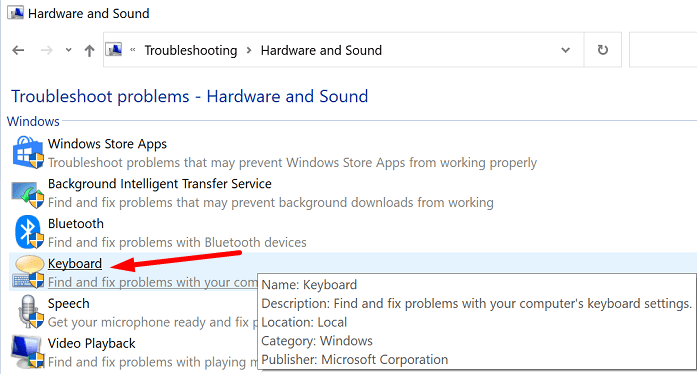
  • Run the Keyboard troubleshooter.
    • Go to Control Panel, select Hardware and Sound, and type “troubleshooting” in the search field.
    • Scroll down to the Keyboard troubleshooter. Launch the tool and check the results.keyboard-troubleshooter-windows
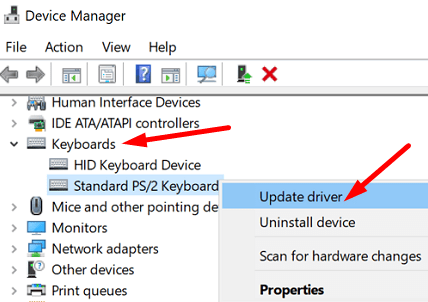
  • Update your keyboard drivers.
    • Launch the Device Manager, and click on Keyboards.
    • Right-click on your keyboard and select Update driver.update-keyboard-driver
    • Restart your computer.
    • If the issue persists, uninstall the keyboard driver, and restart your computer.

How to Fix Double Spacing Between Words in Word

If you want to quickly fix the double spacing problem in Microsoft Word, you can use the built-in Find and Replace tool. For step-by-step instructions, see Microsoft Word: Remove Extra Spaces Between Words.

Conclusion

If your keyboard is double spacing, restart your computer and clean your keyboard. Then, check your keyboard settings, and run the Keyboard troubleshooter. If the issue persists, use a different keyboard and check the results. Did you manage to troubleshoot the problem? Let us know in the comments below.

Categories: Windows

Author Madalina Dinita

Madalina has been a Windows fan ever since she got her hands on her first Windows XP computer. She is interested in all things technology, especially emerging technologies -- AI and DNA computing in particular.

You Might Also Like

  • Single Click Windows Header

    How to Enable or Disable Single-Clicking Feature in Windows 11

    Mitch BartlettWindows
  • Remote Desktop Won’t Save Username and Password

    MonaWindows
  • caps lock on windows 10 disable notification

    Windows 10: Disable Caps Lock Notifications

    Madalina DinitaWindows
  • TP Gear Header

    Fix: Unpinned Apps Keep Reappearing on Windows 11

    Madalina DinitaWindows

Leave a Reply

Your email address will not be published. Required fields are marked *

  • system32 folder opens on startup

    System32 Folder Opens on Startup – How to Fix

  • browser keeps opening hp support

    Browser Keeps Opening HP Support Assistant Tabs 

  • camera not working in vmware

    Camera Not Working in VMware – How to Fix

  • browser screen goes black

    Browser Screen Goes Black Intermittently 

  • computer heating up in hyper v

    Computer Heating Up When Using Hyper-V – How to Fix 

profile pic

The Experts Behind Technipages

My name is Mitch Bartlett. I've been working in technology for over 20 years in a wide range of tech jobs from Tech Support to Software Testing. I started this site as a technical guide for myself and it has grown into what I hope is a useful reference for all.

Learn More

technipages logo white
linkedin icon

Technipages is part of Guiding Tech Media, a leading digital media publisher focused on helping people figure out technology. Learn more about our mission and team here.

© 2025 Guiding Tech Media All Rights Reserved

  • About Us
  • Contact
  • Terms of Use
  • Privacy Policy

© 2025 Guiding Tech Media All Rights Reserved

Information from your device can be used to personalize your ad experience.
Do not sell my personal information.

Last Updated on April 22, 2023 by Mitch Bartlett