Skip to content
LogoTechnipages
LogoTechnipages
  • Topics
        • Android
        • Browsers
        • Gaming
        • Hardware
        • Internet
        • iPhone
        • Linux
        • macOS
        • Office
        • Reviews
        • Software
        • Windows
        • Definitions
        • All Recent Posts
  • Product Reviews
  • About

What to Do if the Back Button in Browser Doesn’t Work 

Evan MercerJanuary 16, 2026 Comments (0)
back button in browsers doesnt work

We’ve all been to the point where we’ve researched something and accidentally gone one URL too far. But if the back button in browsers doesn’t work, you might be stuck trying to crawl through a lengthy browsing history.

To make sure it’s not just a visual glitch, you can use the shortcut “Alt + Left Arrow” to go to the previous tab. But if that doesn’t work, you might need to change some settings (notably, they apply to most browsers since their Settings sections are similar).

Contents

  • 1 Fix 1 – Clear the Browser Cache if the Back Button in Browsers Doesn’t Work
  • 2 Fix 2 – Avoid Redirect Links
  • 3 Fix 3 – Disable Add-Ons or Extensions
  • 4 Fix 4 – Turn Off Graphics Acceleration

Fix 1 – Clear the Browser Cache if the Back Button in Browsers Doesn’t Work

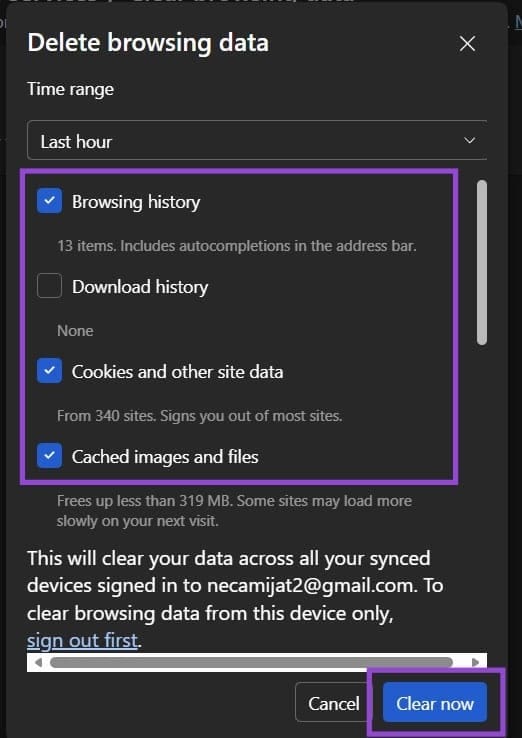
The cache might store a wrong URL or leftover cookies that keep redirecting you to the current page, making it so you can’t go back in browser tabs. You can remove the entire cache, which will make websites load a bit slower for a while, but it should restore the browser.

Step 1. Go to “Options” or “Settings.”

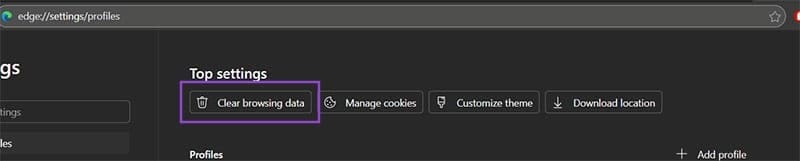
Step 2. Find the option “Clear browsing data.” For Edge, this is located immediately at the top of “Settings.” For Chrome, you need to go to the “Privacy and security” tab.
What to Do if the Back Button in Browser Doesnt Work 1

Step 3. Select to remove cache, cookies, and browsing history, then confirm your choice.
What to Do if the Back Button in Browser Doesnt Work 2

Fix 2 – Avoid Redirect Links

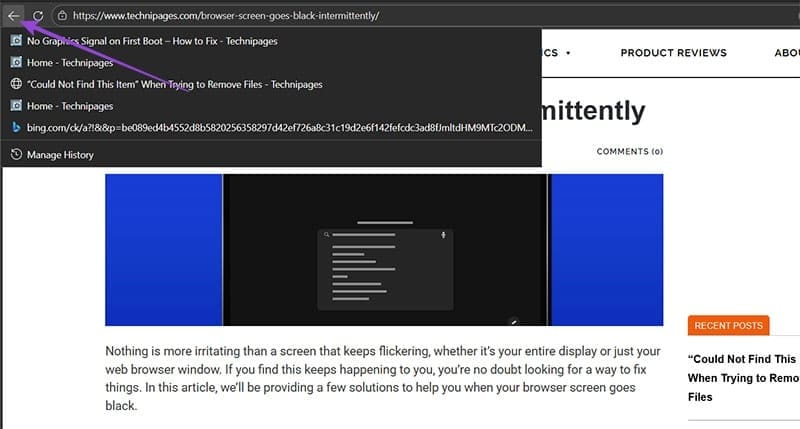
If you’ve passed through a redirect link, you can’t go back in browser tabs since the previous tab continues to redirect to where you currently are. You’ll need to access the wider history.

Step 1. Right-click on the back button in the browser for the specific tab you want to go back to.

Step 2. Click on the page where you want to go.
What to Do if the Back Button in Browser Doesnt Work 3

If right-clicking the button doesn’t work, click and hold until you get the extended menu.

Fix 3 – Disable Add-Ons or Extensions

If you have recently installed an extension (or one has updated) and have now seen the issue where the back button in browsers doesn’t work, you might need to temporarily remove it.

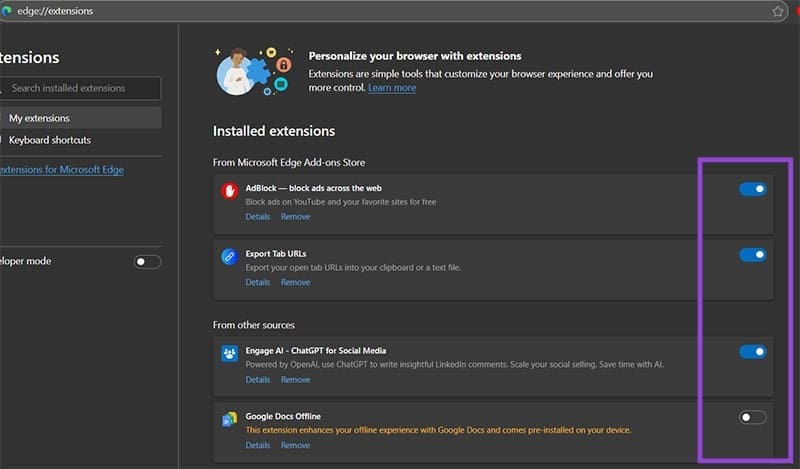
Step 1. Click on the “More options” button and select “Extensions,” then go to “Manage Extensions.”

Step 2. For each extension, toggle it off on the right side.
What to Do if the Back Button in Browser Doesnt Work 4

Step 3. Restart your browser (you may need to clear the cache, too).

Step 4. See if the problem is fixed. If it is, go back to the Extensions settings and turn on extensions one by one, resetting each time. When you encounter the issue, that’s likely the culprit that you need to report or remove.

Alternatively, you can use Incognito Mode, which loads the browser without extensions. If the back button normally works in that setting, the issue is almost certainly due to a cache item or an add-on.

Fix 4 – Turn Off Graphics Acceleration

While using the GPU to process a part of the workload speeds up the browser, it can lead to odd visual issues or even lag. You can disable the option on most browsers.

Step 1. Go to Settings.

Step 2. Search for “Acceleration” in the search bar. You should get a result called “Use graphics acceleration when available.”

What to Do if the Back Button in Browser Doesnt Work 5

Step 3. Toggle the setting off and restart the browser.

Categories: Browsers

Author Evan Mercer

I’m a computer science grad who loves to tinker with smartphones and tablets in my spare time. When I’m not writing about how to fix techy problems, I like hanging out with my dogs and sipping nice wine after a tough day.

You Might Also Like

  • Edge Header

    Edge for Android: Add Credit Card Details to Autofill

    Mel HawthorneBrowsers
  • How to Remove Saved Information From Firefox Autofill

    Judy SanhzBrowsers
  • google-drive-download-not-working-in-microsoft-edge

    Microsoft Edge: How to Enable/Disable the Sidebar

    Judy SanhzBrowsers
  • Auto-Refresh-Chrome-Tab-Without-Extension

    Best Chrome Flags Everyone Should Try

    Aaron KimBrowsers

Leave a Reply

Your email address will not be published. Required fields are marked *

  • could not find this item

    “Could Not Find This Item” When Trying to Remove Files

  • no graphics signal on first boot

    No Graphics Signal on First Boot – How to Fix

  • system32 folder opens on startup

    System32 Folder Opens on Startup – How to Fix

  • browser keeps opening hp support

    Browser Keeps Opening HP Support Assistant Tabs 

  • camera not working in vmware

    Camera Not Working in VMware – How to Fix

profile pic

The Experts Behind Technipages

My name is Mitch Bartlett. I've been working in technology for over 20 years in a wide range of tech jobs from Tech Support to Software Testing. I started this site as a technical guide for myself and it has grown into what I hope is a useful reference for all.

Learn More

technipages logo white
linkedin icon

Technipages is part of Guiding Tech Media, a leading digital media publisher focused on helping people figure out technology. Learn more about our mission and team here.

© 2026 Guiding Tech Media All Rights Reserved

  • About Us
  • Contact
  • Terms of Use
  • Privacy Policy

© 2026 Guiding Tech Media All Rights Reserved

Information from your device can be used to personalize your ad experience.
Do not sell my personal information.

Last Updated on January 16, 2026 by Evan Mercer