Steam is generally considered a stable and reliable vendor to purchase new games from, and it accepts multiple payment methods to make it even more accessible. But on rare occasions, you might experience an issue where Steam can’t finish purchase requests. This can be due to a few reasons, but there are a few different simple fixes you can try.
Contents
Fix 1 – Verify Your Payment Method
In most occasions, Steam will save the most recent payment method you used and attempt to automatically charge you through it. However, some payment processors require additional validation and might not be able to fulfill a semi-automated charge. You’ll need to go through the payment selection again.
Step 1. Go to the cart and select “Continue to Payment.”
Step 2. Under the payment method details, select “Change.”
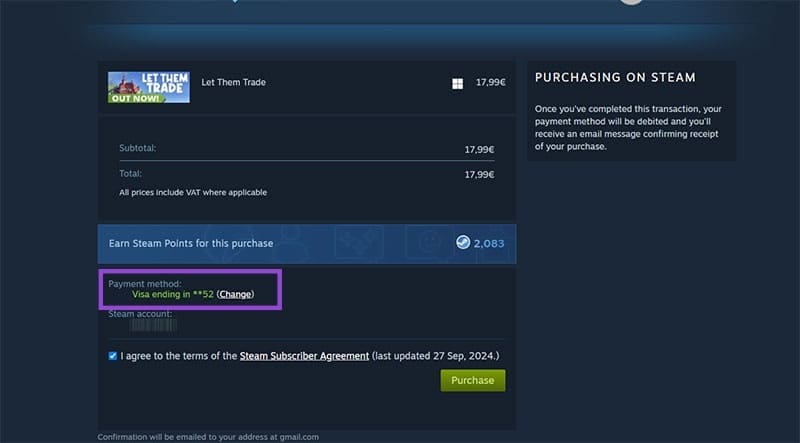
Step 3. Input your payment details again, even if you’re just inserting the same info as before, then select “Continue.”
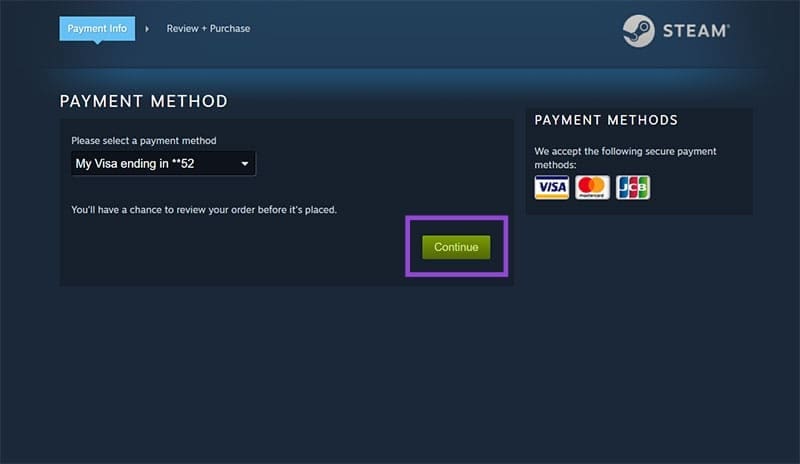
Step 4. Check the Steam Subscriber Agreement checkbox and hit “Purchase.”
Step 4b. If your credit or debit card requires external authentication, you should be redirected to a browser page and prompted to enter the verification. At this point, the purchase should be going through.
Fix 2 – Use the Steam Wallet Instead of Card when Steam Can’t Finish Purchase
Steam also has a wallet feature that you can deposit money into and then it withdraws funds as needed. This can be beneficial if your card isn’t compatible with subscription-based purchases or is limiting how many small transactions you can perform.
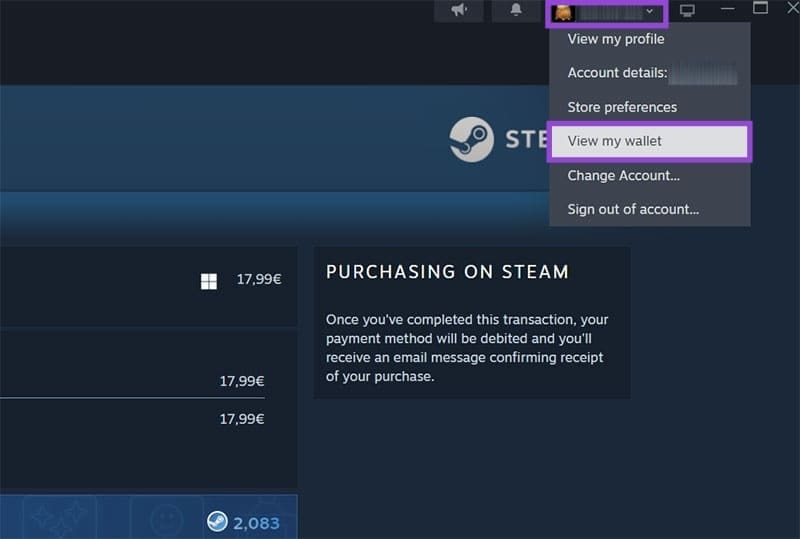
Step 1. Click on your username on the top-right and select “View my wallet.”
Step 2. Click on “Add funds” next to the amount you want to add.

Step 3. Finalize the purchase as before. You may need to switch or re-enter your payment details (as in Fix 1).
Fix 3 – Use Steam Support to Cancel the Purchase
If you’ve gone past the purchase page but the listing still says that the purchase is pending, you might be experiencing a different issue and will need to check your payment history.
Step 1. Go to your account name in the top-right and select “account details: [Your username].”
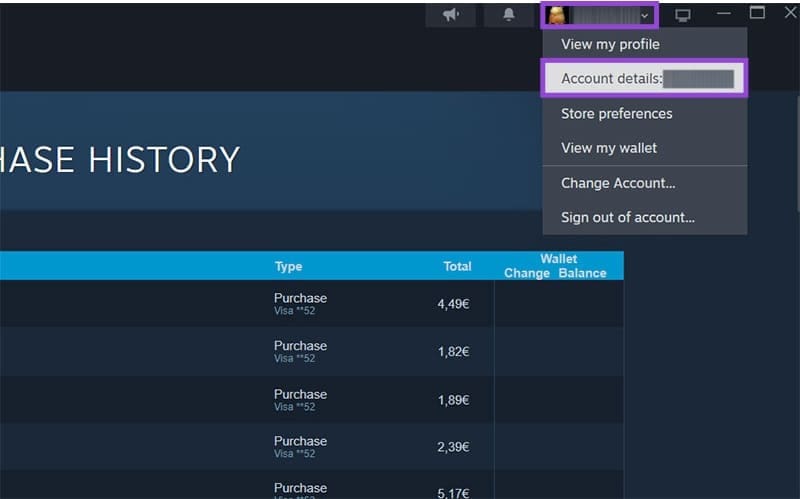
Step 2. In the “Account details” tab (which should be open by default), go to “View purchase history.”

Step 3. Select the purchase that is listed as “Pending.”
Step 4. Select either “I want a refund” or scroll down and select the game or DLC that is not in your library, then select “It’s not in my library.”
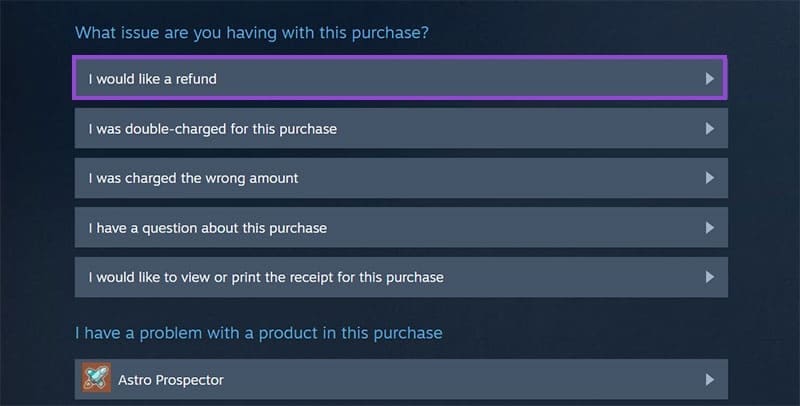

Step 5. Follow the on-screen instructions. If you can, cancel the transaction and try to purchase the game again, but not until you wait for at least 24 hours.
Other Fixes for Steam Can’t Finish Purchase
Beyond using another payment option or going to Steam Support, there are a few troubleshooting steps that can help:
- Wait for 24 hours to see if Steam doesn’t automatically refund the purchase.
- Recheck if your bank hasn’t placed your card or transactions on hold or if you have enough funds to complete the purchase.
- Update your account’s address in “Contact information” to match the one on your card.
- Disconnect from a VPN if you’re using one.
- Use a card that can make transactions in USD rather than another currency.
- Go to Steam’s website and repeat the purchase from your browser. This can help you get through additional verification checks.
- Check your internet connection or restart the PC if needed.