If your laptop shuts down on battery, but the toolbar display showed you had plenty of battery remaining, there are a few possible issues at play. You can either be looking at software or hardware issues, and some might not have an easy fix. Here are some troubleshooting steps you can try to resolve the issue before turning to professional services.
Contents
Fix 1: Hard Reset the Laptop
A hard reset removes the charge from most capacitors and the RAM, which ensures your laptop gets a more accurate reading of battery life.
Step 1. Turn off the laptop and remove the charger and any peripherals.
Step 2. Remove the battery if you can and leave it out for a few minutes.
Step 3. Press and hold the power button for a few seconds.
Step 4. Connect the battery and power up the laptop.
If the laptop doesn’t turn on, the battery itself likely doesn’t have any charge left, so the display was faulty due to another issue.
Fix 2: Change the Power Plan
A laptop typically turns off after idling for a few minutes when on battery power. This can be changed in power settings.
Step 1. Search for “Control Panel” and open it.
Step 2. Go to “Power Options.”
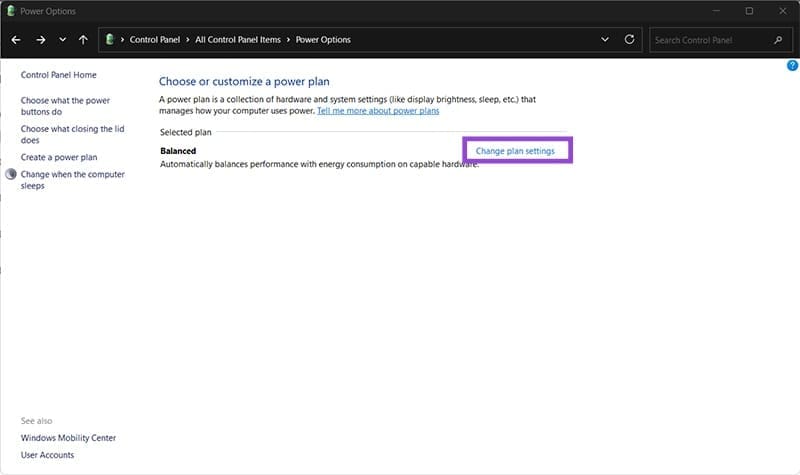
Step 3. In the currently-selected plan, click on “Change plan settings.” For best results, stick to the default or Balanced plan.
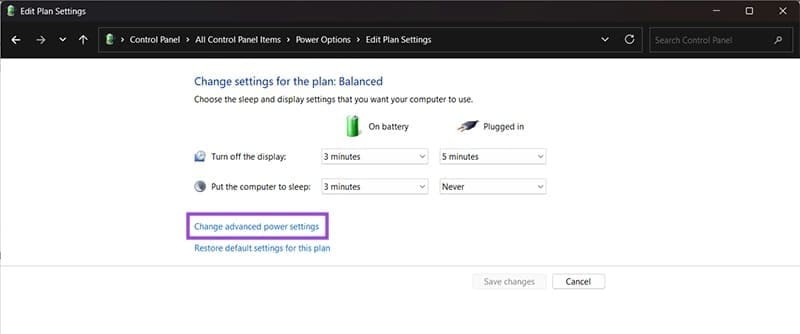
Step 4. Click on “Change advanced power settings.”
Step 5. In the new dialog, expand the “Battery” section. Check the following:
- Low battery level. By default, this is 6%. The corresponding Low battery action is usually “Do nothing.”
- Critical battery level, which is usually 2% by default, and the PC should hibernate.
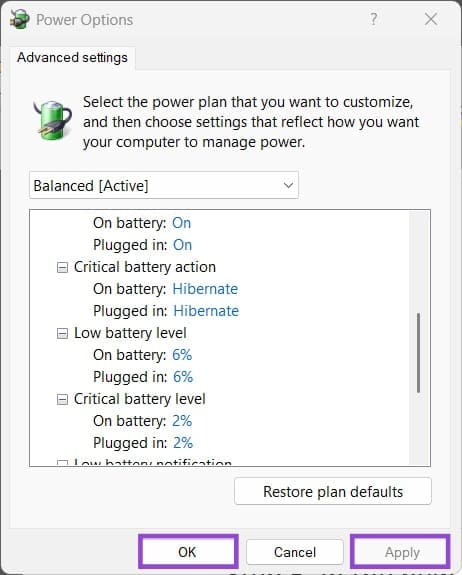
Change these numbers and settings as needed, then click on “Apply” and “OK.”
Fix 3: Run a Battery Health Check
The Command Prompt has a dedicated command to check the health of a battery, as a faulty one might display it’s charged but still have the issue where a laptop shuts down on battery.
Step 1. Open the Command Prompt as an administrator (search for “cmd” and select the option).
Step 2. Enter the following command:
powercfg -energy -output FoldernameFilename.html
Replace the “FoldernameFilename” part with a location where you want the file to be saved and accessible, then manually type in a name of a file with the .html extension that will be created.
Step 3. The system will perform diagnostics over 60 seconds and display a thorough report.
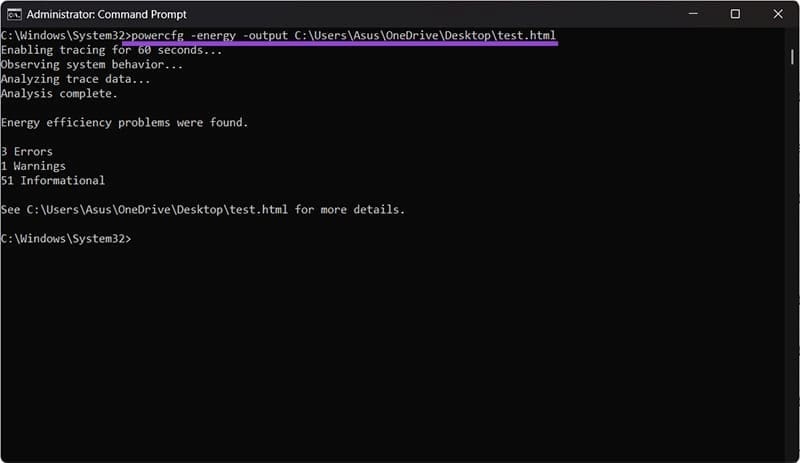
Step 4. Open the created file and look for the “Battery information” section.

Step 5. The “last full charge” indicates the charge of a battery, where the design capacity is its nominal charge. If the last full charge is significantly lower than the nominal value, your battery has degraded to the point where Windows might not be displaying its charge properly.
Fix 4: Use Manufacturer Diagnostic Tools
Most manufacturers have dedicated laptop diagnostic tools that might be pre-loaded onto the laptop if it came with an operating system. For ASUS, this is MyASUS, and the tools offers a more intuitive user interface for determining hardware issues.
Fix 5: Use an Older Restore Point
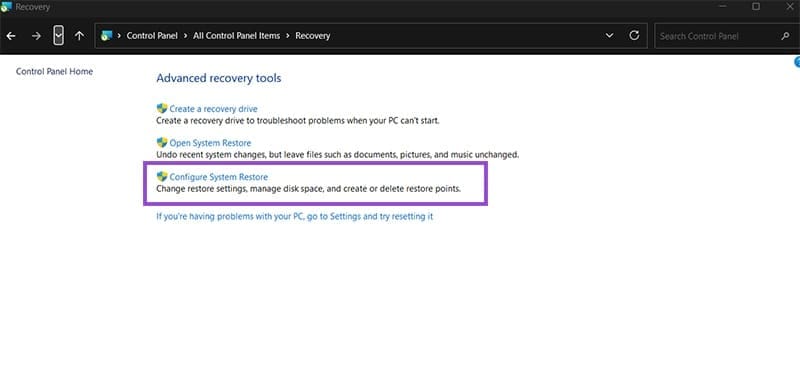
If the problem happened suddenly after a software update, driver change, or a new installation, you can try reloading an older restore point, which will overwrite this change, then seeing if the issue persists.
Unfortunately, most newer laptops running only Windows 11 don’t have System Restore turned on by default, and you’d need to have manually created a restore point beforehand. It’s available in the Control Panel, under “Recovery.”
Final Option: Take the Laptop to a Professional
A laptop service center can usually diagnose battery or hardware issues much easier and possibly fix it. It’s a surefire way to get an answer, even if it costs a bit more money and time.