Skip to content
LogoTechnipages
LogoTechnipages
  • Topics
        • Android
        • Browsers
        • Gaming
        • Hardware
        • Internet
        • iPhone
        • Linux
        • macOS
        • Office
        • Reviews
        • Software
        • Windows
        • Definitions
        • All Recent Posts
  • Product Reviews
  • About

How to Use Google Duo

Judy SanhzMay 20, 2020 Comments (0)

Google Duo is one of the many Zoom alternatives out there. You may have heard about it frequently, but never stopped to see what it can do for you.

It may not allow you to change your background as Zoom does, but it does allow you to connect with various users. It’s easy to set up and use.

Contents

  • 1 How to Get Started with Google Duo
  • 2 How to Call Someone on Duo
  • 3 How to Create a Voice, Video, Note or Voice Message on Google Duo
  • 4 What You Can Do in a Call in Google Duo
  • 5 Conclusion

How to Get Started with Google Duo

When you first install Google Duo for iOS or Android, you’ll need to grant permissions for things such as:

  • Contacts
  • Camera
  • Microphone

You’ll also get a confirmation code by text message, but the whole process shouldn’t take more than a few minutes. Once you get to Duo’s main page, the app will let you know how many of your friends are using the app.

You can start things by creating a group call by tapping on the Create group option at the bottom left. Or, you can invite friends that aren’t using Duo with the Invite friends option to the right.

How to Call Someone on Duo

To call someone, first, you’ll need to find the contact. Swipe up from the app’s main page to reveal all your contacts and tap on the contact you want to call. The call won’t start by only doing that.
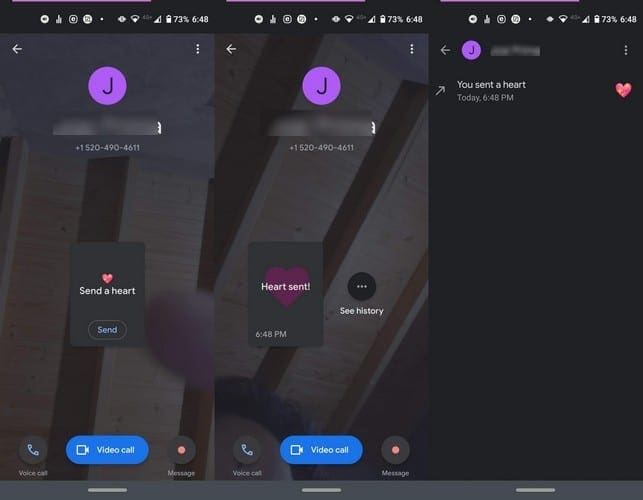
You’ll see various options to choose from such as:

  • Send a heart
  • Video call
  • Voice call
  • Message

How to Create a Voice, Video, Note or Voice Message on Google Duo

If you just want to say hi someone with a message and not necessarily call them, that’s also an option. Swipe down from the main page and choose one of the options.

With the video and picture options, you can choose from fun filters and effects. The note option lets you select the color background and font style of your message, while the voice message lacks any fun voice effects.

There is a retake option for all of them, just in case you make a mistake.

What You Can Do in a Call in Google Duo

To answer a call in Duo, you can swipe up to accept the call and swipe down to decline the call. At the bottom of your display, you’ll see options such as:

  • Mute (tap on this same option to unmute)
  • Hang up button
  • Camera swap
  • Auto-framing – The option will keep you front and center
  • Portrait mode – The option will blur your background
  • Low-light
  • Effects – Turn yourself into different animals or things.

Conclusion

Google Duo is a video conferencing option to consider. It’s free and, for the time being, is safer than Zoom. How inclined are you to using Google Duo? Share your thoughts in the comments below.

Categories: Android

Author Judy Sanhz

I am a tech geek who loves technology. I have been writing about tech for over a decade, covering various devices and programs. I write about Android, Apple, and Windows devices and programs. I stay updated on the latest gadgets, upgrades, features, and news. I aim to make complicated tech information easy for everyone to read. I've been with TechniPages from the beginning to help others fix their tech issues with the easy-to-follow guides.

You Might Also Like

  • Everything You Need to Know About Samsung Secure Folders

    Judy SanhzAndroid
  • How to Add a Podcast to a Spotify Playlist

    Judy SanhzAndroid
  • What Are App Actions and How to Use Them

    Judy SanhzAndroid
  • Galaxy S22 Ultra Camera App

    Galaxy S22: Enable/Disable Auto Rotate Screen

    Andrew MyrickAndroid

Leave a Reply

Your email address will not be published. Required fields are marked *

  • battery issues after windows 11 update

    Battery Issues After Windows 11 Update? Here’s the Fix

  • why is ram so expensive

    Why Is RAM Suddenly So Expensive?

  • how to fix error code 0x800f0922 windows 11

    How to Fix Error Code 0x800f0922 in Windows 11

  • service outage message on Xbox

    What to Do With a Service Outage Message on Xbox

  • signs your hdd is failing

    Signs That Your HDD Is Failing

profile pic

The Experts Behind Technipages

My name is Mitch Bartlett. I've been working in technology for over 20 years in a wide range of tech jobs from Tech Support to Software Testing. I started this site as a technical guide for myself and it has grown into what I hope is a useful reference for all.

Learn More

technipages logo white
linkedin icon

Technipages is part of Guiding Tech Media, a leading digital media publisher focused on helping people figure out technology. Learn more about our mission and team here.

© 2026 Guiding Tech Media All Rights Reserved

  • About Us
  • Contact
  • Terms of Use
  • Privacy Policy

© 2026 Guiding Tech Media All Rights Reserved

Information from your device can be used to personalize your ad experience.
Do not sell my personal information.

Last Updated on May 20, 2020 by Mitch Bartlett