

If you’re getting the annoying error code 31 when trying to stream your favorite DisneyPlus movies, you’ve come to the right place. In this guide, we’ll take a closer look at the root cause of this error. Once the cause is identified, the problem is half solved.
Contents
How to Fix Disney Plus Error 31
Enable Location Services
Error code 31 indicates that Disney+ could not verify your current location. Enable the location services on your mobile device. Then, go to Settings, select Privacy, tap Location services and ensure the app is allowed to access your location.
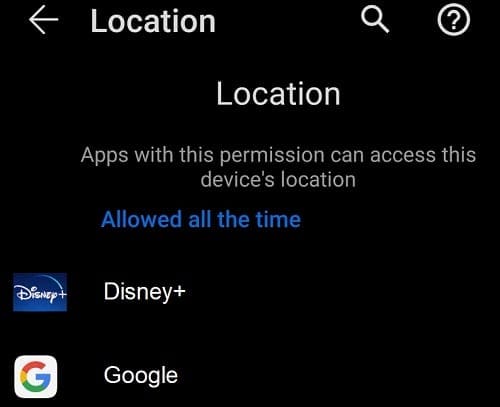
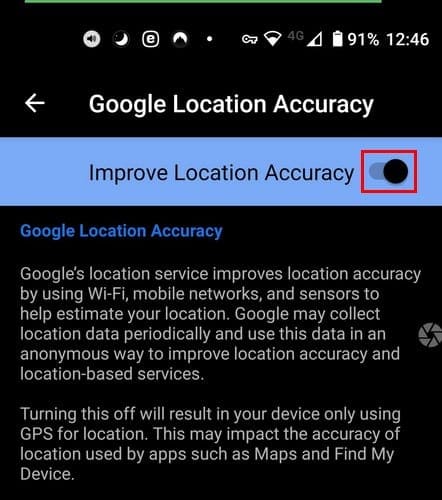
If you’re on Android, select the High Accuracy mode so that your device can detect your location more accurately. Your mobile device will use your GPS, wireless network, and cellular network to pinpoint your exact location.
Disable Your VPN
If you’re using a VPN app, disable it and check if error 31 is gone. Disney Plus is a geo-restricted service which means you can’t access the platform from anywhere in the world. That’s why many users rely on a VPN to fake their current location and connect to a server located in one of the countries where Disney+ is available.
Once Disney Plus suspects or detects an issue with your current location, it will prevent you from accessing the platform. So, if you’re located in a region where Disney+ is available, there’s no point in using a VPN. Disable your VPN, and you should be able to connect.
Connect to a Different VPN Server
On the other hand, if you’re located in a region where Disney+ is not available and uses a VPN to access the service, switch to a different server. The platform reserves the right to block specific IP addresses if they look suspicious. Maybe your current VPN is not doing such a good job at hiding your real location after all.
Alternatively, upgrade to a paid VPN plan or use a different VPN service. Many of them let you use the service for free for a limited period of time. Or install a browser that comes equipped with a built-in VPN, such as Opera.
Additional Solutions
If the error persists, update your OS, restart your device and check the results. Make sure no other apps are running in the background while streaming video content from Disney Plus.
Conclusion
Error code 31 usually indicates Disney Plus could not verify your location. Make sure to enable the location services on your mobile device. If you’re located in a region where Disney Plus is available, disable your VPN. However, if you use a VPN to access Disney+, switch to a different server location or use a different VPN. Let us know which solution worked for you. Join the conversation in the comments below.


I am their paying customer. I wanted to see Bleach on their platform.
But I could not as they only allow this in 5 certain countries.
I wanted to use a VPN to see the show I want on the platform I WAS paying for.
But Then I get an error message on their site because of the VPN!
PATHETIC!