Skip to content
LogoTechnipages
LogoTechnipages
  • Topics
        • Android
        • Browsers
        • Gaming
        • Hardware
        • Internet
        • iPhone
        • Linux
        • macOS
        • Office
        • Reviews
        • Software
        • Windows
        • Definitions
        • All Recent Posts
  • Product Reviews
  • About

How to Transfer Photos or Videos From Droid Turbo to PC

Mitch BartlettNovember 25, 2017 Comments (6)

Learn how to transfer photos or videos from the Motorola Droid Turbo to your PC so you can view or manage them on your computer.

Before starting these steps, you may have to download and install the Motorola USB Drivers for Windows. Mac users may want to use Android File Transfer.

  1. Connect the device to the computer using the included USB cable.
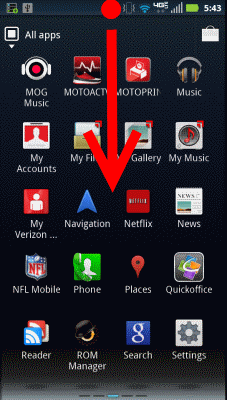
  2. Slide the notification area down by dragging it from the top of the home screen.
    Droid RAZR slide notification bar
  3. Tap the USB icon to bring up options.
  4. Select “Media device (MTP)“. The Droid Turbo will mount to your computer. it will be listed as “XT1254” under “Computer” in Windows, or on the “Finder” in Mac OS X.
  5. Open the “XT1254” option, then the “DCIM” > “Photo” for pictures. Open the “DCIM” > “Video” for videos.
  6. Drag and drop items from the Camera folder to a desired location on your computer. I like to copy mine over to the Windows Pictures and Videos folders respectively.
You’ve successfully transferred pictures and videos from your Droid Turbo to your PC. Be sure to properly eject the device before unplugging the cable.

Categories: Android

Author Mitch Bartlett

Through my career that spans over 20 years I have become an expert in Microsoft Systems Administration, Android, and macOS. I started this site as a technical guide for myself and it has grown into what I hope is a useful knowledgebase for everyone.

You Might Also Like

  • Android Restore Screen

    How to Backup Your Entire Android Device to PC

    Mitch BartlettAndroid
  • How to Connect Samsung Galaxy S8 to TV

    Mitch BartlettAndroid
  • Google Play header

    How to Redeem a Google Play Gift card

    Judy SanhzAndroid
  • Fix-Android-Process-Media-Stopped-Working

    How Do I Fix Android Process Media Errors?

    Madalina DinitaAndroid

Comments

  1. Jen says:
    May 3, 2020 at 3:31 pm

    I have same problem see others; DCIM is empty. Could it be that phone removed actual photos if they are backed up to Google? However they are taking up space on my phone, when I look at file usage. So where are there? Path to file from details says /emulated/0/dcim/camera which makes me feel like they are somewhere else?

  2. KJW says:
    January 5, 2020 at 1:19 pm

    When I click on DCIM I get a message, “This folder is empty.” Yet I can see photos on the Camera Roll. Now what?

  3. Gary Morris says:
    July 26, 2019 at 7:56 am

    Didn’t help. There were no files shown under DCIM.

  4. Sarah says:
    July 13, 2018 at 2:02 pm

    It worked. After several other sites with instructions that didn’t, this worked.

  5. Batman says:
    March 19, 2017 at 6:31 pm

    Can I use any USB cable, or do I need the one supplied with my phone? I don’t see the USB options when I plug in a USB cable.

  6. Sue says:
    February 12, 2017 at 1:18 pm

    This was really helpful. Thanks!

Leave a Reply

Your email address will not be published. Required fields are marked *

  • could not find this item

    “Could Not Find This Item” When Trying to Remove Files

  • no graphics signal on first boot

    No Graphics Signal on First Boot – How to Fix

  • system32 folder opens on startup

    System32 Folder Opens on Startup – How to Fix

  • browser keeps opening hp support

    Browser Keeps Opening HP Support Assistant Tabs 

  • camera not working in vmware

    Camera Not Working in VMware – How to Fix

profile pic

The Experts Behind Technipages

My name is Mitch Bartlett. I've been working in technology for over 20 years in a wide range of tech jobs from Tech Support to Software Testing. I started this site as a technical guide for myself and it has grown into what I hope is a useful reference for all.

Learn More

technipages logo white
linkedin icon

Technipages is part of Guiding Tech Media, a leading digital media publisher focused on helping people figure out technology. Learn more about our mission and team here.

© 2026 Guiding Tech Media All Rights Reserved

  • About Us
  • Contact
  • Terms of Use
  • Privacy Policy

© 2026 Guiding Tech Media All Rights Reserved

Information from your device can be used to personalize your ad experience.
Do not sell my personal information.

Last Updated on November 25, 2017 by Mitch Bartlett