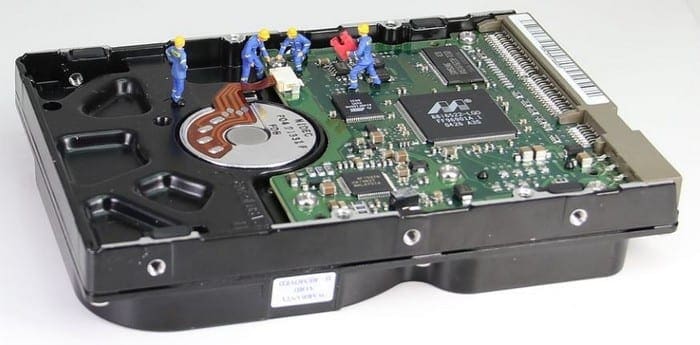
When choosing what components to put in or buy for your computer, one of the big decisions to make is between an SSD and an HDD. Both storage methods have their advantages, although most advantages of HDDs are based on the fact that the technology is more mature and has been researched and developed extensively for decades. This is in comparison to SSDs which have only been commercially available more recently and are still undergoing rapid technological improvements.
Tip: HDD stands for “Hard Disk Drive”, SSD stands for “Solid State Drive”.
What’s the Difference?
An HDD is a spinning disk that uses magnetic storage to record information, modern HDDs have increased capacity by including multiple disks in a single drive casing and using both sides of each disk. To read or write data, a read-and-write head must pass directly over the part of the disk to be interacted with.
SSDs use flash memory to record data in electrical charges on transistors. There are no spinning or moving parts in an SSD, data is written and read electrically. SSD research has developed a version of flash memory called V-NAND that physically stacks memory cells on top of each other allowing for significantly higher storage per volume. Most modern SSDs are of a TLC or QLC, triple- and quad-level cell with each cell being able to hold three or four bits of data respectively.
Tip: V-NAND stands for Vertical NAND flash. NAND flash is named that way because the physical architecture of the transistors resembles a logical NAND gate. A NAND gate is a logic gate that performs a “not-and” check, it is only false if all inputs are true.
Advantages of an HDD
One of the main advantages of an HDD is the price per storage unit, with HDDs costing roughly one-tenth of the price of an SSD of a similar size.
Note: This mostly applies to high capacity drives, with the effect reduced at lower capacities.
The largest HDDs commercially available in 2020 have 16 TB of storage and cost around US$470. In comparison, the largest commercially available SSD has a slightly lower capacity of 15.36 TB and costs almost ten times as much at US$4295. You need to reduce the capacity to just 2 TB to get an SSD under US$470.
At the 500 GB capacity, a low-end SSD would cost around US$60 with a high-end SSD at twice that. An HDD, however, costs between US$20 and US$30. As such for any PC, HDDs are a far more cost-effective solution than using SSDs.
HDDs are less prone to aging effects if left in an otherwise safe environment. The charge in the memory cells of an SSD slowly decays, over a period of around two years for a used SSD, although this only affects SSDs disconnected from power sources. The flash memory in SSDs also suffers from wearing and requires advanced wear levelling algorithms to extend the usable lifespan of the drive. In comparison, the platters in HDDs don’t appreciably suffer wear and tear, although the mechanical components used to read data can fail over time.
Advantages of SSDs
SSDs offer much faster read and write speeds than HDDs due to the inherent advantages of the lack of moving parts. SSDs are also being designed to make use of faster connectors that HDDs can’t take advantage of, further increasing the performance disparity. The speed advantage means that any action that requires reading or writing data to the disk happens a lot faster with an SSD, this includes booting up, loading videos, loading video games, anti-virus scans, and more.
Due to the lack of moving parts, SSDs are typically more resistant to physical shocks such as being dropped. Some form factors of SSD however, have no case or protective covering and may be more vulnerable to being snapped or having the connector pins damaged.
SSDs also don’t suffer any performance loss due to altitude whereas HDDs can only reliably operate safely up to 3000 meters/10000 feet. SSDs can operate as low as -55 degrees Celsius. Operating above 40 degrees Celsius in the long-term is likely to reduce the lifespan of an SSD, although thermal throttling measures prevent the worst of these effects. In comparison, HDDs can only operate between 0 and 55 degrees Celsius.
Both SSDs and HDDs have use cases. For typical home PCs a lot of people purchase a medium-sized SSD between 500GB and 1TB and then supplement it with a high-capacity HDD. The SSD is ideal for the operating system and software that will benefit from high-speed storage, while a high-capacity HDD offers cost-effective space to store any necessary files and data.