Skip to content
LogoTechnipages
LogoTechnipages
  • Topics
        • Android
        • Browsers
        • Gaming
        • Hardware
        • Internet
        • iPhone
        • Linux
        • macOS
        • Office
        • Reviews
        • Software
        • Windows
        • Definitions
        • All Recent Posts
  • Product Reviews
  • About

Slack: How to Prevent Messages from Sending When You Press Enter When Sending a Code Snippet

Mel HawthorneJanuary 25, 2021 Comments (0)

Slack is a chat room type app designed primarily for businesses. It’s intended to work as a single centralized communications platform for the entire company where individual teams and projects can get their own communications channels. This design simplifies communication systems management when compared to managing multiple services for multiple teams across the business.

Knowing that one of the types of teams that will use Slack to communicate amongst themselves are developers, who need to share code, Slack has included a code snippet feature it calls: “Code blocks.” A code block is designed to specifically retain formatting, which can be important in the code’s actual meaning.

By default, a code block doesn’t particularly act any differently than typing normally does. While normal messages tend to be relatively short single lines of text, code is often split across multiple lines. Recognizing this fact, Slack includes an option that changes how the enter key works when you’re typing in a code block. Instead of just immediately sending the message, as is the default, the enter key starts a new line if you’re currently typing in the code block.

How to Start a New Line with the Enter Key on Slack

If you want to enable this setting, go to preferences. To do so, click on your profile picture in the top-right corner, then click on “Preferences.”
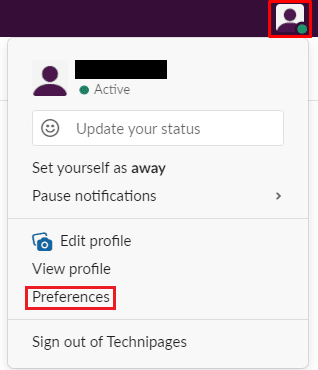
Click on your profile picture in the top-right corner. Then click on “Preferences.”

Once in preferences, switch to the “Advanced” tab. Next, tick the top setting in the “Advanced” tab, labeled “When typing code with “`, Enter should not send the message.”

With this setting enabled, the enter key will start a new line when you’re typing in a code block. To send the message, you can either press Shift + Enter from within the code block, close the code block, then move the cursor outside of the block and press enter. Or you can click the send button.

Tip: To close or open a code block, type three backticks ““`” in a row.
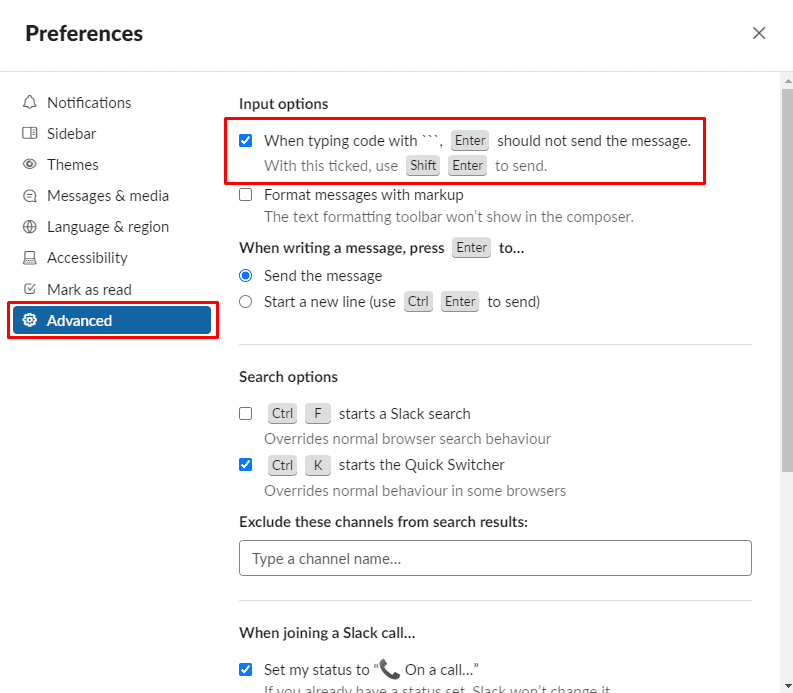
Tick the checkbox labeled “When typing code with “`, Enter should not send the message” to change how the enter key works in a code block.

Configuring the enter key to start a new line in a code block makes it easier to type multiple code lines without accidentally sending the message. By following this guide, you can configure code blocks to be safer to use.


Categories: Internet

Author Mel Hawthorne

You Might Also Like

  • Slack: How To Configure How People Can Join a Workspace

    Mel HawthorneInternet
  • Slack: How To Configure Who Can Manage Slackbot Automatic Responses

    Mel HawthorneInternet
  • fix google maps not updating location

    How to Find the Nearest Gas Station on Google Maps

    Judy SanhzInternet
  • Bitwarden: How to Unlock the Browser Extension with a PIN or Biometrics

    Mel HawthorneInternet

Leave a Reply

Your email address will not be published. Required fields are marked *

  • system32 folder opens on startup

    System32 Folder Opens on Startup – How to Fix

  • browser keeps opening hp support

    Browser Keeps Opening HP Support Assistant Tabs 

  • camera not working in vmware

    Camera Not Working in VMware – How to Fix

  • browser screen goes black

    Browser Screen Goes Black Intermittently 

  • computer heating up in hyper v

    Computer Heating Up When Using Hyper-V – How to Fix 

profile pic

The Experts Behind Technipages

My name is Mitch Bartlett. I've been working in technology for over 20 years in a wide range of tech jobs from Tech Support to Software Testing. I started this site as a technical guide for myself and it has grown into what I hope is a useful reference for all.

Learn More

technipages logo white
linkedin icon

Technipages is part of Guiding Tech Media, a leading digital media publisher focused on helping people figure out technology. Learn more about our mission and team here.

© 2026 Guiding Tech Media All Rights Reserved

  • About Us
  • Contact
  • Terms of Use
  • Privacy Policy

© 2026 Guiding Tech Media All Rights Reserved

Information from your device can be used to personalize your ad experience.
Do not sell my personal information.

Last Updated on January 25, 2021 by Judy Sanhz