Backups of data are important protections against data loss risks; however, they don’t mean all that much if you can’t use them if you ever have a data loss event. Slack offers a data export feature that allows you to export and backup data such as message history. While some data, such as the content of private channels and direct messages, public channels’ message history can be important and would likely otherwise be harder to replace.
In addition to the workspace export feature, Slack also allows you to import that data. Without this second part, the feature would be almost entirely pointless. One of the other possible uses for the data export and import features is to migrate one workspace to another, for example, as part of a corporate merger. While one workspace may be chosen as the primary one, there may be channels with useful data that you want to merge into the new workspace.
How to Import Slack Message History on Slack
To be able to import Slack message history, you need to go through the workspace settings. To get there, you first need to click on the workspace name in the top-right corner. Next, in the dropdown menu, select “Settings & administration,” then “Workspace settings” to open the workspace settings in a new tab.

Once in the workspace settings, click the button to the settings’ top-right, labeled “Import/export data.”

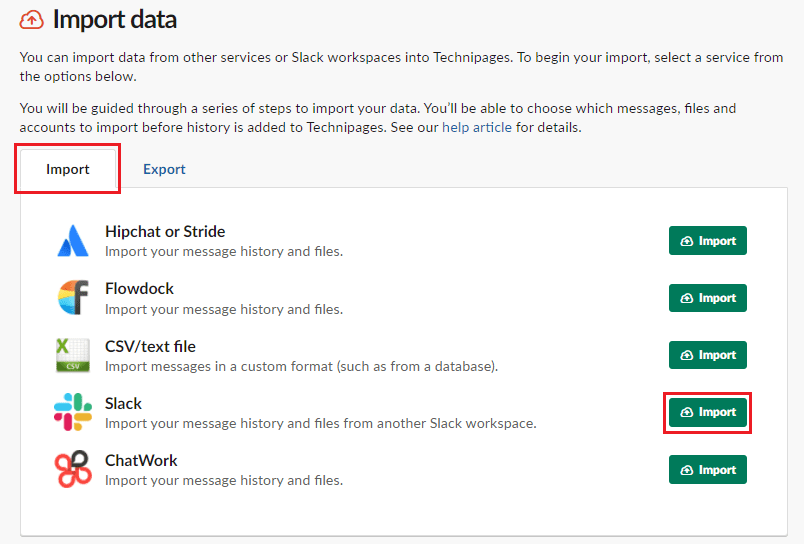
In the default “Import” tab, click on “Import” for data from Slack.
Tip: You can also import data from some other similar apps, the exact steps vary depending on the app, but the concept is the same. Slack also generally provides useful background information and guides to follow the process.
Slack offers a guide through the whole import process that explains every term and option that can really help. To open it, click “Review guide.” Click next to continue to the export upload process. Here you can choose to provide the download link to the Slack export, or you can manually upload the file.
Once the upload is complete, you need to configure what to do with users. You can make different choices for the overarching groups of “users with matching email addresses,” “active users without a matching email address,” and “deactivated users without a matching email address.
Next, you need to choose how to import channels. You can choose what happens to public channels with a matching destination public channel, what happens for public channels with no matching destination channel, and what happens to archived channels without matching channels.
Finally, review the settings you’ve picked and click “Import” if you’re happy with them. You’ll then see a progress bar showing you the state of your import process. You’ll receive a confirmation email once the import is complete.

If you ever need to restore from a backup or merge with another workspace, you’ll want to be able to import your exported data. By following the steps in this guide, you can import previously exported data to your workspace.