
Have you ever scrolled through the community comments of a song on YouTube and seen suggestions to play the video back at x1.75 or x0.5? It’s usually because slowing down or speeding up the song makes it “better” or hilarious. It’s the same idea as adjusting the playback speed on a record player.
But there are other reasons to adjust YouTube video playback speed for more than entertainment purposes. If you’re transcribing text or conducting research, you may need to slow down speech. If you follow a ghost hunter and like to look for things the paranormal team may have missed, just slow it down!
If you notice that something’s off about the YouTube video, that maybe something’s moving a little bit slower or faster than usual, perhaps the uploader adjusted the upload playback speed to avoid copyright issues. Make up the difference with this feature.
Fortunately, for us YouTubers, we don’t have to wait until we get to a computer to adjust the playback speed. In 2017, developers enabled this feature for the YouTube smartphone app as well.
Contents
How to Adjust Playback Speed in YouTube App
Playback speed video quality all depends on your service provider and network availability. If you’re frustrated by the quality of a video at x0.2 playback speed, you probably don’t have the service to support video quality properly. For Android users, you need at least software version 5.0 to use the playback speed feature.
- Open up the YouTube app on your Android or iOS smartphone.
- Search for and select the video you would like to watch.

- Tapping the video screen will bring up an overlay of options. You will see in the right corner, three vertical dots.
- By selecting these dots, you will reveal a settings menu—tap Playback Speed.
- You will be given a list of speeds from which to choose.
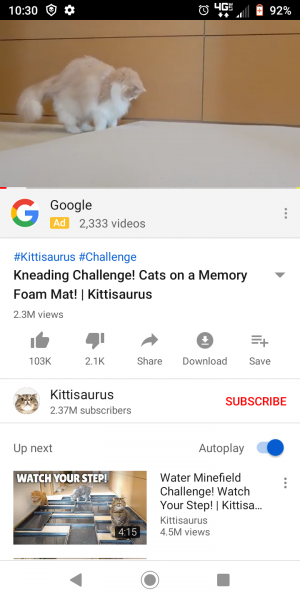
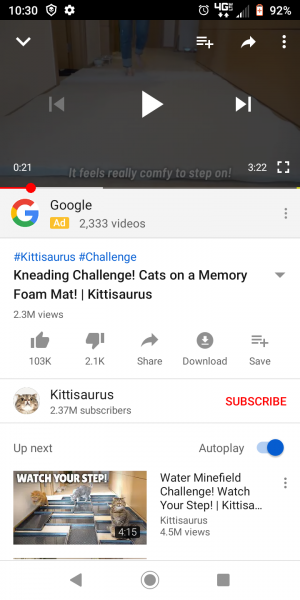
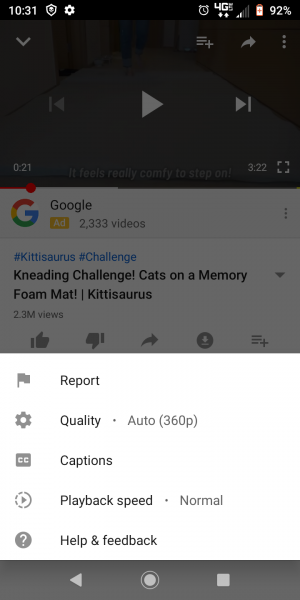
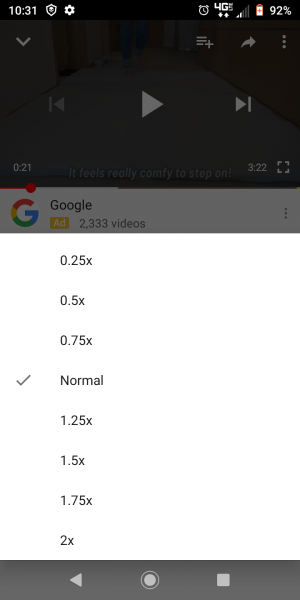
Anything above Normal will speed up the video. Anything below Normal will slow it down. When you switch to another video, the playback settings will reset.
How to Set Default Playback Speed on YouTube App
Say you do want to keep a particular playback speed across videos, what do you do then? Well, neither the standard YouTube site nor the YouTube app will allow you to set a default speed, you’ll have to adjust it for every video. If you are on a desktop running Chrome, however, you can set a default playback speed. You’ll first need to download the free ImprovedTube extension.
- Once installed, click on the extension icon at the top of your browser.
- Select the Player option that appears in the menu.
- Now you can adjust the playback slider to your desired speed.
Unlike the regular YouTube player, you can adjust the playback speed in increments of 0.05 with ImprovedTube. This gives you more flexibility and precision when tweaking speed.
Other Playback Features Available on the App
The YouTube app may be lacking in the default playback speed department, but it does have other video player playback settings you can make use of.
Quality
Adjust the quality of your YouTube video. The app will only support what your service and the video itself will allow, so if you don’t see any change, that’s why. Increasing the quality of the video may slow down video load time.
Captions
If you need closed captions in your native or a different language, the app for smartphones will instantaneously translate the video for you. Turn off the captions by going into this setting again. The captions aren’t always accurate but can be helpful.
Report
Need to report a less than desirable video? This is your option. Without having to navigate away from the app, you can flag this video as inappropriate for eight different reasons, including hateful or abusive content and spam.
Help & Feedback
If you want to send feedback, like “Why isn’t there a default playback speed option for the app yet?” tapping this option will take you to the screen you need. You can also access troubleshooting documentation here, as well.
Wrapping Up
Adjusting playback speed for YouTube videos is useful — sometimes. I personally would not default my playback speed to Alvin and the Chipmunks status, but keep the setting on Normal. For the YouTube app, let’s just be glad developers finally allowed us to adjust playback speed on our smartphones!


Is it possible to “change & lock playback speed” on YouTube while using a desktop computer and JAWS 2022 program? (Accessibility for persons with low vision, no vision or illiterate.)
Usually most videos are too slow. It’s difficult & tedious to manually change every playback speed to “normal” setting.
Please help?
This option does not wxist on mobile on ios. Did they take this feature away from mobile app or non-paid services? It’s an accessibility issue.