An important method of identifying exactly what services are running on your network is to perform a port scan. Running a port scan can give you an accurate overview of the attack surface of your computer and network. In some cases, you may find that you have services running that you may not have expected.
Transmission Control Protocol, or TCP, is a standard that allows connections between computers over a network. TCP uses a three-way handshake to open a connection that will then stay open until it either times out or the connection is closed. This isn’t to say the connection is always transmitting data, it just means that both parties save the connection details and can immediately resume sending and receiving data.
Nmap is the standard tool for performing port scanning. It’s designed primarily to run on Linux but there are also Windows versions. A graphical interface is also available, but the command-line usage is still the standard.
How to use Nmap
To test if you’ve got Nmap installed on a Linux machine, run the command “nmap”. If you get a help page, then it’s installed and ready to run, if you get an error saying that the command was “not found” then you need to install Nmap.
The help page is very dense and shows a lot of options that can be confusing. The basics that you need to scan TCP ports are relatively simple. The basic structure you need is “nmap [type of scan] [options] {target specification}”.
For scanning TCP ports you’ll want to use one of two scan types, TCP or SYN. A TCP scan attempts to make a full connection to each port, completing the three-way handshake. A SYN scan abuses the protocol slightly and never sends the third message of the three-way handshake. SYN scans are often less stressful on system resources as devices don’t have to keep open many connections at once as the connections are never fully established, they also run faster than TCP scans but they will need root permissions. A TCP scan is specified with the “-sT” flag, while a SYN scan is specified by “-sS”.
Tip: The three-way handshake is the way a TCP connection is initialised, it involves three messages, “SYN, SYN-ACK, and ACK” sent from client to server, server to client, then client to server respectively.
How to specify scan options
The options section is entirely optional, but there are a number that can be generally useful. You can enable more detailed scan results by upping the verbosity with “-v”, you can increase the verbosity further up to a third level with “-vvv”. You can run operating system detection, version detection, script scanning and traceroutes by using the “-A” flag although this will take a fair bit longer to run.
You can either scan IPv4 or IPv6 addresses at a time, IPv4 is the default, if you want to scan IPv6 addresses you need to use the “-6” flag. Sometimes Nmap will run a quick ping scan to determine which hots are up, if this is skipping hosts that you want to test you can disable it with the “-Pn” flag. If you specify a large range it can take a long time to scan. The “-T4” flag will run the scan faster and is unlikely to miss anything, it may overwhelm slow networks or devices as the traffic output will be significantly increased.
How to specify IP address and port ranges
By default, Nmap will scan the top 1000 most commonly used ports, you can manually set a port range by using the “-p” flag and then specifying a range without spaces. Port ranges can be specified through comma-separated-values, hyphenated ranges, or a combination of the two. For example, the flags “-p22”, “-p1-65535”, and “-p21-25,80,139,8080” will scan port 22, all ports between 1 and 65535, and ports 21 to 25, 80, 239, and 8080 respectively. It’s also possible to specify the “–top-ports [number]” flag instead to scan the top [number] most common ports. If you want to specify all ports, you can use the shorthand “-p-“.
Tip: Port numbers range between 0 and 65535, although 0 technically can’t be used.
The last thing you need to specify is the IP addresses of the devices you wish to test. To do so, simply list all the IP addresses you want to scan, they should be separated by spaces and can be listed individually, by hyphenated ranges, or through CIDR notation. For example, “191.168.0.1” would scan that single IP address, “192.168.0.1-5” would scan the five IP addresses between 102.168.0.1 and 192.168.0.5, finally “192.168.0.1/24” would scan all IP addresses between 192.168.0.1 and 192.168.0.255.
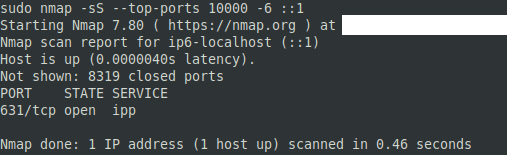
The overall command should look something like the following examples: “nmap -sS -vvv -A -p- 127.0.0.1”, “nmap -sS -v -p80,443,8080 192.168.0.1/24”, “nmap -sS –top-ports 10000 -6 ::1”