
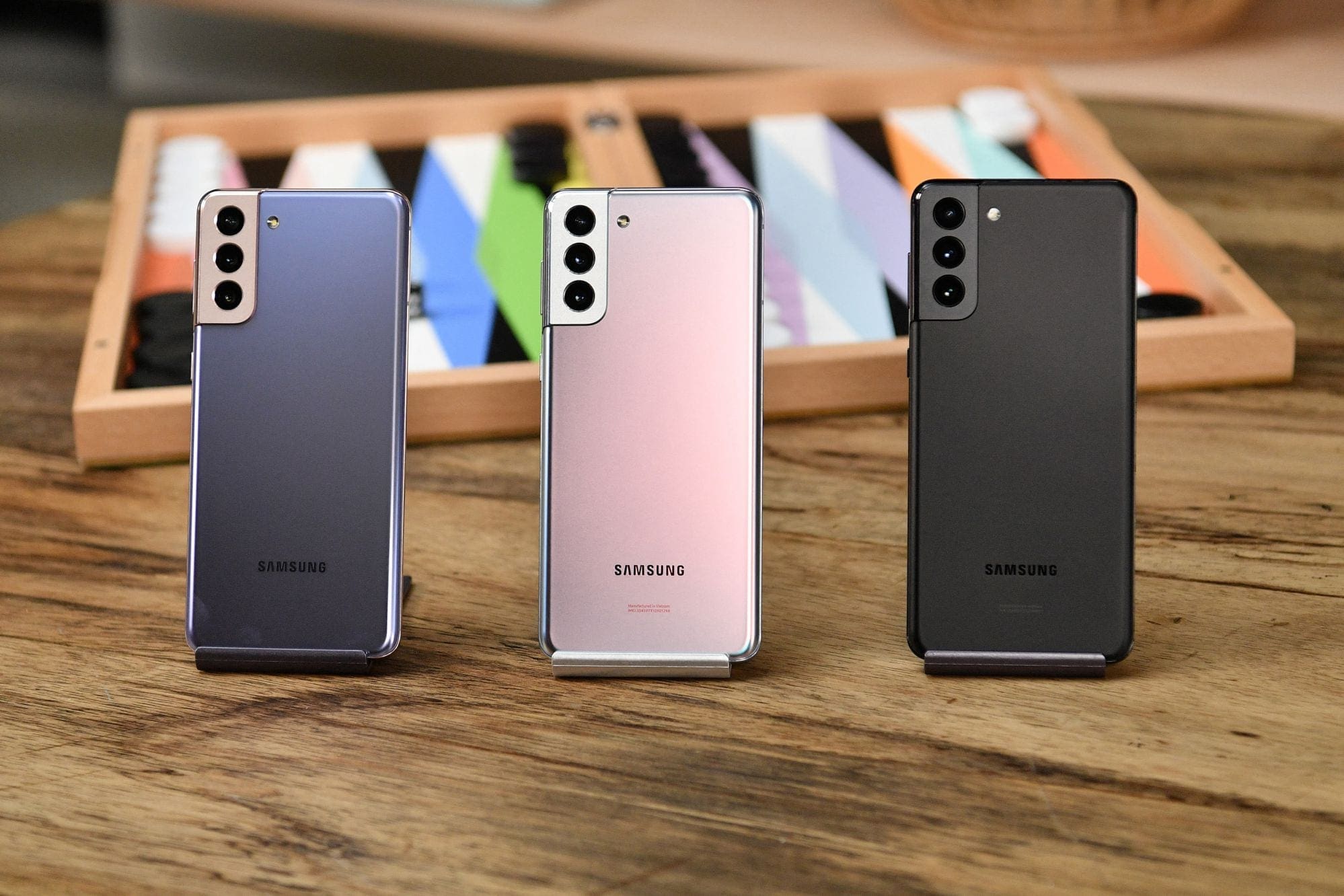
Samsung has finally released the Galaxy S21, S21+, and S21 Ultra, which are likely to be some of the best phones of the year. But even the best phones run into issues sometimes, whether it’s from a rogue application or something else in the software. That’s why restarting and resetting your phone are the best paths to follow if you are trying to get your phone working properly again.
Contents
***Editors Note: The following methods will work with all three variants of the Galaxy S21***
How to Soft Reset Galaxy S21
Before heading down the path of resetting your phone completely, the first step you’ll want to take is to soft reset the Galaxy S21. This is just power cycling the device, as you may be able to knock out any of the cobwebs that are wreaking havoc.
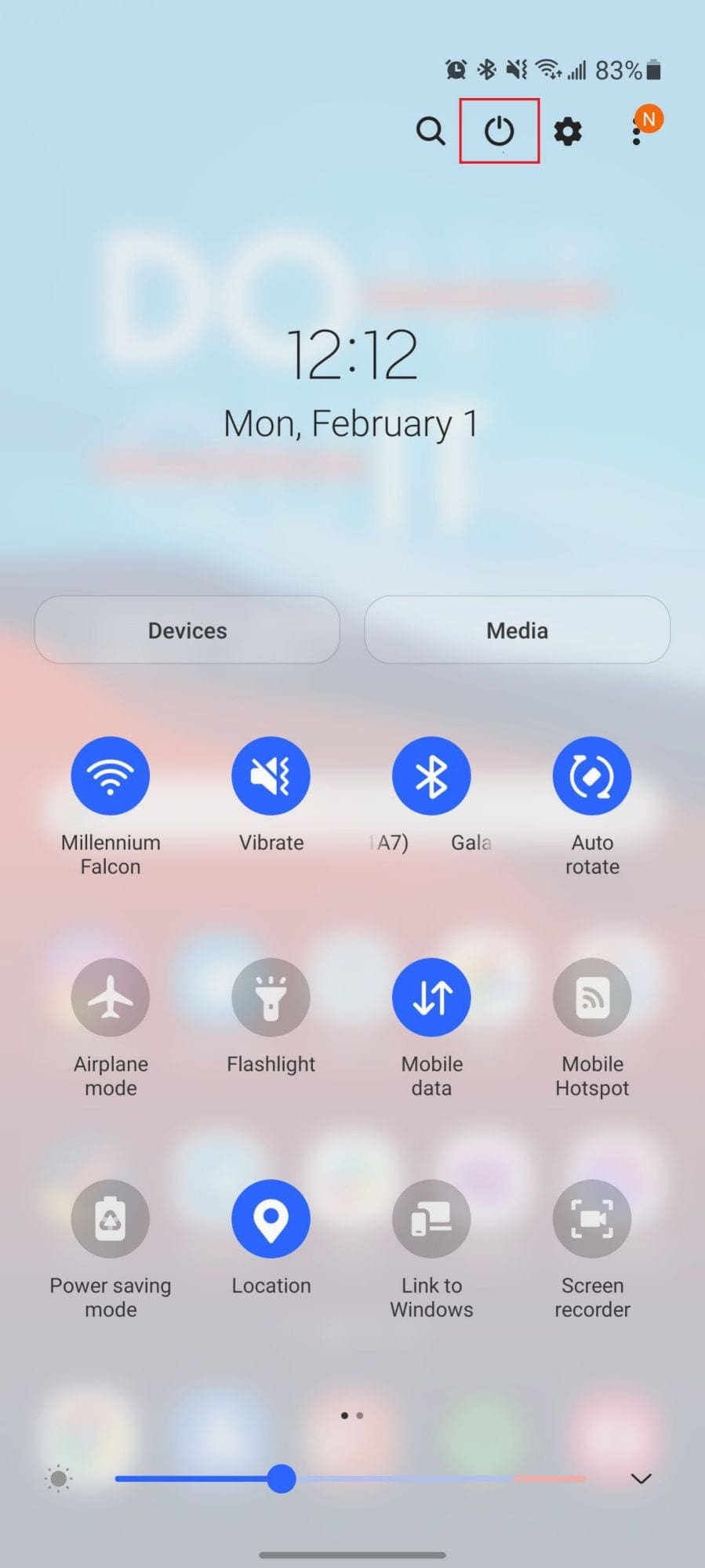
- Swipe down with two fingers to reveal the Notification Shade.
- Tap the Power icon in the top right corner.
- Tap the Power off button.
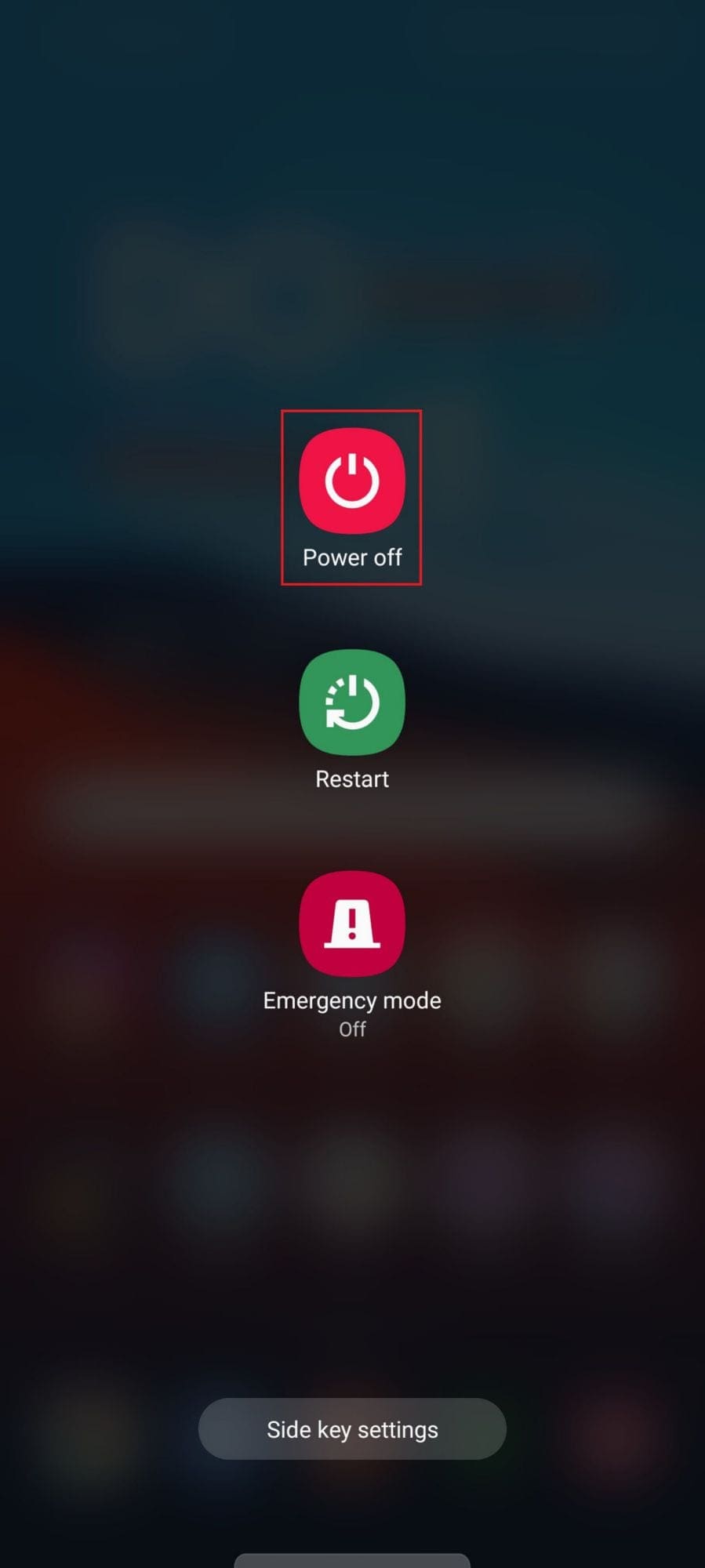
This will turn your Galaxy S21 completely off, so after a few moments, the screen will completely turn off. After it has turned off, press and hold the power button on the side of the phone for three seconds.
How to Hard Reset Galaxy S21
If you continue having issues after performing a soft reset, the next step that you’ll want to take is to perform a hard reset. You can equate this to powering down your computer by holding down the power button, instead of following the power menu.
- Press and hold the Power and Volume Down buttons.
- Continue holding the buttons until the Samsung logo appears.
- Release the Power and Volume Down buttons.
Even when you hard reset the Galaxy S21, you will not lose any data, and no applications will be removed or deleted in the process.
How to Factory Data Reset Galaxy S21
For those who need to go down the “nuclear” path, you’ll need to set your Galaxy S21 back to its factory defaults. But before you can do that, it’s important to make sure that all of your information and data is properly backed up to the cloud. This makes it easier to recover your data after the reset has been completed.
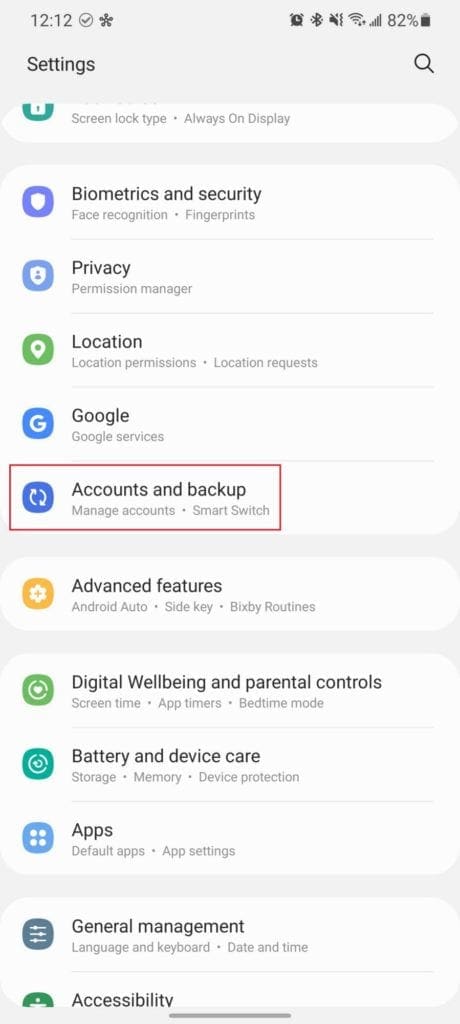

- Open the Settings app.
- Scroll down and tap Accounts and backup.
- There are two options for backing up your data:
- Samsung Cloud
- Google Drive
- Select the account you want to use to back up your files.
- Tap the Back up now button.
- Wait until the backup is completed.
- A progress bar will appear at the top of the screen. Wait until this disappears to confirm that your backup is completed.


Once the backup has finished, it’s time to reset the Galaxy S21 back to its factory defaults. Everything will be wiped from the phone, so you will lose any unsaved work or anything that was not included in the aforementioned back up.
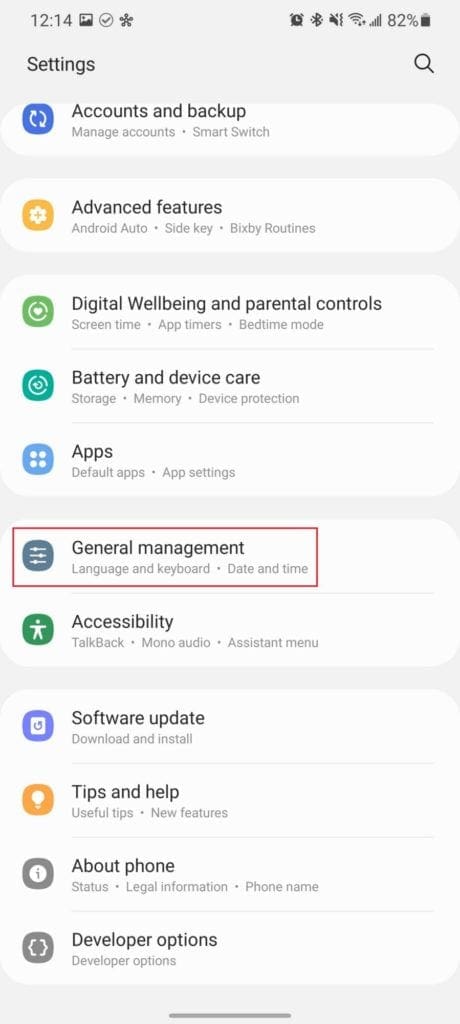
- Open the Settings app on your Galaxy S21.
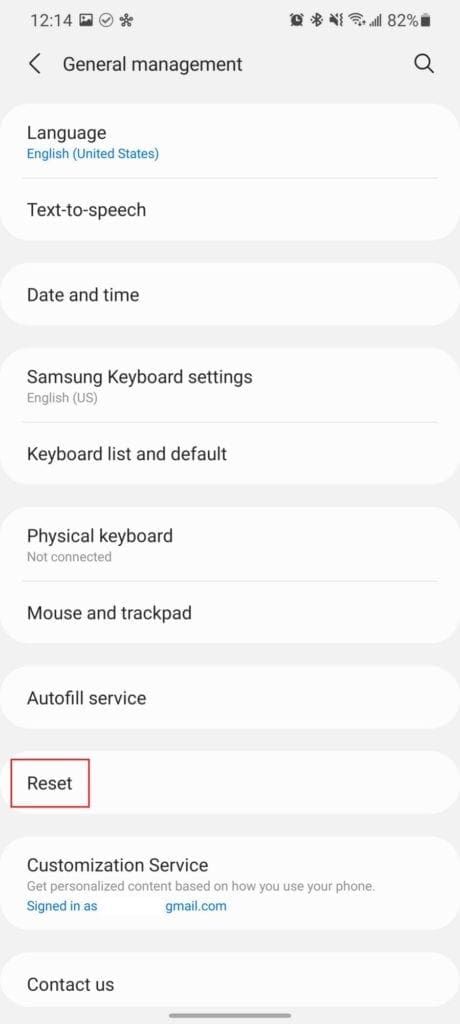
- Scroll down and tap General Management.
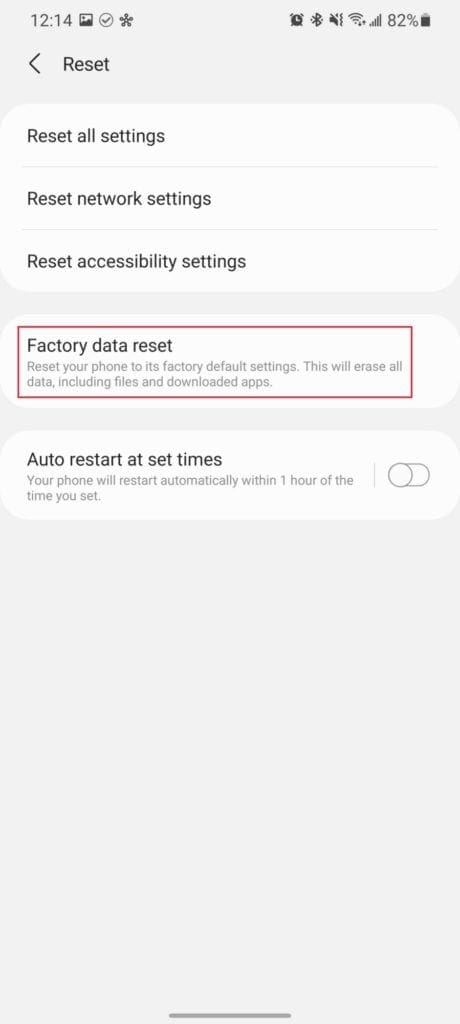
- Tap on Reset.
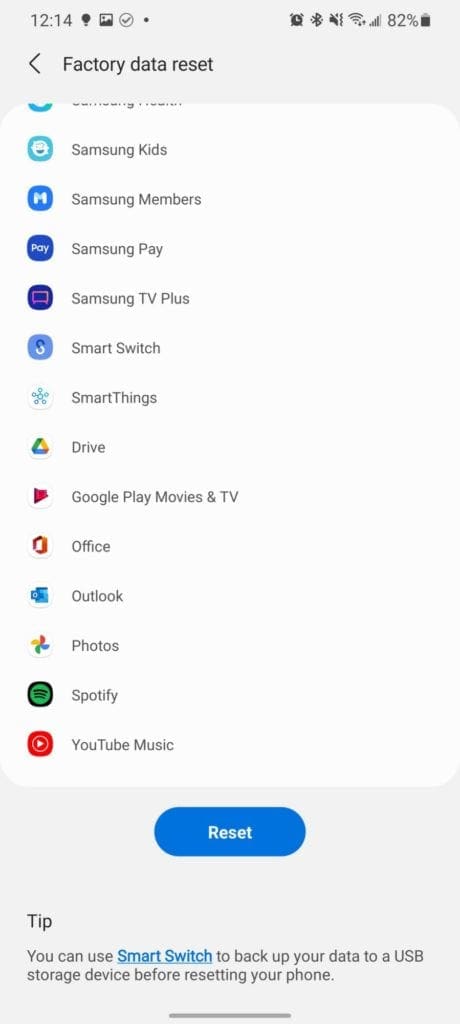
- Select Factory data reset.
- Scroll down and tap Reset.
This process will take a few minutes to complete, so you can go grab a cup of coffee while you wait for the phone to reset. Once completed, you’ll be greeted with the same setup menu that appeared when you turned the phone on for the first time. Just follow the steps, restore a backup if you want, or set up the phone as brand new.
Use Android Recovery to Reset Galaxy S21
There’s actually another method for those who need to factory reset the Galaxy S21, but cannot do so via the Settings application. Again, you’ll want to try and make sure that your data is backed up so that nothing gets lost. This method deals with Android’s built-in recovery system, which may look a bit archaic compared to the software on the Galaxy S21.
- Swipe down with two fingers to reveal the Notification Shade.
- Tap the Power icon in the top right corner.
- Tap the Power off button.
- Press and the Volume Up and Power button for up to five seconds.
- When the Samsung logo appears on the display, release the buttons.
- Use the Volume buttons to navigate to Wipe data/factory reset.
- Click the Power button to select the option.
- Scroll down using the Volume Up and Down buttons.
- Select Factory data reset and tap the Power button.
- Once complete, select Reboot system now using the Power button.
After the system has finished being wiped and rebooting, your phone will be set back to its factory defaults. Follow the prompts and get your phone set back up again.
Conclusion
It’s still in the early days, but the Galaxy S21 Ultra is already rather impressive with its S Pen support and unique camera system. Even though this is the most powerful Android phone to-date, that doesn’t mean that you won’t run into issues. If you need more help or are running into other issues, let us know in the comments below.



My S21 display is not working so I can’t see anything to do a factory reset. My insurance replaced the phone but I’m supposed to return the old phone within 30 days. I was able to transfer all my data USB to USB but I’ve got no way to erase my data from the old phone. It has all my banking and financial information stored on it so you can understand why I wouldn’t want to return the phone in its present state. If I could transfer all my data who’s to say anyone wouldn’t be able to. Just as a side note,I was told there was no way to transfer my data by several t-moble employees and there customer care. They just sell, their not techs. Also I met one of the rudest employee at one of there stores. I’m 65 years old and never been disrespected and treated the way he did.
My problem is it just goes into reset and keeps asking me to key in my pin number. I have done it and it’s still reset. and i tried holding the volume key down and the power button is still no use… I feel so fed up with Samsung S21 Ultra. ever since I bought this phone always got issues.
This issue I have been working on for a few hours now and I believe that I would give it all up for what you want me to say I have done it with you alls I have no fear of it being so bad and you are not going to believe it was loads of my mind to do it for you fixed it is really important part of my life and I am going to recommend you to everyone I know thanks you for your help and support ???? and I hope you are not going to stop putting it on the web site hallelujah and I will never forget the fact that it doesn’t make any sense for me
I’ve got a samsung s21 ultra and don’t know the password when I try 2 factory reset it. It says I may still need the Google password to access the phone? This is impossible because the previous owner passed away and his mom doesn’t know the password! Please help!
I am not receiving phone calls., as of July 1 2022. The bars turn to circle with line through it when a call comes in. Phone does not ring and does not show incoming call. Caller gets thrown into voicemail. Have done multiple restarts, changed sim twice, had smart tutor tech look at it. Don’t really want to do factory reset if I can avoid
My Samsung s21 ultra is not taking command of hard reset, whenever i try to do with volume up and power on bottom, it directly turned on, can someone help me please.
I forgot my phone password the model is SM-A217F/DS. I can’t do the hard and soft reset. PLS HELP ME. I WOULD APPRECIATE IT .
I can NOT open the tray to insert the SIM CARD . I really can NOT locate the SIM CARD TRAY . I have a Samsung Galaxy S21 Ultra 5G .
Hi, I can’t hard reset my Galaxy a21s. My voice and face recognition stopped working and the phone is stuck in flight mode. I have followed the hard reset but it just restarts and does not go into recover mode. Can you please help?
I got my phone about a month ago maybe more I started testing everything up but did not finish.
A month later I got some time but I forgot the password.
I have read this and tried so many times I am still unable to wipe my phone and start again.
I have tried the power button volume down and volume up but still not get me to that menu to wipe the phone.
Model S-G996b/DS
how do i restart it if i forgot my pattern lock and everytime i try to restart thephone like u said wont work what do i do now
my s21 ultra not starting up.. showing the samsung logo and not getting in.. i tried with the reset steps but not working.. kindly guide me
Phone restarts several times a day, overheats and locks up.
Every method told here is for sinple jack types . The actual techs use other methods involving a connection to a computer
Phone shuts off and reboots constantly. It is driving me up a wall. Never happened on my previous Samsung. I think it was a problem with the smart switch when downloading my data to the new phone. Considering a factory reset and downloading from the cloud.
no it did not, the vibration does not work for the clock and I need that as my alarm
My S 21 that I purchased in Feb 2021 is stuck on a download with an error
partition super
Reason SUPER Build-id does not match with the reference
Hard rest by pushing power and volume down until Samsung comes back up does nothing. Goes right back to the downloading screen
I have an issue with my new S21 that is intermittent and inconsistent. Extensive googling has only shown it to be an issue for people on TMobile, but I’m on Verizon. The cellular and WiFi appear to be interfering with each other in some way, intermittently. The result is (sometimes for each item): phone calls go direct to voicemail with no call notification; calls I make get dropped instantly before being dialed; texts don’t get sent; texts get sent but I receive a message that they didn’t get sent; texts don’t get received for awhile. Makes no difference if WiFi calling is turned on or off. Turning WiFi itself off on the phone helps a lot (but maybe not perfect – not sure yet). Turning Airplane Mode on and off helps for a minute, but doesn’t continue. People on TMobile have said they’ve changed phones, changed routers, changed SIM cards, etc. with no solution. Anyone else having this problem? Anybody have a solution? It’s very frustrating!
Cannot put apps on alphabetical order. Even your remote support people can’t do it. Please fix it in your next update. Too many auto installed apps to scroll looking for the ones I want to use and put on my screen preference.
Just purchased my s21 ultra less than two weeks ago. I love it but the front facing camera is having issues while using portrait mode. I have to restart whenever I want to use it and it only fixes the issue for about 10 minutes. Anyone else having this issue.