Skip to content
LogoTechnipages
LogoTechnipages
  • Topics
        • Android
        • Browsers
        • Gaming
        • Hardware
        • Internet
        • iPhone
        • Linux
        • macOS
        • Office
        • Reviews
        • Software
        • Windows
        • Definitions
        • All Recent Posts
  • Product Reviews
  • About

How to Hard and Soft Reset Samsung Galaxy Tab S5e

Judy SanhzMay 8, 2020 Comments (1)

Is your Samsung Galaxy Tab S5e acting up again? You’d be surprised what a good reset can do, but there is a difference between a hard and a soft reset. One method allows you to possibly fix the problem without having to lose any information, while the other one wipes your tablet clean.

You’ll be left with whatever info and apps were on the tablet when you first took it out of the box. Both methods are easy to perm, but be careful not to accidentally erase important information.

Contents

  • 1 What’s the Difference Between a Soft and Hard Reset?
  • 2 How to Do a Soft Reset Using the Buttons
  • 3 How to Perform a Hard Reset (Software)
  • 4 How to Hard Reset a Galaxy Tab S5e Using Buttons – Recovery Mode
  • 5 Conclusion

What’s the Difference Between a Soft and Hard Reset?

When performing a soft reset, the only thing that you’re doing is turning your tablet off and back on again. With a hard reset, what you’re doing is erasing everything you ever installed on your tablet, including any updates.

How to Do a Soft Reset Using the Buttons

To perform a soft reset on your tablet, long-press on the smaller button on the smaller button on the upper right side of the tablet.

After a few seconds, you’re going to see the options to turn or restart your tablet. Tap on the restart button, and you’re all set.

How to Perform a Hard Reset (Software)

To have your tablet go back to its original setting, you’ll need to go to:
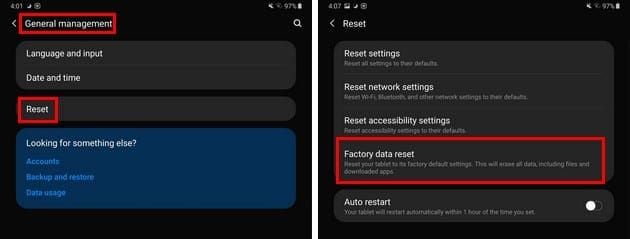
  • Settings
  • Genera Management
  • Reset
  • Factory data
  • Read all the information you’ll be erasing and tap on the Reset button

How to Hard Reset a Galaxy Tab S5e Using Buttons – Recovery Mode

Remember that a hard reset is going to wipe your tablet of all the information you added as well as any apps you’ve installed. If there is any information you want to save, make sure you make a copy of it before you do the factory reset your tablet.

Before you get started, make sure that your tablet is charged at 50%. If you can check that off your list do the following:
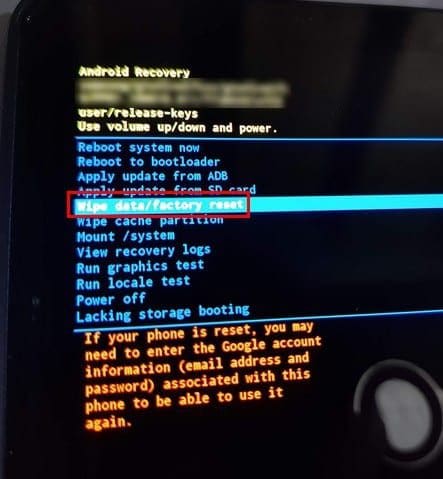
  • Make sure you turn off the tablet.
  • Long-press on the power and volume up button
  • Keep pressing until the startup logo disappears.
  • When you’re in recovery mode use the volume up and down buttons to move across the options
  • Go to Wipe data/factory reset.
  • Tap on the power button to select factory reset
  • Press the power bur button to confirm your choice.

Conclusion

A good reset every once in a while can do your tablet good. You get rid of junk files that are taking up space and slowing down your tablet. Are you going to reset your tablet with the button or settings method?


Categories: Android

Author Judy Sanhz

I am a tech geek who loves technology. I have been writing about tech for over a decade, covering various devices and programs. I write about Android, Apple, and Windows devices and programs. I stay updated on the latest gadgets, upgrades, features, and news. I aim to make complicated tech information easy for everyone to read. I've been with TechniPages from the beginning to help others fix their tech issues with the easy-to-follow guides.

You Might Also Like

  • Google Play header

    Quick Tip: How to View Your Google Play Purchase History

    Judy SanhzAndroid
  • How to Remove Audio from an Android Video

    Judy SanhzAndroid
  • Google Duo on Android: How To Add Automatic Captions To Video and Audio Messages

    Mel HawthorneAndroid
  • How to Create a WhatsApp Group with You as the Only Member

    Judy SanhzAndroid

Comments

  1. Timucin says:
    June 6, 2021 at 2:55 am

    Great explanation. Thanks…

Leave a Reply

Your email address will not be published. Required fields are marked *

  • top graphics cards for 2026

    Top 5 Graphics Cards for 2026

  • roblox error 280

    Having Trouble With Roblox Error 280? Here’s What to Do

  • hard disk smart command error

    Hard Disk SMART Command Failed – How to Fix 

  • files automatically deleted on click

    Files Getting Deleted Automatically? Here Are Some Reasons Why

  • error 400 when signing in

    Encountered Error 400 When Signing In to Microsoft? Here’s What You Can Do 

profile pic

The Experts Behind Technipages

My name is Mitch Bartlett. I've been working in technology for over 20 years in a wide range of tech jobs from Tech Support to Software Testing. I started this site as a technical guide for myself and it has grown into what I hope is a useful reference for all.

Learn More

technipages logo white
linkedin icon

Technipages is part of Guiding Tech Media, a leading digital media publisher focused on helping people figure out technology. Learn more about our mission and team here.

© 2026 Guiding Tech Media All Rights Reserved

  • About Us
  • Contact
  • Terms of Use
  • Privacy Policy

© 2026 Guiding Tech Media All Rights Reserved

Information from your device can be used to personalize your ad experience.
Do not sell my personal information.

Last Updated on May 8, 2020 by Mitch Bartlett