
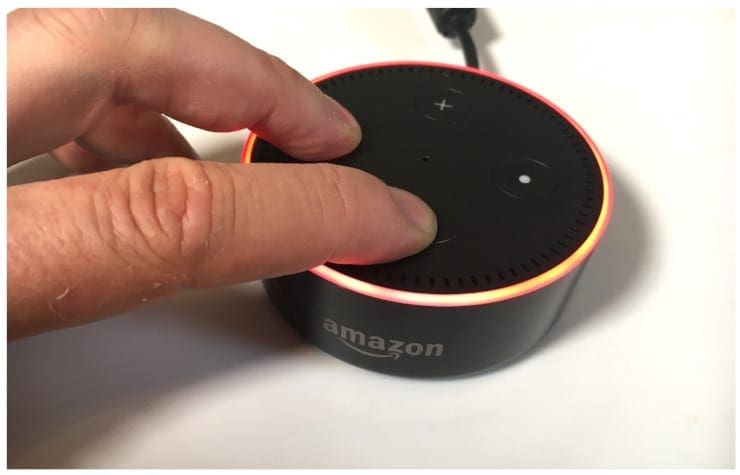
Alexa is one of the hottest trends in the world right now. It seems as though everyone has at least one Alexa-enabled device in their home, helping them to make life simpler. While the Echo and Dot generally are both great pieces of hardware, they can – like any technology – occasionally have hiccups and issues.
There are a couple of reasons you may need to reset your Alexa device: you could be experiencing difficulties with it or have decided to give it to someone (or sell it). If you are having issues, the first thing you should always do is unplug the device from the wall, wait a moment and then plug it back in. Just like with computers and other technology, a simple restart sometimes clears up minor annoyances like magic. If your device still just is not acting properly – or if you need to remove all of your information from it in order to give it to another person – deregistering and resetting the Echo or Dot is extremely easy and takes only a couple of steps.
There are two methods you can use to accomplish this task: manual reset or via the Alexa app on your mobile device. This short guide will walk you through both options so that you can choose which you are most comfortable using.
Reset 1st Generation Manually
- Look for the reset button. This is a tiny hole near the bottom of the gadget.
- Use an unbent paper clip (or similar tool) to gently press and hold the button inside of the hole until the light turns first orange and then blue.
- Release the button and wait for the light to turn off and then on again.
- When it comes back on, it will be orange which indicates it is now in setup mode.
- At this point, simply open the Alexa app, connect to WiFi and then register the device to your (or a new person’s) Amazon account.
Reset 2nd Generation Manually
Those of you using the second-gen Echo or Dot will follow a slightly different method.
- Hold down the Volume Down and Microphone buttons at the same time for about 20 seconds until the light turns orange and then turns blue for a moment.
- Release the buttons and wait for the light to turn itself off and back on again (as above) to indicate it is in setup mode.
- Open the Alexa app on your phone or tablet, connect to WiFi and get that gadget registered.
Reset Using the Alexa App
- Open your Alexa app (via phone or tablet) and press the Menu button in the top-left corner (the three lines).
- When the menu opens, locate and select the Settings option.
- If you have more than one connected Alexa device, select the one which you wish to reset. Scroll down to where you find the information showing who the gadget is registered to and choose the “Deregister” option. A window will pop up asking you to confirm your choice: choose Deregister again in order to proceed.
- Alexa has now been reset. To start your setup process, hold down the Action button on the device for five seconds until the light ring turns orange.
- Open the Alexa app again on your phone or tablet, connect Alexa back up to her life-giving WiFi and get her all registered to your account.
Note: If you are giving your device away or selling it, please remember to NOT follow the steps in any of the above methods for connecting Alexa to WiFi after reset and do not re-register her to your Amazon account. You will want to leave those steps for the person who receives this amazing gadget. Rest assured that all of your information will be removed from the gadget once you use the Deregister button, so do not forget that all-important step!
Have you ever experienced issues of any kind with Alexa in any of her forms? What have you had to do to resolve them? What types of things do you use Alexa for to make your day go faster and easier? We would love to hear from you, so leave us a comment and let us know – and also please tell us if our information helped you in any way. We love to hear your feedback: it helps us know which types of articles you most need from us in the future.

I had to factory reset my Alexa now I can’t get my fire tv linked back to her.
the blue light is always on…alexa doesn’t answer. i can’t get an orange light.. what do i do?????
HELL NO, Alexa was playing requested music, it than went off, stating it was OFFLINE. it would not take pass words or ID. I am so tired of trying to RESET. i have Alexa and Echo> Help????not taking email
I am moving shortly and have taken one of three 2nd generation echos to new address. It will not connect to WiFi. Do I need to deregister it and register it again ?