

Do you need to schedule recurring meetings on MS Teams with the same team members? Learn how to set up a recurring meeting in Teams.
Microsoft Teams is often the first choice for organizing virtual meetings by remote and distributed teams that use Microsoft 365 suite. Apart from them, other businesses also use this application to conduct online meetings. Setting up a meeting on Teams is quite simple. As you confirm the meeting schedule, all the added participants will receive individual emails about it.
Sometimes, certain teams need to have a meeting regularly (monthly, weekly, or even daily). If your recurring meetings have a large number of participants, scheduling these meetings separately could be a tiring and time-taking process. But, don’t worry. Microsoft Teams recurring meeting feature is here to help you.
If you know your Teams meetings repeat on a regular basis, you can set up a recurring meeting. In this manner, you don’t need to manually create the meeting every time you want to inform people about it. You can create the meeting once and enable the recurrence option to make all the participants aware of the recurring schedule.
What Is a Recurring Meeting?
As the name suggests, a recurring meeting is a meeting that occurs repeatedly. The meeting can recur every day, weekly, bi-weekly, monthly, quarterly, or so on. You may need to arrange for recurring meetings with your managers, team leads, or all the project members when you need to ensure consistent follow-up and accountability.
These make sure that the projects always stay on track and that a healthy relationship is fostered among the team members. On Microsoft Teams, you get the chance to schedule recurring meetings for your teams. Using this feature, you don’t have to schedule each meeting separately by adding the email addresses of the participants individually for every meeting.
You can add the time range for recurring meetings and set up the interval time to schedule all the recurring meetings in one go. If you’re a busy professional or need to set daily or other recurring meetings, this Teams feature will benefit you. You can schedule all the meetings at once, and the added participants will receive the alert.
Steps to Create a Recurring Meeting in Teams
As a user, you can access MS Teams from the web app (Microsoft 365) or through your desktop-based application. The good news is, The recurring meeting feature is available in both versions of this application. The interfaces look similar, so you can perform the same steps for both. Let’s find out how to set up a recurring meeting in Teams. For easy understanding, I’ll show you the steps in multiple sections.
Going to Teams Calendar Tab
- Open your Teams app on your computer or log in to the Teams web app in a web browser.

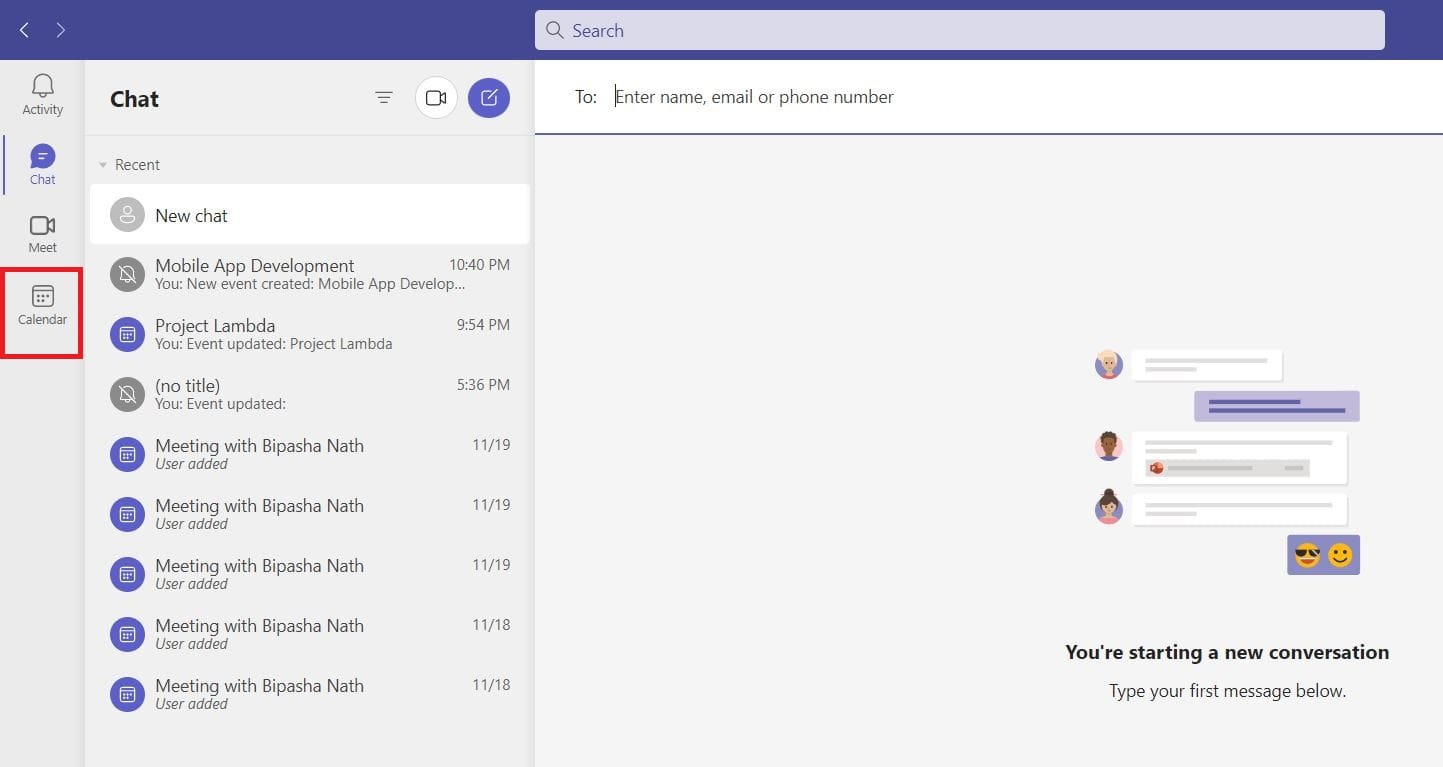
Select the Calendar tab from the left panel on Teams desktop app - The desktop app will open with the Chat tab opened. Select the Calendar tab from the left panel.
- However, the Teams web app will open with the Calendar tab.
Adding Meeting Info
- With the Calendar tab open in front of you, click on the New meeting button in the top-right corner.

Click on the New meeting button in the top-right corner - A new meeting scheduler will open on the screen.
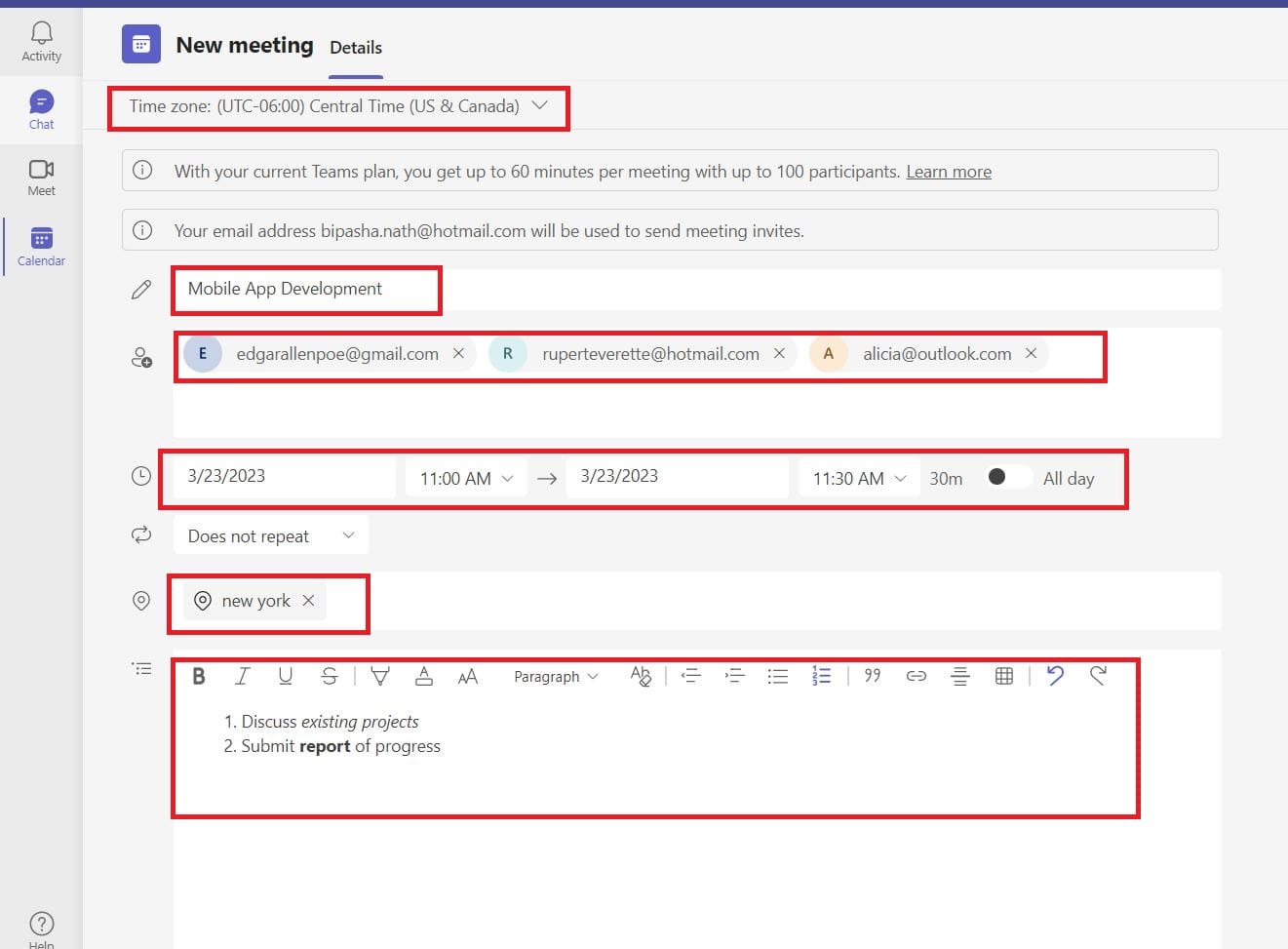
- On top, you’ll see your current time zone. You can change that from the drop-down list.
- In the Add title field, you need to add the meeting name.
- In the Add required attendees field, type in the email addresses of the participants.
- You need to add the date and time for the first meeting instance.

Select meeting duration from the drop-down menus for start and end times - Select the meeting duration from the drop-down menus for start and end times, or schedule the meeting for All day.
- You can also add the location and agenda or details for the meeting.

Also read: Microsoft Teams: How Long Can a Meeting Last
Set Up a Recurring Meeting
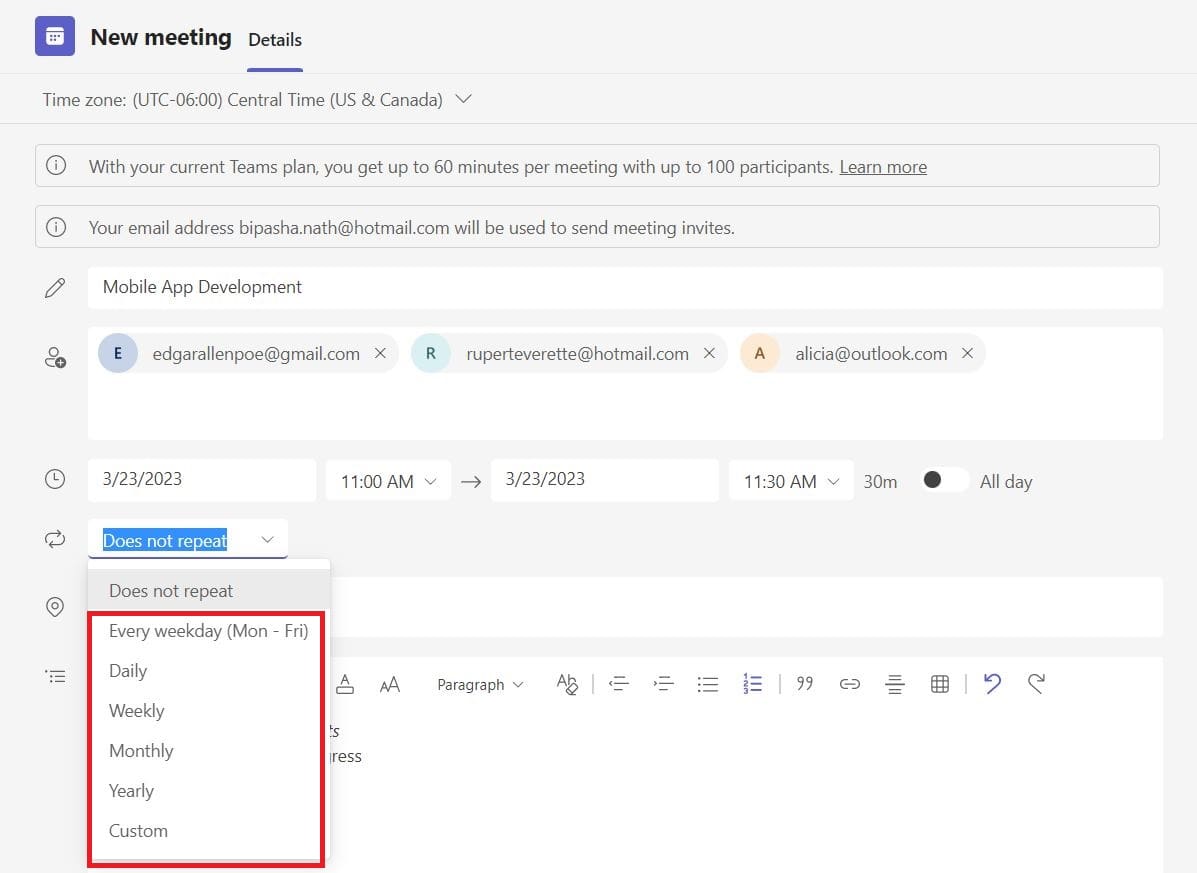
- For any type of recurring meeting set up, click on Does not repeat to open a drop-down list.

Click on Does not repeat to open a drop-down list - Choosing every weekday (Mon-Fri), you can select the days of the week for meeting, repeat time, and end date.
- If you select Daily, a wizard will appear where you can choose the end date and after how many days you want to repeat the schedule.
- You can select Weekly to choose the day for the weekly meeting and the end date. Also choose this option for bi-weekly meetings and select Repeat every 2 weeks.
- For Monthly meetings, you get to choose between a date or day of the week.

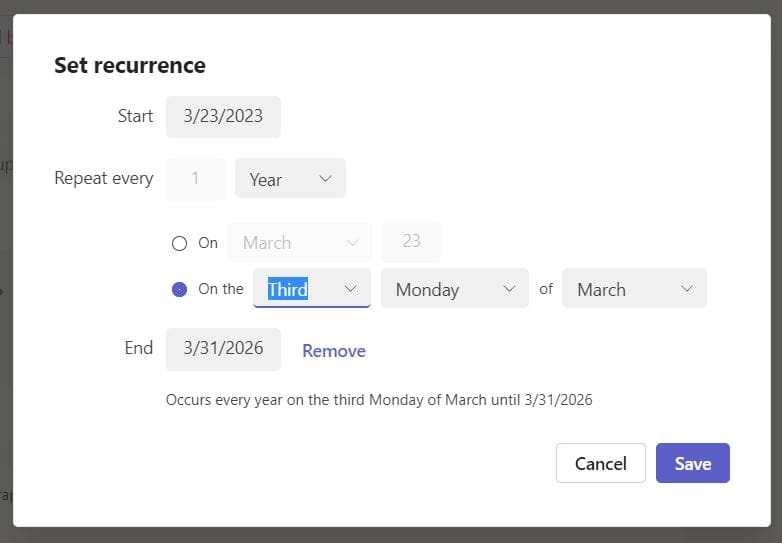
Select between the date of a month or the weekday of the month for Yearly option - The Yearly option will let you select between the date of a month or the weekday of the month, like the first Monday of February.
- With the Custom option, you can perform any type of recurring meetings mentioned above.
- Click on the Save button to close the wizard.
- Click on Send button to complete the process of creating a recurring meeting.
FAQs on Recurring Meetings in Teams
How Do You Set Up a Recurring Meeting With End Date in Teams?
To set up a recurring meeting in Teams, you need to start creating a new meeting. While doing so, click on the Does not repeat drop-down menu and choose any of your preferred options. Then, the Set recurrence wizard will appear. There, you’ll see the End field. Put your cursor in that field and choose the end date for the recurring meetings.
How Do I Add Someone to a Recurring Team Meeting?
Go to your Teams calendar to find the schedule of recurring meetings. Click on the meeting and then click the Edit button. Choose Edit occurrence to add someone to one meeting instance or choose Edit series to add someone for every recurring meeting. Now add people in the field for meeting participants and click on Send update.
Do Recurring Teams Meetings Use the Same Link?
No, for every recurring Teams meeting, there are different meeting links. However, the meeting ID for every recurring meeting will be the same. So, those who want to join the recurring Teams meetings using the meeting ID can easily do so with the same ID.
Conclusion
Many organizations use Microsoft Teams for their official meetings. Sometimes, official meetings have to be arranged at regular intervals, which is a hectic process for anyone. To help you, Teams offers you the feature to set up recurring meetings on this application.
Using it, you can reduce the time needed to set up each meeting manually. Here, I’ve added the effortless and latest method to set up recurring meetings in Teams. Do you often need to use recurring meetings in Teams? How do you think this easy method will help you set recurring meetings in Teams? Is there anything you would like Microsoft to improve about this feature? Let us know in the comments below.
Also, don’t forget to share this article with your friends and on social media. Next, read how to fix Teams error sorry, we couldn’t connect you.




How do you add a participant without having to “Send Update” to the entire team?
This must be an older (or newer) version of Teams. There is no meeting app. Only Calendar. There is no Share Via Outlook option. Instructions for creating a recurring meeting don’t match what is available in current Outlook Software.
How to set up bi-weekly meetings?
Is it possible to customize your own series of dates e.g., the same meeting occurs on the 4th Wednesday of each month and in other or alternate months the 3rd Wednesday
After using the repeat option, the meeting not shown in the calendar, I have to enter each and every day.