Notifications are handy. Without them, you wouldn’t know that an app needs your attention. The problem comes when an app is trying to be too helpful by sending too many notifications.
What can you do when those notifications are driving you crazy? The following guide will show you some tips you can try to tame the beast called Android notifications.
Turn Off Notifications for a Specific App (Oreo)
If there is only one app whose notifications you need to control, you always have the option of turning those notifications off. To turn off notifications for a specific app go to:
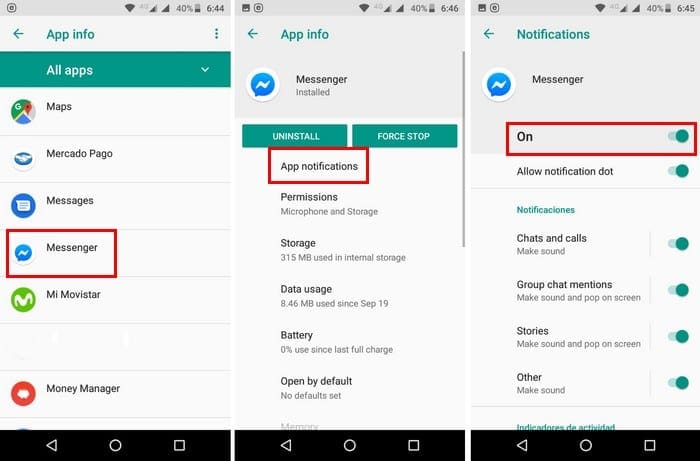
- Settings
- Apps and Notifications
- App Info
- Choose the app with the annoying notifications
- App notifications
- Toggle off the On option
Turn Off App Notifications Using Battery Notification
To tame those notifications using Android Oreo’s Using Battery Notification go to:

- Settings
- Apps & Notifications
- App info
- Tap on the three dots at the top right
- Choose Show system
- Android System
- Swipe down to App consuming battery and tap on the option
- Tap on the importance option
- Choose Low importance

Disable Notifications From the Notification Bar
To quickly disable notifications using the notification bar:
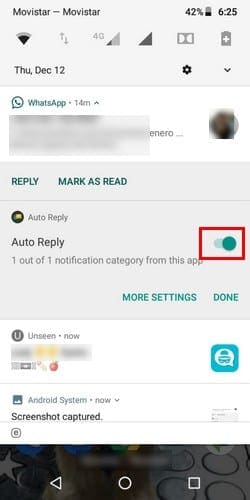
- Swipe down from the notification bar
- Long-press on the notification until it shows a toggle
- When you toggle it off, it will show you a message telling you that you will no longer get those types of notifications anymore
Use Oreo’s Do Not Disturb
The Do Not Disturb feature can make a lot of things go away. To enable this feature go to:

- Settings
- Sound
- Do Not Disturb
- Priority only allows
- Pick the options that best suit you
How to Disable Notifications That Won’t Budge
Some notifications just won’t go away, even if you try to dismiss them. If you have an anti-virus on your Android device such as Eset, the notification of the anti-virus will only budge a little, but you can’t remove it.
Even though it’s a good idea that you don’t remove the notifications, it’s possible to get rid of it.
Go to:

- Settings
- Apps and Notifications
- App Info
- Choose the app with the annoying notifications
- App notifications
- Toggle off the On option
The Eset notification that you couldn’t get rid of will finally go away.
Notification Blocker and Heads-up Off App

You can always count on a third-party app for some help in controlling those annoying notifications. An app you can try is Notification Blocker and Cleaner.
This is a free app that will also help you block notifications for all the apps you want. It has a simple design, and it doesn’t require that you root your phone.
In the app’s main page, there is a notification log that will show you all the notifications it prevented from bothering you. If there is an app whose’s notifications you want to get, just toggle it off in the app list.
To show system apps:
- Tap on the three dots at the top right and go to settings
- Once again, tap on the three dots and select Show system
As soon as you tap on the option, additional options will appear.

The app also has additional features you can get if you upgrade to Premium. You’ll get features such as:
- Disable cleanup animation
- Remove notification from the lock screen
- Remove the app icon from the notification
- Add black theme
- Permanently hide ongoing notifications after a reboot
- Hides ads
- Auto-close after app cleaning
- Remove NCleaner from
Conclusion
Without notifications, you wouldn’t know as soon as possible that an app needs your attention. But, if you can live without notifications, now you know what you can do to make them go away. How will you be dealing with those persistent Android notifications?