Skip to content
LogoTechnipages
LogoTechnipages
  • Topics
        • Android
        • Browsers
        • Gaming
        • Hardware
        • Internet
        • iPhone
        • Linux
        • macOS
        • Office
        • Reviews
        • Software
        • Windows
        • Definitions
        • All Recent Posts
  • Product Reviews
  • About

Outlook: Disable Clutter Folder

Mel HawthorneJanuary 22, 2020 Comments (0)
Outlook Logo Header

A number of email providers have started taking the approach of applying filters to your email. Some of these are pretty reliable like the spam filter but others are less useful, and may even be unwanted. A great example of this is Outlook’s “Clutter” filter, which filters what it determines to be low priority emails out of your inbox, into a clutter folder. The Clutter feature can cause you to miss important updates or information that you’d been waiting for, but it can be disabled.

To disable the Clutter folder in Outlook you need to open up the Outlook web client. If you’ve got the stand-alone Outlook client open, you can just right click on the Clutter folder and select “Manage Clutter”. The Manage Clutter button will open a browser window, you’ll need to sign in with your email account details, and then it will open the Clutter options page directly.

If you don’t have the Outlook stand-alone app open, sign in to the Outlook web application. Once you can see your inbox, click on the cog icon in the top right-hand corner of the window to open the settings. The clutter settings are listed under “Mail > Automatic processing > Clutter”.
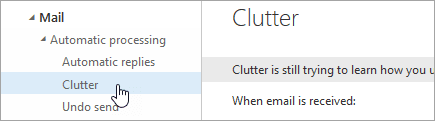
Clutter settings are listed under “Automatic processing”.

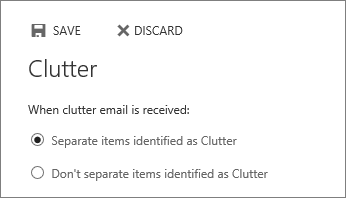
Once you’ve got to the Clutter settings you’ll be presented with one of two layouts. One will have a checkbox labelled “Separate items identified as clutter”. The second has a radio button labelled “Don’t separate items identified as Clutter”. Ensure the “Separate items identified as clutter” option is unchecked in whichever one of these layouts you see, and press “Save” to disable Clutter.
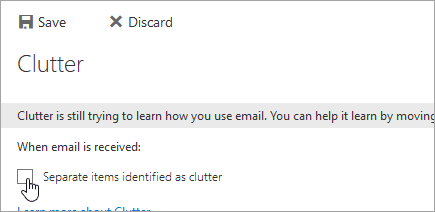
The checkbox “Separate items identified as clutter”.

The radio button “Don’t separate items identified as clutter”.

As an exchange admin it is possible to force-disable Clutter for users, to do so you will need “Exchange Online PowerShell” and an account with “Exchange Service administrator” permissions. The command to disable Clutter for a user is `Set-Clutter -Identity “<username>” -Enable $false` where <username> is replaced with the intended user’s username.

Note: This command can only be run against one user at a time rather than across a domain.

Categories: Office

Author Mel Hawthorne

You Might Also Like

  • Word 365: Enable or Disable AutoRecover Save

    Mitch BartlettOffice
  • Outlook Logo Header

    Turn Mail Notification Sound On/Off in Outlook 2016

    Mitch BartlettOffice
  • Outlook: “Library Not Registered” Error

    Mitch BartlettOffice
  • disable-top-results-outlook-search-results

    How to Disable Top Results from Outlook Search

    Madalina DinitaOffice

Leave a Reply

Your email address will not be published. Required fields are marked *

  • system32 folder opens on startup

    System32 Folder Opens on Startup – How to Fix

  • browser keeps opening hp support

    Browser Keeps Opening HP Support Assistant Tabs 

  • camera not working in vmware

    Camera Not Working in VMware – How to Fix

  • browser screen goes black

    Browser Screen Goes Black Intermittently 

  • computer heating up in hyper v

    Computer Heating Up When Using Hyper-V – How to Fix 

profile pic

The Experts Behind Technipages

My name is Mitch Bartlett. I've been working in technology for over 20 years in a wide range of tech jobs from Tech Support to Software Testing. I started this site as a technical guide for myself and it has grown into what I hope is a useful reference for all.

Learn More

technipages logo white
linkedin icon

Technipages is part of Guiding Tech Media, a leading digital media publisher focused on helping people figure out technology. Learn more about our mission and team here.

© 2025 Guiding Tech Media All Rights Reserved

  • About Us
  • Contact
  • Terms of Use
  • Privacy Policy

© 2025 Guiding Tech Media All Rights Reserved

Information from your device can be used to personalize your ad experience.
Do not sell my personal information.

Last Updated on January 22, 2020 by Mitch Bartlett