
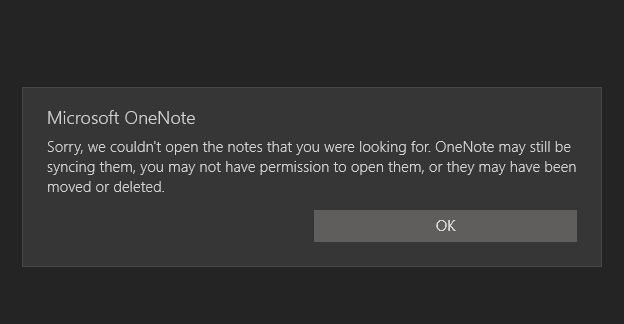
Opening your OneNote notes should be an easy task. All you need to do is double-click on the notes you want to open, and voila, you can access them. Unfortunately, that’s not always the case. The app may sometimes throw an error message informing you it could not open the notes you were looking for. If you’re experiencing the same issue, pursue the troubleshooting solutions below to eliminate this error on Windows and Mac.
Contents
Fix OneNote: Sorry, We Could Open the Notes You Were Looking For
⇒ Quick Fixes
- Update OneNote and check if this quick solution solves the problem. Certain OneNote features and options may not work properly if you’re running outdated app versions.
- Check if other users can open the notes. Maybe another user did move them. Or maybe someone deleted them.
- If you’re not the owner, make sure you have the necessary permissions to open the notes.
Repair or Reset OneNote
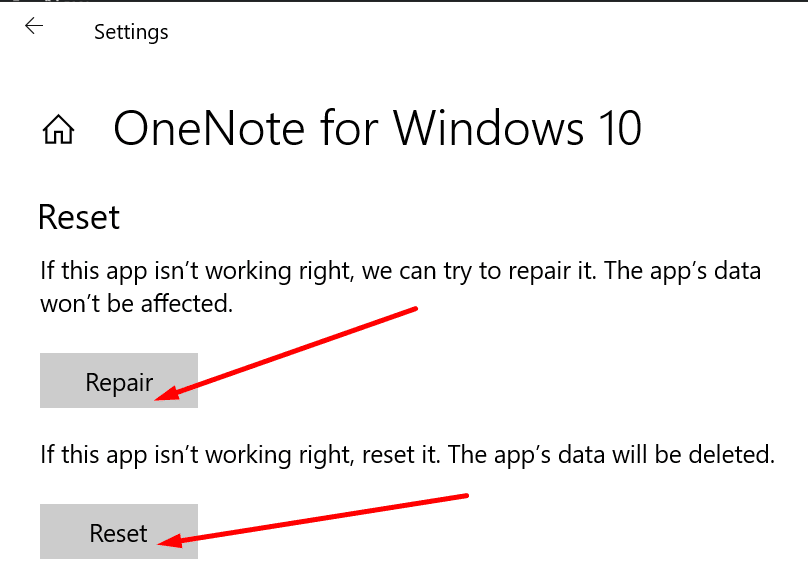
Repairing your OneNote app may solve this problem on Windows 10. But if this solution doesn’t work, try resetting the app and check the results.
- Go to Settings, select Apps, and then click on Apps & Features (left-pane).
- Locate OneNote in your list of apps.
- Select the app and click on Advanced options.
- Scroll down and select the Repair option. Use this option to automatically repair OneNote without deleting app data.
- If the issue persists, hit the Reset button. Keep in mind your app’s data will be deleted.

- Launch OneNote again, enter your login credentials, and check if you can open the problematic notes now.
Clear Old Credentials
Clearing your old OneNote and Office credentials is another potential solution.
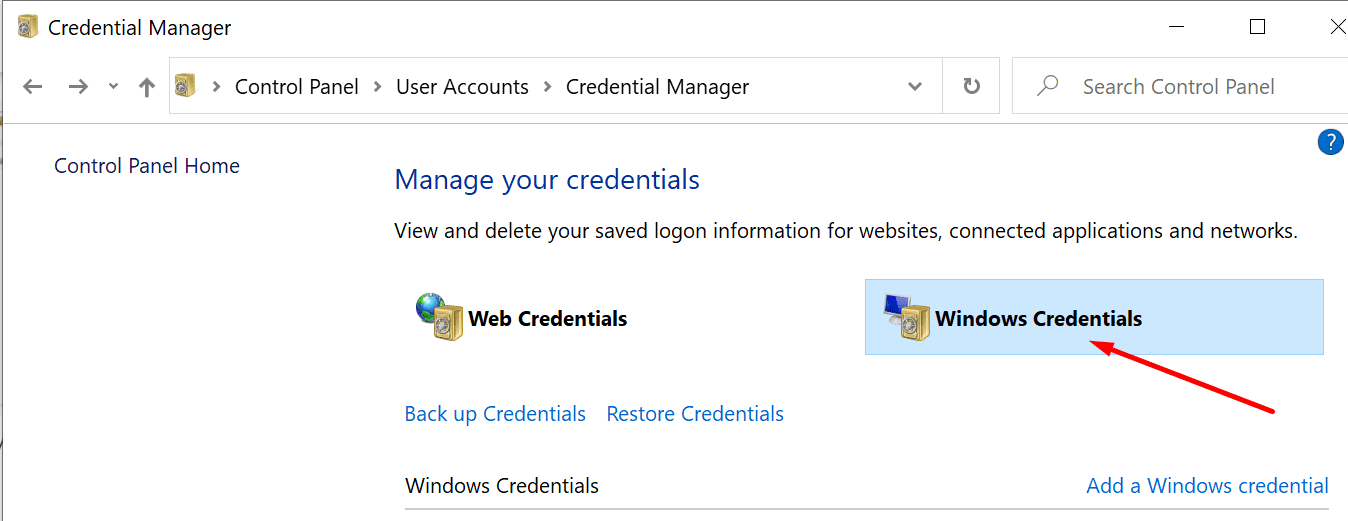
- Type ‘credential manager‘ in the Windows search bar and launch the tool.
- Then click on Windows Credentials.

- Locate your OneNote and Office credentials and hit the Remove button.
On Mac, you need to delete your OneNote password entries from Keychain.
- Log out of OneNote and close all your MS Office apps.
- Launch Finder and go to Applications, select Utilities and click on Keychain Access.
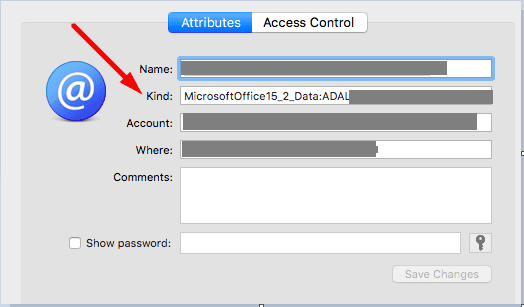
- Then locate and remove the following password entries: Microsoft Office Identities Cache 2 and Microsoft Office Identities Settings 2.
- Additionally, remove all ADAL entries if present.

- Restart your MacBook, launch Onenote, sign in, and check if you can open the problematic notes.
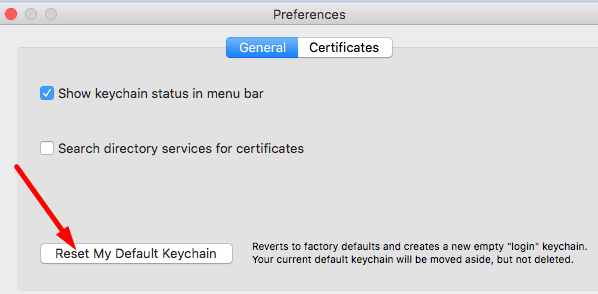
If the error persists, reset your keychain information. Launch Finder, click on Go, select Utilities, and then Keychain Access. Then go to Preferences and click on Reset My Default Keychain. Check if your new keychain solves the problem.
Reinstall OneNote
If this stubborn error refuses to go away, reinstall the app. On Windows 10, go back to Apps & Features, select OneNote, and hit the Uninstall button. On Mac, launch Finder, go to the Applications folder, and drag OneNote to the Trash.
Restart your Windows or Mac computer and reinstall OneNote. Launch the app and check if you can open your notes now.
Conclusion
If OneNote says, it couldn’t open the notes you were looking for, repair the app. If this method doesn’t work, reset the app. Clearing your old Office credentials may help as well. As a last resort, uninstall and reinstall the app. Hit the comments below and let us know which solution worked for you.




These are generic “solutions” that don’t work. I think people post this generic solutions just for the clicks and to collect emails when posting these comments lol
Ok. What is next when none of these steps work? And the one note DOES load on another computer, but not on this computer in multiple user profiles