Skip to content
LogoTechnipages
LogoTechnipages
  • Topics
        • Android
        • Browsers
        • Gaming
        • Hardware
        • Internet
        • iPhone
        • Linux
        • macOS
        • Office
        • Reviews
        • Software
        • Windows
        • Definitions
        • All Recent Posts
  • Product Reviews
  • About

Office 365: You Are Not Authorized to Access This Site

Madalina DinitaFebruary 8, 2021 Comments (0)

Office 365 users may sometimes receive an error message informing them they don’t have the authorization to access certain webpages. This can happen when they’re trying to access Outlook on the Web or other online Office 365 services.

Contents

  • 1 How to Fix Office 365 “You Are Not Authorized to Access This Site” Error
    • 1.1 Update Data Source Settings
    • 1.2 Repair Office 365
    • 1.3 Contact Your Admin
    • 1.4 Conclusion

How to Fix Office 365 “You Are Not Authorized to Access This Site” Error

Update Data Source Settings

If you recently edited your account settings or changed your password, update your data source settings.

  1. First, log out of the problematic Microsoft service if you’re already logged in.
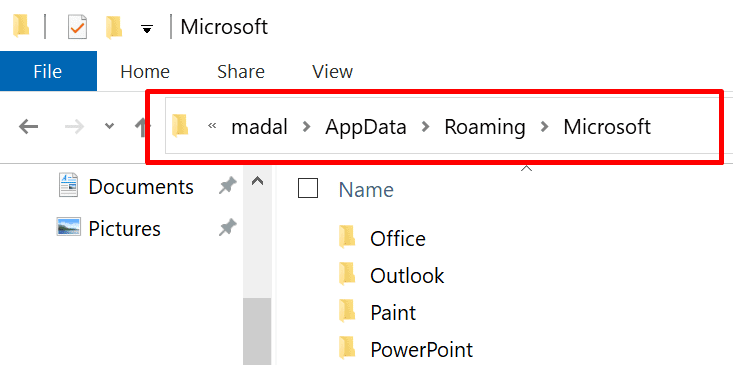
  2. Type %appdata% in the Windows Search bar and hit Enter to open your roaming profile folder.
  3. Once the C:\Users\UserName\AppData\Roaming path visible, open the Microsoft folder and locate the folder of the program that triggered the error.app data roaming folder microsoft
  4. Then rename that folder. You can simply add the _OLD extension at the end of the folder name.
  5. Close Explorer, launch the problematic service again and log back in. Check if the issue persists.
Repair Office 365

Repairing your Office 365 installation package allows you to fix the file corruption problems that may have triggered this error.

  1. Navigate to Control Panel and select Programs.
  2. Then click on Programs and Features.
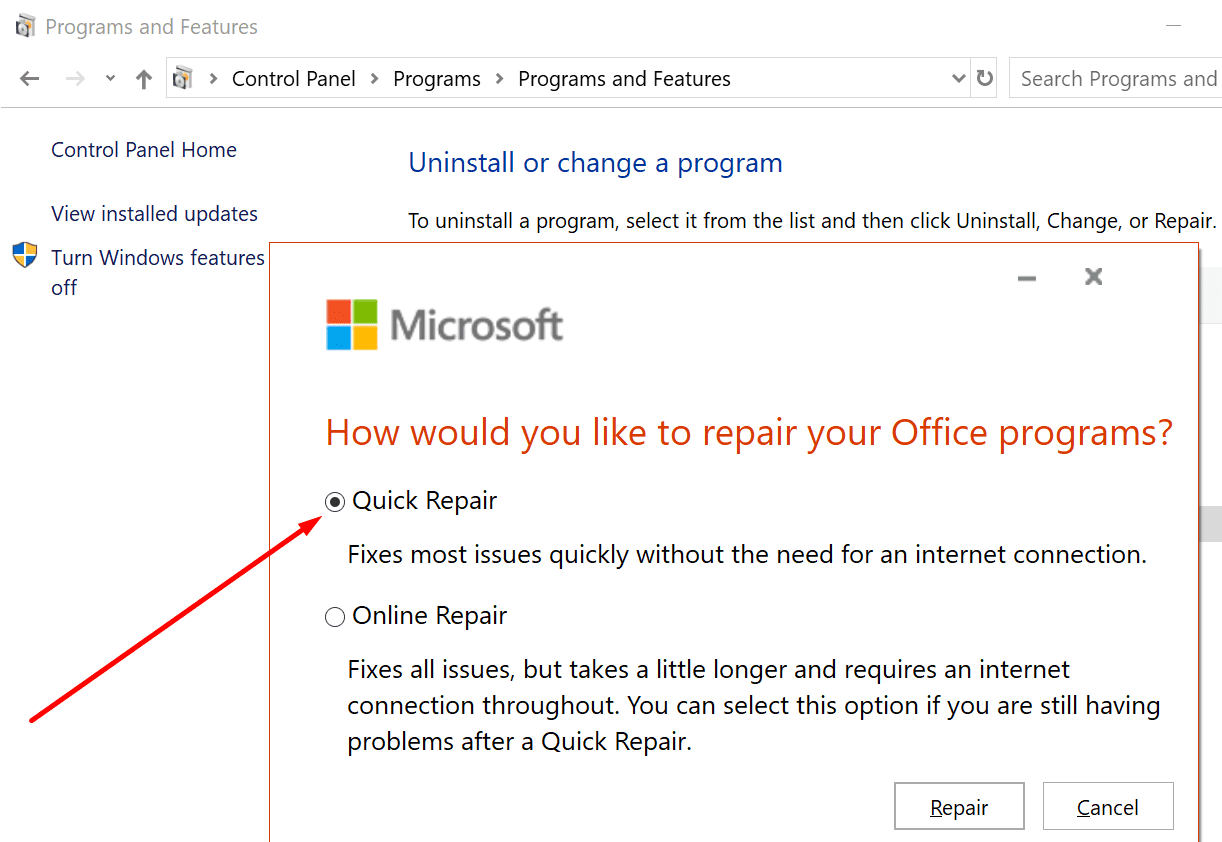
  3. Select Office 365 or Microsoft 365 and hit the Change button.
  4. On the new repair window, select Quick repair. Let the tool scan and repair your Office installation files. Then restart your computer and check the results.quick repair office windows 10
  5. If Office 365 still says you don’t have the authorization to access that site, repeat the steps above and run an Online repair.
Contact Your Admin

Additionally, if you’re using a work or school account, contact your IT admin. Ask them to check all the settings and permissions associated with your account. If you don’t have sufficient permissions to access certain sites, your IT admin should be able to whitelist your account.

Conclusion

If Office 365 says you don’t have the authorization to access a certain site, most likely, access to that site has been restricted. Contact your IT admin and ask them to grant your access to the respective page.

If you found other ways to troubleshoot this problem, share your ideas in the comments below.

Categories: Office

Author Madalina Dinita

Madalina has been a Windows fan ever since she got her hands on her first Windows XP computer. She is interested in all things technology, especially emerging technologies -- AI and DNA computing in particular.

You Might Also Like

  • Word 365: Enable or Disable AutoRecover Save

    Mitch BartlettOffice
  • Outlook Logo Header

    Turn Mail Notification Sound On/Off in Outlook 2016

    Mitch BartlettOffice
  • Integrating MyScript Math into MS Word

    MonaOffice
  • disable-top-results-outlook-search-results

    How to Disable Top Results from Outlook Search

    Madalina DinitaOffice

Leave a Reply

Your email address will not be published. Required fields are marked *

  • roblox error 280

    Having Trouble With Roblox Error 280? Here’s What to Do

  • hard disk smart command error

    Hard Disk SMART Command Failed – How to Fix 

  • files automatically deleted on click

    Files Getting Deleted Automatically? Here Are Some Reasons Why

  • error 400 when signing in

    Encountered Error 400 When Signing In to Microsoft? Here’s What You Can Do 

  • unable to create notebook error in onenote

    We Were Unable to Create Your Notebook Error in OneNote – Common Fixes 

profile pic

The Experts Behind Technipages

My name is Mitch Bartlett. I've been working in technology for over 20 years in a wide range of tech jobs from Tech Support to Software Testing. I started this site as a technical guide for myself and it has grown into what I hope is a useful reference for all.

Learn More

technipages logo white
linkedin icon

Technipages is part of Guiding Tech Media, a leading digital media publisher focused on helping people figure out technology. Learn more about our mission and team here.

© 2026 Guiding Tech Media All Rights Reserved

  • About Us
  • Contact
  • Terms of Use
  • Privacy Policy

© 2026 Guiding Tech Media All Rights Reserved

Information from your device can be used to personalize your ad experience.
Do not sell my personal information.

Last Updated on February 8, 2021 by Judy Sanhz