
Skip to content
LogoTechnipages
LogoTechnipages
  • Topics
        • Android
        • Browsers
        • Gaming
        • Hardware
        • Internet
        • iPhone
        • Linux
        • macOS
        • Office
        • Reviews
        • Software
        • Windows
        • Definitions
        • All Recent Posts
  • Product Reviews
  • About

Linux Mint: How to Select and Configure an Audio Device

Mel HawthorneDecember 15, 2020 Comments (4)

Most computers have at least one form of audio output device. Laptops have built-in speakers, and most computers will be connected to some speakers or a headset. If you plug in a second audio output device though, you then have to instruct the computer as to which one you want to use.

The same goes for input devices, you may have a microphone built-in to a headset and another built-in to a webcam. While there are times for either of these options, you’ll only want to use one at a time.

To manage your audio devices in Linux Mint, press the Super key, then type “Sound” and hit enter.

Tip: The “Super” key is the name that many Linux distributions use to refer to the Windows key or the Apple “Command” key, while avoiding any risk of trademark issues.
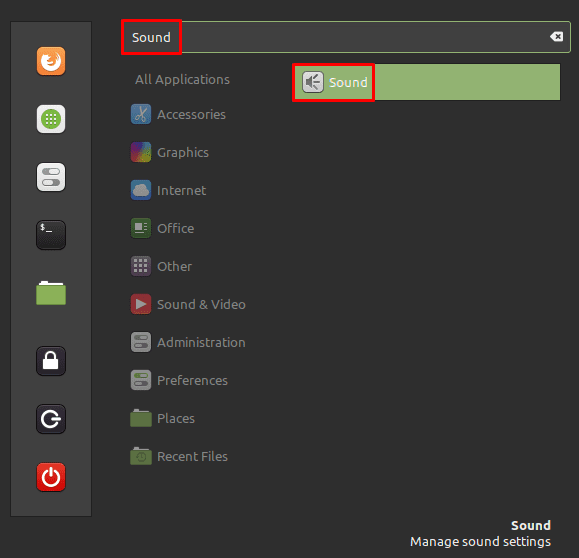
Press the Super key, then type “Sound” and hit enter.

To change your output device, simply click on an alternative in the device list at the top. “Output Profile” allows you to choose if you’re using a stereo output device or a 2.1, 4.0, 4.1, 5.0, or 5.1 surround sound setup. Depending on your output profile you will be able to configure the slider bars. “Volume” sets the overall volume level, “Balance” allows you to make the left or right side louder than the other, “Fade” is similar to the balance option but for front/back speakers, and “Subwoofer” allows you to adjust the volume of the subwoofer independently to allow you to manage the bass balance.

Choose an audio output device, then pick your speaker setup and configure the balance.

To change your audio input device, switch to the “Input” tab, then select a new device from the list. For input devices, you can only adjust the input volume, the “Input level” bar allows you to see a visual representation of the volume of the current output of your microphone.
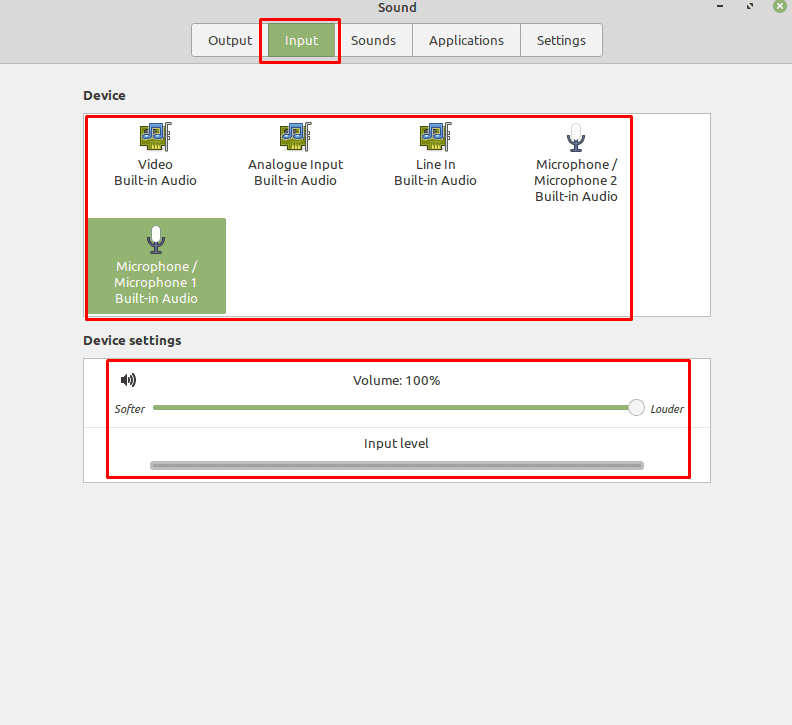
Switch input devices in the “Input” tab and adjust the output volume.

Categories: Linux

Author Mel Hawthorne

You Might Also Like

  • Linux Mint: How to Configure the Menu Applet

    Mel HawthorneLinux
  • Linux Mint: How to Prevent the Screensaver From Locking the Computer

    Mel HawthorneLinux
  • Linux Mint: How to Configure a Laptop Touchpad

    Mel HawthorneLinux
  • Linux Mint: How to View System Information

    Mel HawthorneLinux

Comments

  1. suraweera says:
    August 13, 2023 at 7:56 am

    not at all

  2. panagiotis says:
    June 13, 2023 at 1:57 pm

    hello, i just bought new pc (first day in use) cpu >7600, gpu > 7600, the problem is that i dont have sound, i know is total new graphic card oand wont be drivers for the momment, is there any other solution than to wait for new driver for 7600 ?

    Thank u !

  3. John Cregan says:
    March 5, 2022 at 9:57 am

    It seems there is no option to adjust the “tone” (i.e. treble or base). Is that right?

  4. Anuj says:
    October 1, 2021 at 4:00 am

    is there any terminal command to open this? while restart/starting the device I always have to change the output and input device for HDMI.

Leave a Reply

Your email address will not be published. Required fields are marked *

  • computer heating up in hyper v

    Computer Heating Up When Using Hyper-V – How to Fix 

  • clipchamp unexpected application error

    Clipchamp Unexpected Application Error: Here’s the Solution 

  • winload.efi file missing error

    Winload.EFI File Missing Error on Boot – How to Fix

  • fix error 0x9cfc7550

    How to Fix Error 0x9cfc7550 (We Couldn’t Create a New Partition) in Windows 

  • fix error code 0x3000008 1

    How to Fix Error Code 0x3000008 for Remote Desktop Connection

profile pic

The Experts Behind Technipages

My name is Mitch Bartlett. I've been working in technology for over 20 years in a wide range of tech jobs from Tech Support to Software Testing. I started this site as a technical guide for myself and it has grown into what I hope is a useful reference for all.

Learn More

technipages logo white
linkedin icon

Technipages is part of Guiding Tech Media, a leading digital media publisher focused on helping people figure out technology. Learn more about our mission and team here.

© 2025 Guiding Tech Media All Rights Reserved

  • About Us
  • Contact
  • Terms of Use
  • Privacy Policy

© 2025 Guiding Tech Media All Rights Reserved

Information from your device can be used to personalize your ad experience.
Do not sell my personal information.

Last Updated on December 15, 2020 by Mitch Bartlett