

Just because you play nice doesn’t mean that everyone on LinkedIn is going to. You’re professional as a professional can be, but that doesn’t guarantee that you won’t come across other members that are begging to be blocked.
Don’t be afraid about blocking someone on LinkedIn, if you ever decide to forgive them, you can always unblock them. The blocking process is something that can be undone at any time.
Contents
What Happens When You Block a User/Someone on LinkedIn
It’s good to know what going to happen if you do go through with blocking that user. That way, you can decide with all the information at hand if it’s worth blocking this user or not.
If you do block this user, you won’t be able to see their profile, and if that user gave you any recommendations/endorsements, those would be gone as well.
LinkedIn will also stop suggesting names for options such as People also Viewed and People you may know. You obviously won’t be able to get or send this blocked users any messages. Any messages you sent each other will also be gone.
You also can’t see any notifications that involve this user either. With this information in mind, think long and hard if blocking this user is worth all the previously mentioned info.
How to Block Someone on LinkedIn
To block someone on LinkedIn, you’ll need first to visit their profile. As you may already know, the other person will see when you visit their profile, but when you block them, the entry of your visiting will go away.
Once you’re on the user’s profile, click on the More button that’s next to the blue Message button. The option to block the user will be the last one down.
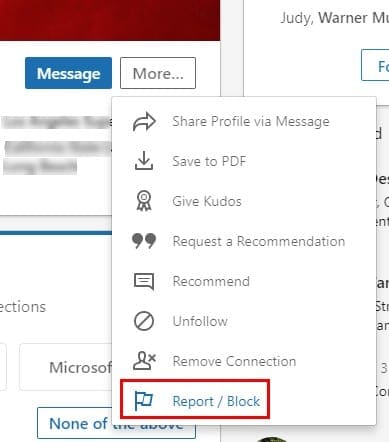
After clicking on this option, a new window will appear that will show you three options to either report the account, an image, or block the user altogether. Click on the Block option to make that user go away.
You’ll also see a fine print that’s your choice to read or not. If you want to go through with it, click Block, but if not, click on Go Back. When you block someone on LinkedIn, the blocked user doesn’t get a notification.
Blocking someone on LinkedIn on your Android device involves the same steps as the desktop version.
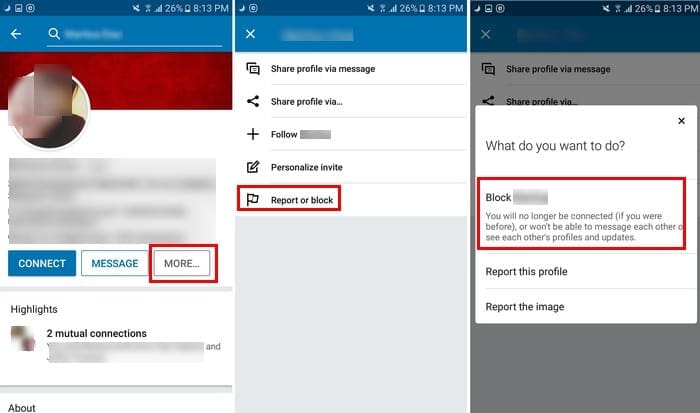
How to Unblock Someone on LinkedIn
As I mentioned before, it’s also possible to unblock someone if you ever regret doing so. To unblock someone go to:
- Click on the Me icon at the top
- Choose Settings and Privacy
- In the Privacy tab, click on the Blocking and hiding option
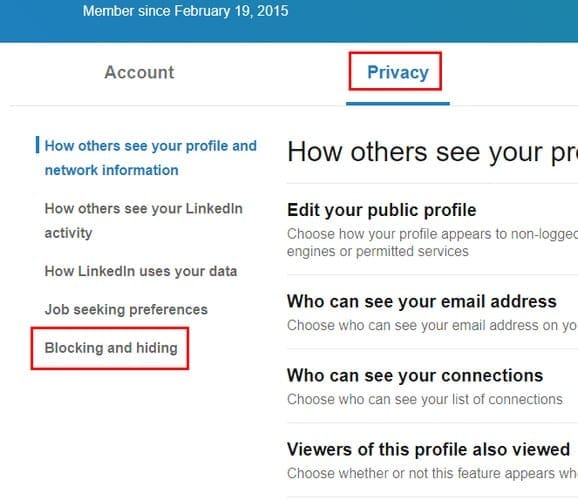
Under Blocking and Hiding, click on the Blocking option. By clicking on this option, you’ll unveil all the users you’ve blocked (even if it’s been a few seconds since you’ve blocked them).
To the right of the user’s name, you’ll see a blue Unblock option. When you click on this option, you’ll need to re-enter your LinkedIn password to unblock the user.
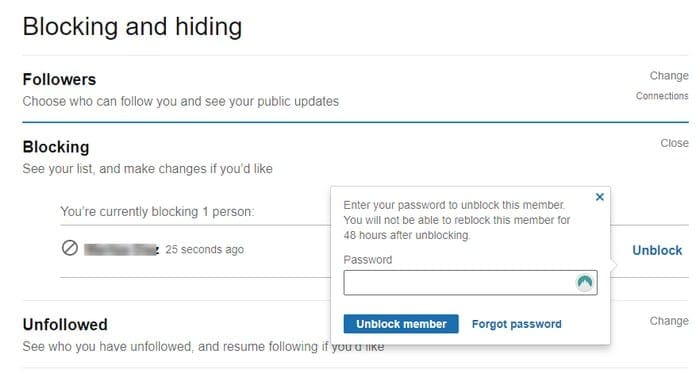
You’ll also see a message letting you know that as soon as you unblock that user, you won’t be able to block them again for 48 hours.
Conclusion
It’s not a pleasant experience having to block someone on LinkedIn, but some users don’t leave you much choice. Whether you’re going to block the user on your computer or through your Android device, you’ll still get the job done. How many people do you need to block? Let me know in the comments.



I have sent bad messages to a colleague of mine on LinkedIn and before he opens the conversation and read them, i blocked him.
Would he still be able to read the messages or the messages will be gone?
Please answer me as soon as possible, a feel ashamed and don’t want him to read what i wrote.