Skip to content
LogoTechnipages
LogoTechnipages
  • Topics
        • Android
        • Browsers
        • Gaming
        • Hardware
        • Internet
        • iPhone
        • Linux
        • macOS
        • Office
        • Reviews
        • Software
        • Windows
        • Definitions
        • All Recent Posts
  • Product Reviews
  • About

How to Install a Python Module With PIP

Mel HawthorneNovember 10, 2020 Comments (0)

Python is a relatively simple programming language that’s not too difficult to pick up. Some of Python’s functionality isn’t included in the main Python libraries, instead, it’s included via optional modules. You can include any required modules in your Python code with a single line command. Not all modules are installed by default however, sometimes you will have to download the module first to be able to use it. Python has a package manager to help install any modules you don’t have, just like “apt-Get” is used to install Linux packages.

The Python package manager is called PIP. PIP is short for either “Preferred Installer Program” or “Pip Installs Packages” depending on personal preference. If PIP isn’t installed by default on your Linux system you can install it from apt with the package name “python-pip-whl” and “python3-pip”.

Note: Python 2.7 and Python 3 have different versions of PIP. You don’t necessarily need both, but they can only affect packages for their respective python environments. The PIP and PIP3 commands are interchangeable.

How to install a python module with PIP

The first step of installing a package with PIP is to work out what the package is called. To do so you need to use the search function with the command “pip3 search [search term]”. For example, you can type “pip3 search md5” to search for modules relating to the md5 hashing algorithm. The package name is on the left, with a short description listed on the right.
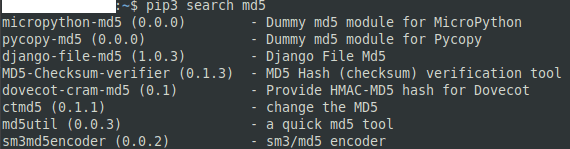
Use the command “pip3 search [search term]” to search for a package to install.
To install a module you’ve found, type the command “pip3 install [package name]” and pip will automatically collect and install the files you need. For example, the command “pip3 install md5utils” will install the “md5utils” module in python3.

Use the command “pip3 install [package name]” to install a specifically named package.
 

To be able to use a downloaded module in python you need to import the module into your code. To do so, you need to include the line “import [module name]”, for example, “import md5utils”. The import statement should be one of the first lines in your code.


Categories: Software

Author Mel Hawthorne

You Might Also Like

  • Setting up Houseparty Chrome App

    MonaSoftware
  • How to Always Make Microsoft Edge Open in Private Mode

    Judy SanhzSoftware
  • How To Integrate Monday.com Into Microsoft Teams

    MonaSoftware
  • 100+ Best Snapchat Lenses for Cool Selfies in 2023

    100+ Best Snapchat Lenses for Cool Selfies in 2023

    Tamal DasAndroid

Leave a Reply

Your email address will not be published. Required fields are marked *

  • winload.efi file missing error

    Winload.EFI File Missing Error on Boot – How to Fix

  • fix error 0x9cfc7550

    How to Fix Error 0x9cfc7550 (We Couldn’t Create a New Partition) in Windows 

  • fix error code 0x3000008 1

    How to Fix Error Code 0x3000008 for Remote Desktop Connection

  • fix error code 0x80190001 1

    How to Quickly Fix Error 0x80190001 for Microsoft or Outlook Account Login 

  • fix filecoauth.exe application error

    Fix FileCoAuth.exe Application Error 

profile pic

The Experts Behind Technipages

My name is Mitch Bartlett. I've been working in technology for over 20 years in a wide range of tech jobs from Tech Support to Software Testing. I started this site as a technical guide for myself and it has grown into what I hope is a useful reference for all.

Learn More

technipages logo white
linkedin icon

Technipages is part of Guiding Tech Media, a leading digital media publisher focused on helping people figure out technology. Learn more about our mission and team here.

© 2025 Guiding Tech Media All Rights Reserved

  • About Us
  • Contact
  • Terms of Use
  • Privacy Policy

© 2025 Guiding Tech Media All Rights Reserved

Information from your device can be used to personalize your ad experience.
Do not sell my personal information.

Last Updated on November 10, 2020 by Mitch Bartlett