Skip to content
LogoTechnipages
LogoTechnipages
  • Topics
        • Android
        • Browsers
        • Gaming
        • Hardware
        • Internet
        • iPhone
        • Linux
        • macOS
        • Office
        • Reviews
        • Software
        • Windows
        • Definitions
        • All Recent Posts
  • Product Reviews
  • About

How to Use Your Android Device’s Camera for Real-Time Wallpaper

Judy SanhzNovember 15, 2021 Comments (0)
Fix-Blue-Screen-Errors-Android

When it comes to wallpapers, you have quite a few of them to choose from. You can add Disney wallpaper to your device, or you can set a different wallpaper for dual displays on your Windows computer. But have you ever tried using your device’s camera for real-time wallpaper?

By following these instructions every time you move, your wallpaper will consist of where you’re pointing your device’s camera. To make this happen, you’re only going to need to install one app.

How to Add Transparent Wallpaper to Any Android Device

The app you’re going to need to use your device’s camera as real-time wallpaper is called Live wallpaper – Transparent. Once you have the app installed, it’s going to ask you for the necessary permissions. Once the app is up and running, choose the Transparent option from the app’s main page.
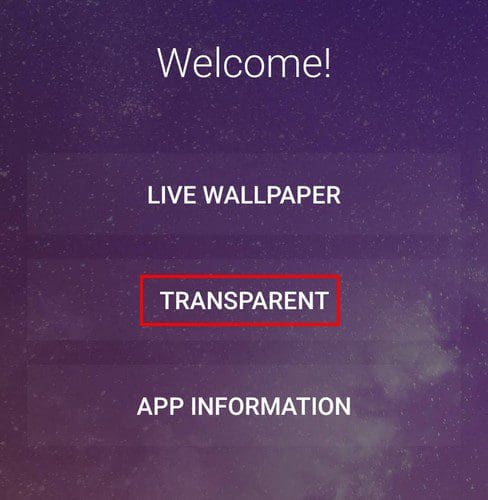
Live Wallpaper Andnroid

You’ll need to choose whether you want the rea-time wallpaper for your home screen or your lock screen and home screen. Now you can safely exit the app, and you’ll notice how whatever your device’s camera is pointing at will be your real-time wallpaper.

As long as you have this app installed, you won’t be able to use face detection to do things such as unlock your Android Device. Your camera will already be in use by the app. Also, the app will use a lot of battery power. So if you’re usually running low on battery, then using this app might not be such a good idea.

Conclusion

If you’re tired of using the traditional wallpaper, you can always use your device’s camera for real-time wallpaper. Just take into consideration the battery power usage and not being able to use face detection. But if you’re OK with that, enjoy! Do you think you’re going to give the app a try? Let me know in the comments below, and don’t forget to share the article with others on social media.

Categories: Android

Author Judy Sanhz

I am a tech geek who loves technology. I have been writing about tech for over a decade, covering various devices and programs. I write about Android, Apple, and Windows devices and programs. I stay updated on the latest gadgets, upgrades, features, and news. I aim to make complicated tech information easy for everyone to read. I've been with TechniPages from the beginning to help others fix their tech issues with the easy-to-follow guides.

You Might Also Like

  • How to Turn the Galaxy Z Fold 5 Off and On

    Andrew MyrickAndroid
  • Can’t Connect to Your Hotspot on Android? How to Fix

    Andrew MyrickAndroid
  • WhatsApp: How to Change Your Phone Number

    Judy SanhzAndroid
  • How to Use Google Assistant Routines on Android

    Andrew MyrickAndroid

Leave a Reply

Your email address will not be published. Required fields are marked *

  • how to make chromebook run faster

    8 Ways to Make Your Chromebook Run Faster

  • error code 0xC0000428

    What Is Error Code 0xC0000428 and How to Fix It

  • windows 11 usb tethering

    Your Guide to USB Tethering on Windows 11

  • find the serial number of a laptop

    6 Ways to Find the Serial Number for Your Laptop

  • battery issues after windows 11 update

    Battery Issues After Windows 11 Update? Here’s the Fix

profile pic

The Experts Behind Technipages

My name is Mitch Bartlett. I've been working in technology for over 20 years in a wide range of tech jobs from Tech Support to Software Testing. I started this site as a technical guide for myself and it has grown into what I hope is a useful reference for all.

Learn More

technipages logo white
linkedin icon

Technipages is part of Guiding Tech Media, a leading digital media publisher focused on helping people figure out technology. Learn more about our mission and team here.

© 2026 Guiding Tech Media All Rights Reserved

  • About Us
  • Contact
  • Terms of Use
  • Privacy Policy

© 2026 Guiding Tech Media All Rights Reserved

Information from your device can be used to personalize your ad experience.
Do not sell my personal information.

Last Updated on November 15, 2021 by Judy Sanhz